You have a task
MTA-Hub recommendation
Enter the size and quality of your list, the topic and the email sequence. The Hub picks servers, addresses and domains and works out how fast you can send.
See the questionnaire
The Hub works out the servers, IP addresses, domains and budget for your mailing. You see what the infrastructure will consist of and what the launch will cost before you rent your first VDS.

All estimates, the infrastructure make-up and costs — in one place.
Real interfaceList, topic and sending scenario
Make-up, cost estimate and launch time
Comparison, PDF / CSV and deployment
01 / What a specification includes
A specification brings everything together: servers, sending IP addresses, domains and a cost estimate. Before you buy anything, you see what you will need and what it will cost to run.
 Enlarge
The figures come from the example on screen. The make-up and cost of your infrastructure will depend on your answers in the questionnaire, the configurations you choose and the prices.
02 / Planning modes
You do not need to know in advance how many servers or IPs you need. Start with what you know: the mailing task, the sending volume you need, or your budget.
MTA-Hub recommendation
Enter the size and quality of your list, the topic and the email sequence. The Hub picks servers, addresses and domains and works out how fast you can send.
See the questionnaireLimit the speed per day
Set how many emails you need to send a day. The builder works out how many servers, IP addresses and domains that takes.
See the make-upBudget limit
Enter how much you are ready to spend. The Hub picks the make-up and shows what can and cannot be done for that money.
See the cost estimate03 / How the builder works
Change the data and the builder recalculates the result. Check the make-up, read the explanations and save the option that suits you.
Save the specification, create another option to compare, or export the result to PDF / CSV.
EnlargeFirst — the facts about the task. The size of the list sets the scale, while list quality, topic and strategy refine the estimate.
 Enlarge
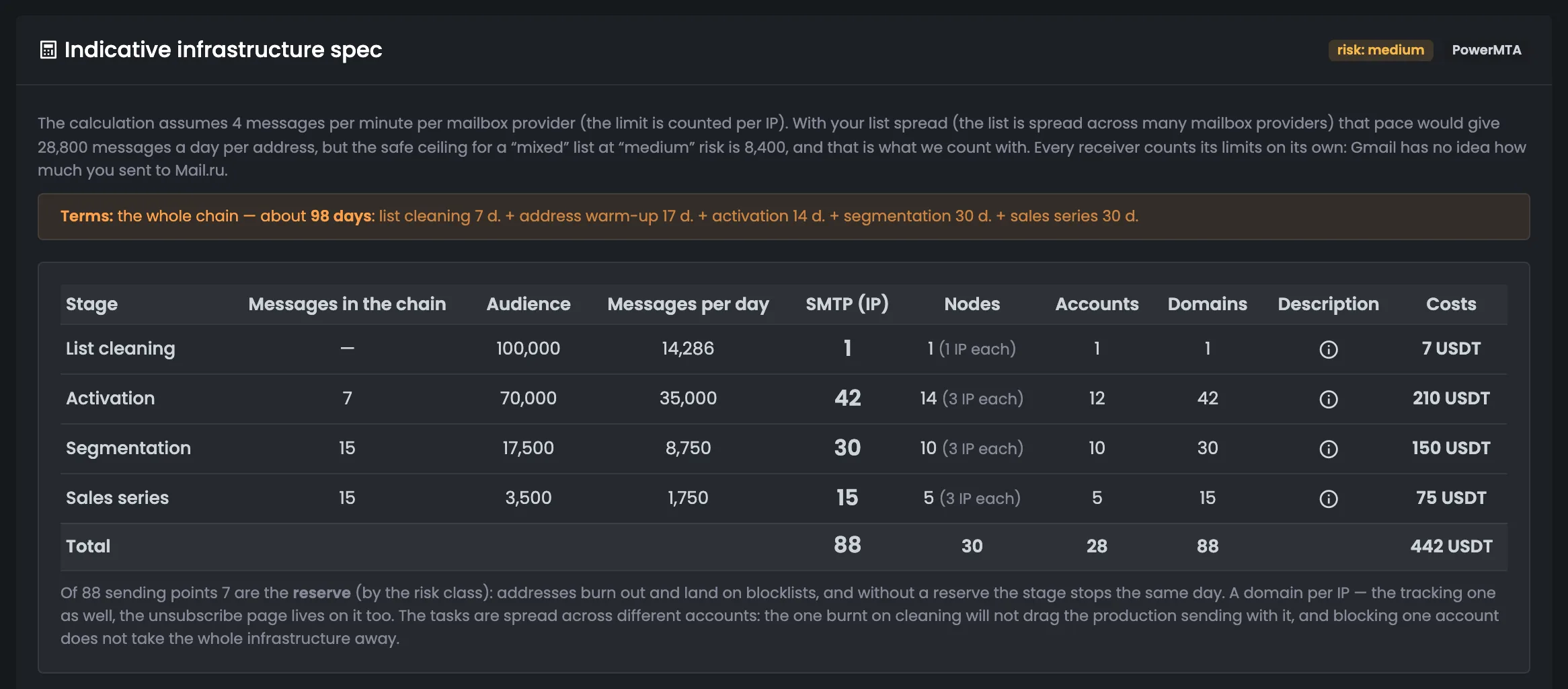
In this example the plan includes 30 servers, 88 IP addresses and 88 domains. The table shows what is needed at which stage.
To start — including domain registration.
From the second month — server and IP rent.
 Enlarge
Registering 88 domains — 1,056 USDT — is already included in the start-up amount. It is a separate cost item and is not added to the monthly rent.
Example B is a builder estimate; it differs from the saved Lumacart specification above. Both examples show the interface, not ready-made pricing.
04 / Calculation logic
The builder takes into account your list data, strategy and prices. Explanations tell you why the specification has exactly these resources.
Where to set your own pricesThe size of the list, where it came from, which mailbox providers the recipients use, the topic and how long ago it was last mailed — these set the risk assessment and the planned sending speed.
How many emails, in what order the stages go and what the deadlines are — this decides which resources each task gets.
The cost estimate uses your own VDS and domain prices. If you have not set them, it uses the directory of hosting providers and plans.
The estimate comes with notes: how much spare capacity you need, where to place servers, whether suitable hosting providers exist and what matters for the launch.
A specification is a plan. Real volumes and timing are visible only after launch: from how the MTA runs, the warm-up and monitoring data.
05 / Interface in detail
All 15 screens of the “Specifications” module: from the questionnaire and cost estimate to comparing options and checking what is already assembled.
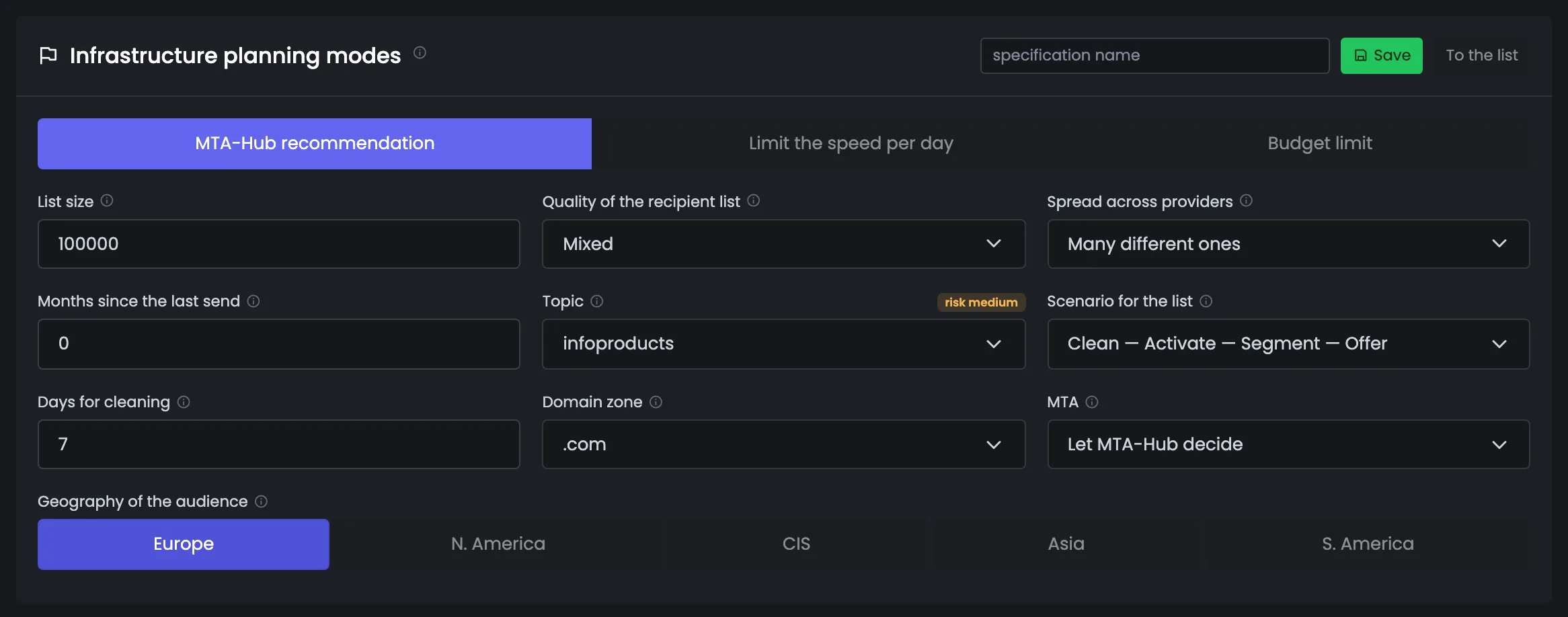
Every estimate starts here. You answer questions about your task: what list you have and where it came from, what the mailing is about, how you will work with the list — from cleaning to sales emails — and at what prices you are ready to buy servers and domains. The builder recalculates the specification as you fill it in: change the list size or the topic, and you immediately see how many servers, IP addresses, domains, how much money and how many days it takes. The same questionnaire always gives the same make-up and the same cost estimate.
The estimate starts with choosing a mode. “MTA-Hub recommendation” picks the make-up for the size of your list and safe limits, “Limit the speed per day” — for the number of emails you need a day, and “Budget limit” — for the amount you are ready to spend, and it tells you what had to be given up. Then come questions about the list: where it came from and how long ago it was last mailed set the sending pace and the risk level, and so how many addresses and servers you will need. If you are unsure of your answers, start with “MTA-Hub recommendation”: the builder recalculates as you fill it in, and you see the result right away.
EnlargeEnter real data: different answers in the questionnaire can change the number of servers, IP addresses, domains and the cost.
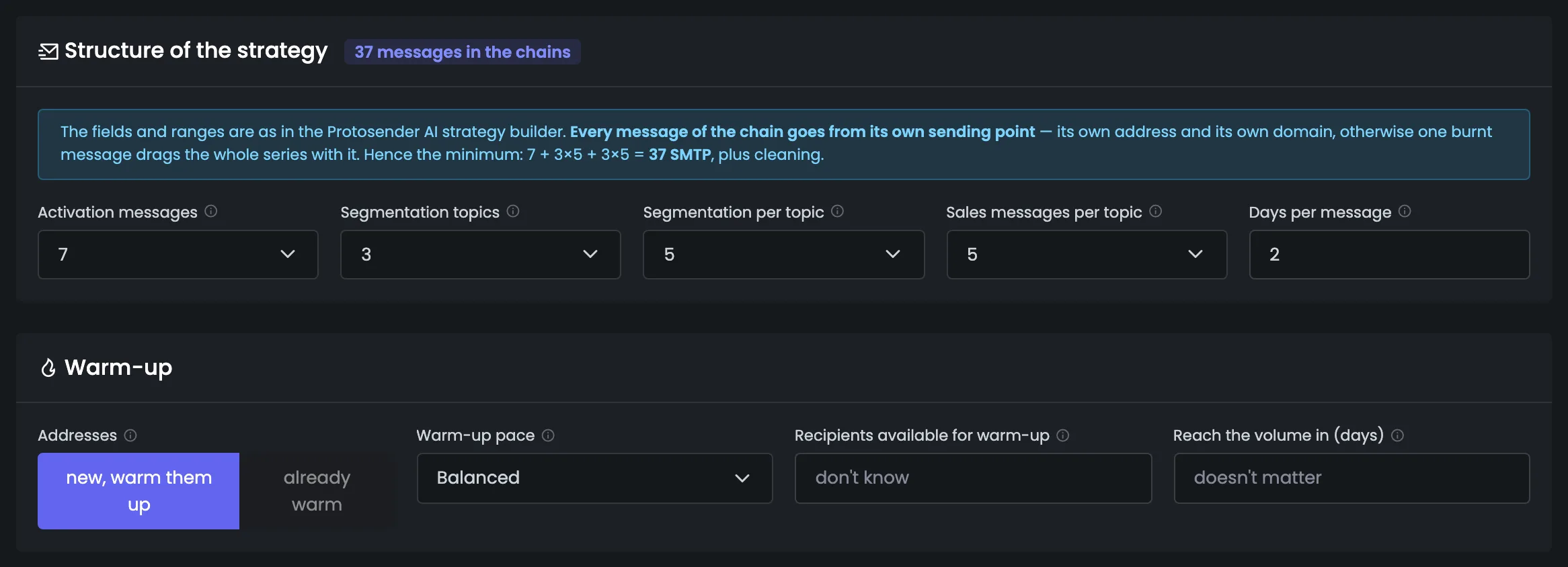
Here you set how the work with the list will go and how new addresses will be warmed up. For each part of the sequence you enter the number of emails and how many days each email gets — from this the builder works out how many sending points you need: each email in the sequence goes out from its own IP address and its own domain. Next to the heading you see right away how many emails the sequences hold in total, and the hint above the fields shows the minimum number of SMTPs. The second part is warm-up: whether your addresses are new or already warmed up, and at what pace to ramp them up. In the example the sequence is 7 + 3×5 + 3×5 = 37 emails, so you need at least 37 SMTPs plus addresses for cleaning.
 Enlarge
Only the plan is set here. The warm-up itself is started and tracked in a separate Hub module.
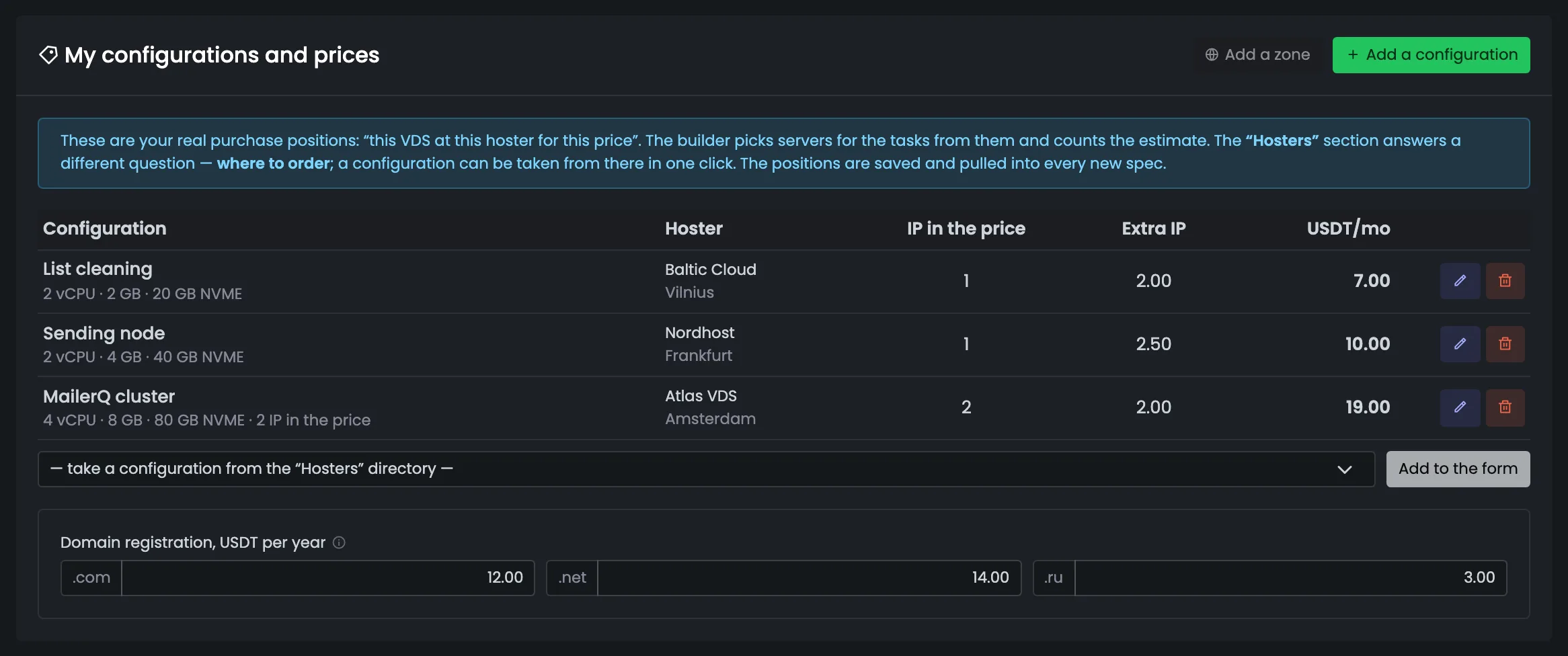
Here you enter your real purchase terms: “this VDS at this hosting provider at this price”. From these items the builder picks servers for each task on its own — taking the cheapest one that fits — and calculates the cost estimate at your prices. You can also set your own domain registration price per zone here. If you have no items of your own, the estimate uses market plans from the “Hosters” directory. A ready configuration from the directory can be added to your list with one click. A configuration is described the same way as at the hosting provider: CPU, memory, disk, city, how many IP addresses the price includes and what an extra one costs.
 Enlarge
If you have no prices of your own, the builder takes the data from the directory. Before buying, check that the plans have not changed and the resources are available.
This is the result of the estimate: what your infrastructure will consist of and what it will cost. Resources are split by the stages of work with the list — each stage has its own servers, IP addresses, domains and hosting accounts, and each comes with an explanation of where the numbers came from. The money is shown separately: how much you pay at the start and how much every month after that. You see all this before you rent your first server.
The main table of the estimate. Each row is a stage of work with the list: how many emails it has, which audience, how many emails a day need to go out and which resources that takes. Above the table — the risk level and the chosen MTA, a note on the pace and the total time for all the stages. The total row adds everything up: how many SMTPs, servers, hosting accounts, domains and how much money you need in total. The (i) icon on each stage explains why it is needed and where the numbers came from. Under the table — how many sending points are kept in reserve because of the risk, and why tasks are spread across different hosting accounts.
EnlargeThe figures in the screenshot come from a builder example. For another list of the same size they may differ.
The cost estimate answers the main money question: how much you need at the start and how much every month after that. One-time domain costs are shown separately so they are not confused with monthly rent. This way the budget is clear before you order servers and register domains. In the example you need 1,498 USDT to start, 442 USDT a month from the second month, and 88 domains cost 1,056 USDT once for the year. In total 30 VDS are rented from 28 hosting accounts with 88 addresses. If the amount does not suit you, go back to the questionnaire or switch the mode to “Budget limit” — the builder will show what can be done for that money.
EnlargeThe cost estimate includes only what is in the calculation. Count licenses and other services separately if they are not in the estimate.
The estimate does not stop at numbers. Here is everything you need to go from plan to action: how new IP addresses will reach working volume, which servers to order and what to ask the hosting provider, how many domains and DNS accounts to prepare, in which countries to place servers and which domain zones to use. At the end — tips and warnings: where your answers lead to risk and what to check before approving the plan.
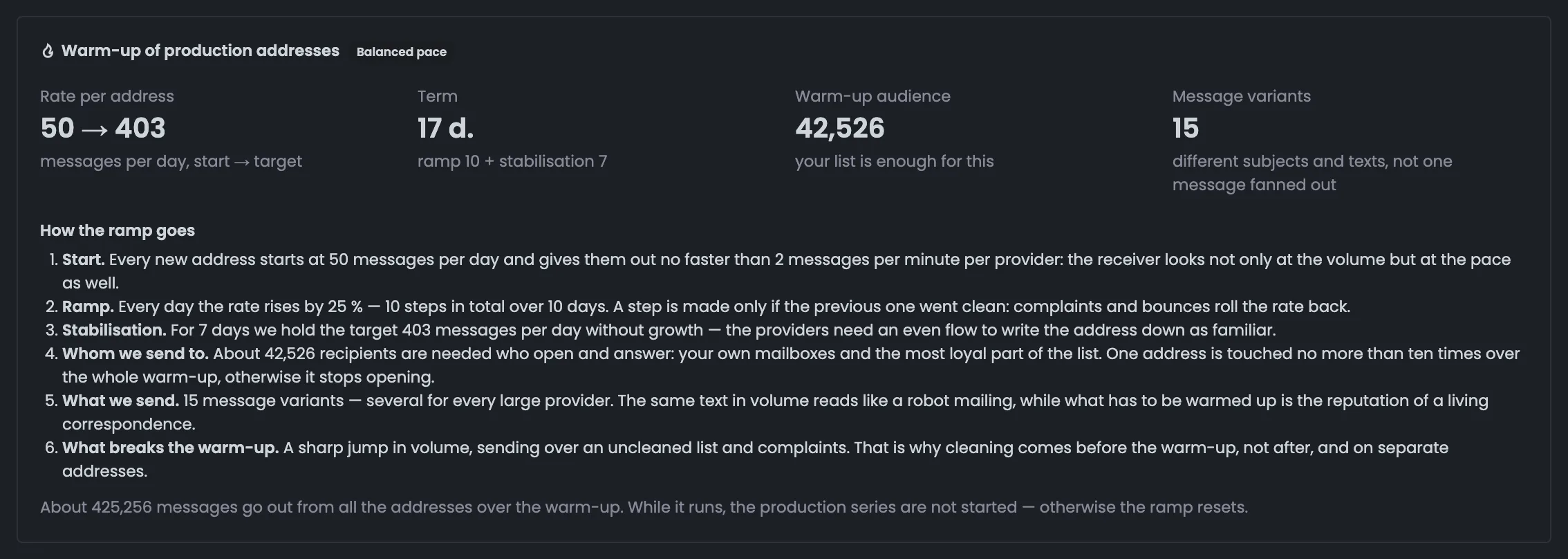
The warm-up plan shows how new addresses will reach working volume. Each address starts with a small number of emails a day, the rate grows in steps — and only if the previous step went cleanly — and then holds for a few days without growth so mailbox providers get used to the sender. You also see how many recipients and different emails this takes and how many emails the whole warm-up will send. In the example the rate grows from 50 to 403 emails a day per address over 17 days: 10 days of ramp-up and 7 of stabilization. The warm-up itself is started and tracked in a separate Hub module — here there is only the plan and the timing.
 Enlarge
This is only a plan. How recipients respond, how many bounces and complaints there will be, is visible only during the real warm-up. The timing in the plan is not a guarantee of the result.
A ready shopping list. For each server role it says why it is needed, which configuration it requires and how many such servers to order. This list is handy to take to the hosting provider, and under it are the requirements without which a sending server is useless: a supported OS, outgoing port 25 open and reverse DNS (PTR) you can set up. In the example the list-cleaning server is kept apart from the production ones — its reputation burns out first — and activation needs 14 servers with 2 vCPU · 4 GB · 40 GB. You rent the servers yourself from the hosting provider you choose, and then connect them to the Hub through MTA installation.
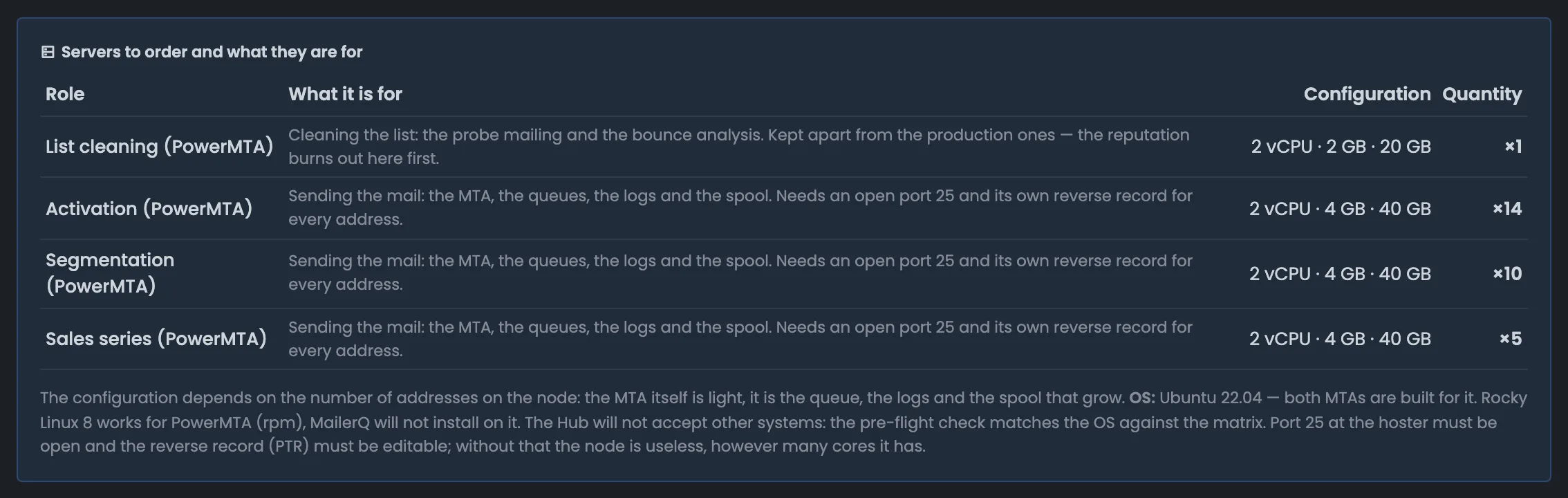 Enlarge
The list helps you prepare the purchase. You rent the servers yourself from the hosting provider you choose.
The DNS plan shows how many DNS accounts and domain zones you will need and what that will cost. You need a zone for each sending point, and accounts are split by task: in the example, 88 domains come to 4 accounts with 50 zones each. You register the domains yourself; the Hub only needs access to the DNS accounts to create the zones and records. DNS usually costs nothing extra: the hosting provider gives you DNSmanager with the server, and Cloudflare is free. The layout — a separate DNS account for each task — can be changed before the diagram is built, and you need one zone for each sending point.
 Enlarge
Each DNS service has its own price and terms — check them before launch.
Geography recommendations adapt to where your recipients live. The builder suggests which domain zones to use and in which countries to place servers, which zones are better avoided — and explains why: the domain zone is part of your reputation, and the server’s country is the route and the network. In the example, for Europe it recommends the .com, .net, .eu, .de and .fr zones and servers in DE, NL, FR and FI, while free and “junk” zones like .tk or .top are best avoided. There are also tips to send at the recipients’ local time and write in the region’s language. Get domains in advance: a domain registered yesterday is a warning sign for a filter.
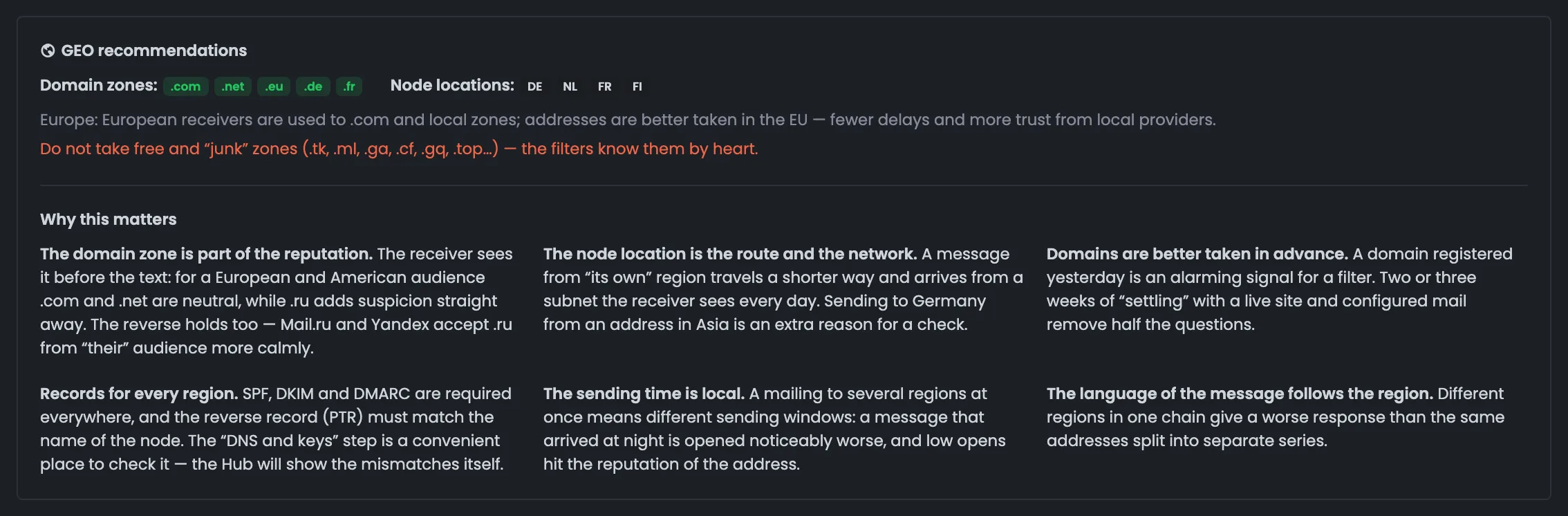 Enlarge
Geography is only one of the plan’s conditions. On its own it does not decide whether emails get through.
The estimate itself tells you where your answers lead to risk and why the numbers came out the way they did. Yellow marks what needs attention, blue marks explanations. Read them before approving the plan: they suggest how to lower the risk and the number of addresses. In the example, with a list like this one address can safely send 8,400 emails a day, not 28,800, so more addresses are needed; reaching the offer takes about 98 days, and with more than 8 IPs it advises taking them from at least two /24 subnets. If the conditions change, create a new version of the specification and compare it with the previous one.
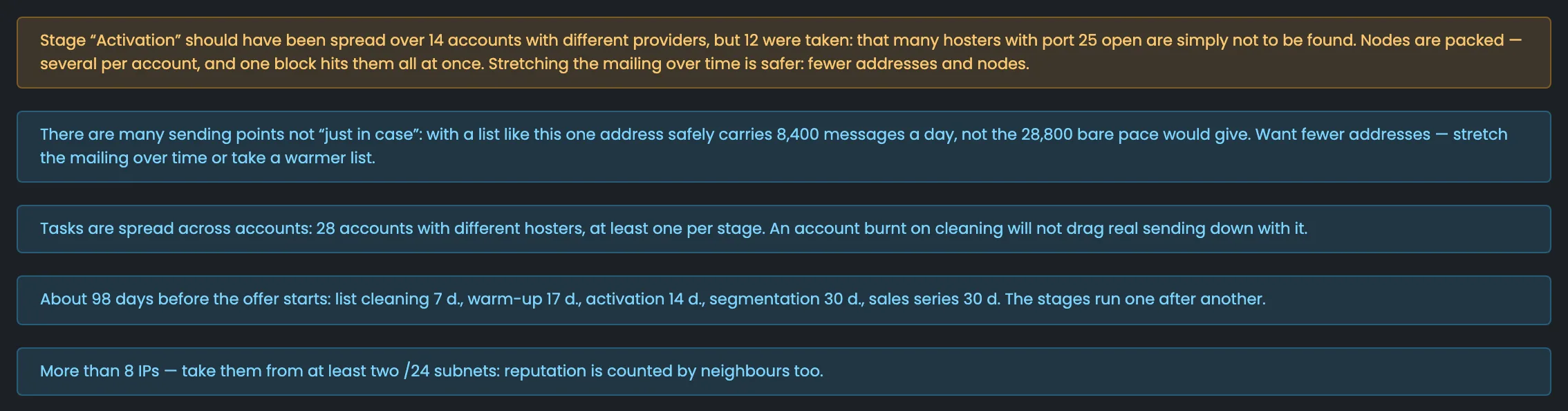 Enlarge
Read the warnings together with the cost estimate and the make-up. If the conditions change, create a new version of the specification.
All estimates are kept in one place. Here you see which specifications have already become working infrastructure, which are awaiting a decision and what the deployed ones cost. You can compare options side by side, recalculate them with different answers, export them to PDF or CSV and deploy them as infrastructure — the Hub creates slots for servers and DNS accounts. Every specification goes through four steps: calculated → approved → deployed → warm-up.
The top row tells you how many estimates have already become working infrastructure and what it costs. Drafts and approved but not yet deployed options are counted separately — for now they are estimates on paper. A new estimate also starts here: the “New specification” button opens the builder with the questionnaire. Peak capacity here is an estimate based on deployed specifications; how many emails actually go out is shown by the running MTAs. Planned cost is the monthly total for the deployed specifications once they are fully assembled, and the caption under “Applied” names the infrastructures themselves.
EnlargeThe peak capacity in the summary is an estimate, not an actual figure. How many emails actually go out is shown by the running MTAs.
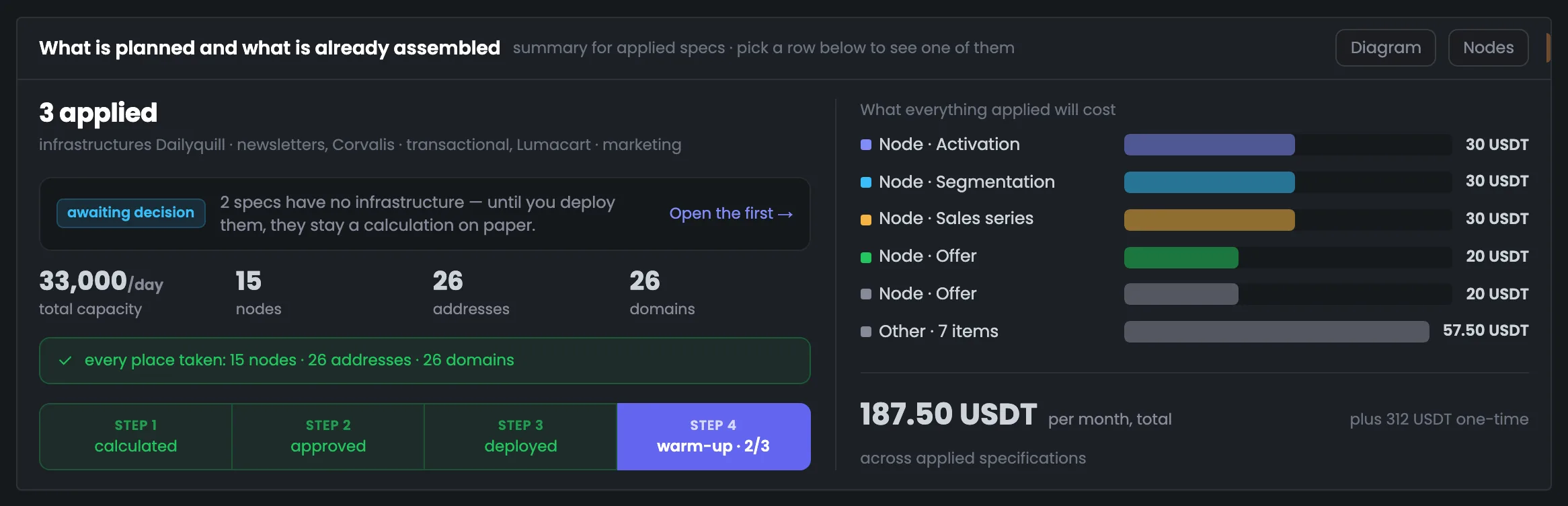
A summary of everything deployed: on the left — what is planned and how much of it is already assembled; on the right — what it costs. The key line is “in place”: it compares the plan with what is actually in place and shows how many servers, IP addresses and domains are really connected to the infrastructure already — for example, “12 of 40 nodes”. Below is the four-step path: calculated, approved, deployed, warm-up. The cost estimate on the right shows the five largest cost items, the monthly total and one-time costs. The “Diagram” and “Nodes” buttons lead on — to the infrastructure diagrams and to the server list.
EnlargeThis is a summary across several infrastructures, so its figures do not match the figures of a single specification.
All saved specifications are in one list: what each estimate promises, what it costs and which step it is on. You can find the option you need, go back to a task without filling in the questionnaire again, export an estimate or tick several rows to compare them. Clicking a row opens the specification in the card at the top. The “version 2 of 2” label means the estimate was recalculated, and the risk — low, medium or high — shows how widely the estimate spreads the sending. From the ⋮ menu you can rename a row, create a new version, export to PDF and CSV, deploy or delete.
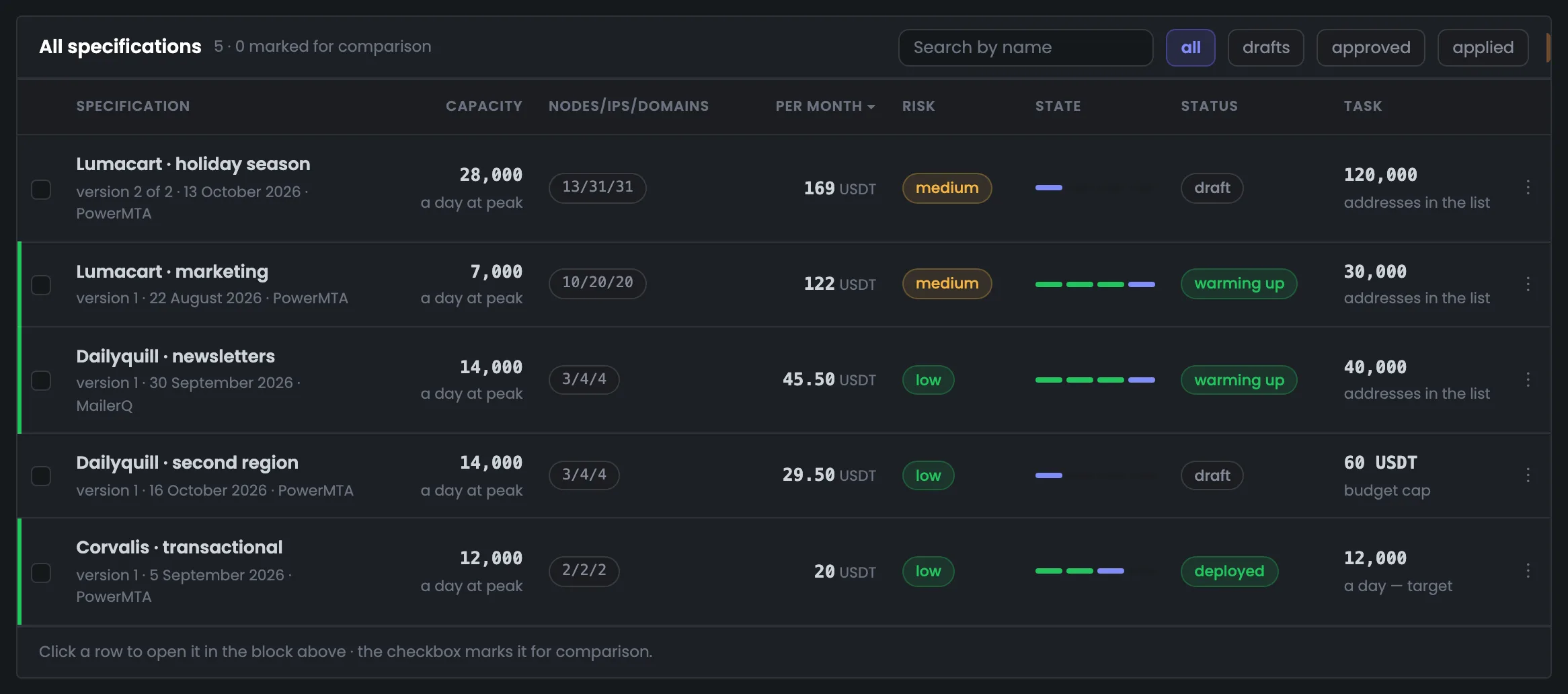 Enlarge
Click a row to open the specification. Tick several rows to compare them.
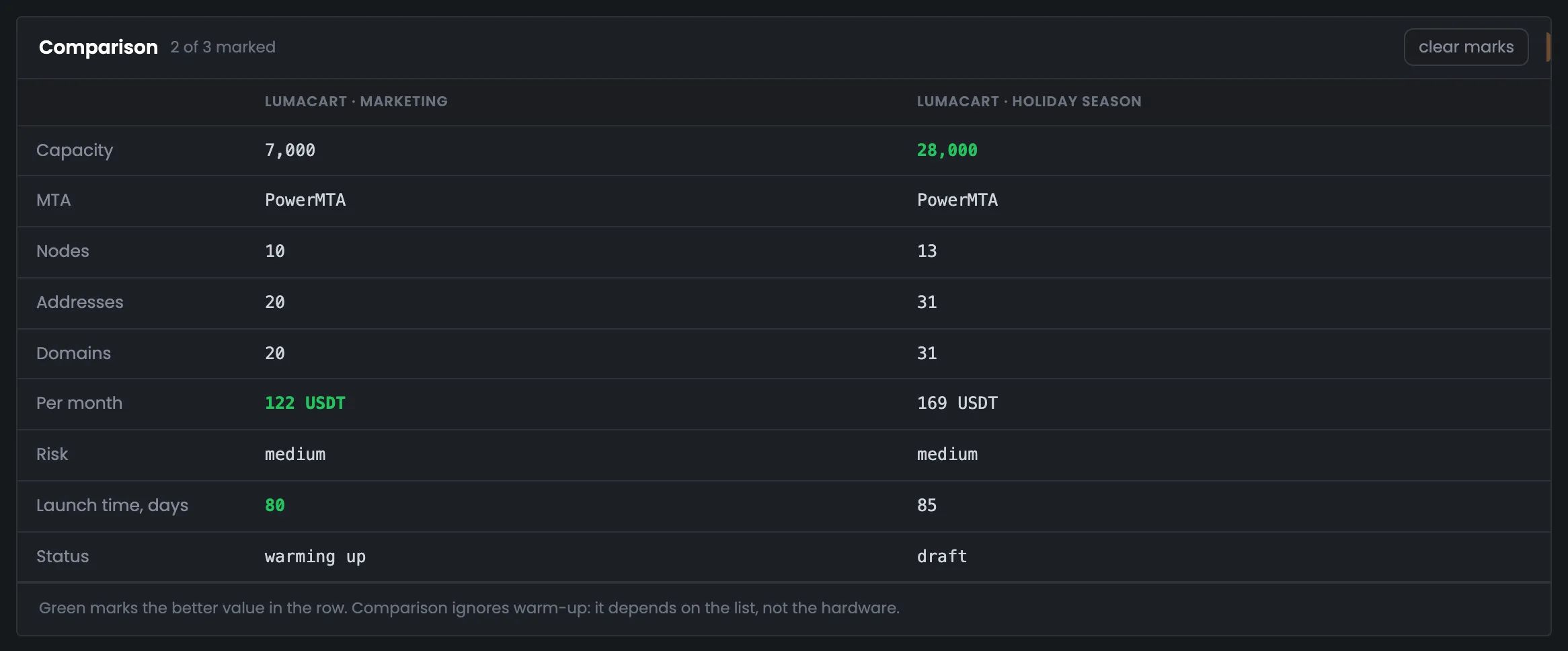
Before choosing, compare up to three saved estimates in one table: the capacity each one gives, how many servers, addresses and domains it needs, what it costs and how many days it takes to launch. This shows what an extra dozen servers would give you and what they would cost. Green marks the better value in a row — more capacity, lower costs, a shorter launch time. In the example, Lumacart’s running marketing infrastructure stands next to a draft for the sales season. MTA, make-up and risk have no “better” or “worse” — only the difference is shown there.
EnlargeLook at warm-up separately: its result depends on the list and on how the recipients’ mailbox providers react.
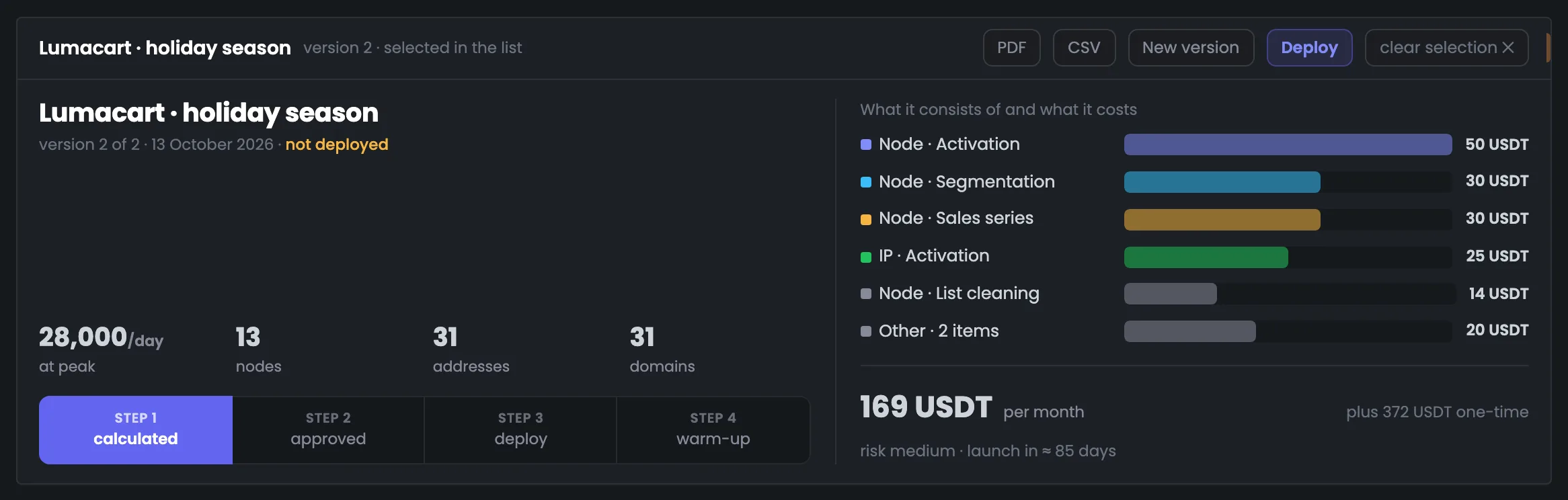
Clicking a row in the list opens the full specification in the top card — you can examine any option without leaving the page. This is a convenient place to check an estimate before approving it, export it to PDF or CSV for colleagues or a client, and deploy it as infrastructure. The “New version” button recalculates the option with different questionnaire answers. “Deploy” creates slots in the Hub for servers and DNS accounts, to which real servers are connected later — MTA installation is a separate step. The “not deployed” label means the estimate is still on paper.
EnlargeCreating the structure in the Hub and installing the MTA on servers are two different steps.
06 / Questions and answers
About estimating the cost of SMTP infrastructure, comparing options and moving on to installation.
It is a saved estimate for a specific mailing task: servers, sending IP addresses, domains, the chosen MTA, approximate timing and a cost estimate. With it you can understand what you need and what it costs before buying anything, compare options and prepare the structure in the Hub.
Yes, that is what the budget limit mode is for. Enter the amount and describe the task — the Hub picks the make-up and shows what cannot be done on that budget. If you need a specific number of emails a day, there is a separate mode for that.
From your own prices, and if you have not set them — from the directory of hosting providers and plans. You can enter your own VDS configurations, the price of extra IPs and the domain registration price for each zone. Before buying, check with suppliers whether the terms have changed.
The cost estimate shows separately the first month of servers and IP addresses, further rent and domain registration. The full list of costs is in the items of your estimate. MTA licenses, the Hub license and other services, if they are not in the estimate, need to be checked and counted separately.
Yes. From a saved specification you can make a new version with different data. You can compare up to three options: by capacity, MTA, servers, IPs, domains, costs and approximate launch time. You can also download the estimate as PDF or CSV.
No. Deploying only creates the structure in the Hub and slots for resources. Real servers and DNS accounts are connected to them later. PowerMTA or MailerQ is installed in the separate MTA installation module.
A specification is a plan and the conditions the estimate is built on. Real speed and delivery depend on the list, the reputation of the IPs and domains, the email content, the warm-up and how mailbox providers react. Real numbers are visible after launch — from MTA and monitoring data.
The amount changes if the plans, your prices or the calculation rules have been updated. You get the same result only with the same data, the same prices and the same version of the Hub. Before buying, update the prices and save a new option.