Open, on request or blocked
If the port is blocked, mail simply will not leave the server.

Hosting for email sending: port 25, PTR, plans
A directory inside the Hub: whether a hosting provider keeps port 25 open, how it treats bulk email, who sets up reverse DNS (PTR) — plus its plans and prices next to the prices you actually pay.
The standard package already includes ten hosting providers; after that, you keep the directory up to date. The specification builder uses it to work out your cost estimate.
01 / Port 25 and hosting provider policies
A hosting provider is the company you rent a VPS from for sending. For email, price is not the only thing that matters: is port 25 open, does the provider allow bulk email, and who sets up reverse DNS (PTR)? The directory shows all of this for each provider on a single line.
Providers that block port 25 stand out at once: their servers are cheap, but no mail will leave them
If the port is blocked, mail simply will not leave the server.
Friendly, by agreement, tracking only, forbidden or unknown.
You do it yourself, through a support ticket, or not at all — this decides how much hassle PTR will be.
If a policy is not known, the directory honestly says “unknown”: check with the provider — that beats a guess.
02 / Server price in the estimate
Hosting plans with prices sit next to the prices you actually pay. The specification builder picks a price in a strict order: first your purchase price, then a directory plan, and only if nothing fits — the general reference price.
The closer a price is to what you really pay, the sooner the estimate uses it
The lowest server price among providers with port 25 open: OVHcloud VPS-2 — 18 USDT a month. The price includes three addresses, as in the estimate.
“List cleaning” at Baltic Cloud costs 11 USDT — less than the directory price. If it fits the configuration, the estimate uses it before the market price.
03 / Gaps in the directory
The feed under the header names what the directory is missing: a provider without a plan, a plan without a price, a server at a provider the directory does not know. Each line has a button that fixes it. Once the problem is solved, the line disappears.
Melbicom, HostSlim and InterServer have no plans and no purchase price of yours. The estimate will use another provider's price or the 20 USDT reference. “Add a plan” opens the plan window for the first of them.
Each row shows how many of your servers sit with the provider and how many specifications include it. Nordhost has 3 servers and 6 specifications, so the Hub will not let you delete it.
The feed also lists servers at a provider the directory does not know (the “Add it” button fills in the name from the IP address registry), servers not linked to any provider, disabled plans and plans without a price.
04 / Your prices and notes
The hosting directory is shared by the whole Hub installation, but your own data sits on top of it: purchase prices, your rating of a provider and a private note. They are visible only in your panel, and the estimate uses your purchase price before a directory plan.
At Nordhost — a “Sending node” for 10 USDT, an extra address 2.50; 6 specifications are priced with it.
The package rating shows as a gray badge, yours in color: Nordhost has your own “9”.
For example: “Renew the invoice before the 25th — in August the panel shut the server down an hour after the due date.”
If an estimate depends on a plan, the Hub will not delete it and suggests switching it off instead: new calculations skip it, while earlier ones keep their price.
05 / The interface in detail
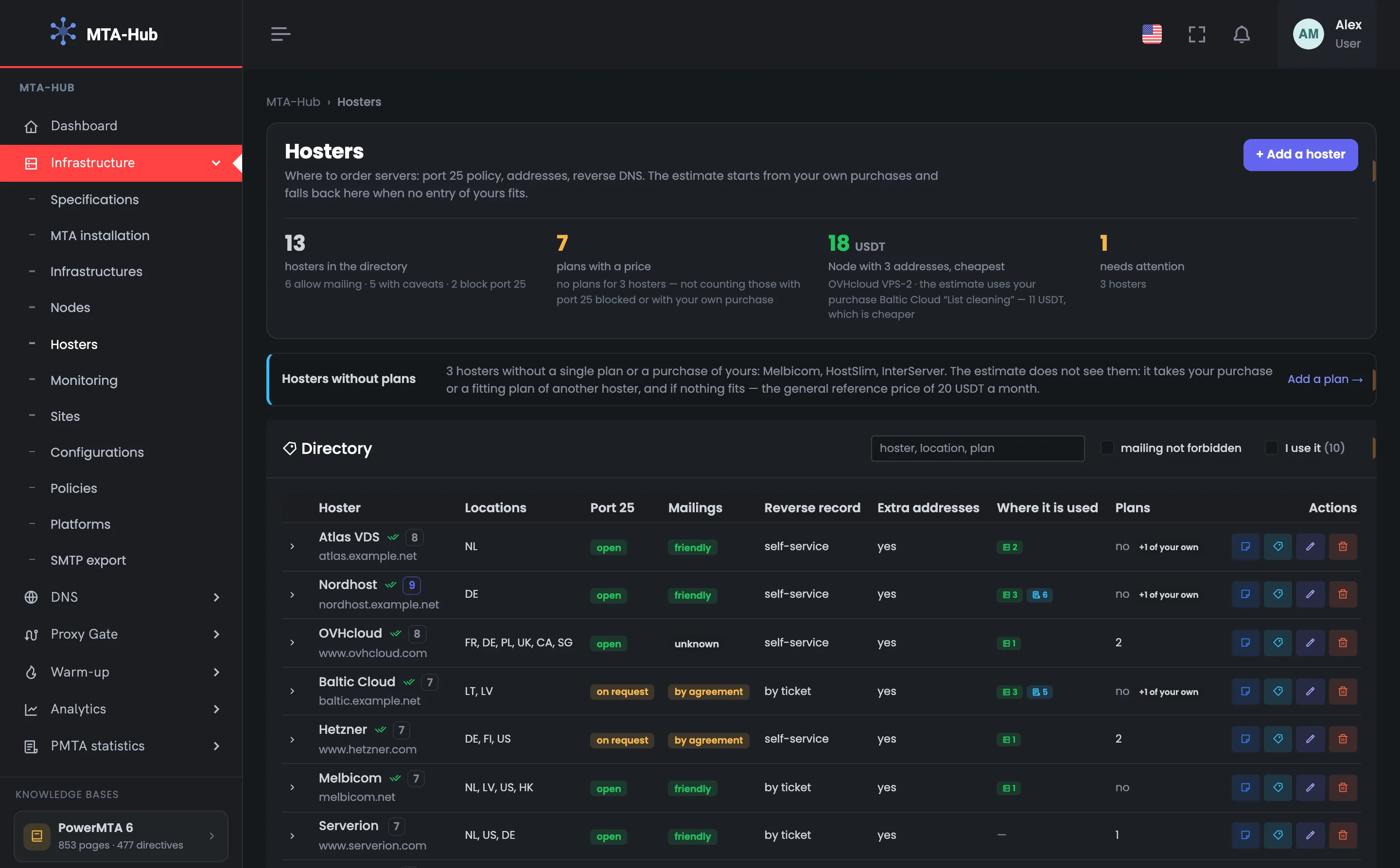
Four numbers, gaps, the directory, expanded rows with a purchase and plans, the provider card, a plan and a note. Above each screenshot: why the screen matters. Below it: what it shows.
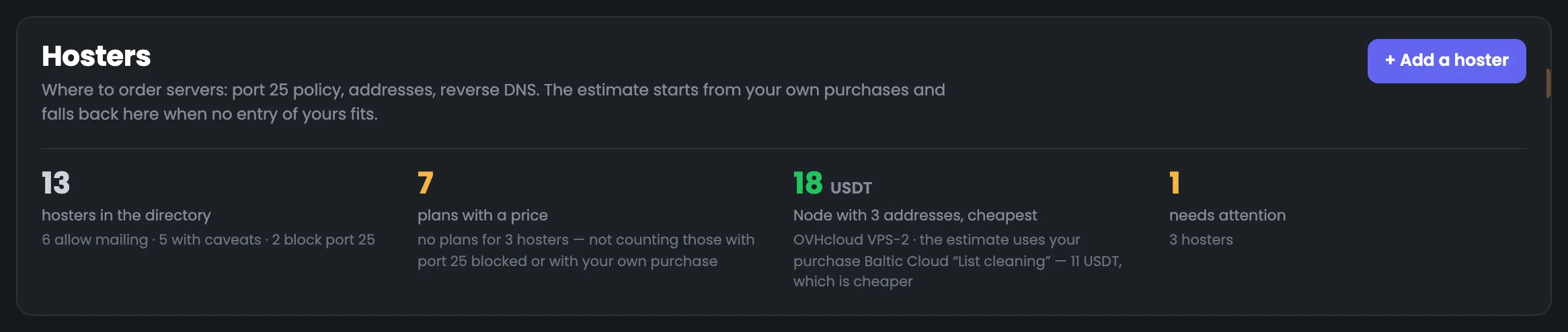
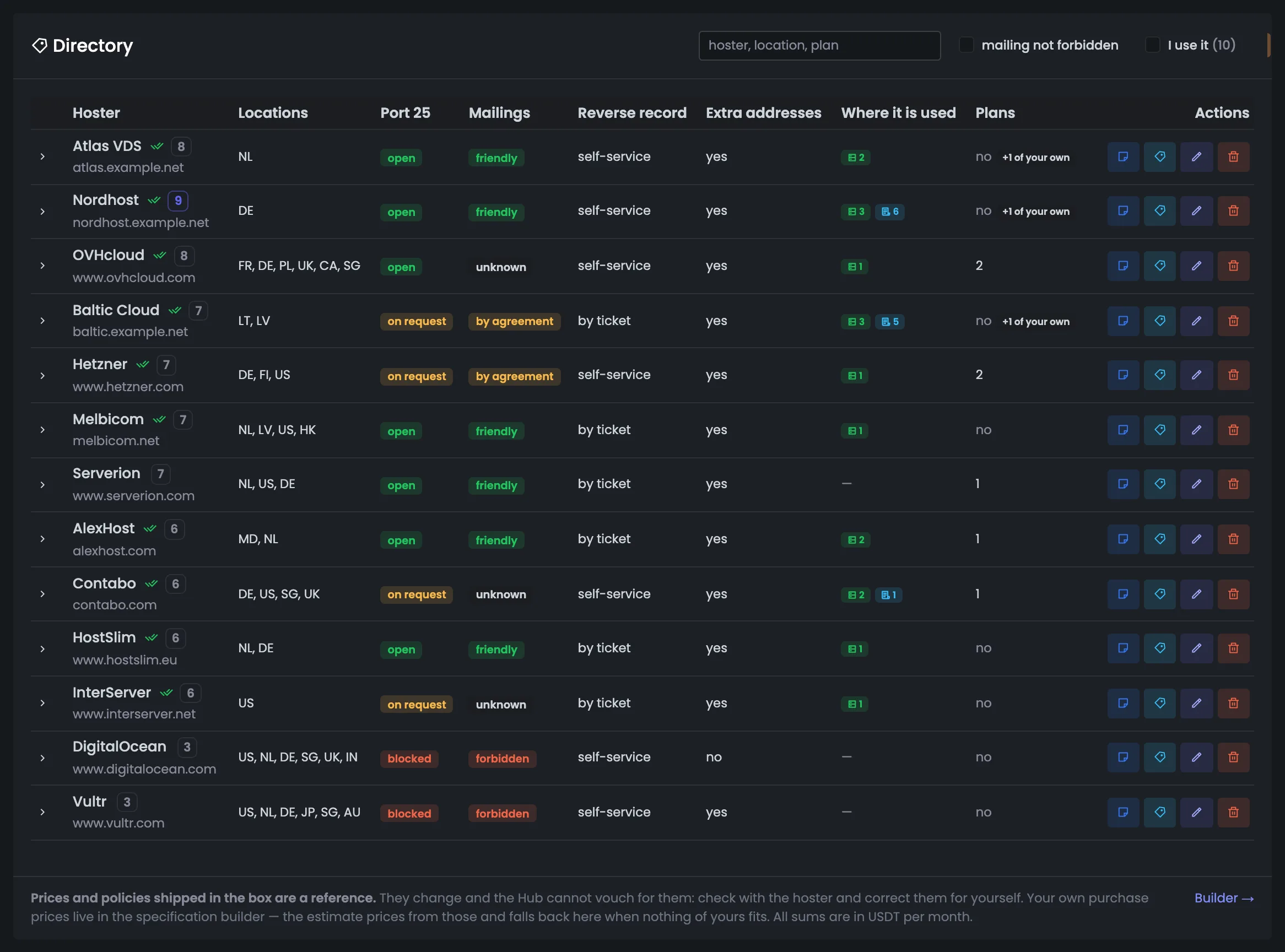
The first three screens show the directory itself: hosting providers for email sending. At the top are four numbers: how many providers, how many plans with a price, the cheapest server and how many problems need attention. Below — a feed of what needs filling in, and a table with one row per provider showing its policies, where it is used and the number of plans. It makes choosing where to order your next server easy.
The first screen of the section sums up the hosting directory in four numbers. There are 13 providers here: 6 allow sending, 5 come with caveats, 2 block port 25. Next to them — how many plans the estimate can use, the cheapest server with three addresses among providers that allow sending, and how many problems need attention. If “Needs attention” is above zero, start with the feed below; the “Add a hoster” button on the right adds a new provider. Open this screen before working out an estimate or choosing a provider for a new server. Compare the cheapest server in the directory with your own purchase: here the purchase at Baltic Cloud is cheaper, so the estimate will use it first.
 Enlarge
If some servers have no provider set, a “Detect server hosters” button appears next to it: the Hub looks up the address owner in the IP address registry.
The feed under the header names gaps in the directory that could make the estimate use the wrong price. Here there is one line: Melbicom, HostSlim and InterServer have no plans and no purchase price of yours, so the estimate will skip them. The “Add a plan” button opens the plan window for the first of them right away. The feed also lists servers at a provider the directory does not know, disabled plans and plans without a price — each line has its own fix button. Check it before every specification calculation: until a provider has a plan or a purchase, its servers are priced in the estimate at someone else's price or at the 20 USDT reference.
 Enlarge
The line disappears as soon as the problem is solved.
The main table of the section: one provider per row. It shows everything that matters when choosing hosting for email sending: is port 25 open, how the provider treats bulk email, who sets up reverse DNS and whether you can buy extra addresses. The “Where it is used” column shows how many of your servers sit with the provider and how many specifications include it. The “mailing not forbidden” checkbox hides providers that block port 25 or forbid bulk email — leaving the ones where a sending server will actually work. The “Plans” column tells you where an estimate can be worked out right away, and the “+1 of your own” label shows where you already have a purchase price.
 Enlarge
The directory is sorted by the package rating.
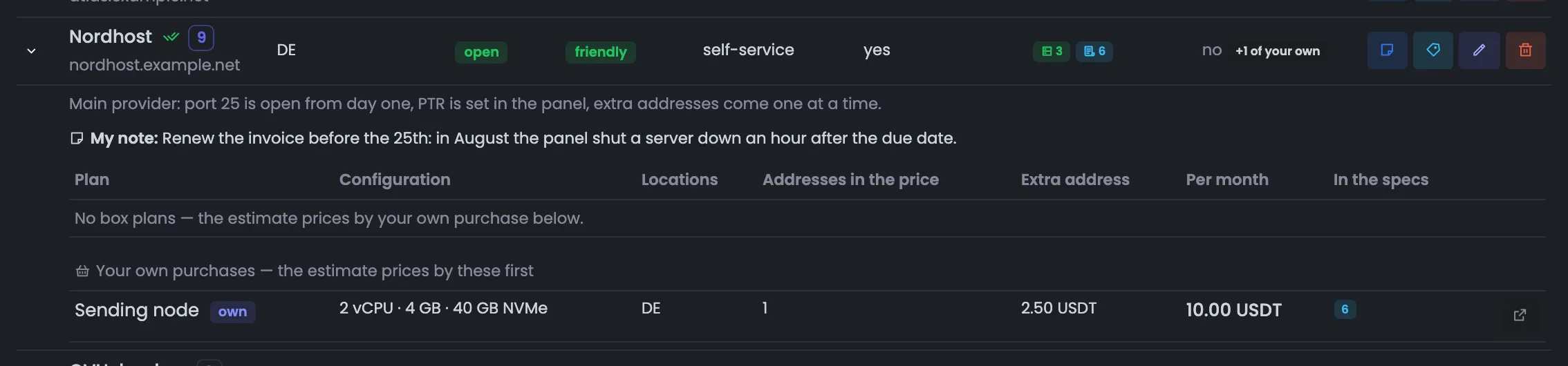
The arrow on the left expands a provider row. Inside — a comment about the provider, your note and prices: directory plans or your own purchase price. The estimate uses your purchase first, so here you can see what price your specifications are based on. A plan an estimate depends on cannot be deleted — only switched off.
The expanded Nordhost row shows how your own data lives in the directory. Instead of directory plans, there is your purchase price — a “Sending node” for 10 USDT a month — and 6 specifications are already priced with it: the estimate uses a purchase first. Next to it — a comment about the provider and a private reminder about the payment date. One row tells you how much you really pay this provider and where that price is used. The button on the right leads to the specification builder — that is where the purchase price is changed. The note is a good place for arrangements with the provider that are easy to forget.
 Enlarge
The purchase price is changed in the specification builder — the button on the right leads there.
The expanded Contabo row is an example of a provider with a plan from the standard package. The VPS S plan costs 6 USDT a month, and the comment marks the data as approximate — check it against the provider's website. The plan is already chosen in one specification, so the delete button is gray: the Hub will not let you delete a price an estimate relies on. If the plan is no longer needed or is out of date, open it for editing and clear the “Count in the estimate” checkbox. The plan is already used for the MailerQ cluster database of the newsletter, so if the provider changes its price, recalculate that specification too.
 Enlarge
If an estimate depends on a plan, the Hub will not delete it and suggests switching it off — earlier calculations keep their price.
The provider, a plan and your private note are edited in separate windows. Each has only the fields it needs: provider policies, plan configuration and price, your own rating. If a policy is not known, leave it as “unknown” — an honest “check this” beats a guess.
The provider card gathers in one form everything that matters for email hosting: name, website, locations and three policies — port 25, bulk email, reverse DNS. Below — identity check, a rating from 1 to 10, whether you can buy extra addresses, payment methods and a free-form comment. Fill in the card from the provider's support answers, and where there is no answer, leave “unknown”: that way no unverified promises end up in the directory. You open the card when adding a new provider or when support has answered your question about port 25 and PTR. Payment methods and the identity check tell you how exactly you will have to order a server.
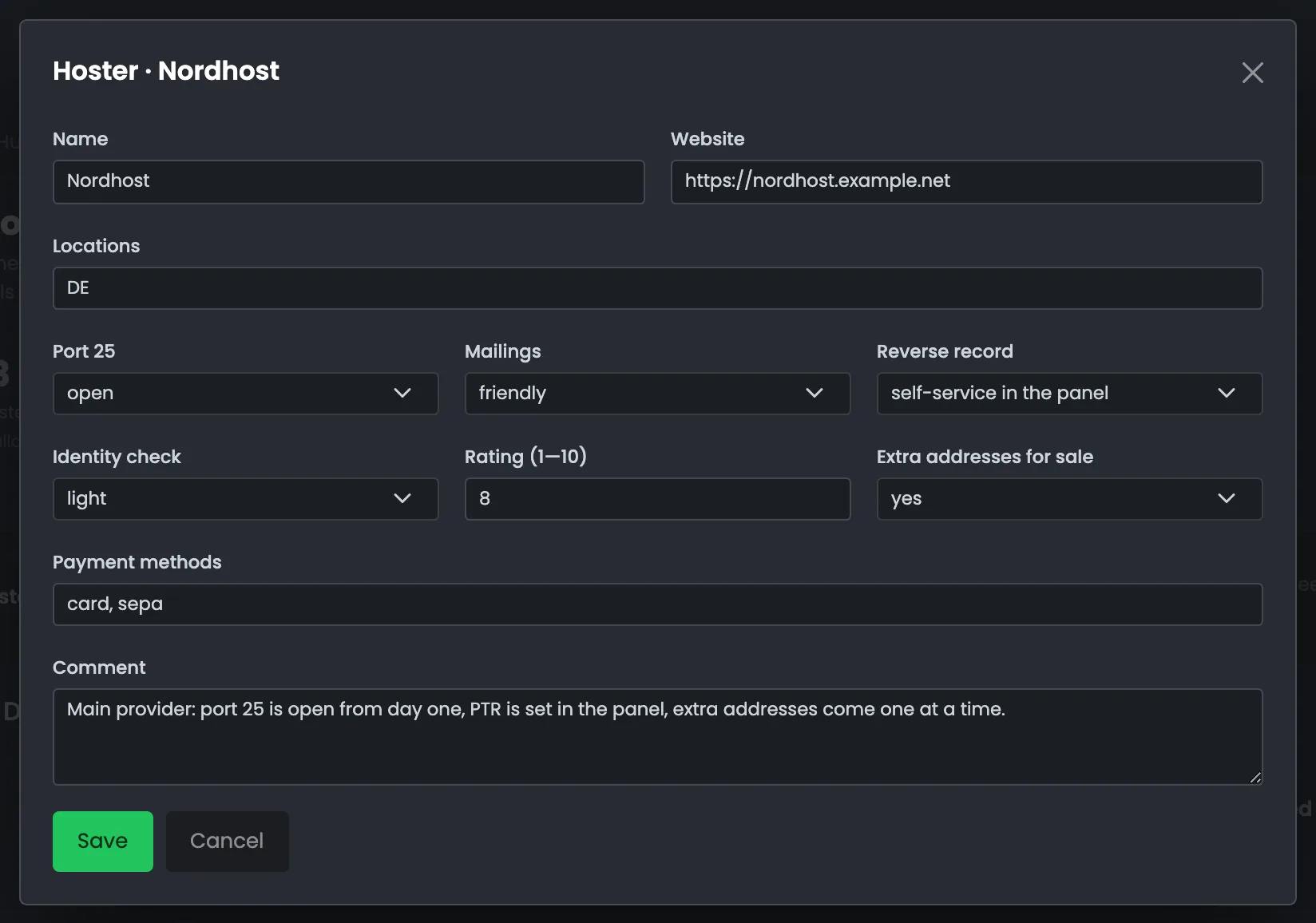 Enlarge
A new provider starts with every policy set to “unknown” — an honest “check this” beats a guess.
The new plan window describes a specific VPS for sending so that the estimate can price it. Enter the configuration — vCPU, memory, disk and its type, locations — how many addresses the price includes and what an extra one costs, plus the plan price in USDT per month. The “Count in the estimate” checkbox decides whether the plan goes into new calculations: a switched-off plan stays in the directory, but the estimate does not use it. Add a plan when a provider has a suitable VPS for sending and you want the specification builder to be able to choose it. Fill in the number of included addresses and the extra address price carefully: the server price is calculated with three addresses, as in the estimate.
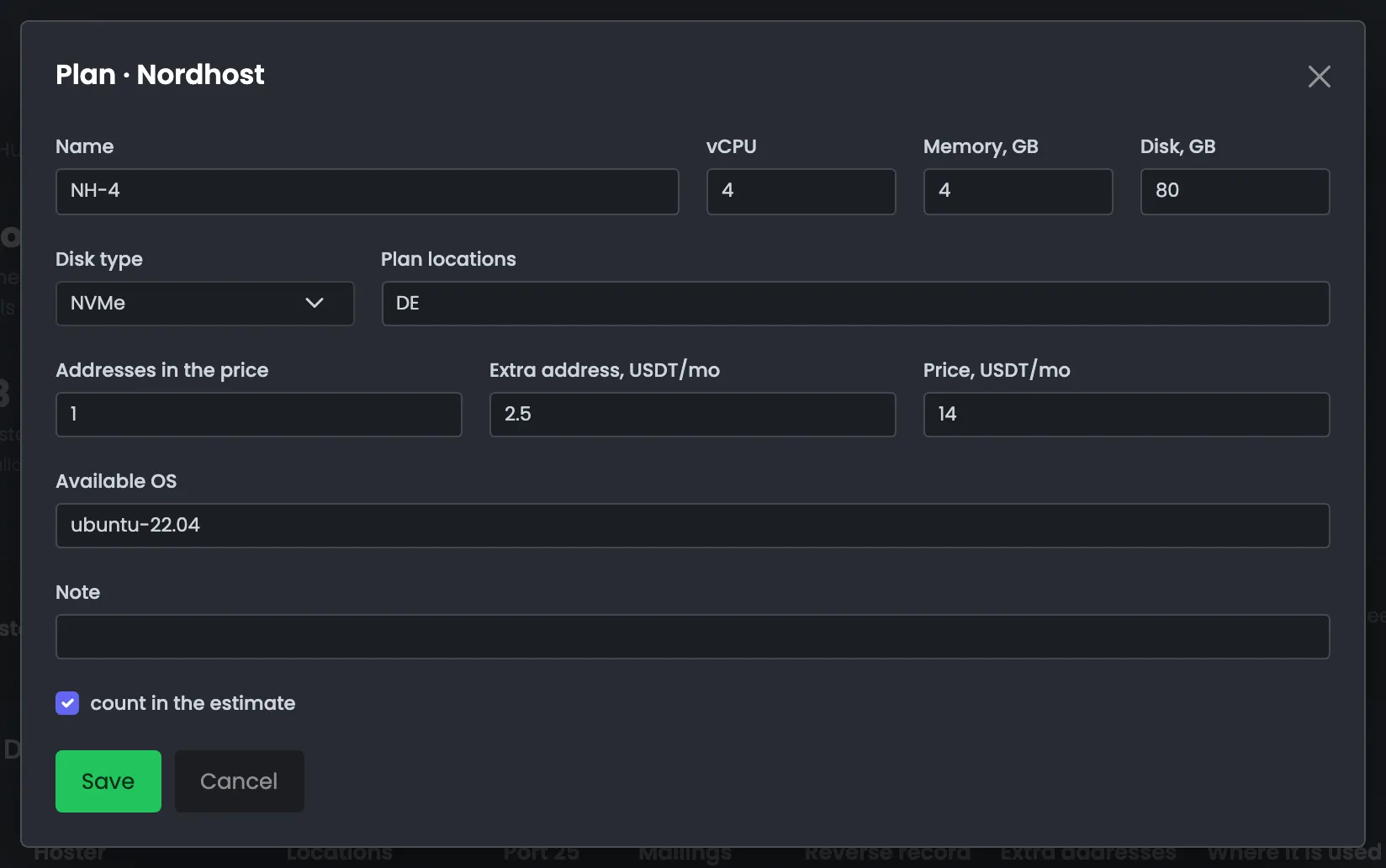 Enlarge
Directory prices are in USDT per month.
The private note window is a place for your opinion of a provider that the rest of the Hub installation does not need to see. Here you set the “I use this hoster” mark, your own rating on top of the package rating, and free text — for example, about invoice due dates. The note and rating are visible only in your panel, and in the directory table your rating shows as a colored badge instead of a gray one. The directory itself stays shared. Your own rating helps you choose: the directory is sorted by the package rating, and yours appears next to it in color, so any gap between the package and your experience is easy to spot.
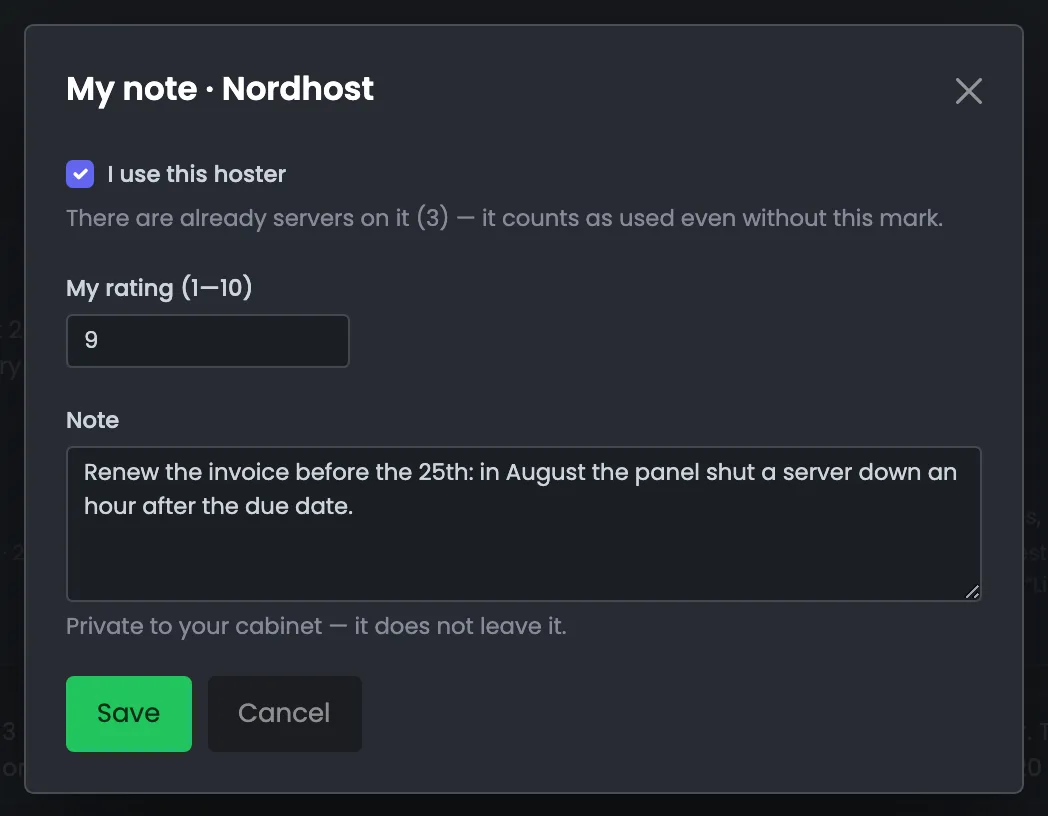 Enlarge
If your servers already sit with the provider, it counts as used even without the mark — the window tells you so.
06 / Questions about hosting providers
In short: where the directory comes from, how the estimate is calculated and why some providers cannot be deleted.
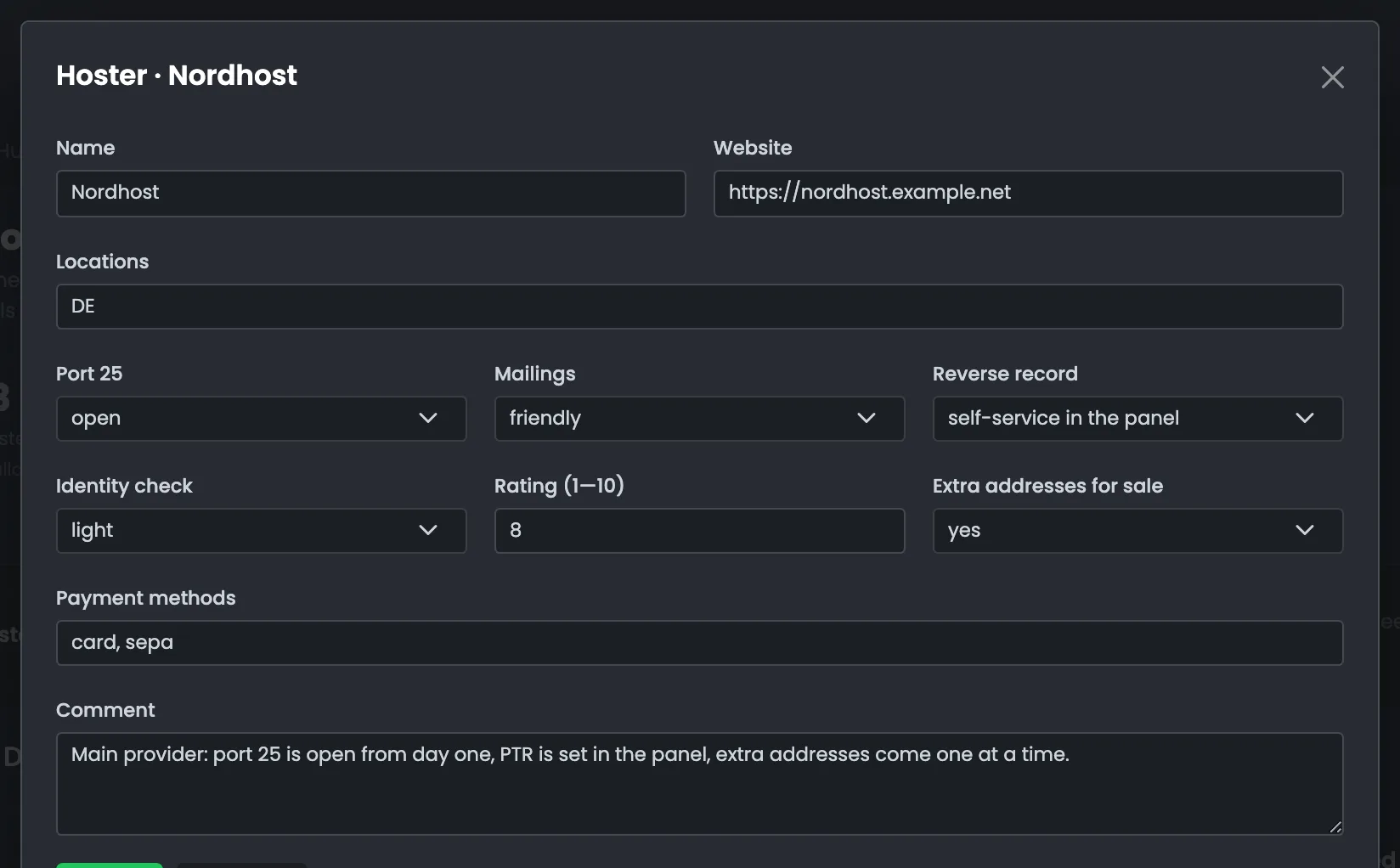 Enlarge
Name, website, locations, three policies — port 25, bulk email, reverse DNS — rating and payment methods.
The standard package already includes ten hosting providers most often used for email. After that, you keep the directory yourself: add your own providers and refine their policies.
They are a reference: prices and policies change, and the page says plainly to check them with the provider.
First your purchase price, then a directory plan, and only if nothing fits — the general reference price from the settings, 20 USDT a month.
It has your servers, specifications or a purchase price. The Hub will not let you delete anything an estimate depends on.
The provider's policy is not known. It is an honest answer instead of a guess — check with the provider and update it.
Only you, in your own panel. The directory itself is shared by the whole Hub installation.
The “Detect server hosters” button finds the address owner in the IP address registry and links the server to a directory record.
USDT per month. The server price in the header includes three addresses: the plan plus any addresses beyond the included ones, as in the estimate.
07 / Next step
The hosting provider directory is the basis of the estimate. The specification builder calculates how many servers, addresses and domains your volume needs and what it will cost.
Once the servers are bought, the Hub installs the MTA on them — step by step, with checks.