Email platforms. SMTP and tracking with no manual entry.
Lists, emails and campaigns are kept in the platform, while servers, addresses, domains and tracking live in the Hub. The Hub itself creates the sending points and tracking domains in the platform.
Every night the Hub reconciles the settings and collects opens and clicks. It never touches campaigns: the platform runs the mailings.
Subscriber lists, emails and campaigns stay in your email platform — Protosender, Interspire, Mumara or MailWizz. Servers, addresses, domains and tracking live in the Hub. The “Platforms” section links the two: the Hub hands the platform its SMTP sending points and tracking domains, and takes back opens and clicks.
The path of an email
01 · PlatformCampaign and list
02 · Sending pointThe Hub’s SMTP entry point
03 · Hub serverPowerMTA or MailerQ
04 · BackOpens and clicks
The platform sends through sending points the Hub set up in it, and at night the Hub collects engagement
Sending points
No manual entry
The Hub itself sets up PowerMTA vMTAs and pools and MailerQ addresses in the platform — with a login, a password and a warm-up limit. You don’t have to copy SMTP credentials into the panel by hand.
HMTA-Hub
export
Sending points28 of 29 enabled
6 domainsProtosender
Engagement
Next to delivery
The Hub collects opens, clicks, unsubscribes and complaints from the platform — by day and by sending point. Delivery and bounces it takes from the MTA, where they are more accurate.
PPlatform
at night
Engagement collectedFor Oct 20
opens and clicksby sending point
02 / Reconciling settings
A nightly reconciliation of the platform with the servers.
Settings are reconciled every night, in both directions: pause a sending point in the Hub and it is switched off in the platform; switch it off in the platform and the Hub sees it. If a sending point no longer exists on the server, the reconciliation finds it and names it: emails sent through it won’t go out.
Mismatch
Found by reconciliation
The last reconciliation with Protosender took 4 seconds. In the platform, mail.skylarktrips.org-vmta has the state “inactive” — not what the Hub set. The sending point is flagged, and the summary now shows 28 of 29 enabled.
PPlatform
reconciliation
mail.skylarktrips.orginactive
not as in the Hub29 reconciled
Needs attention
With a button
Server mq-01 runs tracking, but its addresses are not on the Protosender database access list — opens and clicks from them won’t be recorded. “Refresh access” fixes this in one click.
HMTA-Hub
issue
Database accessNot open to all
198.51.100.123198.51.100.124
Reconciliation changes nothing in the platform itself — it only reads. The “Needs attention” block appears only when there is something to report.
03 / Connecting
Connect a platform in three steps.
Connecting an email platform takes three steps, and what happens at each one is written out before your first click. The Hub changes nothing on someone else’s server until you confirm, and you can follow every action in the console.
Connecting a platform
01 · AccessPanel address and login
02 · PlanThe Hub looks, changing nothing
03 · ConfirmationYours
04 · ChangesUser, access, package
The “Connect” button becomes available only after the Hub has shown its plan of changes
Step 1
You give access
Name, panel address and a login to its server. The password is stored encrypted and never shown again.
Step 2
The Hub shows a plan
It finds the installation, reads the database settings and checks where the database can be reached from. It changes nothing.
Step 3
The Hub makes the changes
It creates a service database user, opens access for its servers and puts the tracking package in place.
Protosender, Interspire and Mumara connect through a login to the panel server; MailWizz needs only an API key and no server login.
04 / What the Hub does through the platform
Six things the Hub can do in every platform.
The Hub connects to Protosender, Interspire, Mumara and MailWizz each in its own way, but does the same things with all of them. If a platform lacks an ability, the Hub shows a dash and disables the button instead of pretending the data is there.
Export
Sending points (SMTP)
PowerMTA vMTAs and pools, MailerQ addresses — with a login, a password and a warm-up limit.
Reconciliation
Both ways
Switched off in the Hub — switched off in the platform, and vice versa.
Tracking domains
In the platform account
Links and pixels in emails go through your own domains.
Tracking package
For Hub servers
For Protosender and Interspire; Mumara and MailWizz track on their own — they show a dash.
Engagement
Opens and clicks
By day and by sending point, plus a volume check against the MTA.
One suppression list
Unsubscribes and complaints
Unsubscribed from warm-up — won’t get the mailing, and vice versa.
05 / The interface in detail
The “Platforms” section has 6 screens.
Summary, issues, the platform card, connecting, the job console and the API key. Above each screenshot: why the screen matters. Below it: what it shows.
Summary and platforms
3 screens
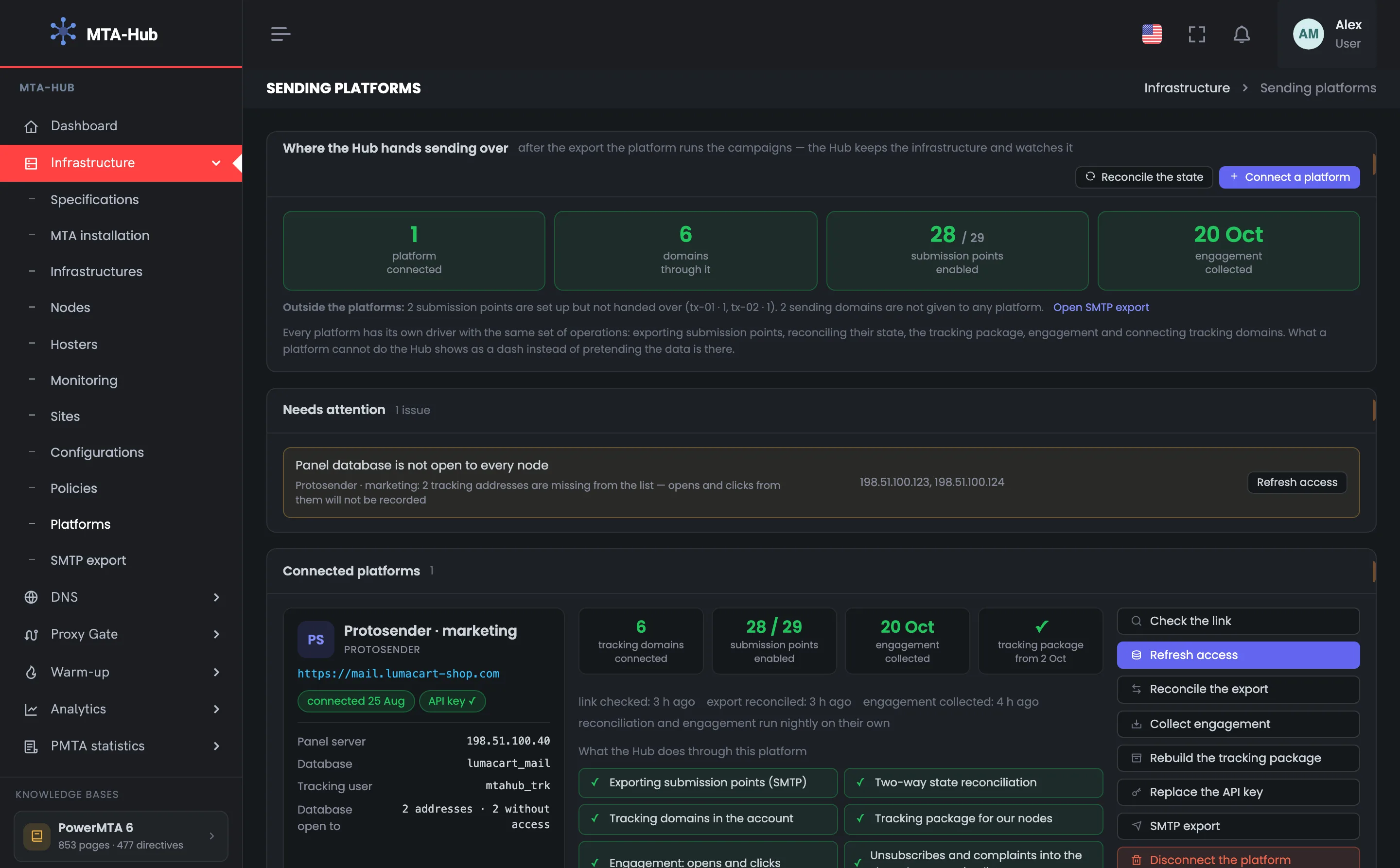
The page opens with a summary: how many email platforms are connected, how many domains the emails go through, how many sending points are enabled and which day the engagement data is for. Below is a list of what needs fixing, with a button on every line. Then comes a card for each connected platform with all its actions.
01
Where the Hub hands over sending
Section summary
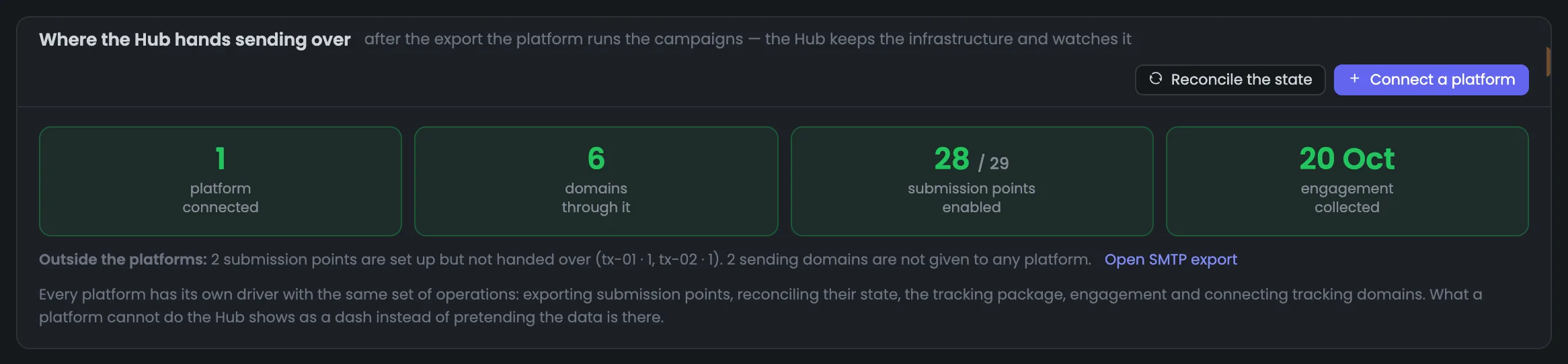
The section summary shows where the Hub hands over sending. Four numbers show how many email platforms are connected, how many domains send through them, how many sending points are enabled and which day the opens and clicks were collected for. If the sending point count doesn’t add up — 28 of 29 in the example — the reconciliation found a mismatch, and it is worth sorting out. Below is what works without platforms, such as transactional servers. On the right — “Reconcile the state” and “Connect a platform”. Open the summary to make sure the platform gets all the sending points and opens arrive on time. If engagement was collected long ago, or fewer sending points are enabled than were handed over, look at the platform card below.
EnlargeScreen 01 · Where the Hub hands over sending. An example from the MTA-Hub interface.
Platform connected — 1.
Domains through it — 6.
Sending points enabled — 28 of 29 — one has a state in the platform that the Hub did not set.
Engagement collected — for Oct 20 — the large figure is the day of the data, not the time of the request.
Outside platforms — one sending point each on tx-01 and tx-02 and two domains — a link to SMTP export.
The “Outside platforms” line is a note, not an alarm: transactional emails leave these servers without an email platform.
02
Needs attention
What to fix and how
The “Needs attention” block lists what needs fixing in your connected platforms, and every line has a button that fixes it. The block appears only when there is something to report. In the example there is one issue: server mq-01 runs tracking, but its addresses are not among those allowed into the Protosender database, so opens and clicks from them won’t be recorded. The “Refresh access” button fixes this in one click. Look here after adding a new server with tracking: its addresses have to be allowed into the platform database, otherwise opens and clicks from it will be lost. Once everything is fixed, the block disappears by itself.
EnlargeScreen 02 · Needs attention. An example from the MTA-Hub interface.
Issue — access to the panel database is not open to all nodes.
Addresses — 198.51.100.123 and 198.51.100.124 — opens and clicks from them won’t be recorded.
Refresh access — adds them to the list — the same step as during connecting.
The same block also shows an unsaved API key, a sending point gone from its server, records without an owner, a missing tracking package and an unfinished connection.
03
Connected platforms
Platform card
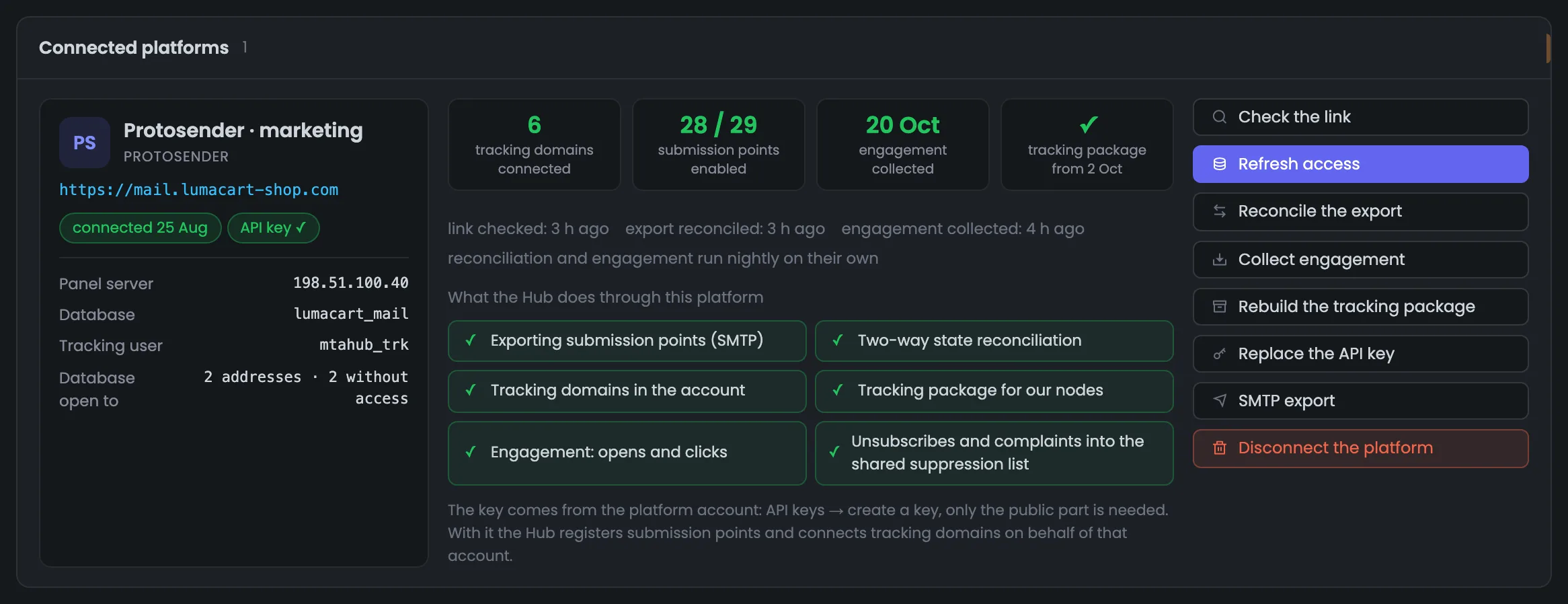
The card of a connected platform is the main screen of the section. On the left — what platform it is and where it is connected: the panel address, server, database and the service user the Hub created for itself. In the middle — what goes through it: tracking domains, sending points, engagement, the tracking package, and when all this was last reconciled and collected. The mark turns red if more than two days have passed since the last time. On the right — every action, from “Check the link” to disconnecting the platform. Open the card when you need to do something with the platform: check the link, reconcile the sending points or collect opens outside the nightly schedule. A highlighted button tells you what to do first.
EnlargeScreen 03 · Connected platforms. An example from the MTA-Hub interface.
Who it is — Protosender “marketing”, panel address, connected on Aug 25, API key saved.
Server and database — 198.51.100.40, lumacart_mail, tracking service user mtahub_trk; access is open to two addresses and not to two others.
What goes through it — 6 tracking domains, 28 of 29 sending points, engagement for Oct 20, tracking package from Oct 2.
When it was done — link and export 3 hours ago, engagement 4 hours ago; over two days and the mark turns red.
Six abilities — Protosender has all of them ticked.
Buttons — check the link, refresh access, reconcile the export, collect engagement, rebuild the tracking package, replace the key, SMTP export, disconnect.
“Disconnect the platform” removes it from the Hub, while the platform itself stays as it is.
Connecting
3 screens
Next — how an email platform is connected: three steps where the Hub first shows a plan and only then changes anything. Every action the Hub takes on the platform server is visible in the console — it is someone else’s server, and working on it blindly is not an option. The last screen is the API key the Hub uses to work in the platform account.
04
Connect a platform
Three steps
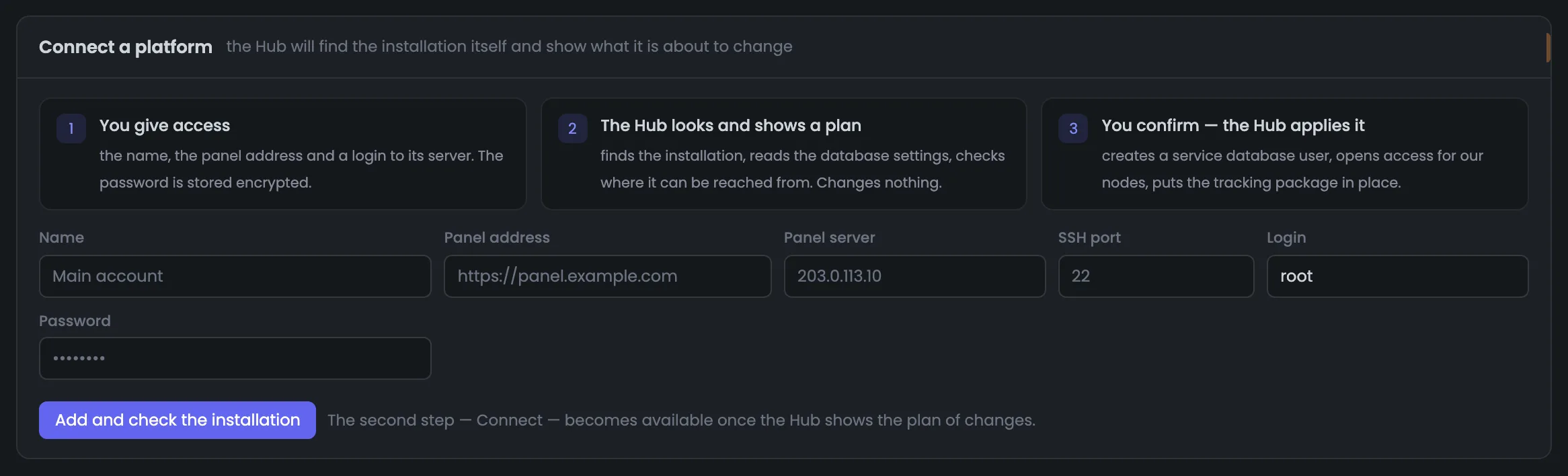
The form for connecting an email platform: you choose the platform type above the steps, and what happens at each of the three steps is written out before your first click. First you give access, then the Hub finds the installation and shows a plan without changing anything, and only after you confirm does it make changes. That is why there are two buttons, and “Connect” becomes available only after the plan. Protosender, Interspire and Mumara connect through a login to the panel server, MailWizz with an API key only. Connecting a platform is safe: until the plan the Hub only reads settings, and every change after that is visible in the console.
EnlargeScreen 04 · Connect a platform. An example from the MTA-Hub interface.
1 · You give access — name, panel address, server, SSH port, login and password.
2 · The Hub shows a plan — finds the installation and reads the database settings — changing nothing.
3 · You confirm — the Hub creates a service user, opens access for the nodes and puts the tracking package in place.
Buttons — “Add and check the installation”, and “Connect” only after the plan.
The password is stored encrypted and never shown again.
05
Job console
What the Hub actually did
The job console shows what the Hub actually did on the platform server: every action there runs as a job with a console. In the screenshot — the latest reconciliation of sending points with Protosender, which took 4 seconds: the Hub read the state of the sending points in the database and found one mismatch. Reconciliation changes nothing in the platform itself — it only reads. You can collapse the console or open it as a separate page, and the job will run to the end even if you close the panel. Open the console when the reconciliation has found a mismatch or an issue won’t go away: the “$” line shows what the Hub read, and the result shows how many sending points were reconciled and how many didn’t match.
EnlargeScreen 05 · Job console. An example from the MTA-Hub interface.
The “$” line — what the Hub actually did: it read the state of the sending points in the lumacart_mail database.
Mismatch — mail.skylarktrips.org-vmta is “inactive” in the platform — not what the Hub set.
Result — sending points reconciled: 29, one didn’t match.
Open separately and Collapse — you can hide the console — the job will finish on its own.
It is someone else’s server, and working on it blindly is not an option — that is why every action is visible.
06
API key
Working in the platform account
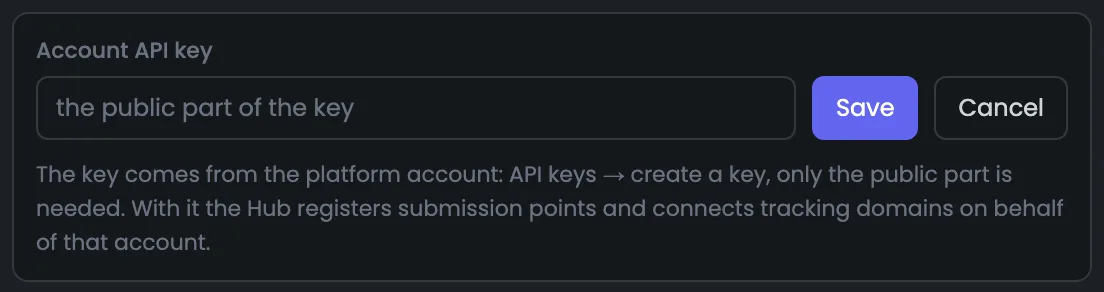
The field for the platform account’s API key. With this key the Hub acts on behalf of the account: it sets up SMTP sending points and connects tracking domains. Without a key the Hub can see the platform but can’t work in its account, and the “Needs attention” block shows the line “Account API key not saved”. You create the key in the platform itself and paste it here with the “Save API key” button, and when it changes — with “Replace API key”. The key is needed right after connecting: without it the Hub can’t set up sending points in the platform account. For Protosender the public part of the key is enough, and MailWizz connects with an API key only.
EnlargeScreen 06 · API key. An example from the MTA-Hub interface.
Where to get it — in the platform itself: API keys → create a key.
Protosender — only the public part is needed.
Save and Replace — the first time and when the key changes.
Without a key the Hub can see the platform but can’t work in its account. A saved key is never shown again.
06 / Questions about platforms
Common questions about connecting an email platform.
In short: what the Hub does in your platform, and what it never does.
On the left — what platform it is, in the middle — what goes through it and what the Hub can do, on the right — every action.
Which platforms are supported?
Protosender, Interspire, Mumara and MailWizz. The Hub connects to each one in its own way but does the same things with all of them.
Does the Hub touch campaigns and lists?
No. The Hub sends no emails and doesn’t touch campaigns: the platform runs the mailings.
Do I need to enter SMTP credentials into the platform by hand?
No. The Hub sets up the sending points itself — PowerMTA vMTAs and pools, MailerQ addresses — with a login, a password and a warm-up limit.
What does the Hub change on the platform server when connecting?
Only after you confirm: it creates a service database user, opens access for its servers and puts the tracking package in place. Until then it only looks.
How often does reconciliation run?
Every night on its own, and on demand from a button. If more than two days have passed since the last reconciliation, the mark turns red.
Where does delivery data come from, if opens come from the platform?
The Hub takes delivery and bounces from the MTA, where they are more accurate. It also compares the volume — how many emails the platform counted and how many the MTA accepted.
What if someone unsubscribed in the platform?
There is one suppression list: someone who unsubscribed in the platform can’t be imported into warm-up, and someone who unsubscribed from warm-up won’t get the mailing.
What is the API key for?
The Hub uses it to work in the platform account: it sets up sending points and connects tracking domains. Without a key it can see the platform but does nothing in it.
07 / Next step
Hand the SMTP sending points over to the platform.
Once the platform is connected, the next step is to hand the sending points over to it. Which SMTP entry points went where, and with which credentials, is gathered on the SMTP export page.
Links and pixels in emails go through the Hub’s tracking domains — they are set up on a separate page.