Tracking domains. Opens and clicks on your own domain.
A tracking domain counts opens and clicks. The Hub installs a web server on your servers in one click and walks your domains through every step — from the A record and the certificate to the warm-up receiver.
Every day the Hub checks each part separately from the outside: whether the domain works now, not just at some point in the past.
A link in an email does not lead straight to the store — it goes through a tracking domain, which counts opens and clicks and passes them to the email platform. A tracking domain needs seven steps to work: a site on the web server, an A record, an SSL certificate, the tracking package, a record in the platform, the warm-up receiver and a landing page. MTA-Hub walks the domain through all the steps with buttons — for one domain or for all at once.
Seven domain steps
01–02 · SiteHost and A record
03 · CertificateLet's Encrypt
04–05 · TrackingPackage and platform
06–07 · Warm-upReceiver and landing page
For one domain or for all at once — as a single job, with progress in one window
Readiness
2 of 3
A domain is ready when it has six marks — site, address, certificate, tracking, platform and warm-up — and the outside check has found nothing broken. On mta-02, two domains out of three are ready.
Nmta-02
domains
Fully ready2 of 3
3 with a certificate3 with a receiver
Landing page
Optional
The seventh step is a landing page in the site root. It does not count toward readiness: the domain works without it. Here two of the three domains have a landing page uploaded.
HMTA-Hub
landing page
With a landing page2 of 3
not part of readinessthe domain works anyway
02 / Step status
The status of each step is on its button.
In the tracking domains table, a step’s button shows its state: gray with an action — not done; green with a checkmark — done; red — done, but not working. Under each button is the confirmation: until when the certificate is valid, when the last warm-up event came, what the domain answered. So you read the table as a list of what is still left to click.
Gray button
Not done
Clicking it does the step. A disabled button is waiting for the previous step — its caption says which one.
Green with a checkmark
Done
Clicking it repeats the step; under the button is a date or an expiry, for example “until Nov 23, 2026”.
Red with a cross
Not working
The step is done, but the check found a problem: tracking answered 500.
mail.skylarktrips.org
Tracking answered 500
All steps are marked done, but the morning check found that the platform’s tracking answers with a 500 error. Links in emails lead to an error page.
DDomain
tracking
TestNot working
1 of 6 failedanswered 500
Do it again
Only where needed
Clicking a step tile asks which domains it should touch. The ones that need the step are ticked. The Hub checks freshly redeployed tracking right away: if it answers 500, the step is not marked done.
HMTA-Hub
repeat
Deploy tracking1 domain
two — already donechecked right away
03 / Checking tracking domains
A daily outside check of tracking domains.
Step marks are what the Hub did itself. The outside check is how the tracking domain answers now: once a day on schedule and at any moment with a button. It asks each part separately and will find tracking that answers with an error even when the site’s home page answers 200 just fine.
Six requests per domain
01 · AddressDNS
02 · Web serverand certificate
03 · Trackingplatform entry point
04 · Warm-upand link to the platform
The certificate is checked along its whole chain — the way the recipient’s email app will see it
Once a day
On schedule
The schedule skips domains that were just checked.
With a button
“Check domains”
Changes nothing on the server — it only asks. The result appears in the row right away.
Summary
By the oldest check
“2 of 3 passed, 3 hours ago” — the time is taken from the oldest check.
04 / Web server for tracking
Installing a web server next to the MTA.
A tracking domain needs a web server: Apache, PHP 7.4 and certbot are installed in one click on the same server where the MTA runs. Other programs, databases and brokers keep working: the Hub checks ports 80 and 443 in advance and does not take them from other programs. It does not turn on the firewall itself — it only adds rules to it.
Server without a web stack
mta-11
The check ran and found no web server: “No Apache”, “No PHP”. There is only one next step, and its button is highlighted: “Install web stack”. The install runs in the background.
Nmta-11
check
Web stackNot installed
No ApacheNo PHP
Leaves the firewall alone
Rules only
If a firewall is already running, the Hub adds rules for 80 and 443 to it. It never turns the firewall on itself, so as not to cut off SMTP, the database and the broker. If a port is taken, the Hub stops and names the program.
HMTA-Hub
ports
Ports 80 and 443Checked in advance
ufw firewalladds rules, never enables it
The web server has three states — “present”, “absent” and “not checked” — and the Hub never passes off “not checked” as “present” or “absent”.
05 / Interface in detail
The “Sites and servers” interface — 12 screens.
The section’s servers, the server card, web stack install, domain readiness, the seven steps, the to-do list, the domains table, the console and the check. Above each screenshot: why the screen matters. Below it: what it shows.
Servers
4 screens
The section starts with the list of servers that run tracking domains. These are ordinary Hub servers from the “Nodes” section: the “Sites” section is switched on for a server separately, and sending from it goes on as before. The Hub learns what is installed on a server by logging in over SSH. A server without a web server shows the next step right away.
01
Your servers
Servers in the “Sites” section
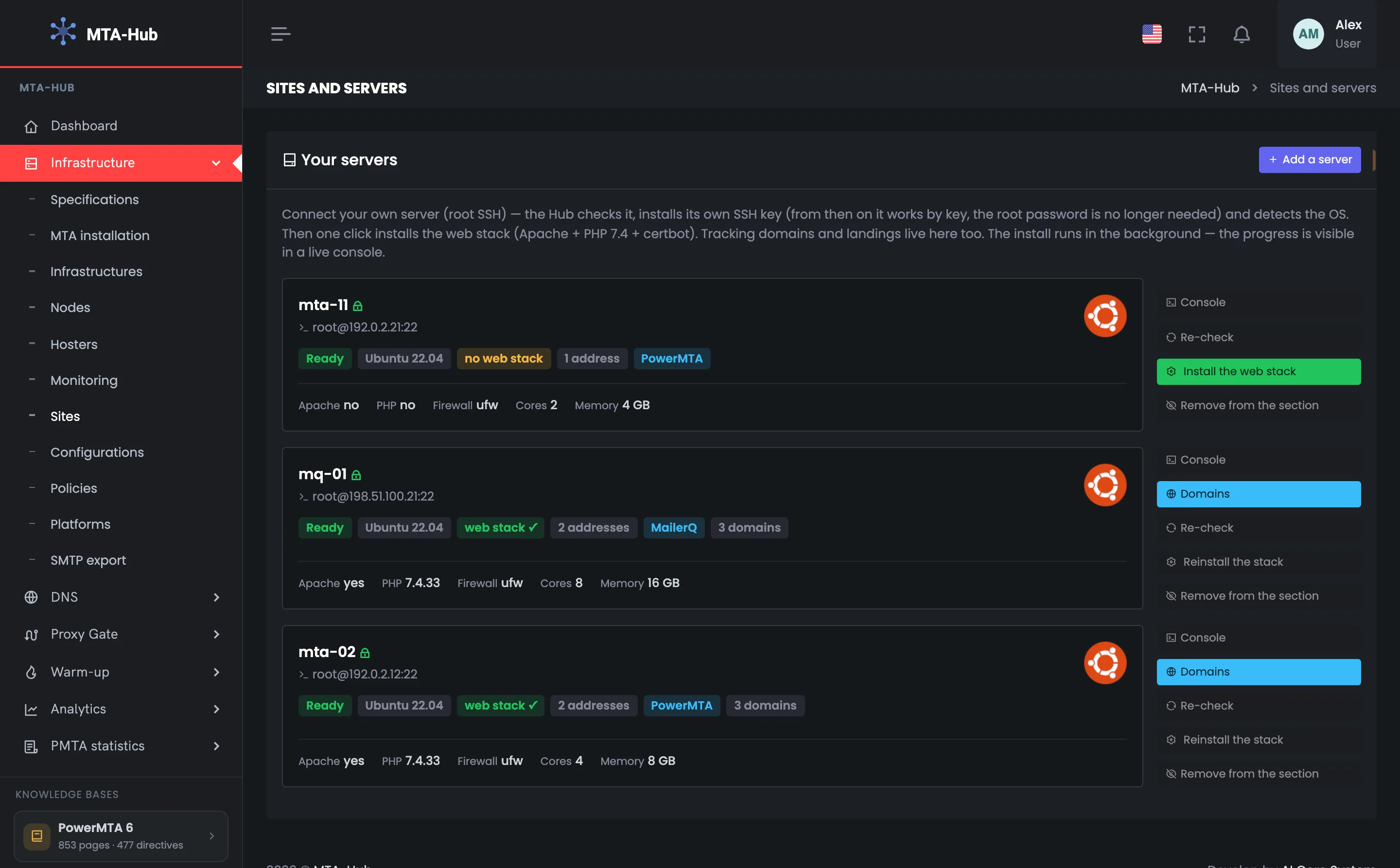
The first screen of the section is the list of servers that run sites and tracking domains. It is not a separate set of machines: each one is an ordinary Hub server with the “Sites” section switched on, and sending from it goes on as before. Each row shows at once whether the server has a web server and how many domains it holds. In the example there are three servers: two already have a web server, and mta-11 does not have one yet — that is where to start. You connect a new server with the “Add server” button at the top right. Open this screen when you need to see which server still lacks a web server and where to find domains: each server has a “Domains” button that leads to its tracking domains.
EnlargeScreen 01 · Your servers. An example from the MTA-Hub interface.
mta-02 — PowerMTA, web server installed, three domains.
mq-01 — MailerQ, web server installed, three domains.
mta-11 — added yesterday, no web server installed yet.
Each server is an ordinary Hub server with the “Sites” section switched on.
02
Server card
Badges, facts, buttons
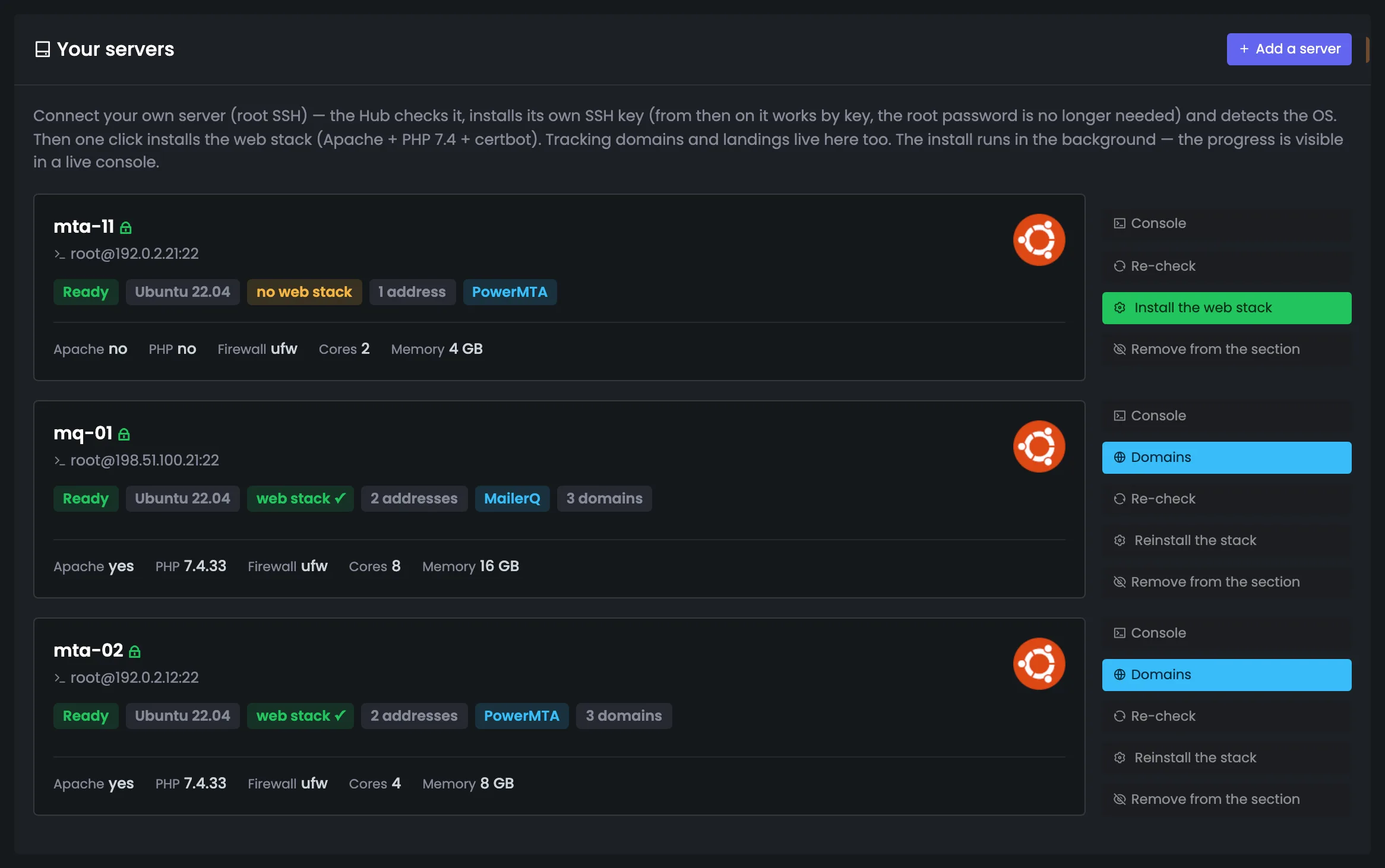
The server card brings together everything you need to know before setting up tracking domains: how the Hub logs in to the server, what is installed on it and which actions are available. The Hub learns the facts over SSH, and when the page opens it re-checks on its own any that are older than six hours. A dash and “no” mean different things here: a dash — the check has not found this out yet; “no” — it checked and found nothing. The buttons on the right go in order, top to bottom: from the console and domains to reinstalling the stack. Look first at the web stack badge and the facts line: if there is a dash, click “Re-check” — the Hub will query the server again and fill in the gaps.
EnlargeScreen 02 · Server card. An example from the MTA-Hub interface.
Lock next to the name — the Hub logs in with its own SSH key, not a password.
Badges — state, system, web stack, IPv4 addresses, MTA and number of domains.
Facts — Apache, PHP version, firewall, cores and memory; a dash — “not found out yet”, “no” — “checked and found nothing”.
Buttons — console, domains, re-check, reinstall stack, remove from section.
“Remove from section” removes only the card: the server, domains, keys and settings stay.
03
Server without a web stack
mta-11: install the web stack
This is what a server looks like when it has no web server for tracking yet. On mta-11 the check ran and found nothing: Apache and PHP are missing, so the badge says “no web stack”. The Hub tells three states apart — “present”, “absent” and “not checked” — and never passes off “not checked” as “present” or “absent”. There is only one next step here, and the “Install web stack” button is highlighted: the install runs in the background, and you see its progress on screen. It does not affect mail — the Hub checks ports 80 and 443 in advance. If a port is taken, the Hub names the program holding it — the decision is then yours. Once the web stack is installed, you can add tracking domains on the server’s domains page.
EnlargeScreen 03 · Server without a web stack. An example from the MTA-Hub interface.
Install web stack — the only next step — the button is highlighted.
If ports 80 or 443 are taken by another program, the Hub stops and names it.
04
Add a server to the section
From the Hub’s servers
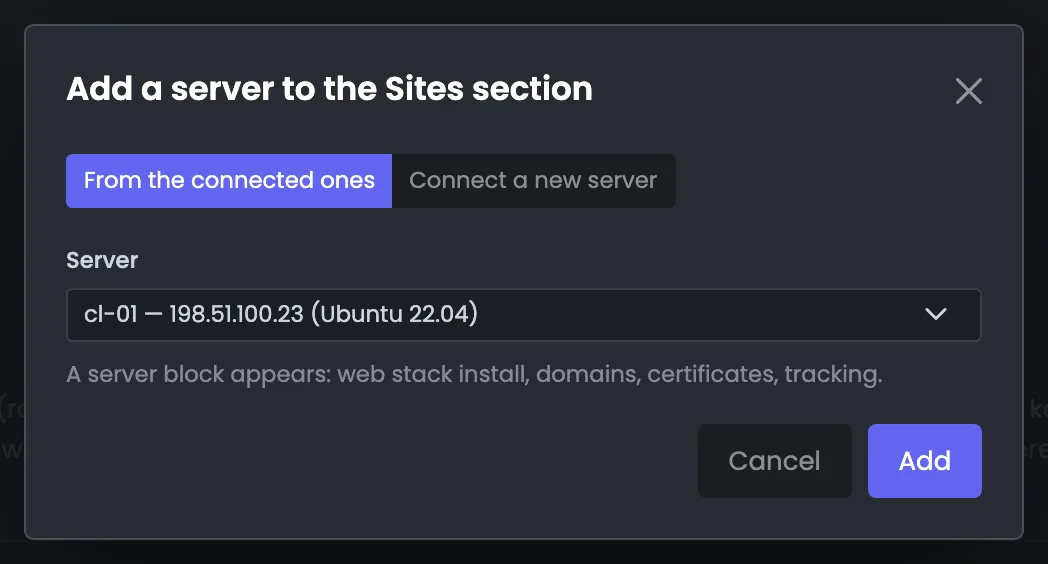
The window for adding a server to the “Sites” section. The section is switched on for a server that is already connected to the Hub: pick it from the list and a card appears where you install the web server, add tracking domains, issue certificates and deploy tracking. If the server is not in the Hub yet, the second tab leads to “Nodes”, where you connect it once. This way sending and tracking domains run on the same Hub server, with no separate server list for sites. Open this window when you need tracking domains on one more sending server. Once added, the server gets a card, and the first thing to check is whether it has a web server.
EnlargeScreen 04 · Add a server to the section. An example from the MTA-Hub interface.
From the Hub — pick a server that is already connected — a card appears.
New server — the second tab leads to “Nodes”, where you connect it once.
The Hub checks access, installs its key and detects the system.
Server domains
5 screens
The domains page of a single server is the section’s main workspace. At the top — tracking domain readiness in five tiles and the key number, “fully ready”. Below — the seven steps for all domains at once, the list of what is getting in the way, and a table where a step’s button is its state. The last screen of the group is the domain card with a breakdown of the check.
05
Server and domain readiness
Five tiles and a bar
The top of the domains page shows how many of the server’s tracking domains are really ready to work. On the left — the server itself: address, number of IPv4 addresses, system, PHP and firewall. On the right — five tiles across all domains: how many there are in total, how many have an A record pointing where it should, a certificate issued, a warm-up receiver in place and a landing page uploaded. The key number is the “Fully ready” bar: here it is 2 of 3, because one domain has all its steps done but the check found its tracking not working. Look here first when you open a server: if a tile is not green, its number is lower than the total, and below, in the “Needs attention” block, it says which domains are lagging and what to click.
EnlargeScreen 05 · Server and domain readiness. An example from the MTA-Hub interface.
Tiles — 3 domains, 3 pointing where they should, 3 with a certificate, 3 with a receiver, 2 with a landing page.
Fully ready — 2 of 3.
A tile turns green when its number matches the total.
06
All domains of the server
Seven steps as tiles
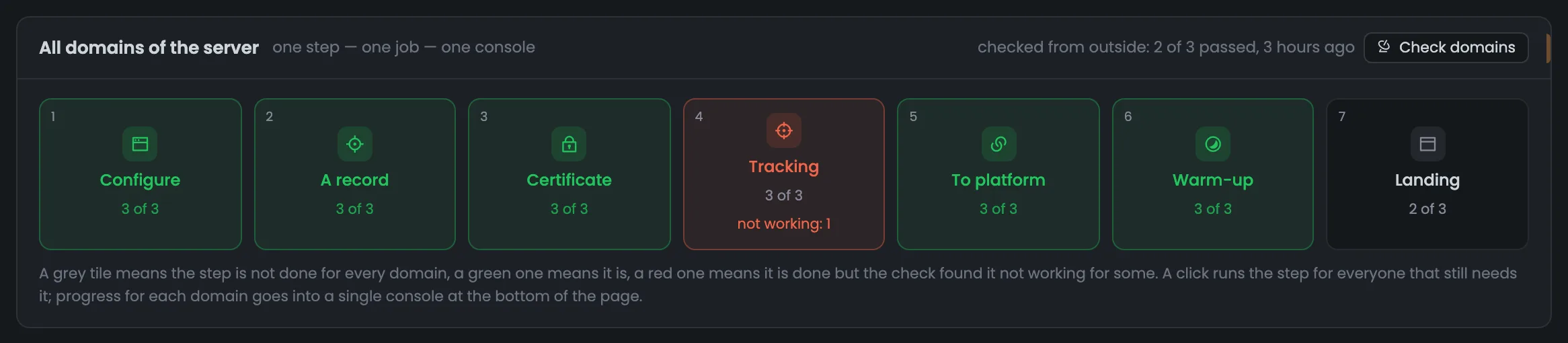
The seven steps of setting up a tracking domain as tiles, in the order you do them: configure the host, check the A record, issue the certificate, deploy tracking, connect the domain in the platform, publish the warm-up receiver and upload the landing page. The counter on a tile shows how many domains have the step done, and the color shows whether everything is fine: a red “Tracking” tile means the step is done for one domain but is not working. At the top right — the result of the last outside check. Tiles are handy when a step has to be done for all domains at once — for example, after adding new ones: a click asks which domains to touch and runs the step as a single job with a console.
EnlargeScreen 06 · All domains of the server. An example from the MTA-Hub interface.
Host, A record, certificate — 3 of 3 — green.
Tracking — 3 of 3, but “not working: 1” — red.
Platform and warm-up — 3 of 3.
Landing page — 2 of 3 — gray.
Check result — 2 of 3 passed, 3 hours ago.
Clicking a tile runs the step for everyone who still needs it, as a single job.
07
Needs attention
In the order of fixing
The “Needs attention” block is a ready-madeto-do list for the server’s tracking domains. Rows appear only when there is a problem, and they go in the order you should fix them: from a server without a web server to a certificate with 15 days or less left. Here there is one row: on mail.skylarktrips.org tracking answered with a 500 error, and links in emails lead to an error page, even though all steps are marked done. The row has buttons that fix it, and once the problem is gone, the row disappears by itself. It is best to start reviewing a server here: rows go in the order of fixing, so working top to bottom you will not fix something that depends on a step not done yet.
EnlargeScreen 07 · Needs attention. An example from the MTA-Hub interface.
mail.skylarktrips.org — tracking answered with a 500 error at the morning check.
Deploy — do the step again.
Check — ask the domain once more.
The row about a server without a web server always comes first: without it, no site answers.
08
Tracking domains table
Every step for every domain
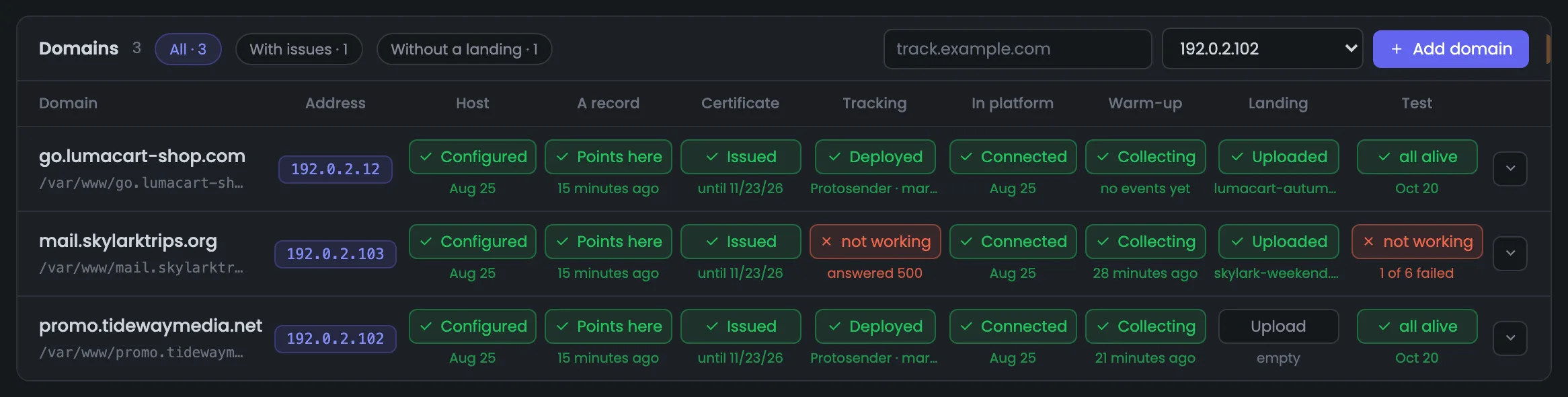
A table of all the server’s tracking domains: a row is a domain, a column is a step. You read it not as “where the checkmarks are” but as “what is left to click”: a gray button with an action does the step, a green one with a checkmark repeats it, and a red one with a cross means the step is done but the check found a problem. A disabled button is waiting for the previous step. A separate “Test” column does nothing itself — it answers whether what has been done is working. Filters at the top leave only domains with issues or without a landing page. Open the table when you need to understand the state of a specific domain: look first at the red buttons and the “Test” column, and for a detailed breakdown open the domain card with the arrow on the right.
EnlargeScreen 08 · Tracking domains table. An example from the MTA-Hub interface.
go.lumacart-shop.com — all green, “everything live”.
mail.skylarktrips.org — tracking “not working — answered 500”, test “1 of 6 failed”.
Under the buttons — dates, certificate valid until Nov 23, 2026, Protosender platform.
Filters — “With issues” and “Without a landing page”; “Add domain”.
The IP address set for a domain is also the one its emails go out from.
09
Domain card
Check breakdown and facts
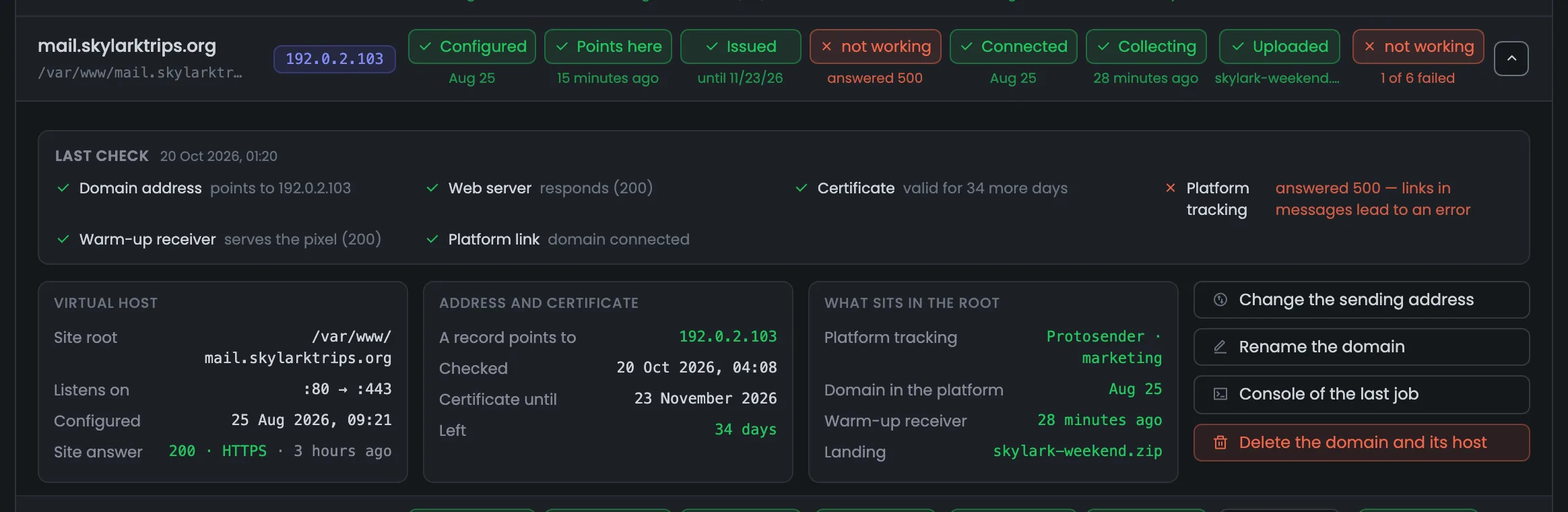
The domain card opens with the arrow on the right and explains why a domain is red or green. At the top — a line-by-line breakdown of the last check: address, web server, certificate, platform tracking, warm-up receiver and link to the platform, each part with its own answer. Below — facts about the site: folder and ports, where the A record points, until when the SSL certificate is valid. On the right — rarely used actions; delete sits here and not in the row of buttons, because it is the only irreversible one. Open the card when a button or “Test” is red: the breakdown line names the part that did not answer — for example, platform tracking with a 500 error.
EnlargeScreen 09 · Domain card. An example from the MTA-Hub interface.
Check breakdown — address, web server, certificate, tracking, warm-up receiver, link to the platform.
Facts — site folder, ports, A record, certificate expiry, what is in the folder.
Delete is the only irreversible action: the site configuration is removed, but the files stay.
Jobs and checks
3 screens
Any action on domains opens a console that shows its progress — even an A record check, which does not touch the server. You can repeat a step only for domains where it is not done or not working. The outside check changes nothing on the server: it only asks the domains and shows the result in the table right away.
10
Job console
Progress and answers
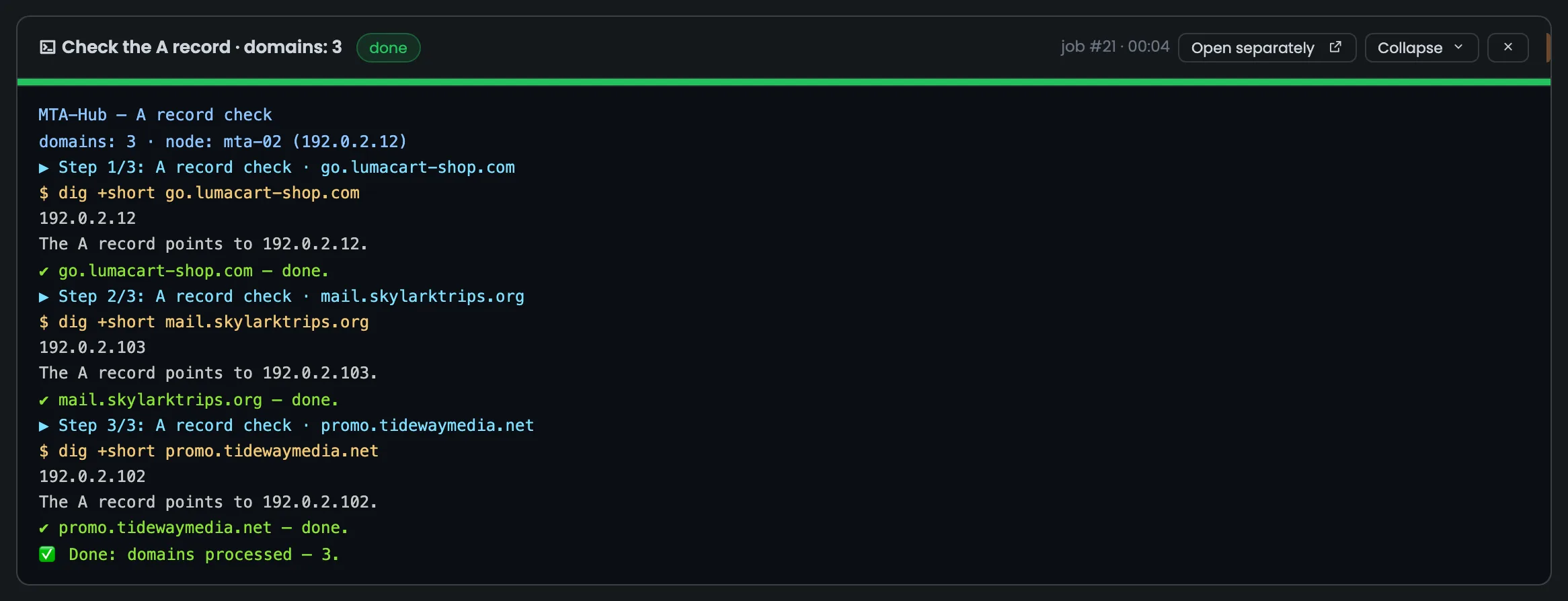
Any action on tracking domains opens a console at the bottom of the page — even an A record check, which does not touch the server. The point is to see the progress and the real answer, not a “done” badge. The screenshot shows an A record check of three domains: for each domain — the step, the command, the DNS server’s answer, the output and the result, with lines colored by severity. If something goes wrong, the cause is right there in the output, with no digging through server logs. If a step ended with an error, start with the result and the last answer — that is usually where the cause shows. “Open separately” shows the same job on its own page, where it is kept for good.
EnlargeScreen 10 · Job console. An example from the MTA-Hub interface.
Per domain — step, command, DNS server answer, output and result.
Bar and counter — how many steps are done.
Open separately — the same job on its own page, where it is kept for good.
While a job is running, the step buttons are disabled — the server will not accept a second job.
11
Do a step again
Which domains it will touch
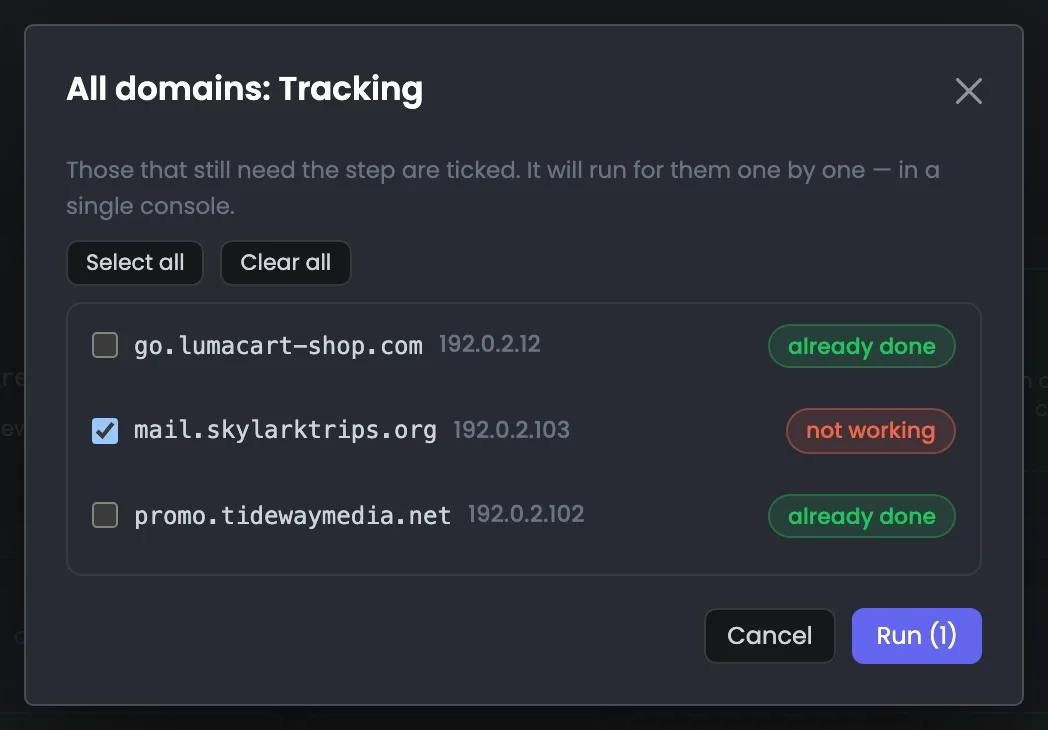
The window for repeating a step opens when you click a tile and asks which tracking domains the step should touch. The Hub ticks the ones that still need the step: where it is not done, or done but not working. The rest are marked “already done”, though you can change the ticks by hand. The step runs through the chosen domains one by one, in a single console. This way broken tracking on one domain gets fixed without touching the two that work, and the Hub checks freshly redeployed tracking right away by itself. Use this window after a row in “Needs attention” or a red tile: it is the same step, just with a choice of domains. The progress shows in the console at the bottom of the page.
EnlargeScreen 11 · Do a step again. An example from the MTA-Hub interface.
Ticked — mail.skylarktrips.org — “not working”.
Not ticked — the other two — “already done”.
The Hub checks freshly redeployed tracking right away: if it answers 500, the step is not marked done.
12
Check domains
Six requests per domain
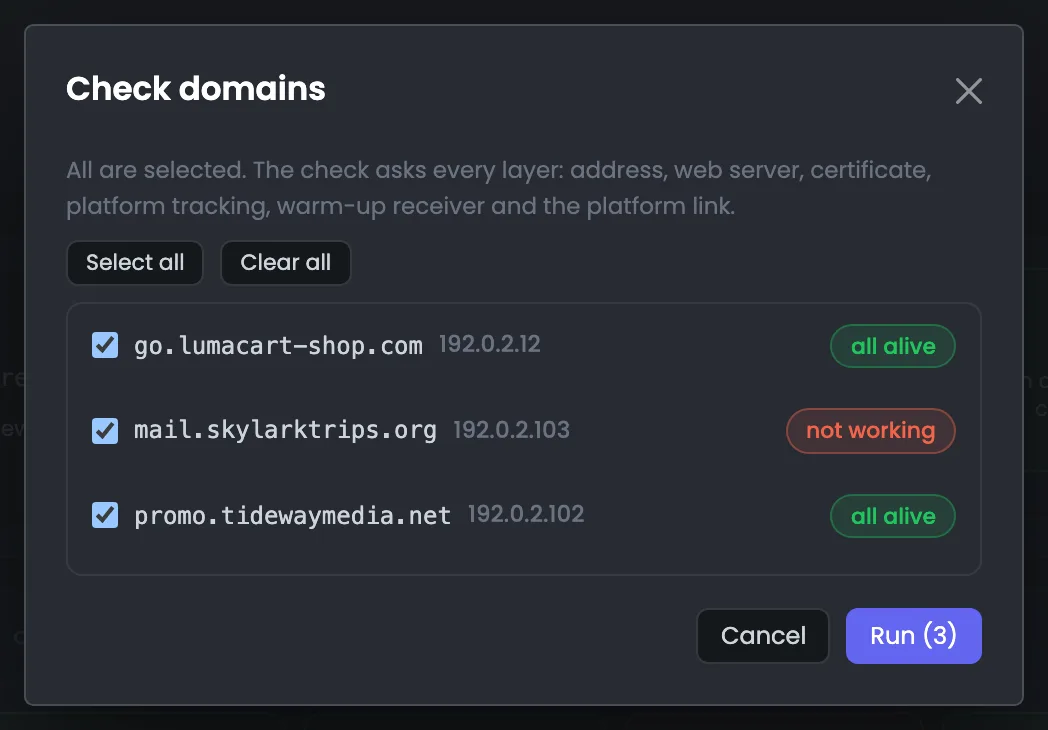
The “Check domains” window runs an outside check of the chosen tracking domains. Six short requests go to each domain, and the SSL certificate is checked along its whole chain — the way the recipient’s email app will see it. Nothing changes on the server: the check only asks. The job does not wait in a queue, so the result appears in the table row at once, and the row turns green or red before your eyes. Run the check after any fix, without waiting for the daily schedule: you see right away whether the problem is gone. The marks on the right help you compare the result with the previous check.
EnlargeScreen 12 · Check domains. An example from the MTA-Hub interface.
What it asks — address in DNS, web server, certificate with its chain, tracking, warm-up pixel, link to the platform.
Marks on the right — how the previous check ended.
No job queue: the result appears in the table row right away.
06 / Tracking domain questions
Common questions about tracking domains.
In short: why you need a tracking domain, how to read the step buttons and what the Hub checks.
The domains that still need the step are ticked; it runs through them one by one, in a single console.
Why do I need a tracking domain?
Links and pixels in emails go through it: it counts opens and clicks and passes them to the email platform.
What does the Hub install on the server?
Apache, PHP 7.4 and certbot — on the same server where the MTA runs. Other programs keep working.
Will the install break my mail?
The Hub checks ports 80 and 443 in advance and does not take them from other programs. It does not turn on the firewall itself, it only adds rules.
What steps does a domain go through?
A site on the server, an A record, a certificate, tracking, a record in the platform, the warm-up receiver and a landing page.
What does a red button mean?
The step is done, but the outside check found it is not working. For example, tracking answers with a 500 error.
How is the check different from the step marks?
Marks are what the Hub did itself. The check is how the domain answers now, for each part separately.
How often are domains checked?
Once a day on schedule, and at any moment with the “Check domains” button.
Who renews the certificates?
certbot on the server itself. The Hub sees the new expiry date at the next check.
07 / Next step
Connect your email platform.
A tracking domain passes opens and clicks to the email platform. The platform itself — Protosender, Interspire, Mumara or MailWizz — is connected in the “Platforms” section.
Domain A records and signing keys are in the DNS section.