Warm-up audience. Your own recipients who opted in.
The warm-up sends to your own list — people who subscribed themselves and read your emails. No bought mailboxes and no fake conversations.
The page shows the audience the way the Hub sees it: how many addresses you can email right now, which mailbox provider they belong to and why some are excluded.
The warm-up audience is split into engagement segments — tiers A, B and C. Only A and B go into the warm-up, and excluded addresses are left out. “163 thousand in the audience” and “141 thousand you can email” are different things, and the page shows both numbers.
What is in the audience
01 · Total163,138 addresses
02 · Tier A80,919
03 · Tier B61,333
04 · Usable141,037 · 86%
Tiers A and B go into the warm-up without the excluded; tier C (20,886) and the excluded (1,223) do not
Tiers change by themselves
Within a minute
When a person opens an email or clicks a link, within a minute they are in tier A. No response for 30 days — overnight they drop to B; 90 days — to C.
ATier
response
Opened an emailTier A
within a minute30 days without a response → B
Excluded
The reason is visible
Unsubscribed via the link, the address does not exist, the mailbox is full time after time, the address is on the email platform’s stop list, removed by hand — every excluded address shows why.
HMTA-Hub
reason
Excluded1,223 addresses
a reason for eachrestore — by hand
02 / Audience lists
Recipient lists for brands and tasks.
A warm-up plan takes the chosen lists or the whole audience. For each list you see how many addresses of each tier it holds and which plans use it — drafts and paused plans included. A list that at least one plan needs cannot be deleted.
Three lists from the exampleData from the screenshots
Make-up
Online banking clients
30,184 addresses, 24,744 you can email. They logged in to online banking in the last six months.
LList
tiers
Usable24,744 of 30,184
A 4,087 · B 20,868C 5,229
Where it is used
In no plan
No plan uses this list yet, so it can be deleted. Before deleting, the Hub tells you how many addresses will leave the audience — those that are in no other list.
HMTA-Hub
plans
Where it is usedNowhere
can be deletedthe Hub will warn you
Make-up
Readers, last 30 days
48,045 addresses, 41,917 you can email. They opened the morning edition in the last 30 days.
LList
tiers
Usable41,917 of 48,045
A 27,110 · B 15,154C 5,781
Where it is used
Newsroom plan
The “Dailyquill · newsroom” plan uses this list. While the plan needs the list, it cannot be deleted.
HMTA-Hub
plans
Where it is used1 plan
Dailyquill · newsroomcannot be deleted
Make-up
Buyers, last 90 days
84,909 addresses, 74,376 you can email. They bought in the last 90 days and opened the store’s emails.
LList
tiers
Usable74,376 of 84,909
A 49,722 · B 25,311C 9,876
Where it is used
Three plans
The list is used by the main pool, the spring promo (draft) and the reserve pool (paused). Drafts and paused plans count too.
HMTA-Hub
plans
Where it is used3 plans
including a draftcannot be deleted
Mailbox providers in the audience: Google — 42%, Microsoft — 21%, Apple — 15%, Yahoo — 12%, GMX — 10%. A provider’s share of the audience is its share of each day’s emails.
03 / Importing the audience
Import addresses from CSV and TXT.
You add to the warm-up audience by pasting a list or uploading a CSV/TXT file of up to 20 MB. The upload runs in the background, no duplicates appear, and the Hub works out the mailbox provider itself — from the domain and the MX record.
Paste a list
One address per line
Tier after a comma: ivan@example.com,A.
CSV or TXT file
Up to 20 MB
Processed in the background — you can close the page and progress is kept.
No duplicates
Tier only goes up
A known address is added to the chosen list, and its tier is raised only if the file gives a higher one.
Mailbox provider
From domain and MX
The Hub works it out itself; addresses that unsubscribed on the email platform come in already excluded.
Today’s upload into the Lumacart list: 12,400 lines — 1,186 new addresses, 11,014 known ones updated, 200 lines skipped.
04 / Audience addresses
Find and inspect any address in the audience.
You can find and inspect any address in the warm-up audience: its mailbox provider, its tier and lists, how it responded to warm-up emails and when it was last emailed. Actions on the address are here too.
Audience addresses
50 per page
Most active on top. Search by address and domain, filters by tier, unsubscribed, excluded, mailbox provider and list.
HMTA-Hub
search
Audience addresses163,138 records
filtersexport selection
Excluded
Filter
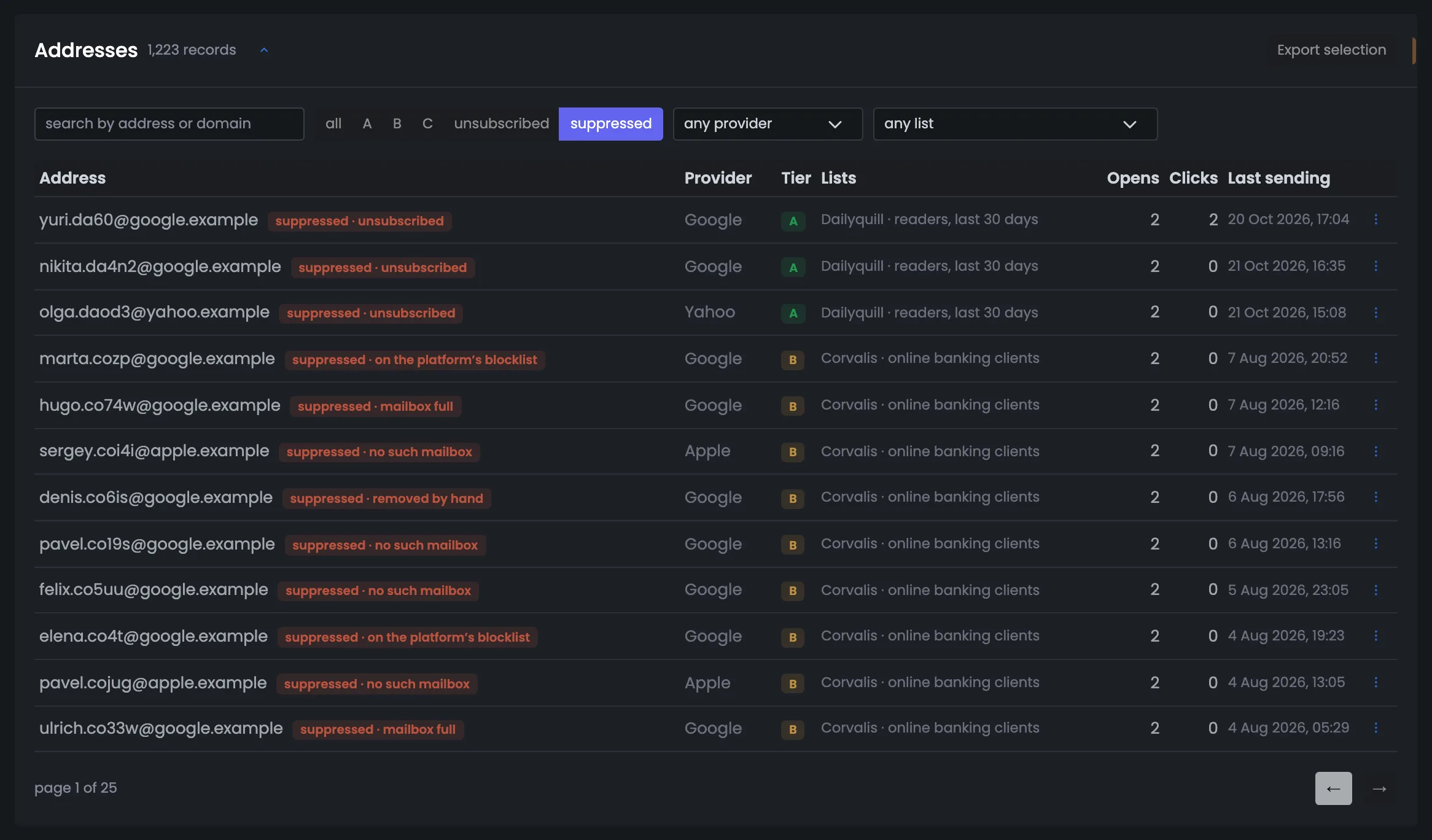
The filter shows 1,223 excluded addresses, each with its reason. You can restore an address from the row menu, but first it is worth understanding why it was excluded.
HMTA-Hub
filter
Excluded1,223 records
a reason for eachrestore — in the menu
“Export selection” downloads a file in the same format as for upload: you can edit it and upload it back.
05 / Interface in detail
The “Warm-up audience” interface — 6 screens.
What is in the audience, lists, mailbox providers, import, addresses and the excluded. Above each screenshot: why the screen matters. Below it: what it shows.
Audience, lists and providers
3 screens
The warm-up audience page starts with the main thing: how many addresses are in the audience and how many of them you can email right now. Below are the recipient lists that plans are built from, and whose mailboxes make up the audience. A provider’s share of the audience sets its share of each day’s emails, so the bars show at once who will get most of the warm-up.
01
What is in the audience
How many addresses, and how many you can email
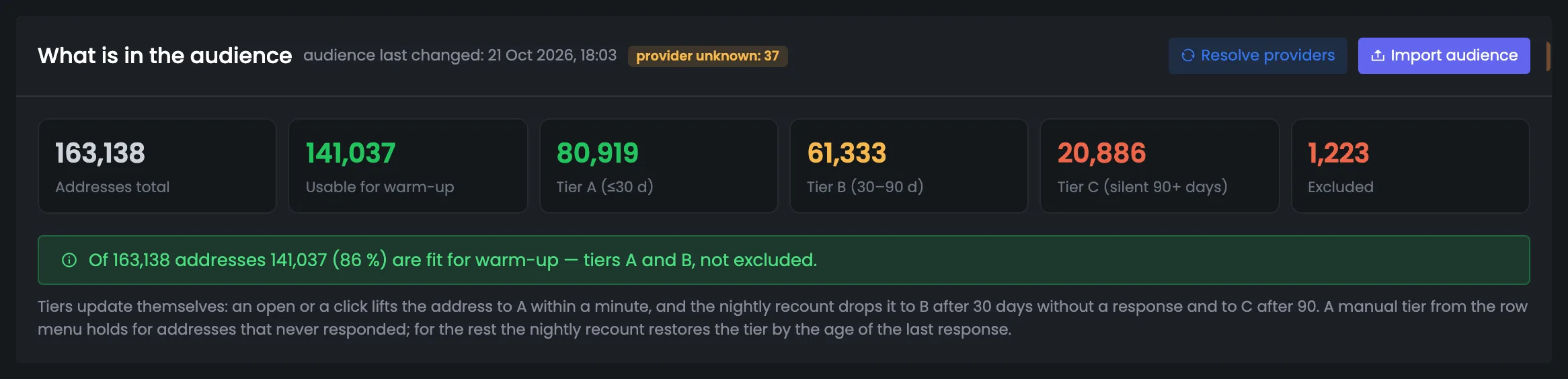
The “What is in the audience” block answers the main question before an IP warm-up: how many addresses you can email right now. Six numbers split the audience into engagement segments — tiers A, B and C — and count the excluded separately, and the summary line shows what part of the audience can be used for warm-up. Below it you see how tiers change by themselves. At the top — when the audience last changed and how many addresses still have no known provider: you can check them again with the “Resolve providers” button. Open this block before creating a plan: the number of usable addresses is the ceiling from which the plan form works out how many emails a day the audience can take. If the usable share falls, you see why below — tier C or the number of excluded is growing.
EnlargeScreen 01 · What is in the audience. An example from the MTA-Hub interface.
Total addresses — 163,138.
Usable for warm-up — 141,037 — tiers A and B without the excluded, 86%.
Tier A, B, C — 80,919 (up to 30 days), 61,333 (30–90 days), 20,886 (silent for 90+ days).
Excluded — 1,223.
Provider unknown: 37 — for some addresses in today’s upload, the MX record did not answer.
Resolve providers and Import audience — check mailbox providers again and add to the audience.
A tier set by hand holds only for addresses with no response: for the rest, the nightly recount sets the tier back by how long ago they last responded.
02
Audience lists
Tier make-up and where each list is used
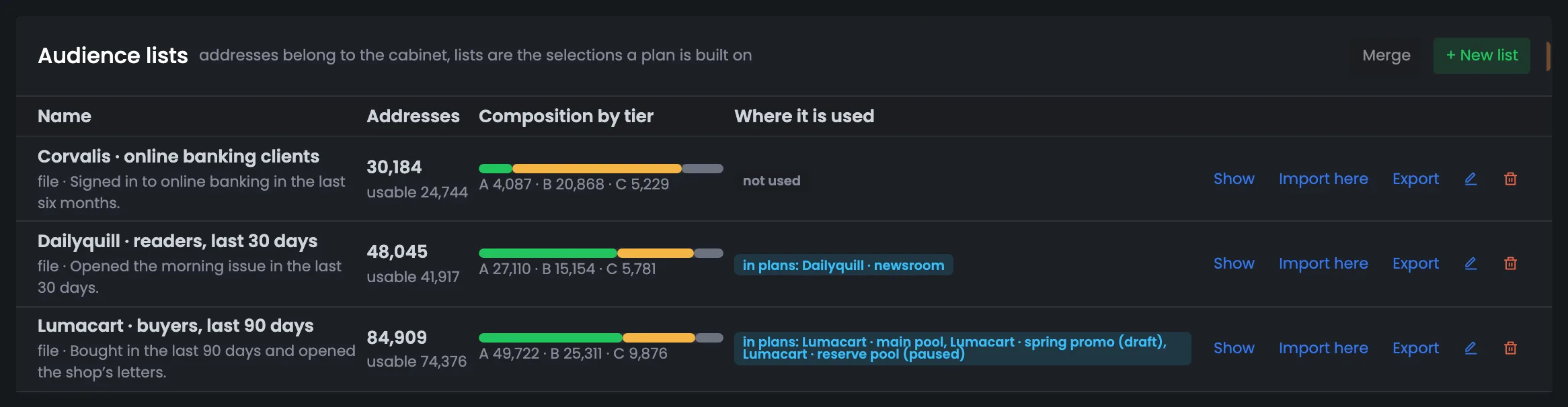
Audience lists are the selections that warm-up plans are built from — for example, one per brand. The bar in a row shows how many addresses of each tier the list holds, that is, how engaged it is, and on the right you see which plans use it — drafts and paused plans included. You work with each list right here: view its addresses, upload a file straight into it, export, rename and delete it. You can delete only a list that no plan uses. Watch the tier C share in the bar: the bigger it is, the fewer of the list’s addresses will actually go into the warm-up. For a new brand it is handy to create a separate list with the “+ New list” button and upload a file into it right away.
EnlargeScreen 02 · Audience lists. An example from the MTA-Hub interface.
Dailyquill · readers, last 30 days — 48,045, 41,917 usable; in the newsroom plan.
Lumacart · buyers, last 90 days — 84,909, 74,376 usable; in three plans, including a draft and a paused one.
Merge and + New list — buttons above the table.
Before deleting a list, the Hub tells you how many addresses will leave the audience — those that are in no other list.
03
Providers in the audience
Whose mailboxes make up the audience
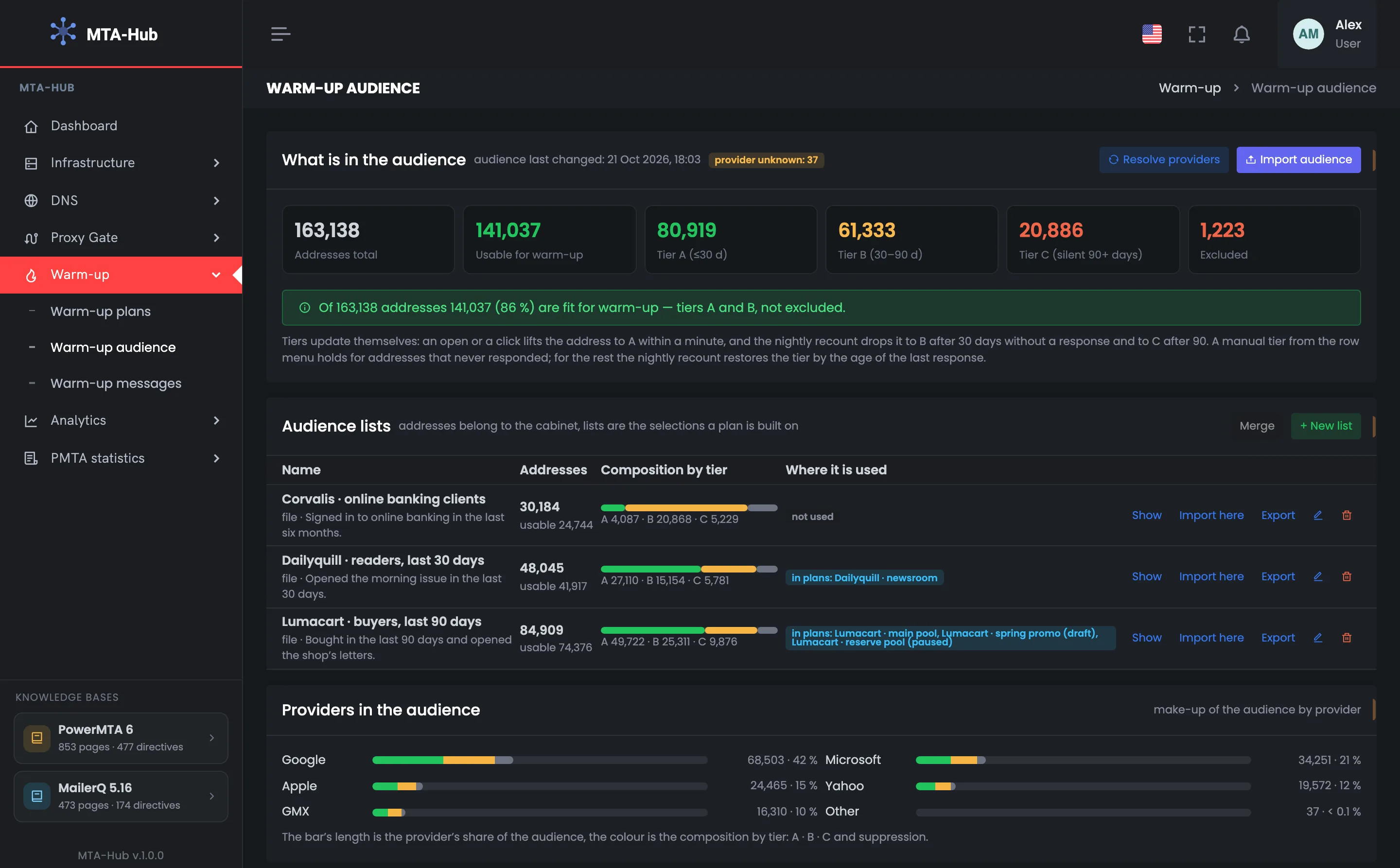
The “Providers in the audience” screen shows whose mailboxes make up the warm-up audience. The bar length is the provider’s share; the colors inside show how many of its addresses are in each tier and how many are excluded. This matters for the plan: a provider’s share of the audience is its share of each day’s emails. So the screen shows at once who will get most of the warm-up emails: in the example, Google leads with 42%. The “Other” row collects addresses whose provider is not known yet. Open this screen when some mailbox provider is holding back a warm-up plan’s mail: if its share of the audience is large, it also gets a large part of each day’s emails. Check addresses without a provider with the “Resolve providers” button.
EnlargeScreen 03 · Providers in the audience. An example from the MTA-Hub interface.
Google — 68,503 — 42%.
Microsoft — 34,251 — 21%.
Apple — 24,465 — 15%.
Yahoo — 19,572 — 12%.
GMX — 16,310 — 10%.
Other — 37 — the provider is not known yet.
Each day’s sending depends on this: a provider’s share of the audience is its share of that day’s emails.
Import and addresses
3 screens
Next — how you add to the audience and how to inspect any address. Import runs in the background and creates no duplicates, and a tier can only go up on upload. The address table opens on a click and shows how each recipient responded to warm-up emails. The excluded filter explains why an address gets no emails.
04
Import
As a list or a file, in the background
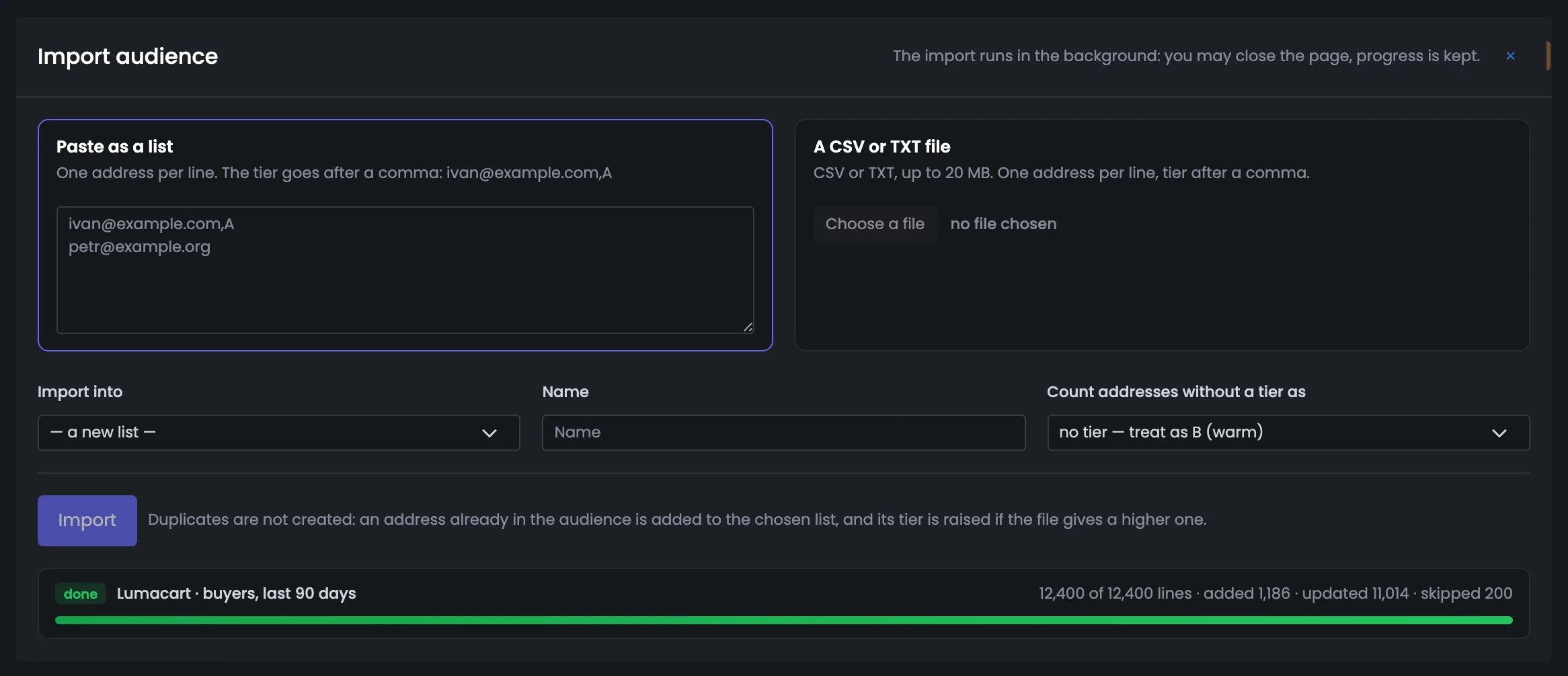
The import form adds to the warm-up audience in two ways: by pasting addresses as a list or by uploading a CSV/TXT file of up to 20 MB. First you choose which list to load into — new or existing — and which tier to give addresses that have none. The upload runs in the background, you can close the page, and progress is shown below: how many lines are processed and how many addresses were added, updated and skipped. The Hub works out each address’s mailbox provider itself. You come here when the audience is out of date or a new brand appears. Uploading known addresses again is safe: there will be no duplicates, and the tier can only go up. Addresses that unsubscribed on the email platform come in already excluded.
EnlargeScreen 04 · Import. An example from the MTA-Hub interface.
Paste a list — one address per line, the tier after a comma.
CSV or TXT file — up to 20 MB.
Import into — a new or an existing list.
Treat addresses without a tier as — B (warm) by default.
No duplicates are created: a known address is added to the chosen list, and its tier is raised only if the file gives a higher one.
05
Audience addresses
Search, filters, export
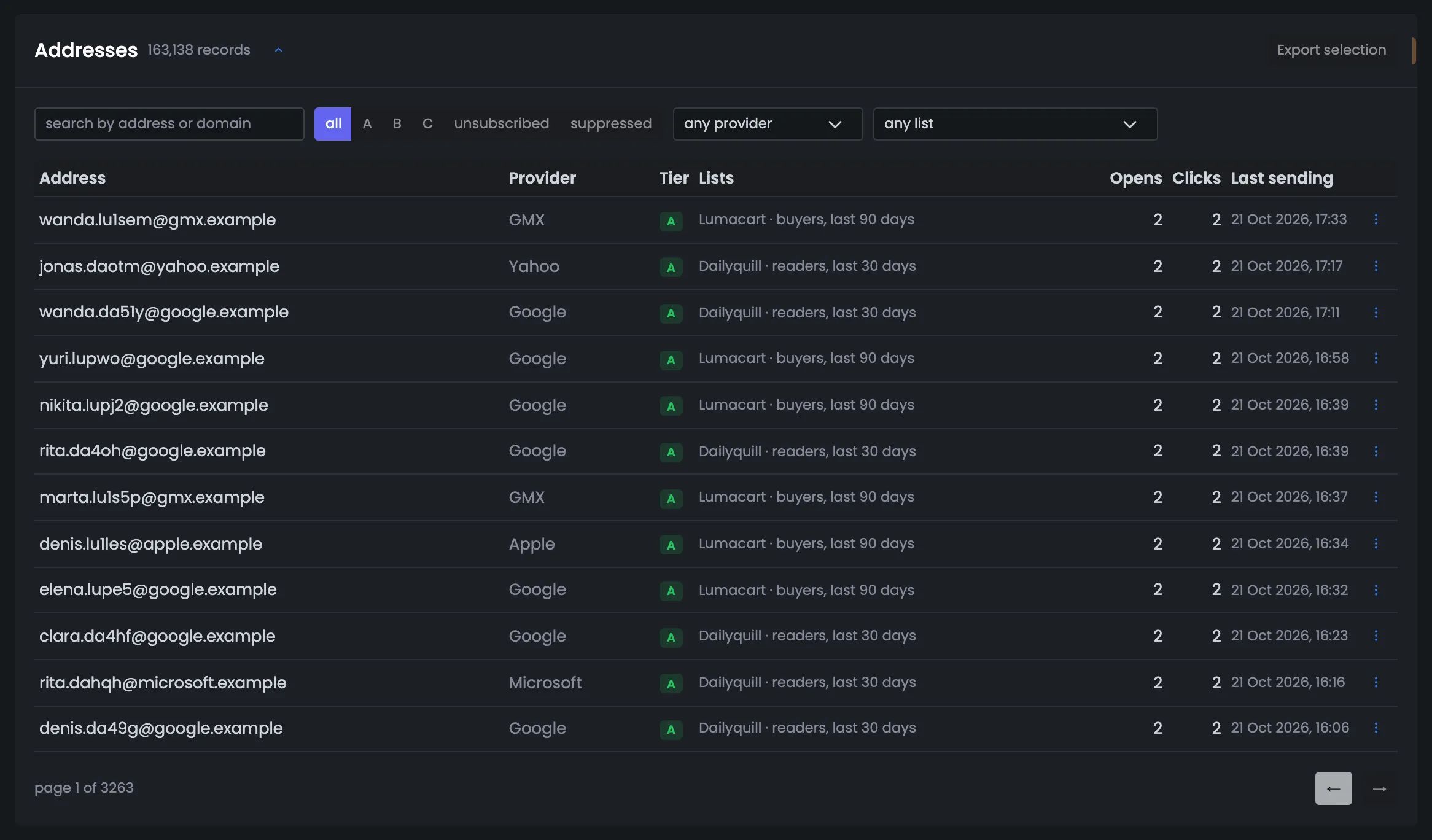
The address table is for when you need to look into a specific recipient: their mailbox provider, tier and lists, whether they opened warm-up emails and when they were last emailed. It opens on a click, 50 addresses per page, most active on top. Search by address or domain and filters narrow the whole audience down to the records you need. You can export a selection as a file, edit it and upload it back through the same import. Open the table when you need an answer about a specific person: were they emailed, why are they not in the warm-up, which lists are they in. From the row menu you can move an address to another tier, remove it from a list or exclude it.
EnlargeScreen 05 · Audience addresses. An example from the MTA-Hub interface.
Search — by address or domain.
Filters — all, A, B, C, unsubscribed, excluded, mailbox provider, list.
Address row — mailbox provider, tier, lists, opens and clicks on warm-up emails, last send.
Row menu — change the tier, remove from a list, exclude or restore.
Export selection — a file in the same format as for upload.
163,138 records — 3,263 pages; search and filters narrow them down to what you need.
06
Excluded
A reason for each
The same address list with the excluded filter — 1,223 records that do not go into the warm-up. The key thing here is the reason for each address: unsubscribed via the link, the address does not exist, the mailbox is full time after time, the email platform’s stop list, or removed by hand. You also see when the address was last emailed. The screen explains why the warm-up audience is smaller than it seems, and helps you avoid restoring by mistake an address that was excluded for good reason. Look here when the number of usable addresses has dropped noticeably: the reasons show what happened — unsubscribes, non-existent addresses or the platform’s stop list. Many non-existent addresses are a reason to check the source of these addresses before the next import.
EnlargeScreen 06 · Excluded. An example from the MTA-Hub interface.
Unsubscribed — via the link in an email.
No such address — the nightly check found the address does not exist.
Mailbox full — time after time.
On the platform’s stop list — flagged by the email platform at upload.
Last send — Corvalis clients were last emailed in early August, when their warm-up was finishing.
You can restore an address from the row menu — but first it is worth understanding why it was excluded.
06 / Questions about the warm-up audience
Common questions about the warm-up audience.
In short: who you can email, how tiers change and what happens on upload.
Paste a list or upload a file up to 20 MB, choose the list and the default tier; below — progress of today’s upload.
Why can’t I email every address in the audience?
Only tiers A and B go into the warm-up, and without the excluded. Tier C has been silent for more than 90 days, and the excluded have unsubscribed or cannot be reached.
What is a tier?
An engagement group. A — responded in the last 30 days, B — 30–90 days ago, C — silent for more than 90 days.
How does an address get into tier A?
The person opened a warm-up email or clicked a link — within a minute the address is in tier A. Without a response, the nightly recount drops it to B and then C.
Why is an address excluded?
Each one shows the reason: unsubscribed via the link, the address does not exist, the mailbox is full time after time, it is on the email platform’s stop list, or it was removed by hand.
Can I restore an excluded address?
Yes, from the row menu. But first it is worth understanding why it was excluded.
What happens to duplicates on upload?
No duplicates appear: a known address is added to the chosen list, and its tier is raised only if the file gives a higher one.
How is the mailbox provider determined?
From the address’s domain, and for unfamiliar domains — from the MX record. If the record did not answer, the “Resolve providers” button checks the address again.
Can I delete a list?
Yes, if no plan uses it, drafts and paused plans included. Before deleting, the Hub tells you how many addresses will leave the audience.
07 / Next step
Prepare the warm-up emails.
The audience defines who you email. What exactly these people receive while an address builds its reputation is set in the warm-up messages.
The plans themselves — which pairs to send from, at what pace and how volume grows — are on the main page of the section.