Warm-up messages. AI Core writes them, a person approves.
A warm-up needs short, lively texts — a tip, a question, a joke, a quote, a greeting — and they need to differ: if the same thing goes out day after day, the mailbox provider sees a mass mailing.
AI Core writes five different messages in a couple of minutes, the Hub checks each one before adding it to the library, and a person approves it before it’s sent.
A warm-up message sells nothing: it speaks to the recipient gently and asks for a reply. You choose the genres, language, brand, occasion and tone — AI Core writes messages with wording variants (spintax), the Hub checks each one, and it goes out only after a person approves it.
From order to sending
01 · OrderGenres, language, brand
02 · AI CoreMessages with variants
03 · Hub check11 rules
04 · PersonApproves
A new message enters the library unapproved — and such a message is never sent
Order
50 credits per message
Three messages in English on behalf of Lumacart: a tip, a greeting and a question, in a warm tone, with no selling and no links. Before the run, a dialog shows the whole order and the balance left on the account.
HMTA-Hub
order
Will be charged150 credits
3 × 502,200 will be left
Wording variants
Thousands of combinations
The subject has two blocks of 3–4 wordings, the body 6–10 blocks of 2–3. Each message goes out as one of its variants, so the mailbox provider sees the same thing less often.
AIAI Core
variants
One message1,728 combinations
9 blocks9 subject variants
02 / Message checks
Eleven rules for checking warm-up messages.
Before a warm-up message enters the library, the Hub checks it against eleven rules: no links or dates, the right length, in the ordered language, and not similar to recent messages. If it fails, the Hub gives the reason in plain words, and if the variants are placed badly, AI Core rewrites the message once more.
No links
No addresses, no domains
The Hub adds the unsubscribe link itself — there are no links in the message text.
Doesn’t go stale
No dates, no seasons
A message may go out a month later and must not say anything untrue on that day.
Length
From 180 to 5,000 characters
For any combination of variants; the subject is no longer than 180 characters.
Language
As ordered
A message in the wrong language doesn’t get into the library.
Doesn’t repeat
Compared with the latest 50
60% of meaningful words in common with one of them — and the message is rejected.
No service text
And intact markup
The message doesn’t retell AI Core’s instructions, and the variants don’t cut quoted text in two.
Along the way the Hub tidies the message up: it removes markdown, sets the quotation marks used in the message’s language, builds the HTML and text versions, and hides the preview line at the start of the message.
03 / Message library
A library of warm-up message templates.
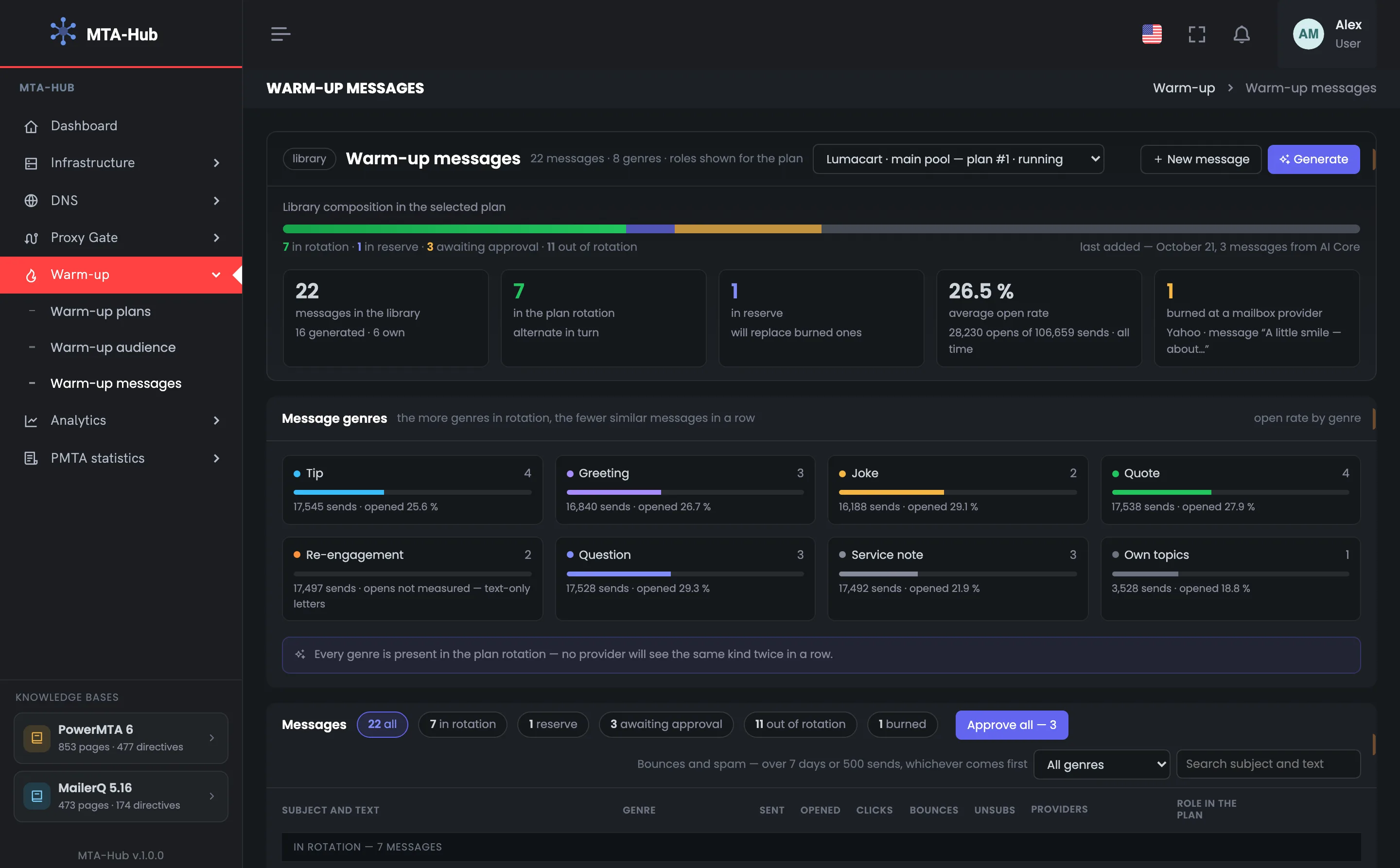
You view the warm-up message library through the eyes of the selected plan: which messages are going out now, which are in reserve, which await approval. The genre tiles show how many messages of each kind there are and how they’re opened — they tell you whether your sending is varied enough.
22 messages for “Lumacart · main pool”
01 · In rotation7 messages
02 · In reserve1 message
03 · Awaiting approval3 messages
04 · Out of rotation11 messages
Messages in rotation take turns in a cycle, the reserve stands in for withdrawn ones, and out of rotation are other brands’ messages and withdrawn ones
29.3% opens
Question
17,528 sends, 3 messages.
29.1% opens
Joke
16,188 sends, 2 messages.
27.9% opens
Quote
17,538 sends, 4 messages.
Text only
Re-engagement
17,497 sends — opens can’t be tracked in a message without HTML.
Every genre is in the plan’s rotation — the mailbox provider won’t see messages of the same kind in a row. For a text-only message there’s an honest dash instead of opens, not zero percent.
04 / Withdrawing a message over spam
A message is withdrawn at the mailbox provider where it lands in spam.
A warm-up message is withdrawn over spam at a single mailbox provider — it keeps going to the others. In the Hub this is called the burning rule. While the message is withdrawn, spares stand in for it, and once the complaints stop counting in the assessment, it comes back on its own.
The joke and Yahoo
5.8% spam
Apple, GMX, Google and Microsoft accept the joke “A little smile” without trouble — 0.5–1.0%. Yahoo started sending it to spam: 5.8% across 515 messages, and on October 18 the Hub withdrew the message at Yahoo.
YYahoo
spam
Withdrawn at Yahoo5.8% against a 3% threshold
515 sends4 more clean
Who is to blame
The message or the domain
The plan blames the text only when its spam rate is more than 2 times the average at that mailbox provider. If all messages get equally high spam, the problem is the domain and the address — and the messages keep going out.
HMTA-Hub
assessment
Assessment period7 days or 500
threshold 3.0%from 30 sends
A message withdrawn by hand won’t come back overnight: the Hub returns to the reserve only what it withdrew itself.
05 / The interface in detail
The “Warm-up messages” section interface — 11 screens.
The library, genres, the plan’s messages, approval, the burning rule, ordering from AI Core, variants and preview. Above each screenshot: why the screen matters. Below it: what it shows.
Library and the plan’s messages
4 screens
The page starts with the warm-up message library, seen through the eyes of the selected plan: what it’s made of, how many messages of each genre there are and how they’re opened. Below are the messages themselves by role: in rotation, in reserve, awaiting approval, withdrawn. Any message expands in full — with its text and how each mailbox provider accepts it.
01
Library
The library’s makeup in the selected plan
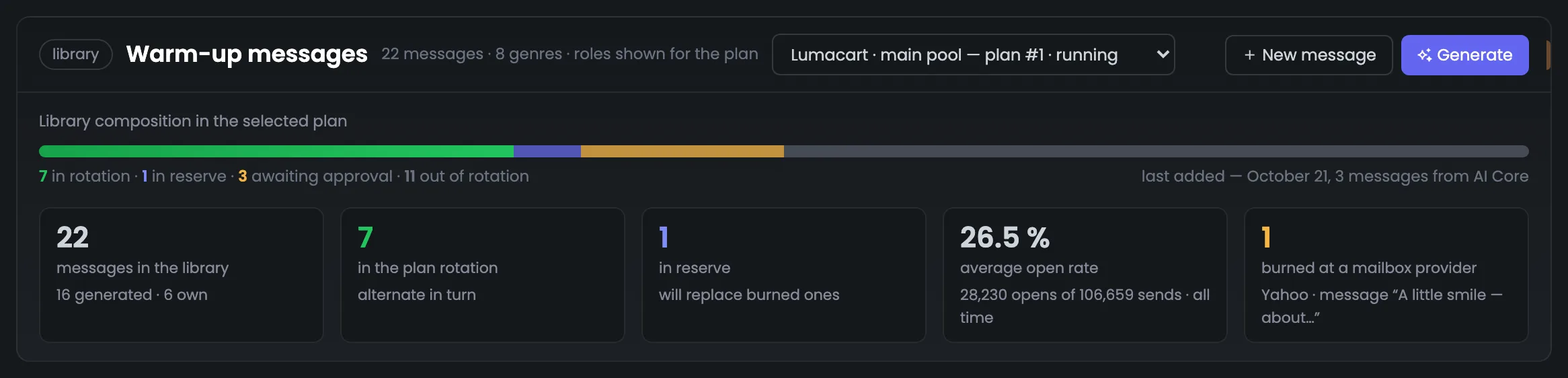
The header of the warm-up message library and its makeup in the selected plan. The bar shows the messages’ roles: how many are going to recipients now (in rotation), how many are held in reserve, how many await approval and how many are out of rotation — other brands’ messages and withdrawn ones. The plan switch at the top changes the picture: each plan has its own roles and its own withdrawn messages. The tiles below tell you who wrote the messages, how they’re opened and how many messages were withdrawn over spam. This is where you start, after picking a plan: if there are few messages in rotation or many awaiting approval, it’s time to top up the library or go through the new messages. Messages withdrawn at a mailbox provider show up in the tiles right away.
EnlargeScreen 01 · Library. An example from the MTA-Hub interface.
Warm-up messages — 22 messages, 8 genres; roles are shown for “Lumacart · main pool”.
New message and Generate — write your own or order from AI Core.
Makeup — 7 in rotation, 1 in reserve, 3 awaiting approval, 11 out of rotation.
Last addition — October 21, 3 messages from AI Core.
Tiles — 16 generated and 6 own; open rate 26.5% — 28,230 of 106,659; 1 message burned at Yahoo.
The open rate counts only messages with an HTML part — opens can’t be tracked for text-only messages.
02
Message genres
How many messages and how they’re opened
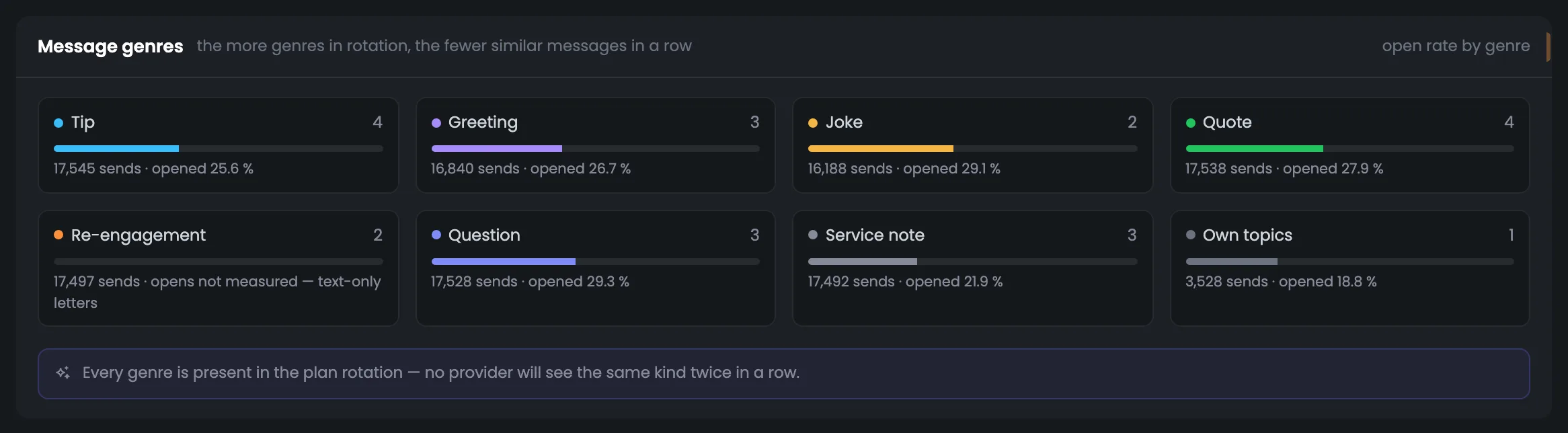
The genre tiles show how varied the warm-up messages in this plan are: how many messages of each kind there are and how they’re opened. They show which genres work better: in the example, questions get opened most often. For the “re-engagement” genre, instead of a percentage there’s an honest label: the messages are text only, and without HTML opens can’t be tracked. At the bottom is the verdict on whether there are enough genres among the messages being sent so that the mailbox provider doesn’t see messages of the same kind in a row. Pay attention to genres with a low open rate and to the strong ones: it’s a hint at which messages to order next. Ordering by genre is done below, in the “Generate messages” block.
EnlargeScreen 02 · Message genres. An example from the MTA-Hub interface.
Tip — 4 messages, 25.6% opened.
Greeting — 3 messages, 26.7%.
Joke and Quote — 29.1% and 27.9%.
Re-engagement — opens not measured — text-only messages.
Question — 29.3% — opened most often.
Service note and Own topics — 21.9% and 18.8%.
Every genre is in the plan’s rotation — the mailbox provider won’t see messages of the same kind in a row.
03
The plan’s messages
By role: rotation, reserve, awaiting, withdrawn
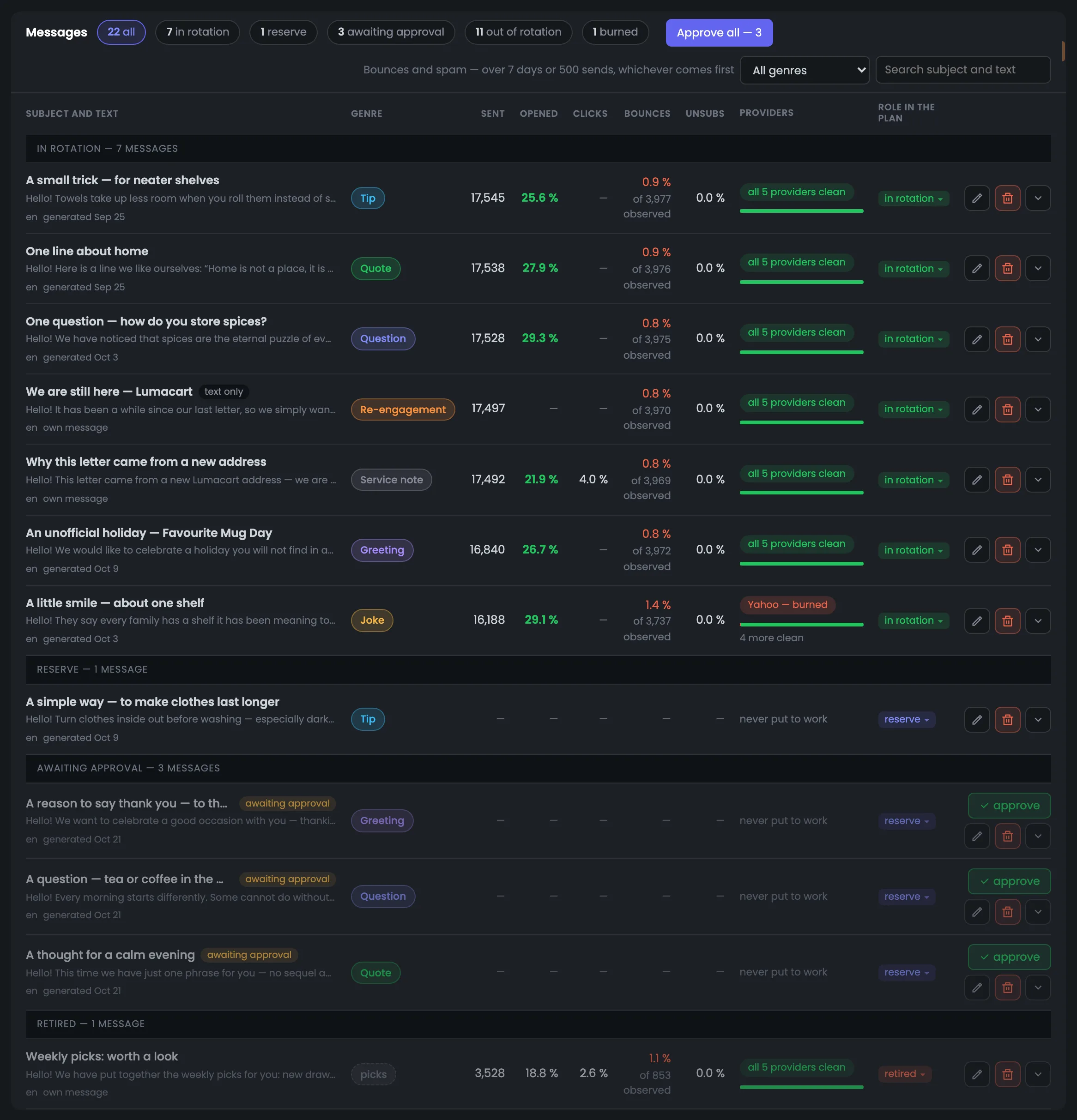
The page’s main table — all the plan’s messages, sorted by role: in rotation, reserve, awaiting approval, withdrawn. For each message you see the genre, how many times it went out, how it was opened, clicked and unsubscribed from, and how many bounces piled up over the assessment period. The mailbox providers column names only the troubled ones and folds the rest into “clean”, so anything wrong stands out right away. A dash instead of a percentage means the metric isn’t measured for that message, not that it’s zero. You open the table to find a problem message: look first at the mailbox providers column and at bounces. Any row expands to show the message text and each mailbox provider’s response.
EnlargeScreen 03 · The plan’s messages. An example from the MTA-Hub interface.
Sent — 16–18 thousand for messages being sent.
Bounces — for example, “0.9% of 3,977 observed” — over the assessment period.
Clicks — only for messages with a link: the service note about the new address has 4.0%.
Mailbox providers — only the troubled ones are named: “Yahoo — burned, 4 more clean”.
Withdrawn by hand — a custom message, “Weekly picks”, with a link to the storefront.
A message withdrawn by hand won’t come back on its own: overnight the Hub returns to the reserve only what it withdrew itself.
04
A message in full
The text and how each mailbox provider treats it
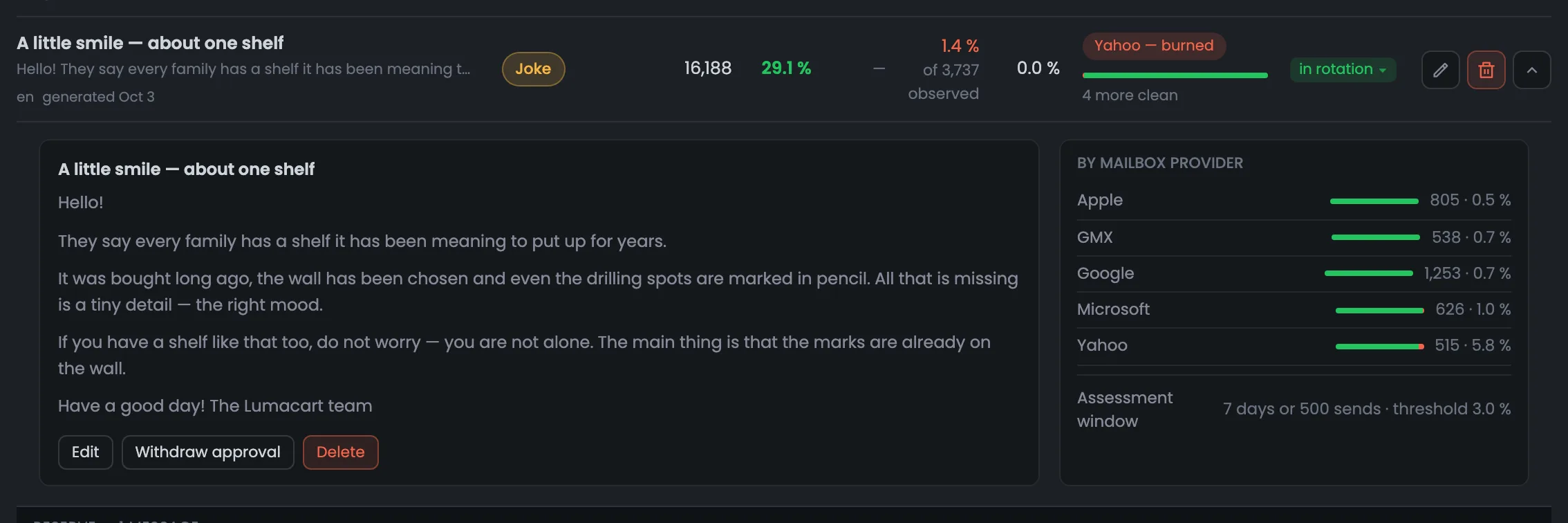
A message row expands and explains why the message was withdrawn at one mailbox provider and keeps going to the rest. On the left is the message text in one of its wording variants, on the right — how each mailbox provider accepts it over the assessment period. In the example four providers accept the joke “A little smile” without trouble, but at Yahoo the spam share crossed the threshold, and the Hub withdrew the message there only. Here you can also edit the message, remove its approval or delete it. You come here from the table after seeing “burned”. If only one message gets a lot of spam, the text is to blame, and the burning rule has already fired; if all messages do, the domain and the address are what to check.
EnlargeScreen 04 · A message in full. An example from the MTA-Hub interface.
The joke “A little smile — about one shelf” — 16,188 sends, 29.1% opened.
Apple, GMX, Google, Microsoft — 0.5–1.0% — accept it without trouble.
Yahoo — 5.8% across 515 messages — burned on October 18.
Buttons — edit, remove approval, delete.
The assessment period is 7 days or 500 sends, the threshold is 3.0%.
Approval and burning
2 screens
New warm-up messages wait for a person’s approval and go to nobody until then — even if they’re already in the plan’s reserve. Next to them is the burning rule: when a message is withdrawn over spam and at which mailbox provider. It also explains when it’s not the text that’s to blame for spam, but the domain and the address.
05
Awaiting approval
New messages from AI Core
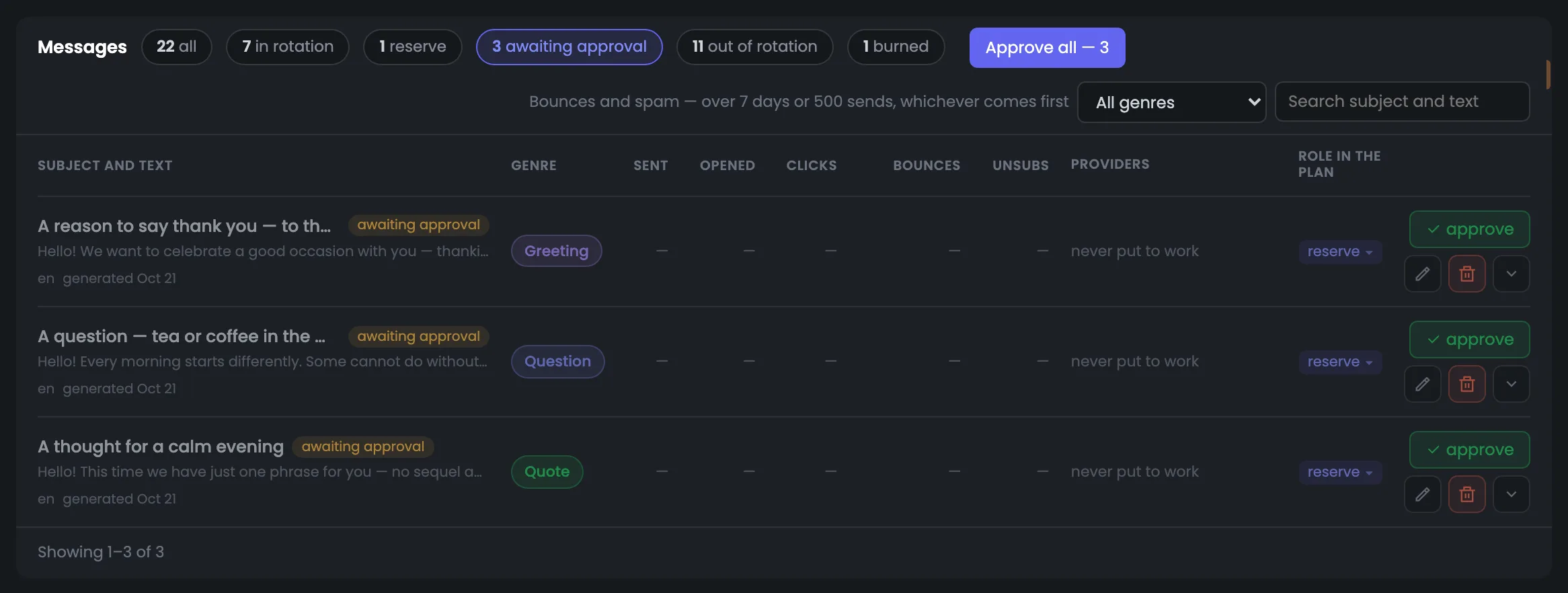
The “awaiting approval” filter collects new warm-up messages that a person hasn’t approved yet. In the example these are three messages AI Core wrote today: they’re already in the main pool’s reserve, but they go to nobody. Before approving a message, open it and read it — the tone, the occasion, the wording. You approve each message separately or all at once with the “Approve all — 3” button, and only then can a message get into sending. It’s worth approving messages regularly: approved messages top up the reserve, from which the Hub moves messages into sending overnight when a mailbox provider runs short of working ones.
EnlargeScreen 05 · Awaiting approval. An example from the MTA-Hub interface.
Greeting — “A reason to say thank you”.
Question — “tea or coffee in the morning?”.
Quote — the third new message.
Approve and Approve all — 3 — one at a time or all at once.
An unapproved message is never sent.
06
Burning rule
When a message is withdrawn over spam
The burning rule explains, in words and in the plan’s numbers, when a warm-up message is withdrawn over spam. The first note says what is counted and over what span: opens and clicks — across all sends; spam and bounces — over the assessment period at each mailbox provider. The second says whom the plan blames for spam: the message itself or the domain and the address. The screen helps you understand why a message disappeared from sending at one mailbox provider, and why changing the texts is pointless when spam is even across all messages. Read it when a message has disappeared from sending or, on the contrary, isn’t being withdrawn: with a spam share below 3.0% or fewer than 30 sends in the period, the rule won’t touch the message.
EnlargeScreen 06 · Burning rule. An example from the MTA-Hub interface.
Opens, clicks, unsubscribes — across all of the message’s sends.
Spam and bounces — over the assessment period — 7 days or 500 sends at a mailbox provider.
Threshold — a spam share of 3.0% with at least 30 sends in the period.
Who is to blame — the text, only if its spam rate is more than 2 times the provider’s average.
An even spam share across the whole rotation is a complaint about the domain and the address, not the message: then the messages stay in service.
Generating messages
5 screens
At the bottom — ordering messages from AI Core: what you set, what it costs and what you get. Before the run, a dialog shows the whole order and the balance left on the account. Each new message can be opened in the editor — to see all its wording variants and view the message through the recipient’s eyes.
07
Generate messages
Ordering from AI Core
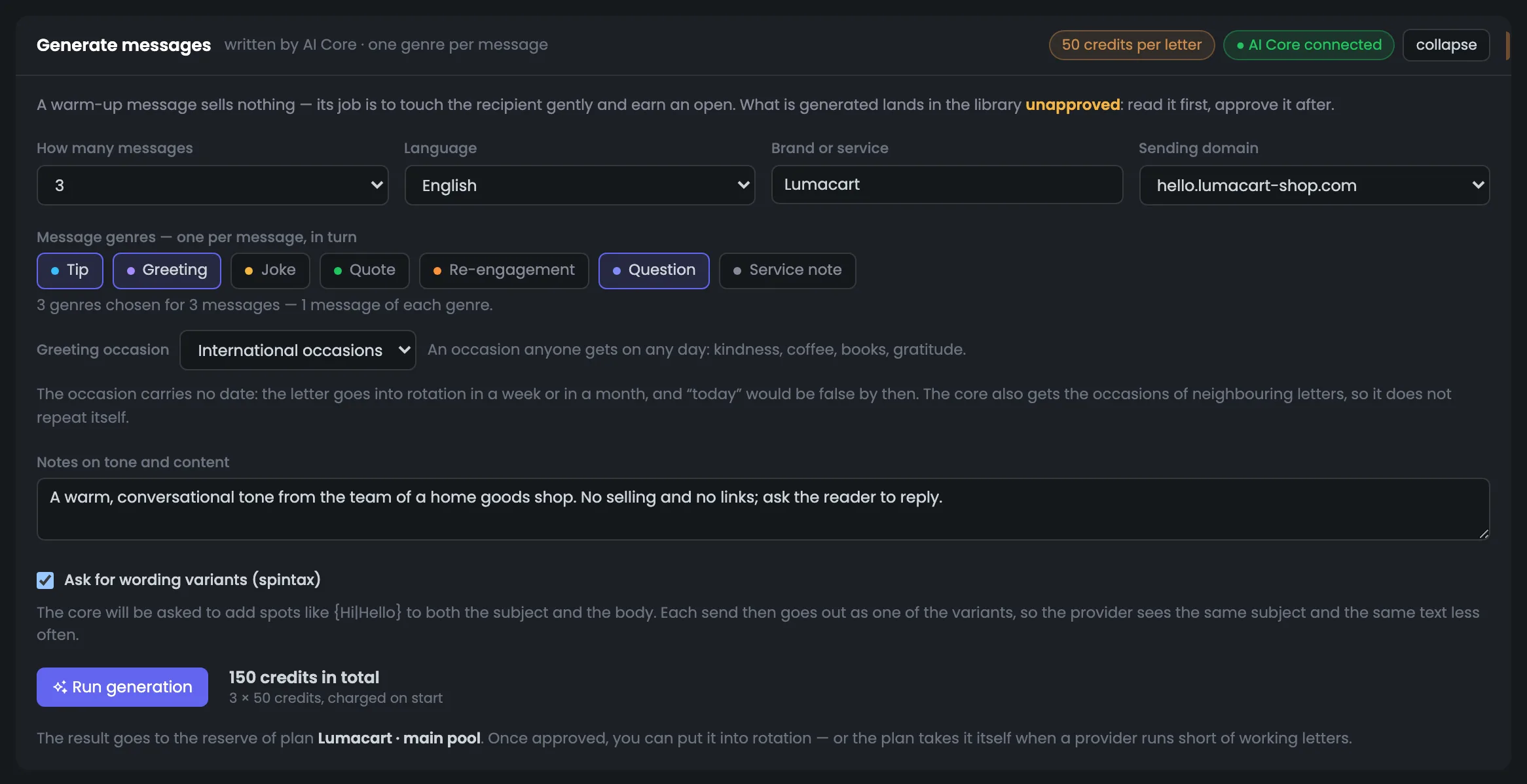
The block for ordering warm-up messages from AI Core. Here you set everything the new messages need: how many messages, the language, the sender’s brand and domain, genres, the occasion for a greeting, notes on tone, and wording variants. The header shows that AI Core is connected and the price — 50 credits per message. In the example three messages are ordered in English on behalf of Lumacart, in a warm tone, with no selling and no links. The total price is visible before the run. You open the block when there are few messages in rotation or you need a new genre. You’ll need to read and approve the finished messages in the “awaiting approval” filter, and before the run a dialog with the whole order will open.
EnlargeScreen 07 · Generate messages. An example from the MTA-Hub interface.
How many messages — 3 — up to five per run.
Language and brand — English, Lumacart, domain hello.lumacart-shop.com.
Genres — tip, greeting, question — one message each.
Greeting occasion — international: one anyone understands on any day, with no date.
Notes — a warm, conversational tone, no selling and no links, ask for a reply.
Wording variants — on; 150 credits in total.
The finished messages will go into the reserve of the “Lumacart · main pool” plan, unapproved.
08
Confirmation
The whole order and the price
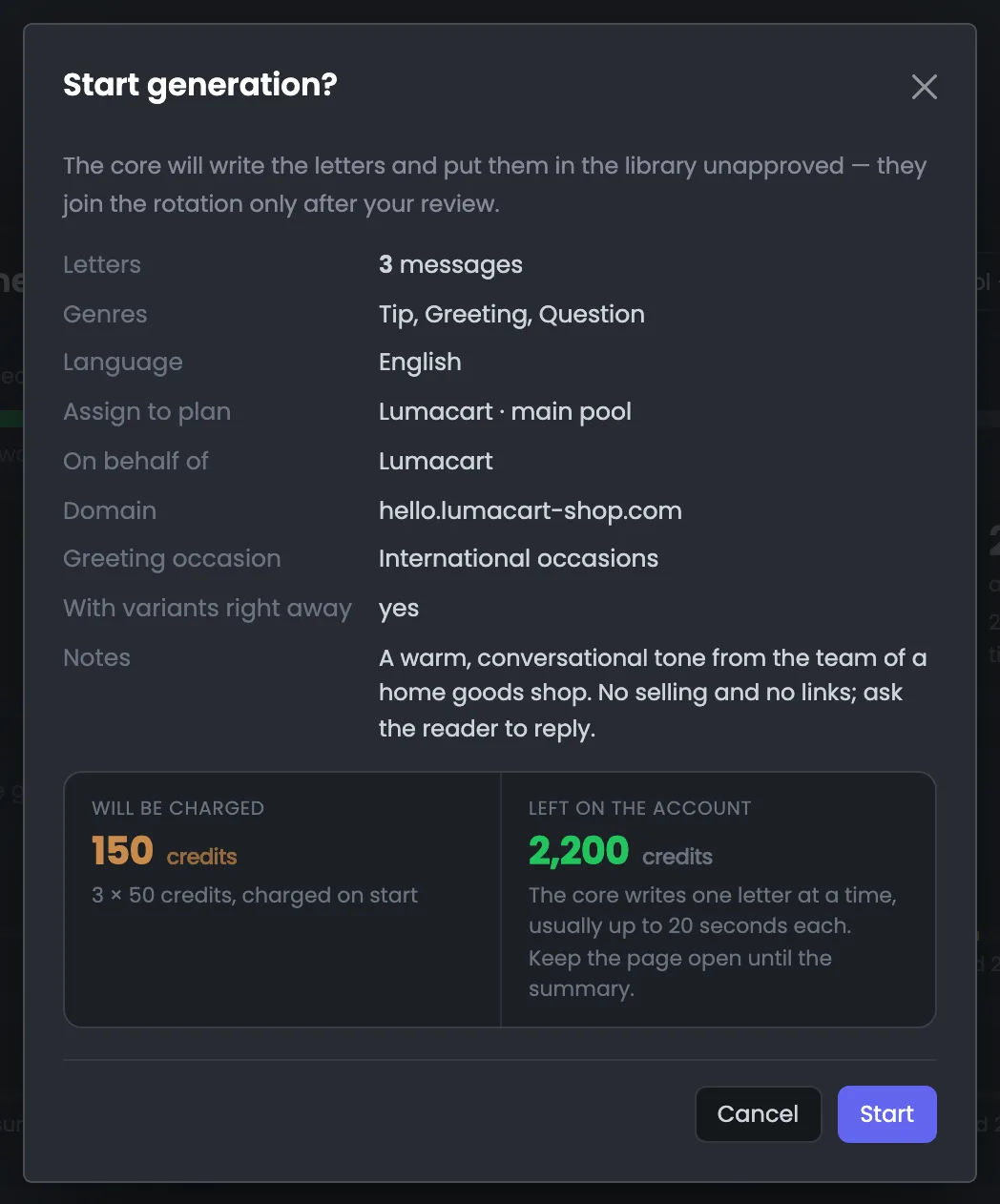
The confirmation dialog appears before any credits are spent. It shows the whole order — how many messages, genres, language, plan, on whose behalf, domain, occasion, wording variants and notes — so you can spot a mistake in the order before generation. Below — how many credits will be charged and how many will be left on the account. A message rejected by the check is paid for too — AI Core has already written it — so it’s worth rereading the order before the run. AI Core writes messages one at a time, usually in up to 20 seconds each, so the result for three messages appears in about a minute. If there aren’t enough credits, the dialog won’t let you start the generation.
EnlargeScreen 08 · Confirmation. An example from the MTA-Hub interface.
Order — 3 messages: tip, greeting, question; English; Lumacart.
Will be charged — 150 credits — 3 × 50.
Left on the account — 2,200 credits.
Time — AI Core writes messages one at a time, usually in up to 20 seconds each.
If there aren’t enough credits, the dialog says who tops up the account and where, and won’t let you start the generation.
09
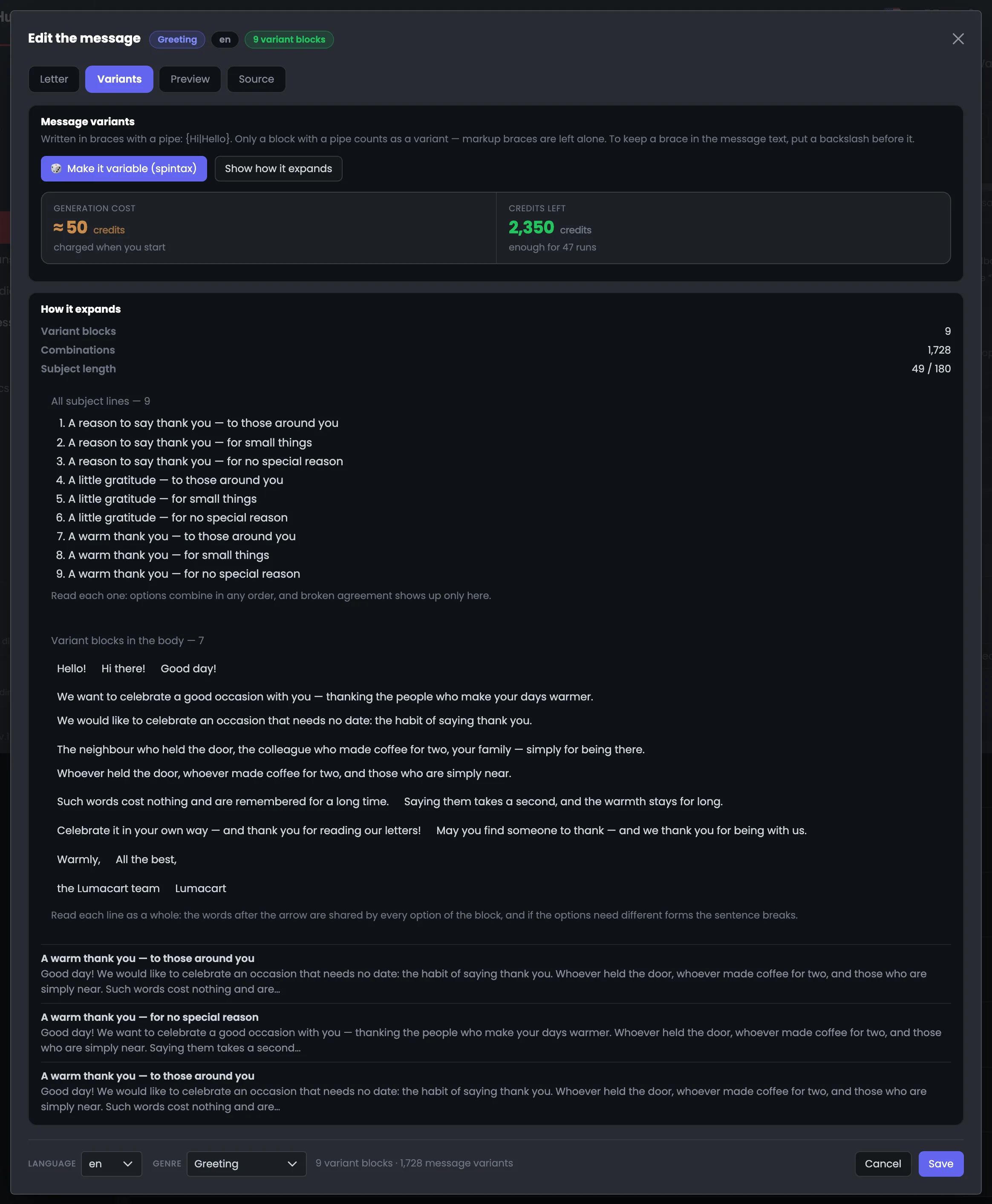
Message variants
All subjects and body blocks
The editor of a new message, the “Variants” tab — this is where you check the spintax, that is, the wording variants. The subjects are listed one after another so you can read each one, and the body blocks sit next to what follows them: that way you can see that any combination reads smoothly. In the example the greeting has 9 blocks with variants — that’s 1,728 different messages, so the mailbox provider sees the same thing less often. Three ready messages at the bottom show assembled combinations in full. You open the tab before approving: read the subjects in a row and skim the blocks — a clumsy continuation stands out right away. For your own message without variants there’s a “Make it variable” button.
EnlargeScreen 09 · Message variants. An example from the MTA-Hub interface.
9 blocks with variants — that’s 1,728 different messages.
Subjects — all nine variants in a row.
Body blocks — each next to what follows it.
Make it variable — in your own message without variants, AI Core places them itself — about 50 credits.
The account balance is enough for 47 such runs.
10
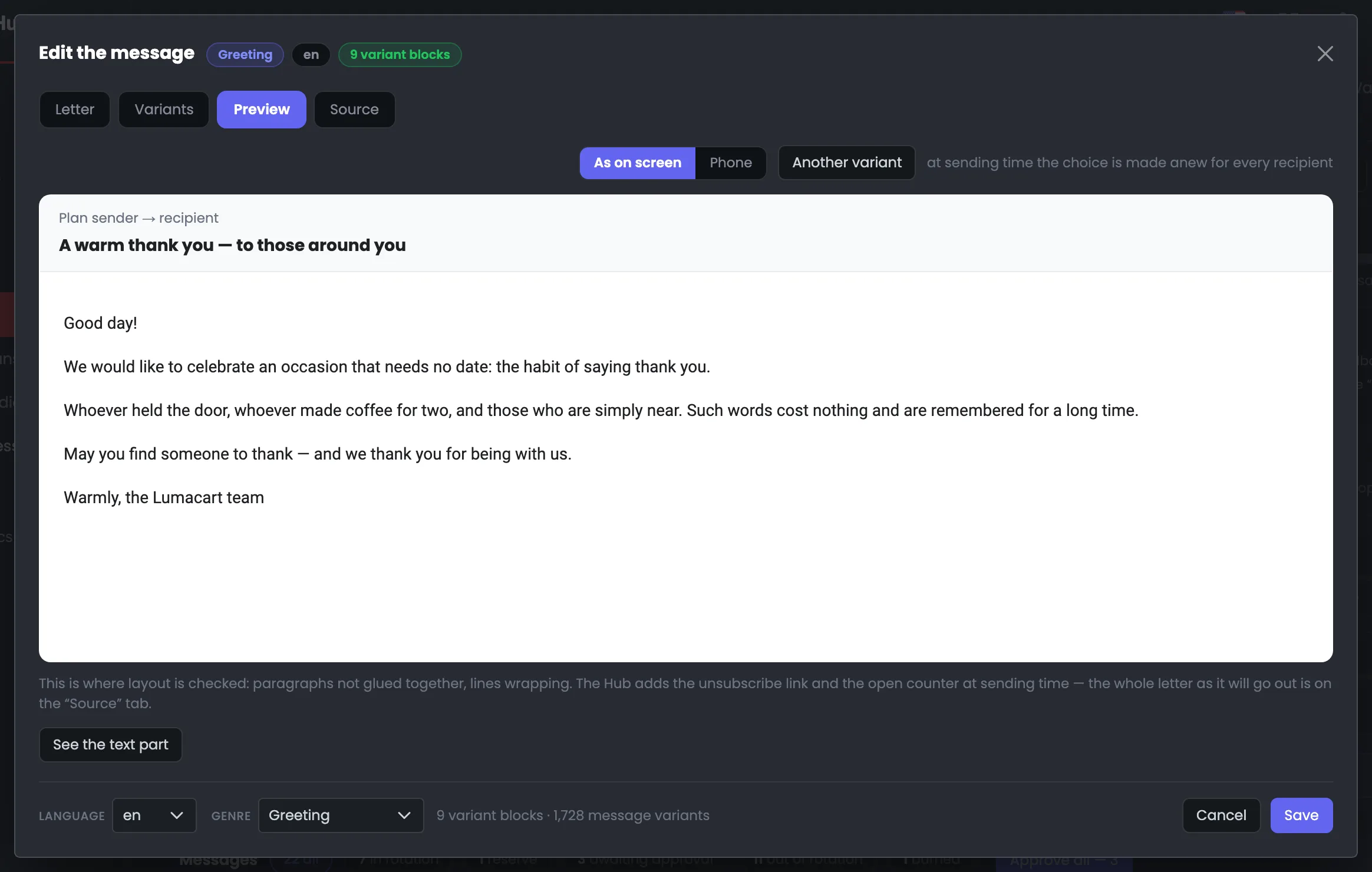
Preview
Through the recipient’s eyes
The preview shows a warm-up message the way the recipient will see it: the subject in one of its variants and the layout — on a wide screen or on a phone. The “Another variant” button cycles through wording combinations so you can check them by eye, not just in the editor. The “Source” tab shows the whole message exactly as it will go out. This is the last look at a message before approval: if a combination reads badly, you fix the message in the editor. On a phone, check that the subject isn’t too long and the layout doesn’t fall apart. Don’t look for the unsubscribe link and the open counter in the preview — the Hub adds them at sending time.
EnlargeScreen 10 · Preview. An example from the MTA-Hub interface.
Subject — one of the variants.
Screen and phone — the view switch.
Another variant — the next wording combination.
Source — the whole message exactly as it will go out.
The Hub adds the unsubscribe link and the open counter at sending time.
11
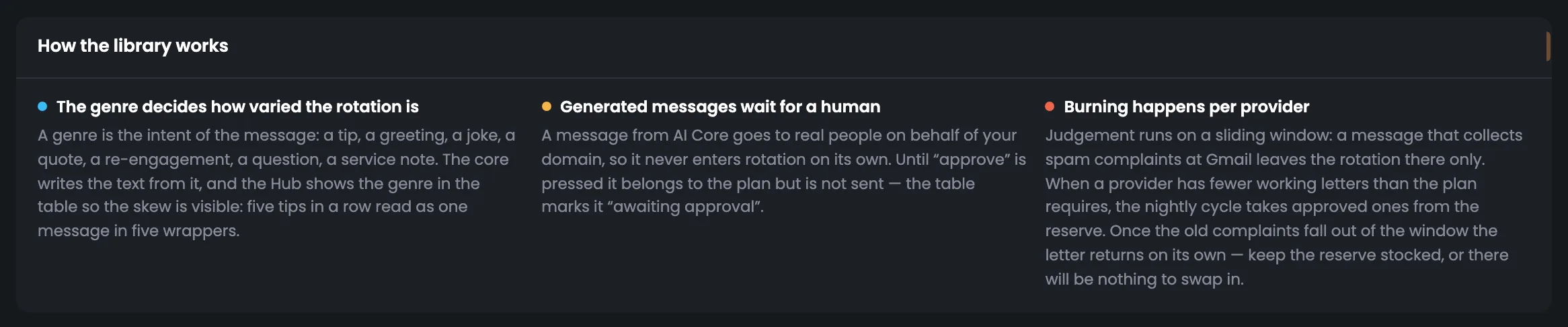
How the library works
Three rules
The note at the bottom of the page boils the workings of the warm-up message library down to three rules — one line each. They explain how the whole section behaves: why you need messages of different genres, why a new message doesn’t go out until it’s approved, and why a message can disappear from sending at one mailbox provider and later come back. If something on the page seems odd, the answer is usually in one of these three rules. It’s worth rereading the note before your first order from AI Core. For example, if a message disappeared from sending at Yahoo, the answer is in the third rule; if a new message goes to nobody, it’s in the second.
EnlargeScreen 11 · How the library works. An example from the MTA-Hub interface.
Genres — they determine how different the messages will be.
Approval — a new message waits for a person.
Burning — a message is withdrawn at each mailbox provider separately, replaced with a spare and brought back once the complaints stop counting.
When a mailbox provider runs short of working messages, the Hub moves approved messages from the reserve into sending overnight.
06 / Questions about warm-up messages
Common questions about warm-up messages.
In short: who writes the messages, what the Hub checks, and why a message can disappear from sending at one mailbox provider.
How many messages, language, brand, domain, genres, occasion, notes and wording variants — and the price before the run.
Who writes the warm-up messages?
AI Core — the warmup_email module, the same one Deliverability Center in Protosender uses. You can also write your own messages yourself.
Can a message go out unchecked?
No. The Hub checks it against eleven rules before it enters the library, and it goes out only after a person has approved it.
Why are there no links or dates in the messages?
Links make a message look like advertising, and a date goes stale: a message may go out a month later and must not say anything untrue on that day. The Hub adds the unsubscribe link itself.
Why wording variants?
Each message goes out as one of thousands of combinations, so the mailbox provider sees the same subject and text less often — to the provider it looks like correspondence, not a mass mailing.
How much does generation cost?
AI Core sets the price per message; in the example it’s 50 credits. Before the run, a dialog shows how much will be charged and how much will be left on the account.
Do I pay for a rejected message?
Yes: AI Core has already written it. The generation summary shows how many messages were rejected, why, and for what amount.
Why do some messages have no opens?
These are text-only messages: without HTML, opens can’t be tracked. That’s why there’s an honest dash instead of a zero.
What happens to a message Yahoo sends to spam?
It’s withdrawn only at Yahoo; it keeps going to the other mailbox providers. Once the complaints stop counting in the assessment, the message comes back on its own.
07 / Next step
Launch a warm-up plan.
The messages are ready and the audience is collected — all that’s left is to create a plan: which pairs to send from, to whom and at what pace. A plan is created as a draft and launched with a separate button.
Who the messages go to and how many the audience can handle is shown on the warm-up audience page.