PowerMTA configuration. Generator, versions and nightly check.
The Hub builds both PowerMTA files from what it already knows about the server, shows them to you before applying, and puts them on the server in a safe order — restoring the previous ones if anything fails.
Every version is saved, and every night the Hub checks that the server holds exactly what it put there.
A PowerMTA configuration lives in two files: /etc/pmta/config — management, complaint intake and policies — and /etc/pmta/virtualhost.txt — logins, the pool and vMTAs. If you write them by hand on every server, typos and forgotten signing keys creep in, and the servers gradually drift apart. The Hub builds both files from what it already knows about the server.
Configuration path
01 · BuildFrom the Hub's data
02 · PreviewBoth files
03 · ApplyBackup and check
04 · CheckEvery night
If something goes wrong, the Hub restores the previous files by itself
Filled in automatically
From what the Hub knows
“Domain + address” pairs, signing keys, and the Hub's address for management and metrics collection are filled in automatically. You set only the speed, the backoff mode and rules for individual mailbox providers by hand.
HMTA-Hub
build
In configurations23 pairs
domain + addressplus 3 MailerQ addresses
A shared format
With Protosender
The same block names and the same file layout: a server configured by the Hub plugs into Protosender's PMTA module — and the other way round.
PPowerMTA
files
Server filesconfig · virtualhost.txt
as in Protosendercomments in English
02 / Applying
Applying a configuration safely, with rollback.
The Hub saves a copy of the previous files, checks the syntax with PowerMTA's own tools, reloads it and checks that the MTA accepted every vMTA with its addresses and keys. If it didn't work, the previous configuration is restored.
Apply log
Step by step
Signing keys deployed, management allowed for the Hub, STARTTLS certificate ready, files written, syntax checked, MTA reloaded, port 25 answers from outside.
MPowerMTA
check
tx-01 · resultAccepted every vMTA
pmta test configport 25 answers
Every version
One-click rollback
The apply feed shows what was put on the server and when, and what the MTA replied. You can go back to any previous PowerMTA version with one click.
HMTA-Hub
versions
Versions saved68
12 on screen“Go back to it”
MailerQ versions can't be restored: the Hub stores them with passwords hidden, and such a copy would leave the MTA without access to its database and broker.
03 / Checking against the server
Nightly check: manual edits show up right away.
Once a day, and on demand, the Hub computes checksums of the files on the servers and compares them with the saved ones. If they don't match, it shows the exact lines someone changed by hand. The check doesn't fix anything: the file may have been changed on purpose, and a person decides.
Fleet check
01 · Checked17 of 17
02 · Matches15
03 · Out of date1 · tx-01
04 · Diverged1 · mta-07
Only the file that changed is highlighted in red — not the whole server
What was edited on mta-07
Line by line
For an address in warm-up, someone raised the number of connections from one to three by hand, while the comment on the line still says one. “+” is a line on the server, “−” is a line that's gone.
Nmta-07
sha256
virtualhost.txtmax-smtp-out 1 → 3
changed outside the Hubconfig matches
How to fix it
Two ways
Build the configuration again in the generator — the manual edit will then be overwritten — or go back to a saved version in the apply feed.
HMTA-Hub
decision
FixGenerator or version
a person decidesthe check doesn't edit
The Hub's own lines — a proxy include, for example — and differences only in comments don't count as a mismatch.
04 / Generator
A PowerMTA configuration generator with plain-language labels.
Every generator field has a plain explanation and the PowerMTA directive name. A ready-made preset fills in the form in one click, and then you can adjust any value: for all vMTAs at once, for one vMTA, or for one mailbox provider.
Node settings
Submission password and return path
The password for vMTA logins, and Return-Path rewriting so that late bounces come to the Hub.
Who may submit mail
Without a password — only your own
Email platforms and subnets, labeled with whose they are; protection against password guessing.
Common directives
The <domain *> block
Pace, connections, backoff mode and whom to notify about it.
vMTAs and mailbox providers
Rules on top of the common ones
Gmail, Outlook and others get their own settings; an empty field means “as vMTA”.
An address in warm-up
The plan sets the speed
The Hub gives a new address one connection and a cap of “no more than one message an hour”, and from there the warm-up plan sets the speed. The Hub itself keeps track of the daily volume.
WWarm-up
warm-up
mta-05 · WARMUP-MANAGED1 connection
no more than one message an hourpace set by the plan
Preview
Byte for byte
“Build configuration” shows both files and changes nothing on the server. The preview is built by the same mechanism as the apply, so the file you see and the file that's applied match byte for byte.
HMTA-Hub
preview
BuildBoth files
copydownload
05 / The interface in detail
The “Configurations” section interface — 20 screens.
Fleet summary, node cards in different states, the version feed and the check, the generator, the preview and the apply log. Above each screenshot: why the screen matters. Below it: what it shows.
Summary
2 screens
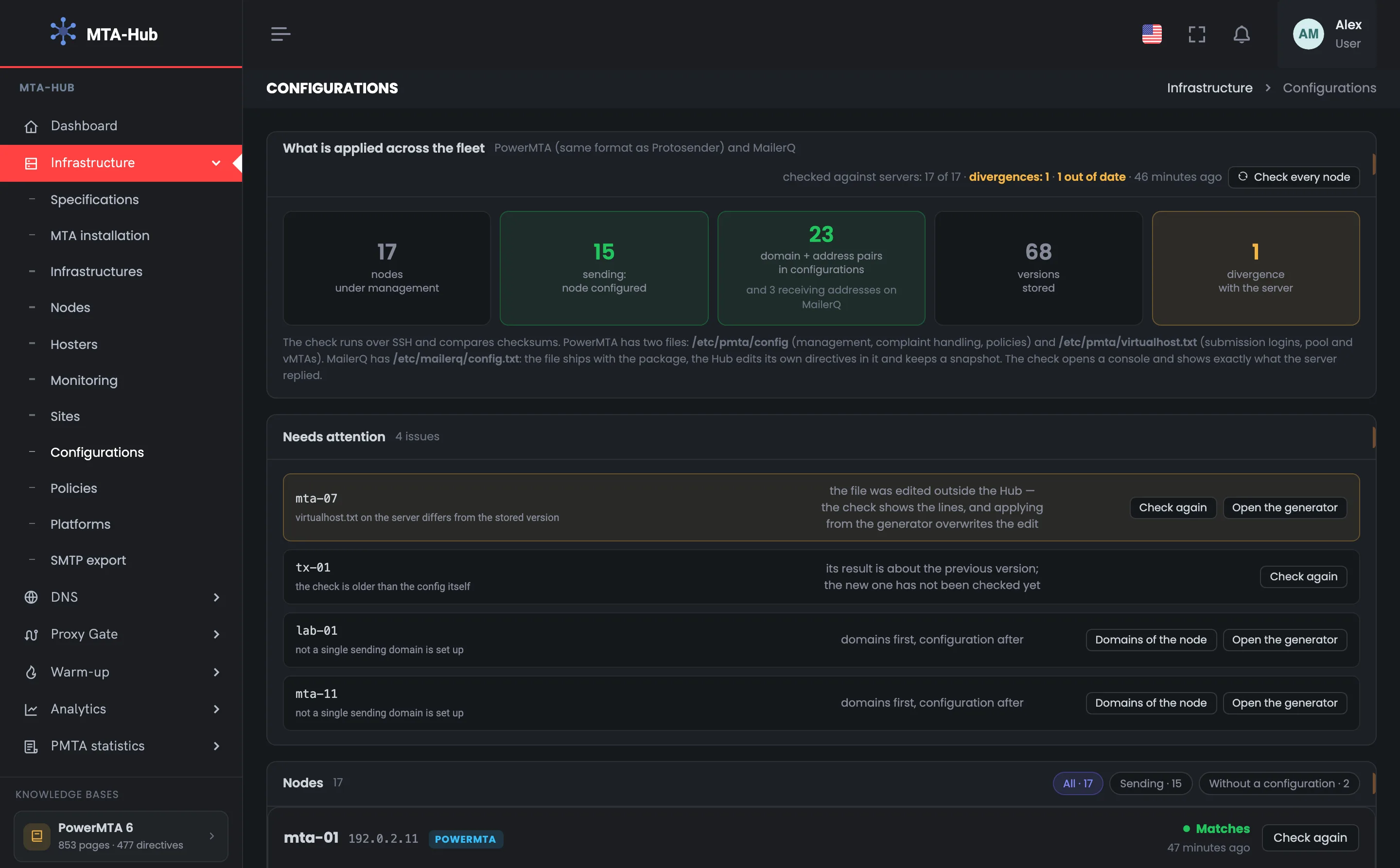
The page opens with a summary across all servers: how many are managed by the Hub, how many are sending, how many “domain + address” pairs and versions are saved, and whether anything differs from the server. On the right are the check result and the “Check every node” button. Below are the servers where something is wrong, each with a button to where it gets fixed.
01
What's applied across the fleet
Five tiles across all servers
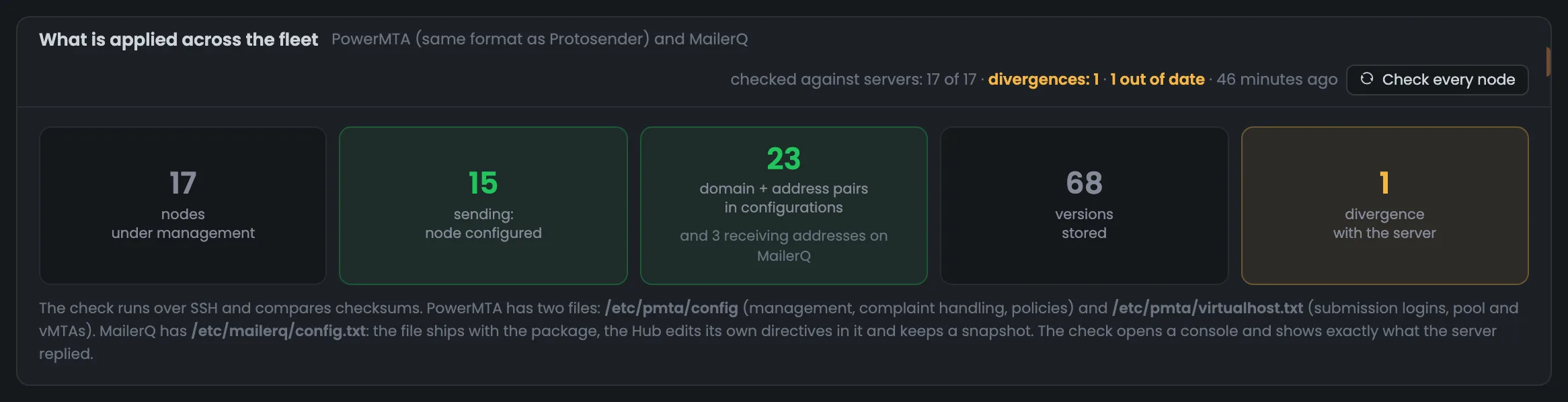
The section summary is five tiles about the configuration of all servers at once. Here 17 servers are managed by the Hub, 15 of them are actually sending mail, the configurations hold 23 “domain + address” pairs plus 3 MailerQ receiving addresses, and 68 versions are saved. The “Diverged from server” tile stands out: on one server a file didn't match the saved one. On the right are the result of the last check and the “Check every node” button, which checks PowerMTA and MailerQ in one task. Open this section after any changes on the servers and before a large campaign: if the divergence tile stands out, deal with it in the block below first, and only then apply new configurations.
EnlargeScreen 01 · What's applied across the fleet. An example from the MTA-Hub interface.
Nodes under management — 17.
Sending — 15 — PowerMTA has a working configuration, MailerQ has receiving addresses set.
Check result — 17 of 17, 1 divergence, 1 out of date, 46 minutes ago.
The caption under the tiles says which files are checked for each MTA.
02
Needs attention
Most urgent first
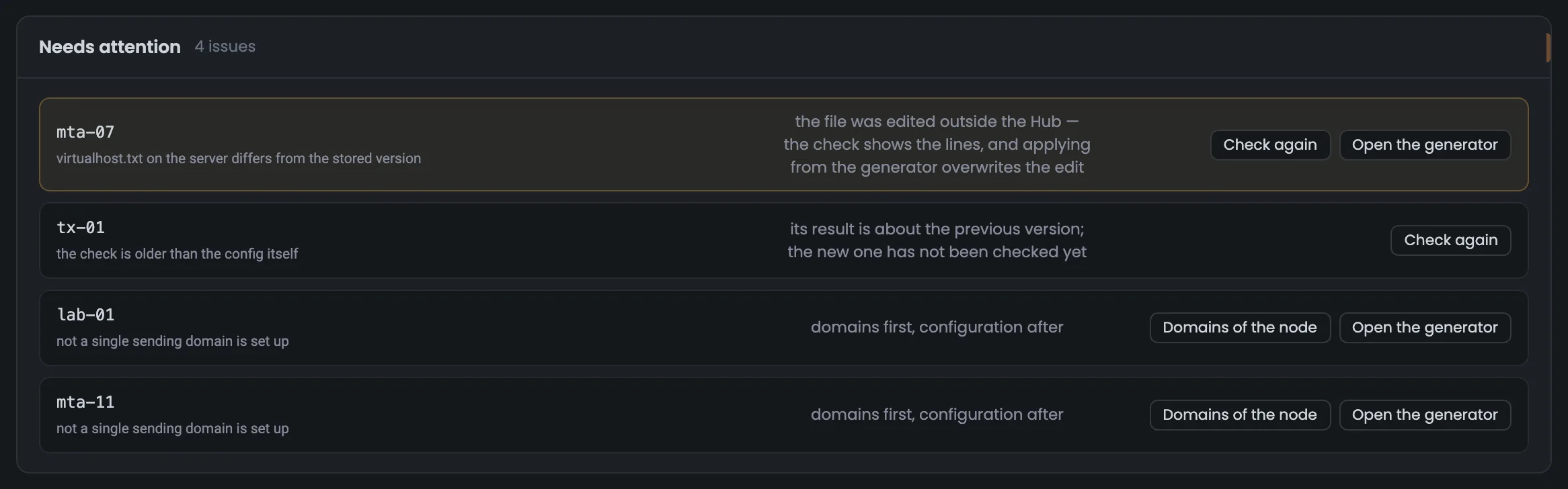
The “Needs attention” block lists servers where something is wrong — most urgent first — and each row has a button to where it gets fixed. There are four findings here. On mta-07, the virtualhost.txt file was changed outside the Hub. On tx-01, the check is older than the configuration itself, and the new version hasn't been checked yet. lab-01 and mta-11 have no sending domains, so there's nothing to build a configuration from yet — domains have to be added first. Work through the findings in order: the divergence on mta-07 matters more than the outdated check, because the server is running a file other than the one the Hub built.
EnlargeScreen 02 · Needs attention. An example from the MTA-Hub interface.
mta-07 — virtualhost.txt was changed outside the Hub.
tx-01 — the check is older than the configuration — the new one hasn't been checked yet.
lab-01 and mta-11 — no sending domains — domains first, configuration after.
The block appears only when there are problems.
Node cards
5 screens
Next comes a card for each server. Five examples show a regular PowerMTA server, a server in warm-up, a server edited outside the Hub, a MailerQ server and a freshly installed server. A card shows the files with their checksums, the “domain + address” pairs and what's configured. Every number comes from the applied version, not from the generator form.
03
Node card
tx-01: files, pairs, what's configured
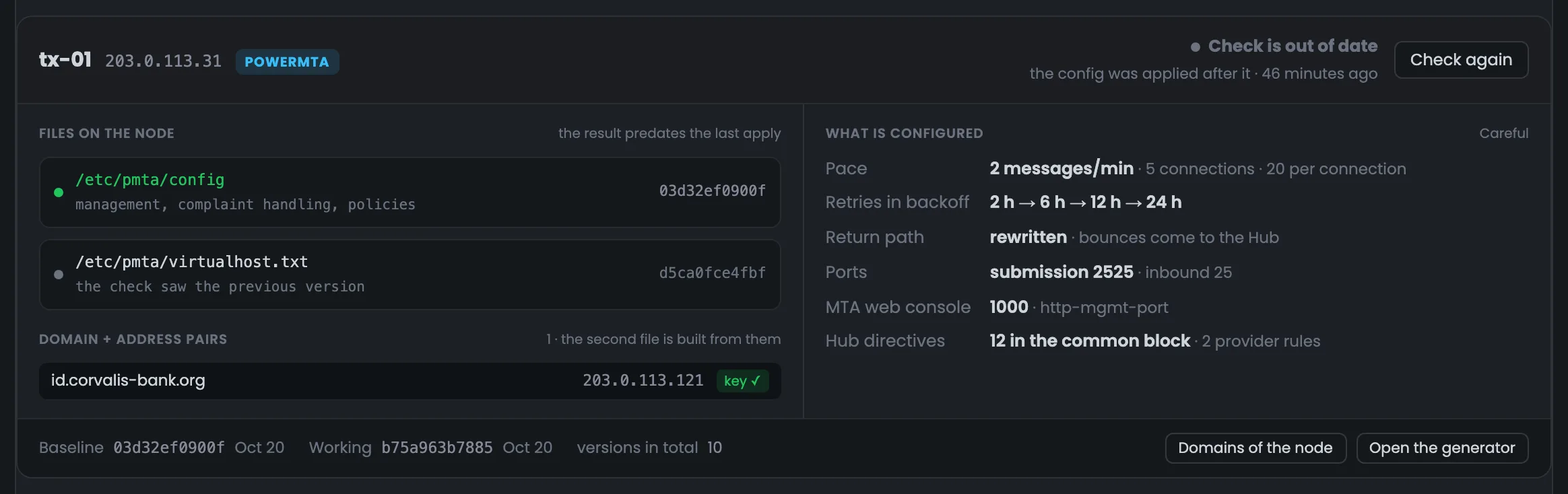
The tx-01 server card shows its PowerMTA configuration as it's actually applied. On the left are both files on the server with their checksums, and the “domain + address” pairs the second file is built from; “key ✓” means the signing key is on the server. On the right is what's configured: speed, connections, retry schedule, ports and the number of Hub directives. The header warns “Check is out of date”: the working version was applied after the check, and the button next to it checks again. Open the card when you need to quickly see how the server is sending right now without reading the files themselves. If the numbers aren't what you expected, go to the generator with the button in the footer.
EnlargeScreen 03 · Node card. An example from the MTA-Hub interface.
Header — “Check is out of date”: the working version was applied after the check.
Files on the node — config has a green dot, virtualhost.txt a gray one: “the check saw the previous version”.
Hub directives — 12 in the common block and 2 mailbox provider rules; the “Careful” preset.
Footer — baseline and working versions, 10 in total; “Node domains” and “Open generator”.
Every number on the card comes from the applied version, not from the generator form.
04
A node in warm-up
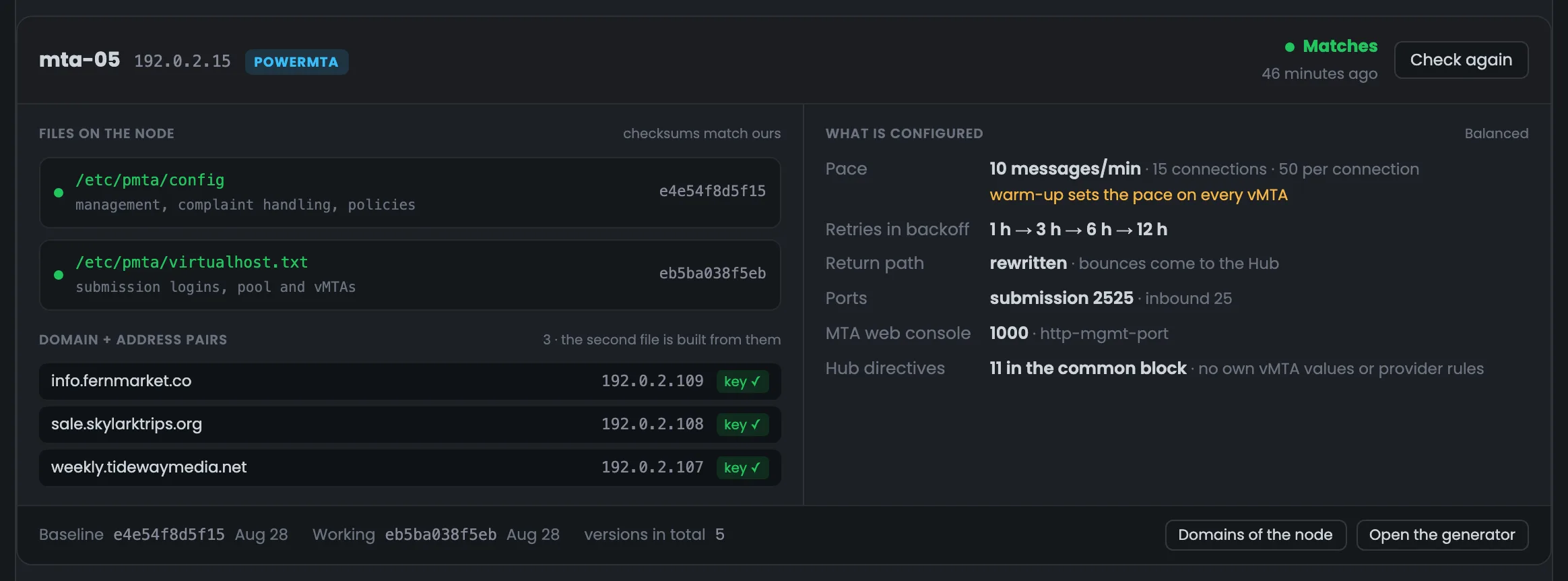
mta-05: warm-up sets the pace
The mta-05 card is a server whose three new addresses are all in warm-up. Under the speed it says “warm-up sets the pace on every vMTA”: the common settings don't apply to an address that isn't warmed up yet. The Hub gives a new address one connection and a cap of “no more than one message an hour”, and from there the warm-up plan raises the speed. The card shows that the server isn't stuck but is deliberately ramping up step by step — there's no need to change its settings by hand. If the server seems to be sending too slowly, first look at the line under the speed: while the addresses are warming up, the common 10 messages a minute don't apply to them.
EnlargeScreen 04 · A node in warm-up. An example from the MTA-Hub interface.
Common settings — 10 messages a minute and 15 connections — don't apply to an address that isn't warmed up.
New address — one connection and “no more than one message an hour”.
Directives — 11 in the common block, no vMTA-specific values or rules.
The Hub itself keeps track of the daily volume; the MTA is only responsible for the speed.
05
A file edited outside the Hub
mta-07: diverged
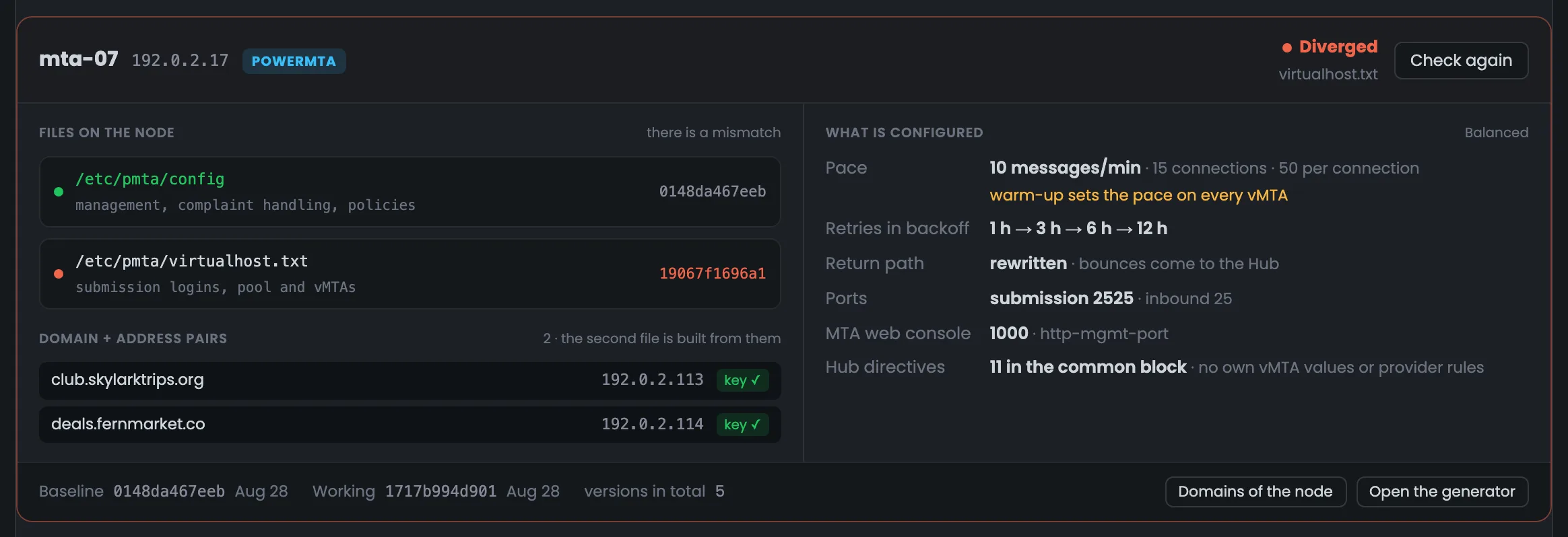
The mta-07 card in a red frame — this is what a server looks like when its configuration was edited outside the Hub. The check found a virtualhost.txt different from the one the Hub put there: the result is “Diverged”, and the file shows the checksum the server returned. Only the frame, the result and the file itself are red — the rest of the card looks as usual, because one file changed, not the whole server. The check console shows exactly what was changed. Deal with a card like this right away: the next apply from the generator will overwrite the manual edit, so first decide whether you need it, and if you do, put it into the generator.
EnlargeScreen 05 · A file edited outside the Hub. An example from the MTA-Hub interface.
Result — “Diverged”.
File — the checksum the server returned.
Everything else — looks as usual — one file changed, not the whole server.
There are two ways to fix it: build again in the generator, or go back to a saved version.
06
A MailerQ node
MailerQ's own terms
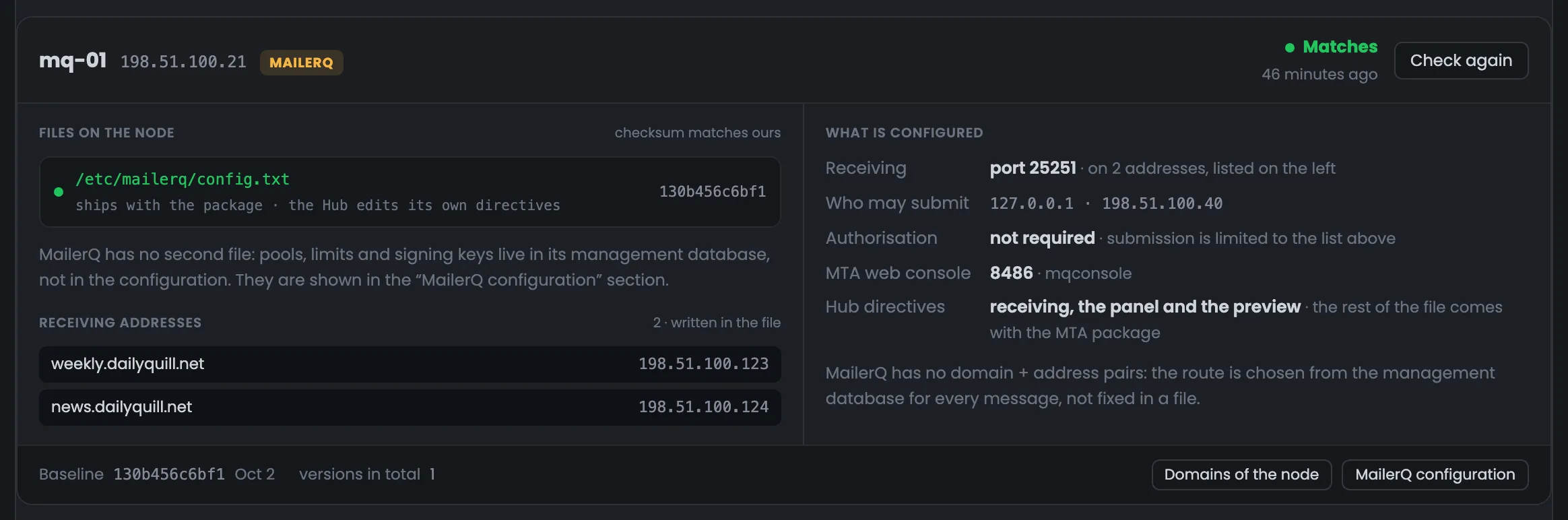
A MailerQ server card shows it in MailerQ's own terms, not by PowerMTA's measures. It has a single file, and the Hub changes only its own lines in it — receiving, the panel and the preview. MailerQ keeps pools, limits and signing keys in its management database, so there's no second file. Instead of “domain + address” pairs there are receiving addresses: two domains on two addresses. Mail is handed to them by the server itself and the email platform, and submission is limited by the list of allowed addresses. Open this card when a MailerQ server isn't accepting mail from the platform: check the receiving addresses and the allowed address list first.
EnlargeScreen 06 · A MailerQ node. An example from the MTA-Hub interface.
File — just one — /etc/mailerq/config.txt; the Hub changes only its own lines in it.
No second file — pools, limits and keys are in the MailerQ management database.
Receiving addresses — two domains on two addresses, port 25251.
No login needed — submission is limited by the list of allowed addresses.
The button at the bottom goes to the MailerQ settings page, not the PowerMTA generator.
07
A node with only a baseline configuration
mta-11, freshly installed
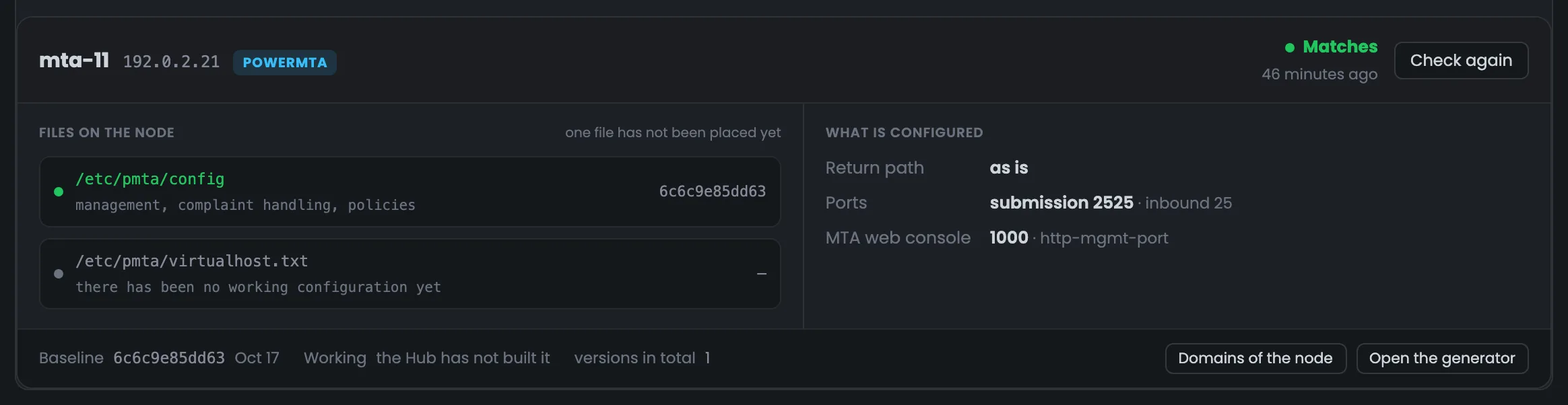
The mta-11 card is a freshly installed server. The MTA installation put the baseline file there, and the check confirmed it: “Matches”. There hasn't been a working configuration yet, because there's nothing to build it from — the server has no domains. This note doesn't affect the server's result: once domains are added, the next step is to build the PowerMTA configuration in the generator and apply it to the server. If the server should already be sending, add sending domains to it — there's a link to the server's domains in the card footer. After that, the card will show the working version next to the baseline.
EnlargeScreen 07 · A node with only a baseline configuration. An example from the MTA-Hub interface.
Baseline version — present and matching.
Working configuration — none yet — the server has no domains.
The gray note “there has been no working configuration yet” isn't a fault, just a step not reached yet.
Versions and check
3 screens
Below is a feed of everything the Hub has put on the servers, and the check console. The feed shows which configuration version is in effect now, and you can go back to any previous PowerMTA version with one click. If checksums didn't match during the check, the console shows the exact lines that differ.
08
Recent applies
Version feed
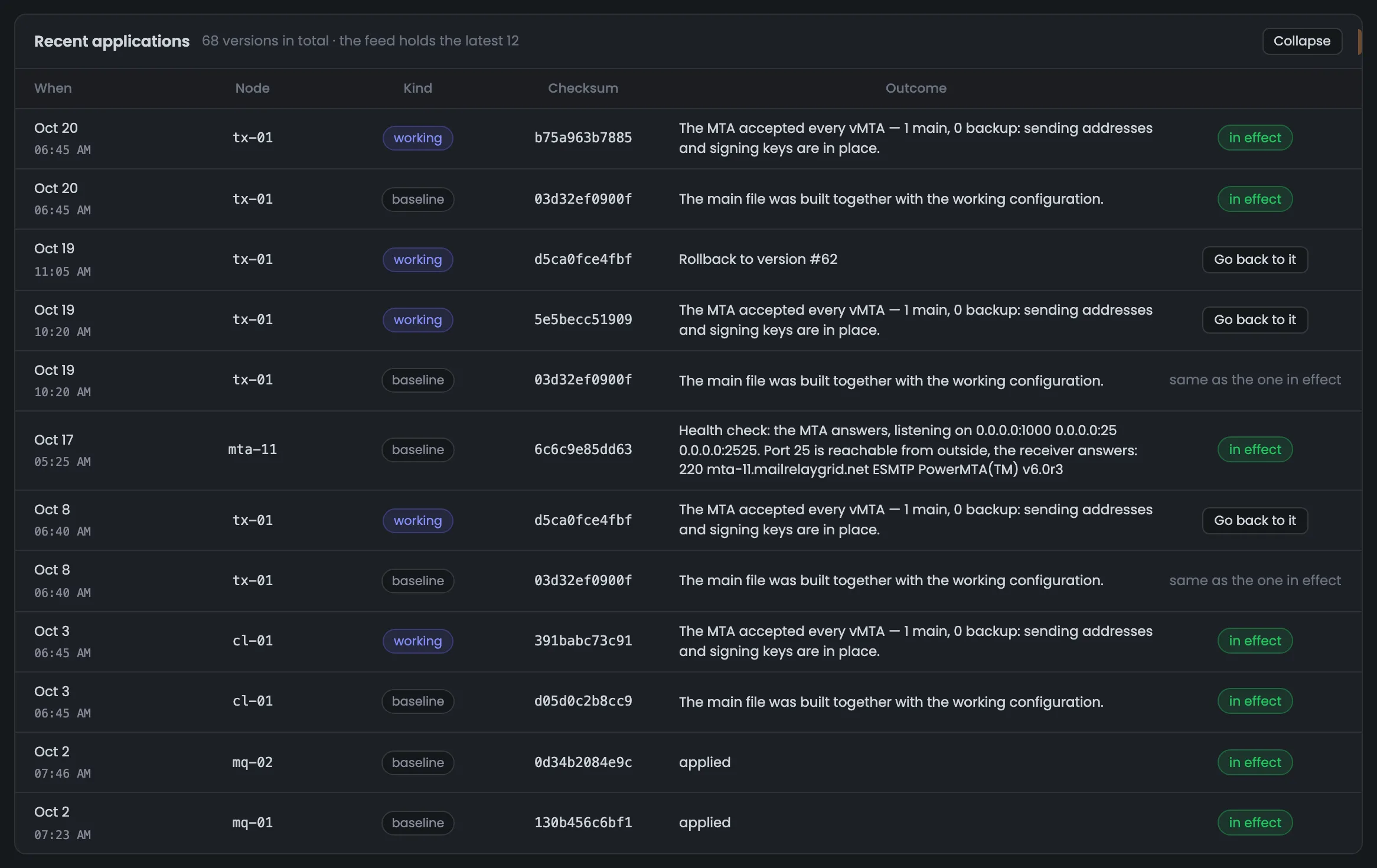
The recent applies feed keeps everything the Hub has put on the servers: 68 versions in total, the latest 12 on screen. For each you see when and on which server it was put, whether it's a baseline or a working version, its checksum and the MTA's reply. The tx-01 example shows the server's whole story from yesterday. To roll back a PowerMTA configuration, just click “Go back to it” next to the version you want; the version in effect is marked “in effect”. Open the feed when something went wrong after an apply: find the last version the MTA accepted without complaints and go back to it. A version marked “same as the one in effect” won't change anything.
EnlargeScreen 08 · Recent applies. An example from the MTA-Hub interface.
For each — when, server, type, checksum and what the MTA replied.
tx-01 history — an edit, a rollback to the Oct 8 version, and today's apply.
Actions — “in effect”, “same as the one in effect” or “Go back to it”.
MailerQ versions can't be restored: they're stored with passwords hidden.
09
Check console
17 steps, one per server
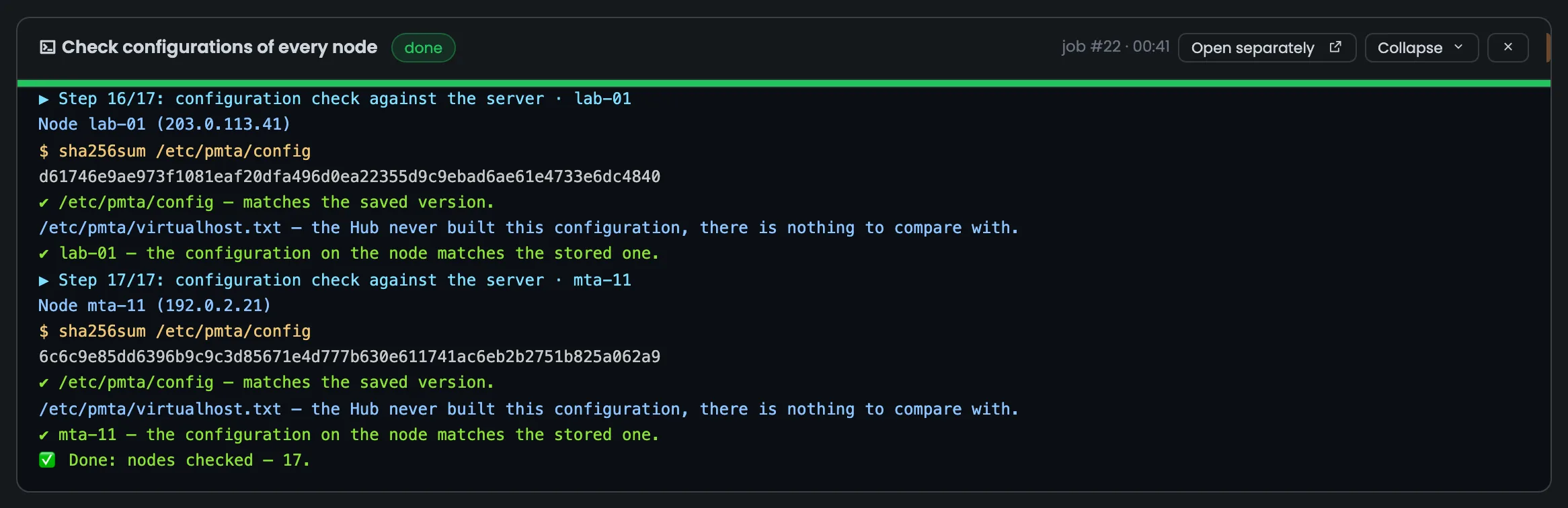
The check console opens with the “Check every node” button: it's one task for all servers, 17 steps — one per server. For each file you see how the Hub computes the checksum and what the server replied, and at the end the server's result and the overall “Done”. The console proves the check really ran on every server rather than just setting a mark. If a file on some server diverged, the differing lines are shown below. Run the check manually after someone has worked on the servers directly — don't wait for the nightly check. The result appears in the summary at the top of the page.
EnlargeScreen 09 · Check console. An example from the MTA-Hub interface.
For each file — the sha256sum command, the server's reply and the verdict.
At the end — the server's result and the overall “Done”.
No saved version — “nothing to compare with” — not a divergence.
The console can be collapsed or opened separately — the task is kept in the history.
10
What exactly was edited
Lines that differ
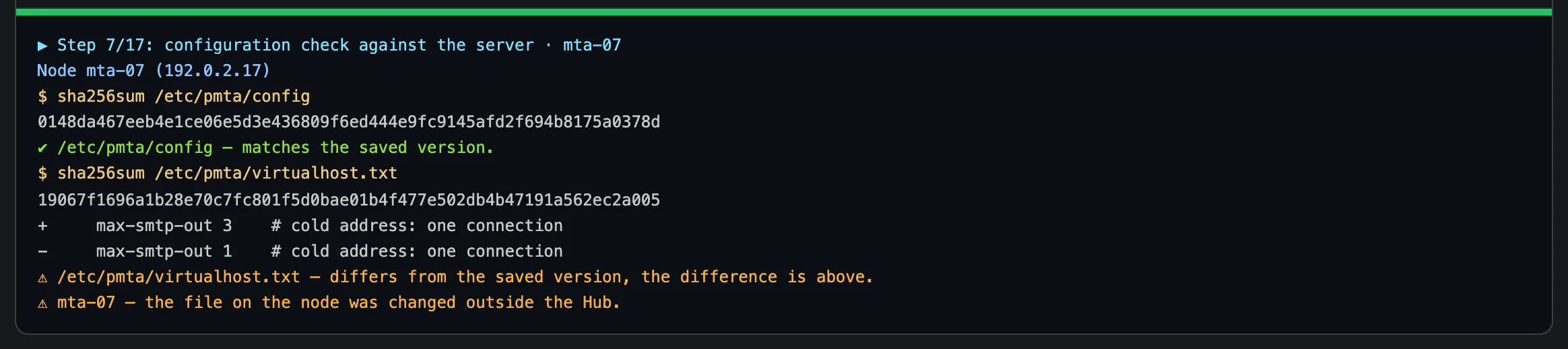
If the checksums don't match, the check doesn't stop at the word “diverged”: the Hub reads the file from the server and shows the lines that differ. “+” is a line present on the server, “−” is a line that's gone. Here, on mta-07, someone raised max-smtp-out for an address in warm-up from one connection to three by hand. The check doesn't fix anything by itself: you decide whether to build the configuration again in the generator or go back to a saved version. Before deciding, find out who changed the file and why: the edit may have been intentional. If you need it, move the value into the generator — then it will survive the next apply.
EnlargeScreen 10 · What exactly was edited. An example from the MTA-Hub interface.
Result — the file on the node was changed outside the Hub.
The comment on the line still says one connection — the edit was made by hand.
Generator
6 screens
The generator is the form both PowerMTA configuration files are built from. It holds the server settings, who may submit mail without a password, the common <domain *> block, vMTAs with mailbox provider rules, and two buttons — build and apply. Every field has an explanation and the directive name, and a preset fills in the form in one click.
11
Generator: node settings
Password, preset, return path
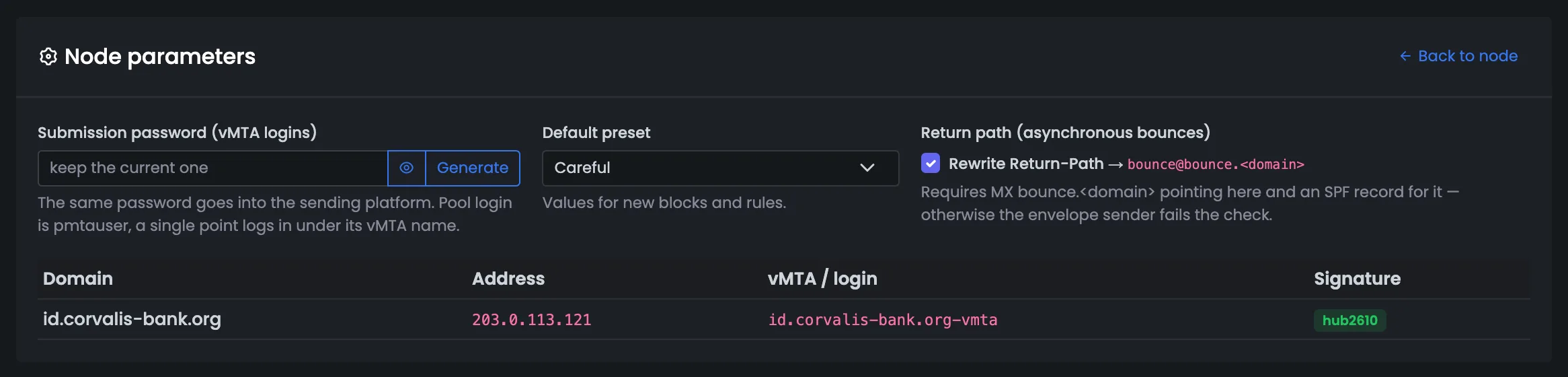
The top of the generator holds settings common to the whole server. The submission password is the password for vMTA logins; the same one goes into the email platform. The default preset sets the values for new blocks and rules, and “Return path” rewrites the Return-Path so that bounces arriving later come to the Hub; the hint tells you right away what DNS needs for that. Below are the server's pairs that vMTAs are built from: the domain, the sending address, the vMTA name and the signing key selector. You fill in this block when setting up the server; the submission password is then needed in the email platform, otherwise it can't hand mail to the vMTAs.
EnlargeScreen 11 · Generator: node settings. An example from the MTA-Hub interface.
Submission password — for vMTA logins; the pool logs in as pmtauser, a sending point as its vMTA name.
Default preset — values for new blocks and rules.
Return path — rewriting the Return-Path to bounce@bounce.<domain>.
Pairs — domain, address, vMTA name and signing key selector.
An empty password keeps the current one; the button next to it generates a long one.
12
Who may submit mail
Addresses without a password
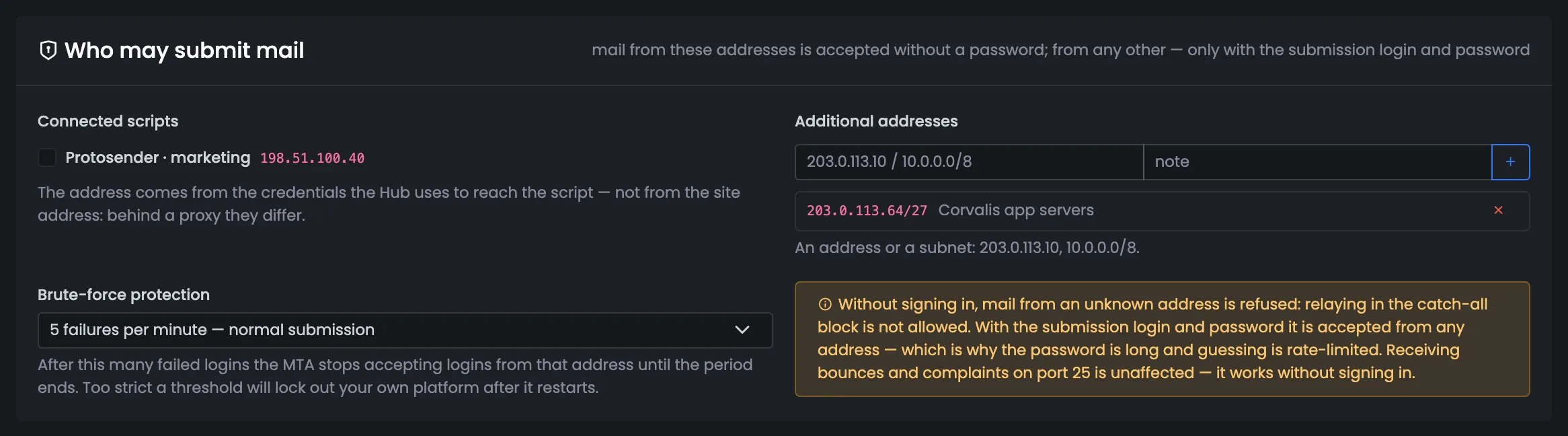
The “Who may submit mail” block decides which addresses mail is accepted from without a password. Connected scripts are the email platforms the Hub works with; their address comes from the access settings, not from the site address, because behind a proxy the two differ. Extra addresses and subnets are labeled with whose they are — here, the Corvalis app servers. This way you see who can send mail through your server without a login. You add an address here when you connect a new platform or an app server that hands mail over directly. Keep the list short and labeled, so that six months from now it's clear whose address it is.
EnlargeScreen 12 · Who may submit mail. An example from the MTA-Hub interface.
Connected scripts — email platforms — address taken from the access settings.
Extra addresses — labeled with whose they are: the Corvalis app servers.
Brute-force protection — logins are blocked after five failed attempts in a minute.
Without a login, mail from an unknown address is refused; with a login, it's accepted from any address. Receiving bounces on port 25 isn't affected.
13
Common directives
The <domain *> block
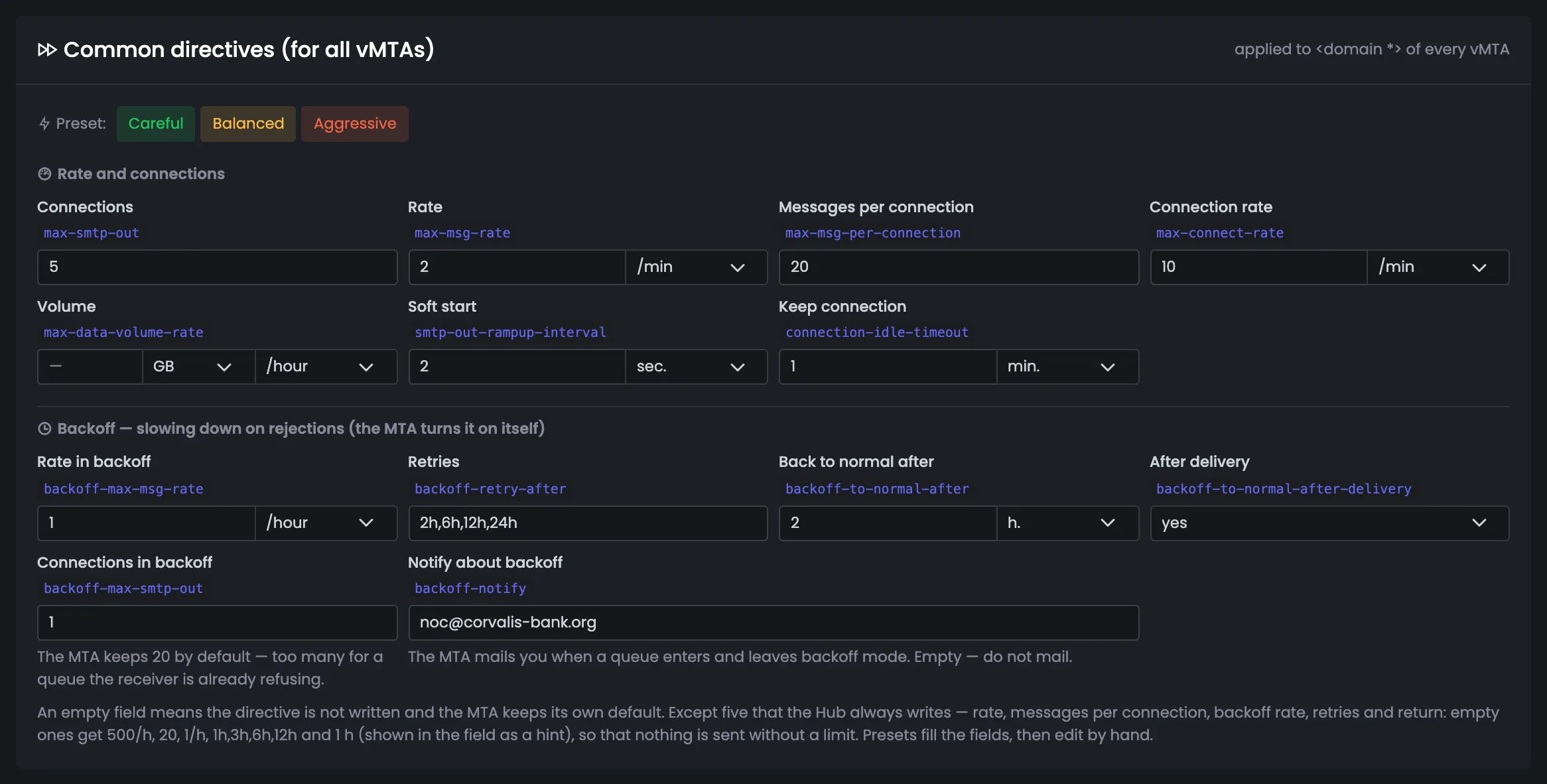
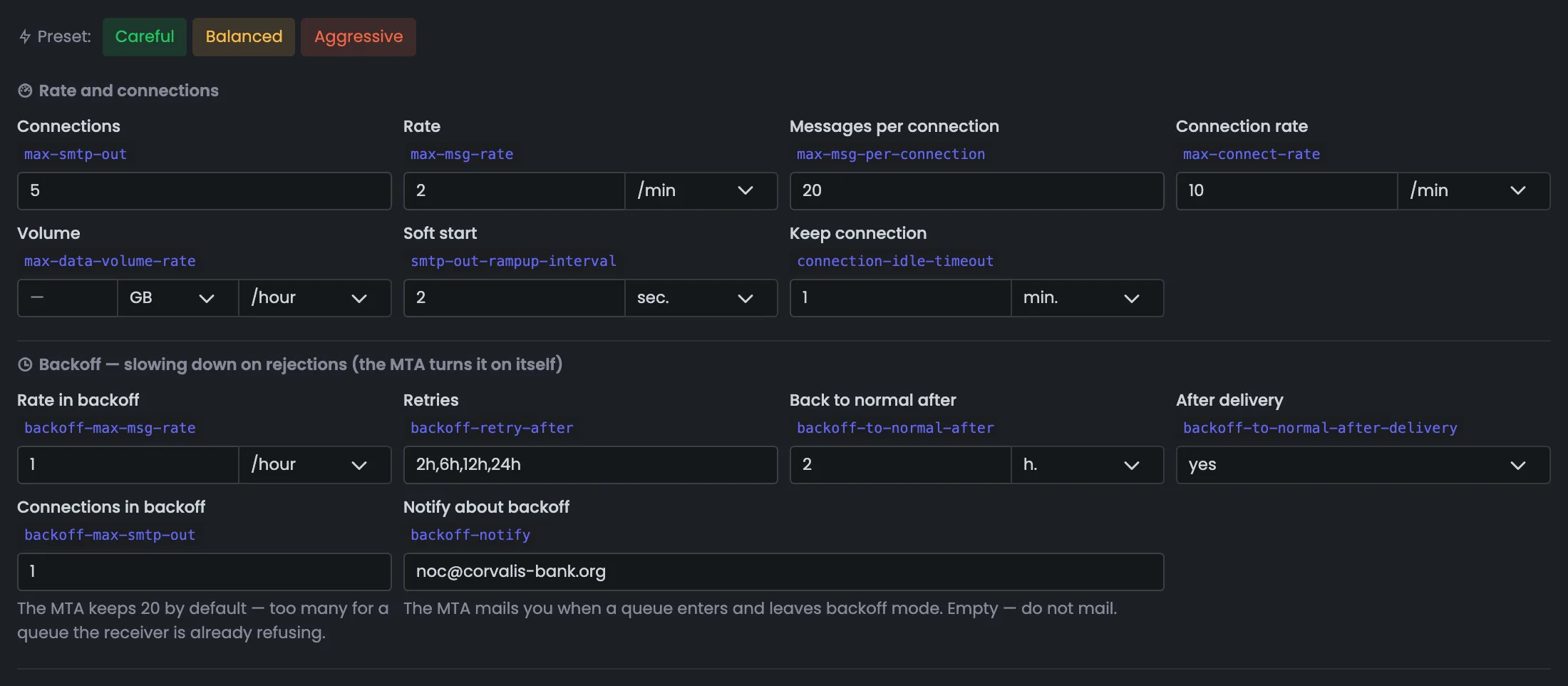
The <domain *> block holds the common PowerMTA directives for all vMTAs on the server. A preset fills it in one click, and every field has two labels: what it means and what the directive is called. Here you set the pace and connections, the backoff mode — how the MTA slows down when a mailbox provider starts rejecting mail — and the address the MTA notifies about backoff. What value an empty field will get is shown right in the field as a hint. Start with a preset and change only what's really different about your sending: if a field is empty, the MTA uses its own default.
EnlargeScreen 13 · Common directives. An example from the MTA-Hub interface.
Pace and connections — connections, speed, messages per connection, volume limit.
Backoff mode — pace in backoff, retry schedule, return to normal speed.
Who to notify — the address the MTA writes to about backoff.
An empty field means “don't write the directive”. The exception is five directives the Hub always writes, so that sending never runs without limits.
14
vMTAs and mailbox provider rules
Gmail, Outlook and others
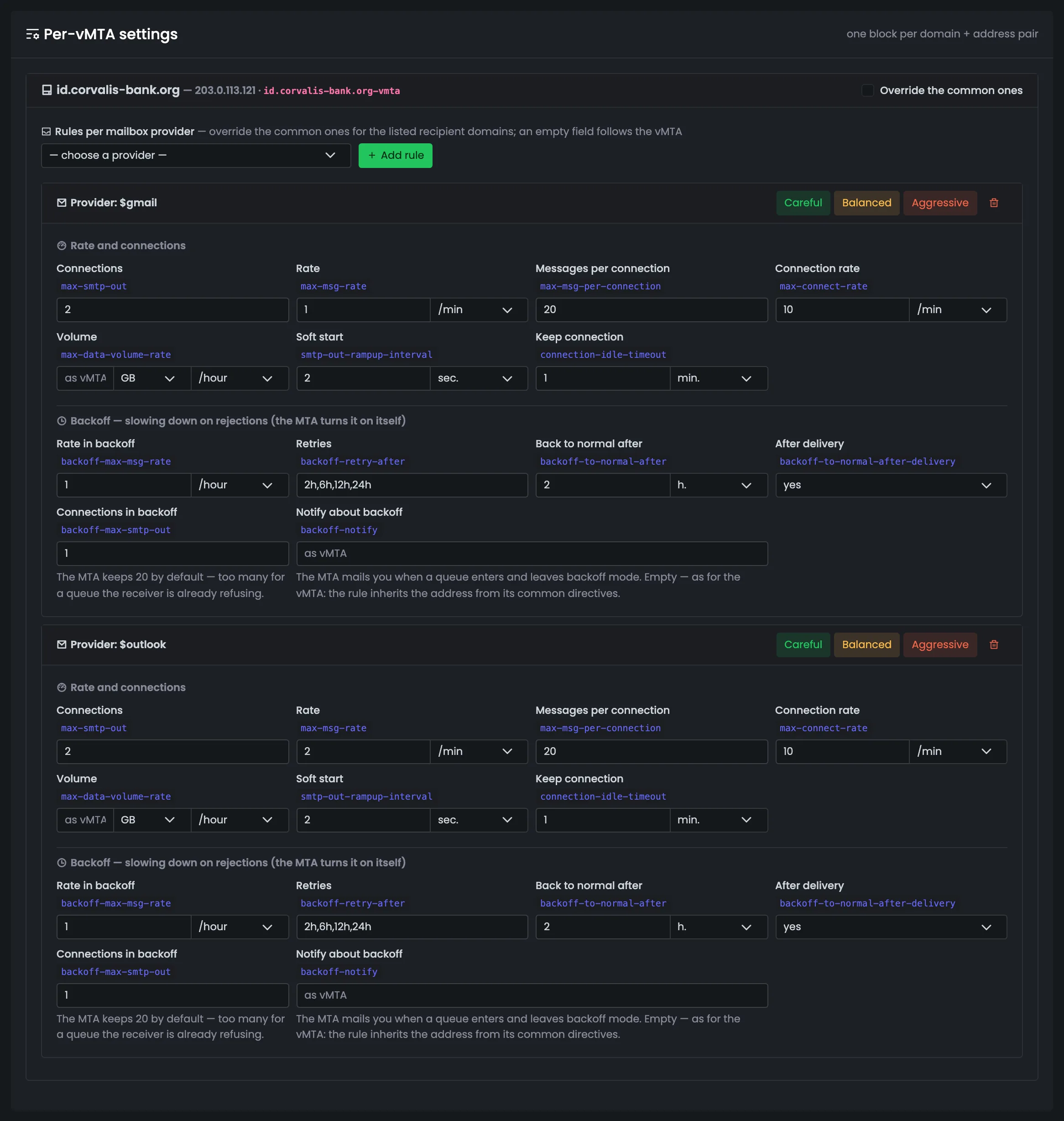
Below is a block for each “domain + address” pair — that is, for each vMTA — and inside it, mailbox provider rules on top of the common ones. You pick a provider from a list that already includes all its domains, or type a domain by hand. This way, speed and connections for Gmail, Outlook and other large mailbox providers are set separately from the rest. Each rule has its own preset and delete buttons, and an empty field in a rule takes the value from its vMTA's settings. Add provider rules when Gmail or Outlook start deferring mail while the others accept it normally: that way the speed drops for just one provider.
EnlargeScreen 14 · vMTAs and mailbox provider rules. An example from the MTA-Hub interface.
Provider — from a list with all its domains, or typed by hand.
On tx-01 — Gmail — 2 connections and one message a minute; Outlook — 2 connections and two messages a minute.
Empty field — “as vMTA”.
A speed left empty can't exceed the common block.
15
Custom directives for one vMTA
Override the common ones
The “Override the common ones” checkbox is for when one vMTA needs to work differently from the others on the server. It gives that vMTA its own set of settings, which starts with the current common values — with all edits and the address for backoff notifications. You only change what makes this address different — everything else is already filled in. This way a single address is tuned precisely without touching the whole server's settings. Use the checkbox when one address is different, not the whole server: bulk changes are easier to make in the common block. Otherwise, over time it becomes hard to tell which address has which settings.
EnlargeScreen 15 · Custom directives for one vMTA. An example from the MTA-Hub interface.
Starts with — the current common values with all edits.
Change — only what makes this address different.
The server's other vMTAs keep working by the common block.
16
Build and apply
Two buttons
The two buttons at the bottom of the generator separate reviewing from acting. “Build configuration” shows both files and changes nothing on the server — you can look at the result calmly. “Apply to node” puts the files there in a safe order: a copy of the previous files, a syntax check with the MTA's own tools, a reload, and a rollback to the previous files if anything goes wrong. So a settings mistake won't leave the server without a working configuration. After applying, check the step-by-step log and the server card — the new working version will appear there. If something went wrong, you can go back to the previous version in the apply feed.
EnlargeScreen 16 · Build and apply. An example from the MTA-Hub interface.
Build configuration — shows both files and changes nothing on the server.
Apply to node — backup, syntax check, reload — and rollback on failure.
Review first, then apply.
Preview and apply
4 screens
The last part is both files exactly as they'll reach the server, the step-by-step apply log, and what an address in warm-up looks like. The preview is built by the same mechanism as the apply, so the files match byte for byte. The log confirms the MTA really accepted every vMTA.
17
Preview: the main file
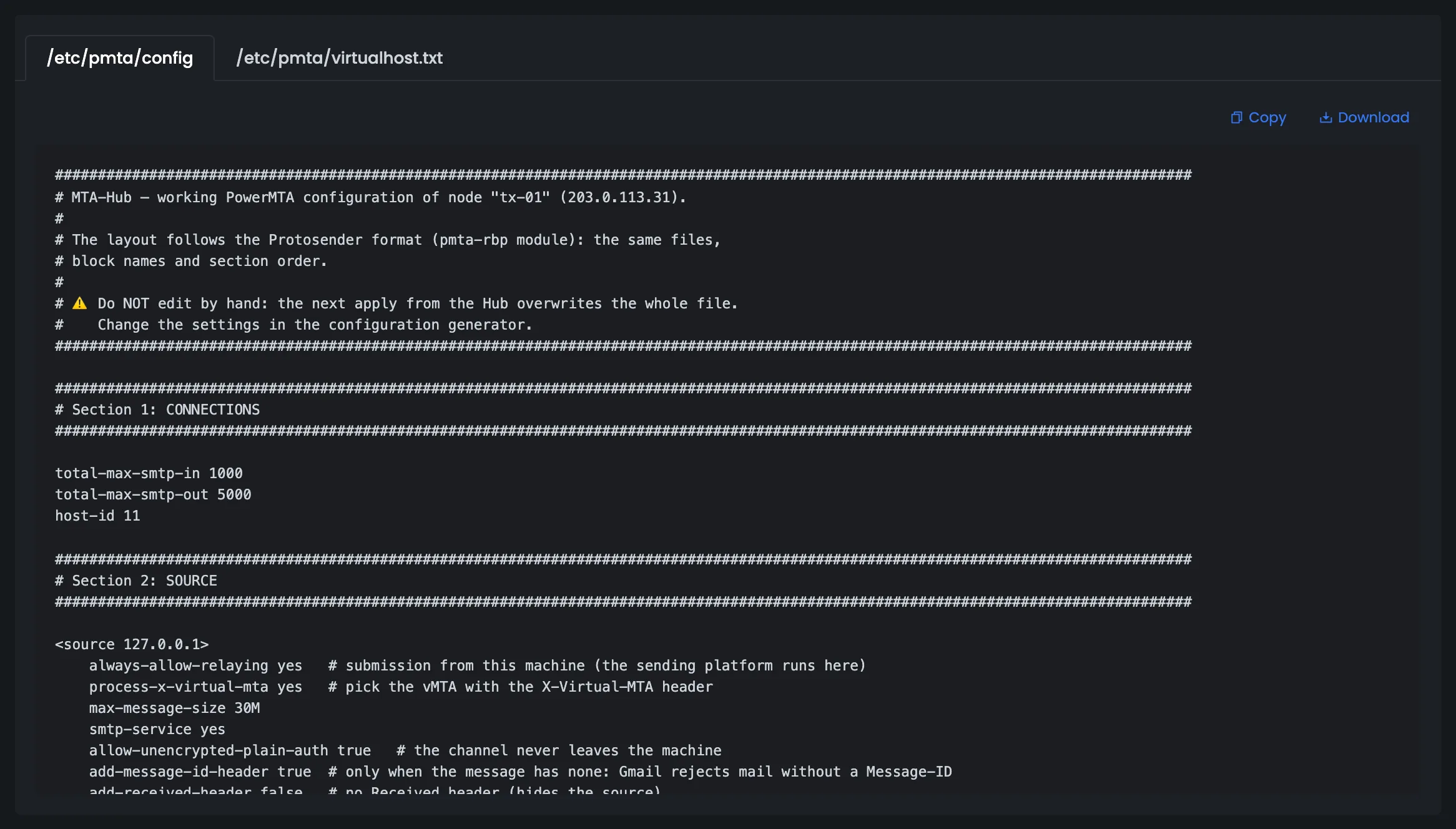
/etc/pmta/config
A preview of the main file, /etc/pmta/config — exactly as it will reach the server. It's built by the same mechanism as the apply, together with the Hub's address for management and metrics collection. So what you see here is the future PowerMTA config — no surprises after you click “Apply to node”. You can copy or download the file to show a colleague or keep a copy. The preview is safe: it changes nothing on the server, so you can look at it as often as you like. It's especially useful before the first apply on a new server.
EnlargeScreen 17 · Preview: the main file. An example from the MTA-Hub interface.
Matches byte for byte — the preview is built by the same mechanism as the apply.
File header — where it came from and why it shouldn't be edited by hand.
Copy and download — buttons above the file.
The comments in the file are in English: it's read by administrators who speak different languages.
18
Preview: vMTAs
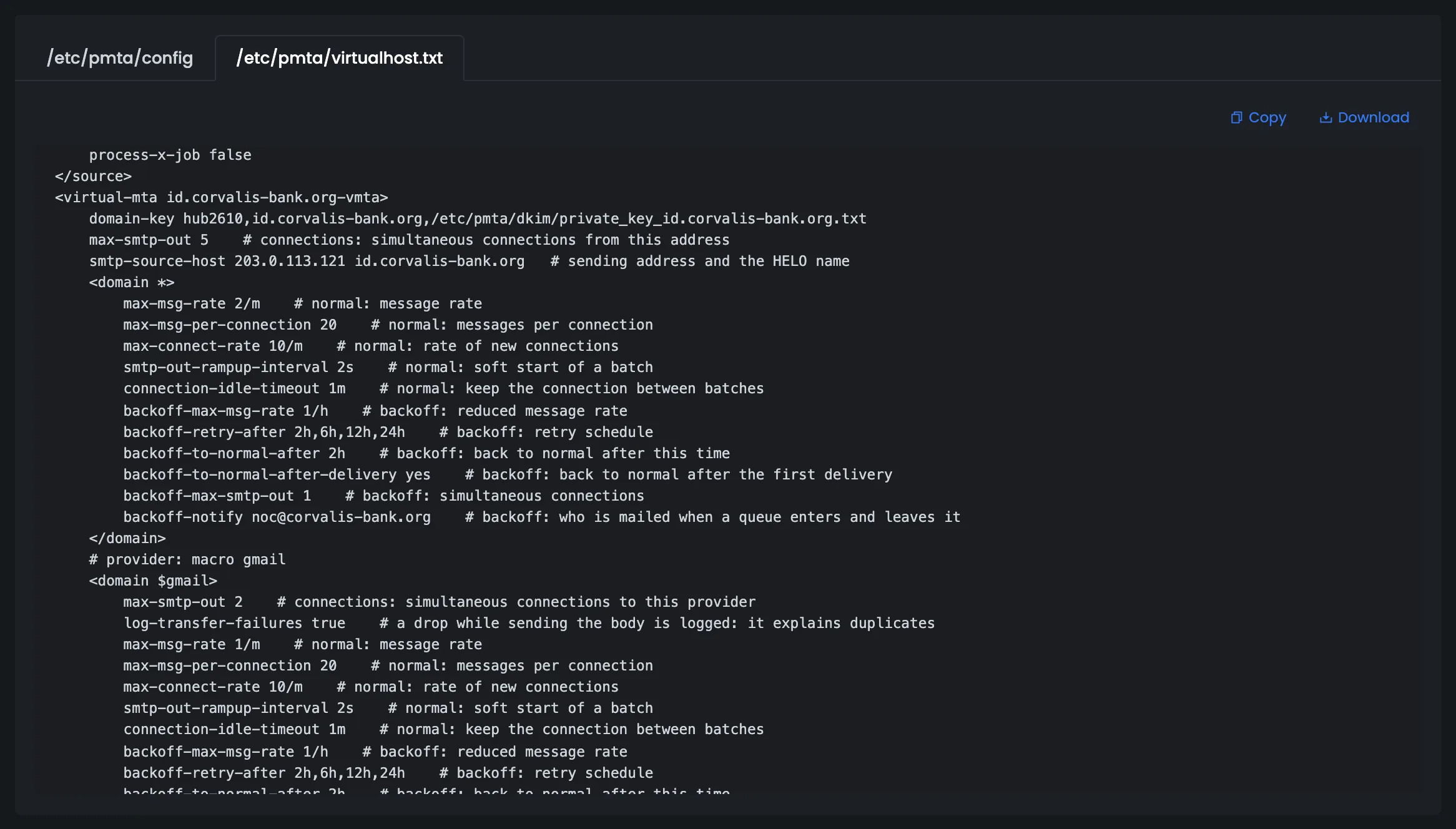
/etc/pmta/virtualhost.txt
A preview of the second file — /etc/pmta/virtualhost.txt for tx-01. It contains the <virtual-mta> block with the signing key, connections, the sending address and the HELO name the server introduces itself with to the mailbox provider, followed by the common <domain *> block and the Gmail rule. This is a handy place to check vMTAs before applying: are all pairs in place, and with the right signing keys? The comments in the file are in English, just like in the main one. If a pair is missing or a vMTA has the wrong key, fix the pairs in the generator before applying — after that, the MTA will send exactly this way.
EnlargeScreen 18 · Preview: vMTAs. An example from the MTA-Hub interface.
<virtual-mta> — signing key, connections, sending address and HELO.
<domain *> — the common block.
Rule — for Gmail.
Every directive has a comment — the file makes sense even without the Hub.
19
Apply log
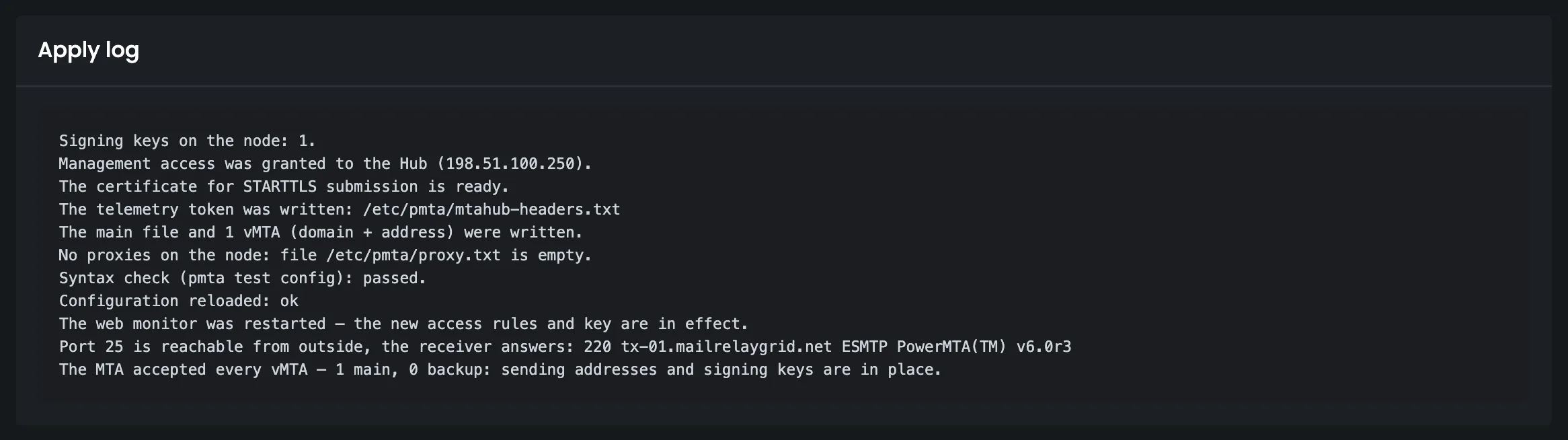
Step by step
The apply log shows step by step what happened on the server while the Hub was putting the configuration in place. First, preparation: signing keys, the Hub's management access, the STARTTLS certificate and the key for sending metrics. Then the files are written, the syntax is checked, the MTA and its web monitor are reloaded, and the Hub checks that port 25 answers from outside. The log shows at which step an error would have happened — and that on failure the Hub would have restored the previous files. Check the log after every apply: if a step failed, you see exactly which one, and that tells you what to fix — DNS, the port or the file itself.
EnlargeScreen 19 · Apply log. An example from the MTA-Hub interface.
Files — the main file and 1 vMTA, syntax check — passed.
Reload — the configuration and the web monitor.
Result — port 25 answers, the MTA accepted every vMTA.
The last line is the one that matters: sending addresses and signing keys are in place.
20
A vMTA in warm-up
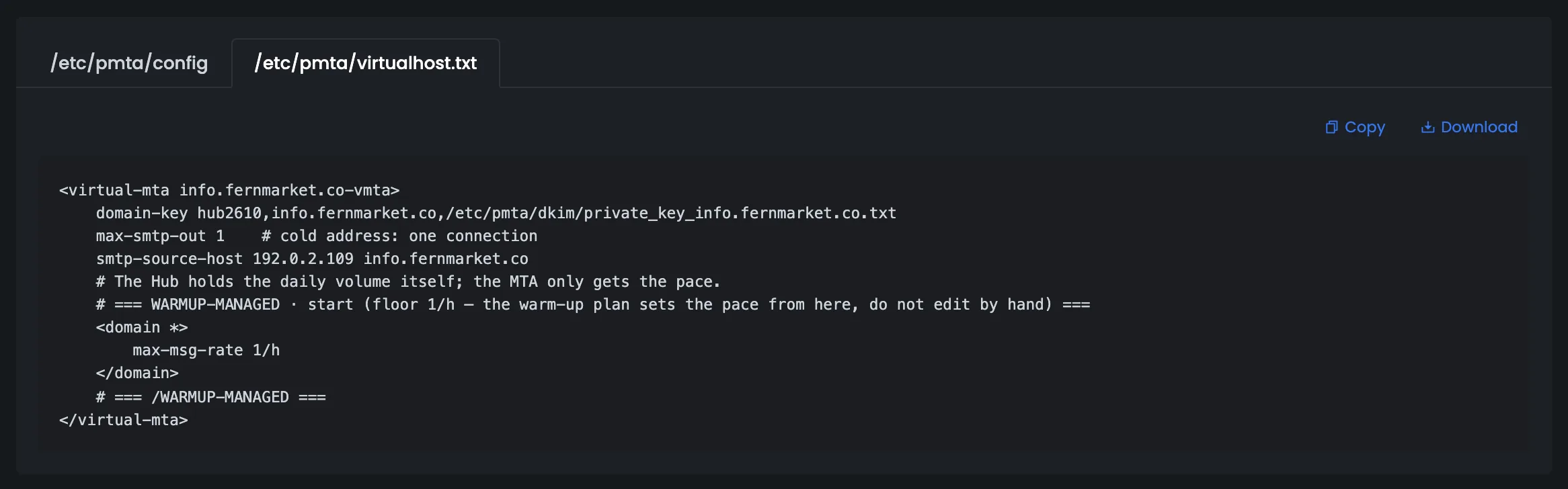
The WARMUP-MANAGED block
This is how a vMTA in warm-up looks in the preview — a new address on mta-05. It has one connection, the sending address and a WARMUP-MANAGED block with a limit of “no more than one message an hour per receiver”. The Hub itself keeps track of the daily volume, and PowerMTA is only responsible for the speed. This way IP warm-up follows the plan rather than random edits, and a new address doesn't get too much volume in its first days. That's why you don't edit the speed in the generator for addresses in warm-up — just keep an eye on the plan in the “Warm-up” section. How the address is actually following the plan is shown in Monitoring, on the “vMTAs and jobs” tab.
EnlargeScreen 20 · A vMTA in warm-up. An example from the MTA-Hub interface.
One connection — the address is new.
WARMUP-MANAGED — a limit of “no more than one message an hour per receiver”.
The speed between these markers is set by the warm-up plan, so they aren't changed by hand.
06 / Questions about configurations
Frequently asked questions about PowerMTA configuration.
In short: how the Hub builds and deploys the configuration, what the check is, and what to do about a manual edit.
Files on the server with checksums, “domain + address” pairs and what's configured — from the applied version.
Which PowerMTA files does the Hub build?
Two: /etc/pmta/config — management, complaint intake and policies — and /etc/pmta/virtualhost.txt — logins, the pool and vMTAs.
What do you set by hand?
Only the speed, the backoff mode and rules for individual mailbox providers. Pairs, signing keys and the Hub's address are filled in automatically.
What if an apply fails?
The Hub restores the previous files: before applying, it saves a copy and checks the syntax with PowerMTA's own tools.
Can I go back to an old version?
Yes, for PowerMTA — with the “Go back to it” button in the apply feed. MailerQ versions can't be restored: they're stored with passwords hidden.
What is the check?
Once a day, and on demand, the Hub computes checksums of the files on the servers and compares them with the saved ones. If they differ, it shows the lines that were changed.
Does the check fix the file?
No. The file may have been changed on purpose, and a person decides: build again in the generator, or go back to a version.
Is the format compatible with Protosender?
Yes: the same block names and file layout — the server plugs into Protosender's PMTA module, and the other way round.
How is an address in warm-up configured?
One connection and a cap of “no more than one message an hour”, while the warm-up plan sets the speed. These lines aren't changed by hand.
07 / Next step
Watch your MTA at work in Monitoring.
The configuration is applied — from here, Monitoring watches the server: MTA status, queues by domain and vMTA, mailbox provider replies and queue control.
The servers themselves and their addresses with reverse DNS records are on the Nodes page.