MTA-Hub overview

Own NS servers

Your own DNS server for your sending domains

Your own name servers.
Mail domains on your own DNS.

The Hub installs PowerDNS on your server, keeps your sending domains' zones there, and checks through public DNS servers whether the delegation is in place.

The Hub changes nothing at your registrar: the page gives you a ready-made list of what to set there — the name servers and the glue records.

Separate carrierNames from the domain
DNS · name serversMTA-Hub interface
Real module screensClick to enlarge ↗
01PowerDNSa service on your server
02Zonesrecords the Hub has built
03RegistrarNS and glue are up to you
04Checkevery hour and on demand

Why run your own name servers for mail domains

The Hub sets up your own name servers for mail domains by itself: it installs PowerDNS on your server — a program that answers DNS queries — keeps your sending domains' zones there, and checks through public DNS servers that the domains really are served by your name servers (this is called delegation). The Hub changes nothing at your registrar: the page gives you a ready-made list of what to set there — the name servers and the glue records (their addresses) — for each domain, or, when the name servers share one service domain, once for the whole set.

  • Records change quickly

    An exported record is served by your name server right away, and how long other DNS servers keep it in cache depends on the TTL you set. You can change a sending address or proxy in minutes, not hours.

  • No third-party panel

    Your zones no longer depend on a DNS provider's API, limits and outages.

  • Two ways to name your name servers

    Separate carrier: ns1 and ns2 on a service domain, shared by all domains. The glue is set once at that service domain's registrar, and the Hub manages its zone with the ns1 and ns2 addresses itself. Names from the domain: each domain gets its own ns1.<domain>. The Hub puts their addresses into the domain's own zone, and the glue is set at each domain's registrar.

  • Checked, not promised

    Every hour, and when you click the button, the Hub asks public DNS servers which name servers they see for the domain. The Hub says “Delegation matches” only when they see exactly your servers.

  • Protection against a wrong address

    A set's addresses must belong to the server where the service runs: the form warns you about an address from elsewhere, and the installation checks the addresses on the server itself before changing anything.

  • Honest about responsibility

    If a name server goes down, the whole domain disappears from the internet, not just the mail. That's why there are always two name servers, ideally on different addresses.

Where the service and delegation data comes from

The service is PowerDNS on the set's server: every five minutes the Hub checks that it answers and that recursion is closed (that the service doesn't answer queries about other people's domains). Delegation is checked every hour through public DNS servers and with the “Check delegation” button. The zones and records are the ones the Hub has built; they are exported to the service the same way as to a provider's panel.

01Why your own name servers: TTL, independence, responsibility

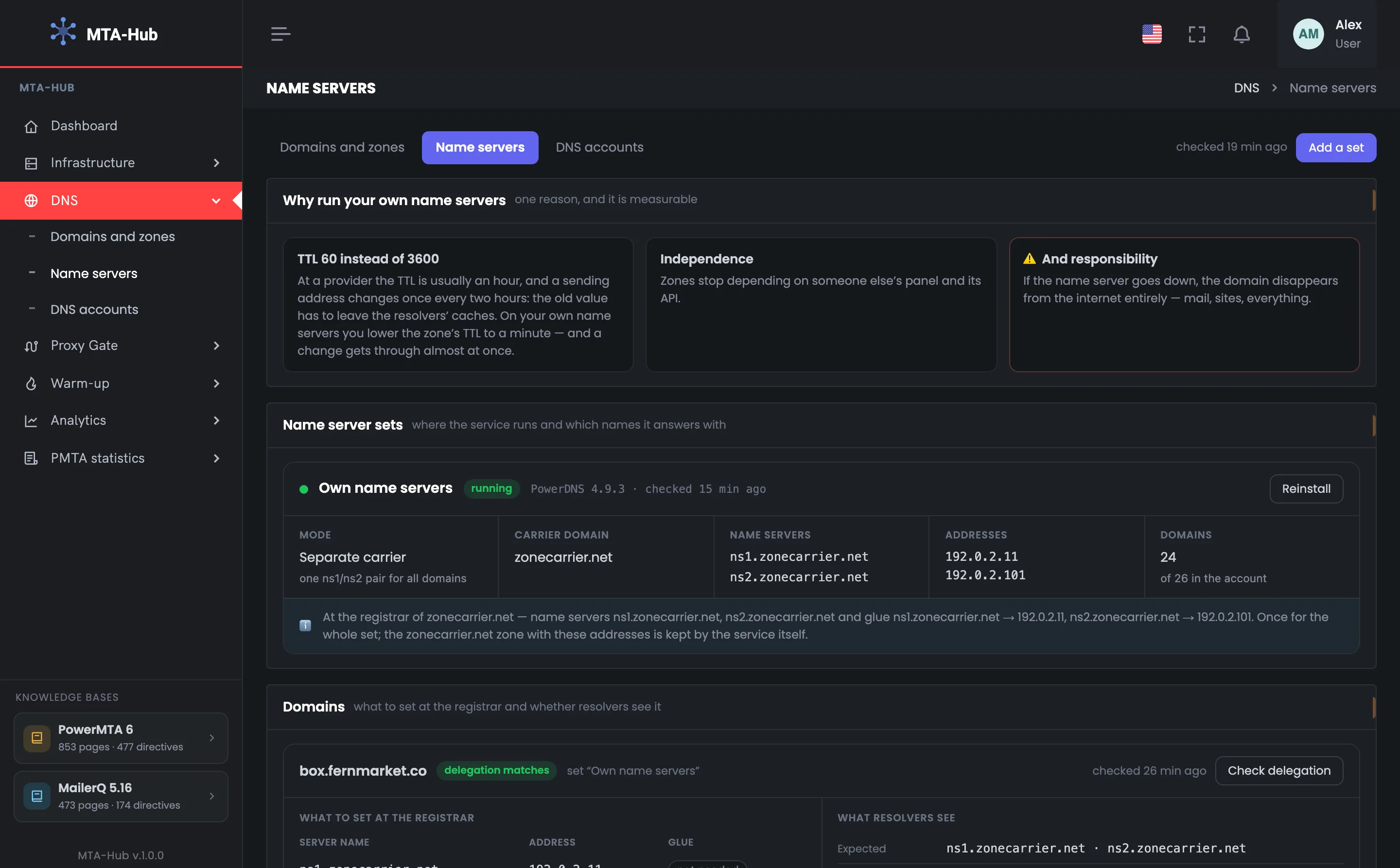
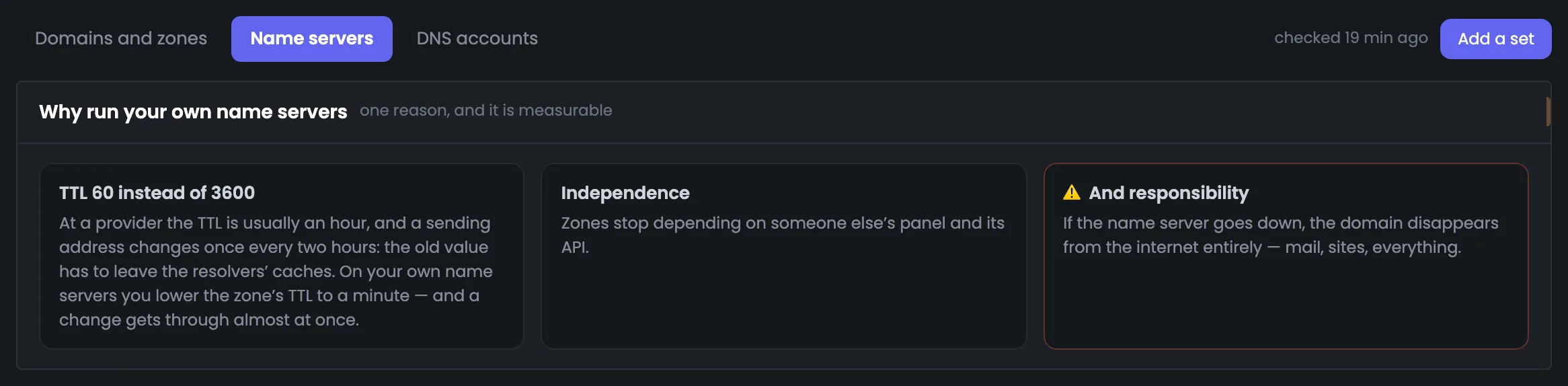
The first block briefly explains what you sign up for when you move to your own name servers. TTL 60 instead of 3600: at a provider the TTL is usually an hour, so a sending address can only be changed once every two hours, while on your own NS you lower the zone's TTL to a minute — and a change spreads almost at once. The second argument is independence from someone else's panel and its API. The third is responsibility: a name server that goes down takes the whole domain with it, so this is a decision to make with your eyes open. Above the block you see when delegation was last checked, and the “Add a set” button. If the arguments convince you, the next step is to create a name server set on one of your servers.

MTA-Hub screenshot: Why your own name servers: TTL, independence, responsibility

02Name server sets: PowerDNS, addresses and glue

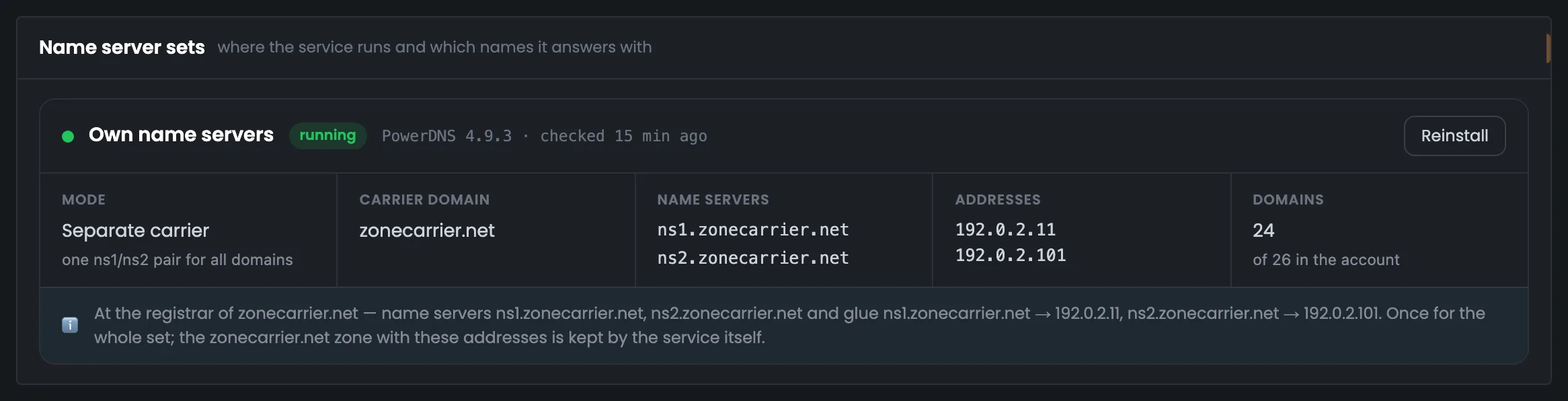
A set is a pair of name servers, ns1 and ns2, on one of your servers, and here you see its state. The “Own name servers” set is running: PowerDNS 4.9.3, and the service answered the last check. The mode is a separate carrier, zonecarrier.net: the names ns1 and ns2 on addresses 192.0.2.11 and 192.0.2.101 of one server, with 24 of 26 domains moved to the set. Below the cells is what to set once at the carrier domain's registrar: the name servers and the “name → address” glue; the carrier's own zone with these addresses is kept by the service. “Reinstall” asks for confirmation first: the zones and their records are kept, but they don't answer while the installation runs.

MTA-Hub screenshot: Name server sets: PowerDNS, addresses and glue

03Domains: what to set at the registrar, and whether delegation matches

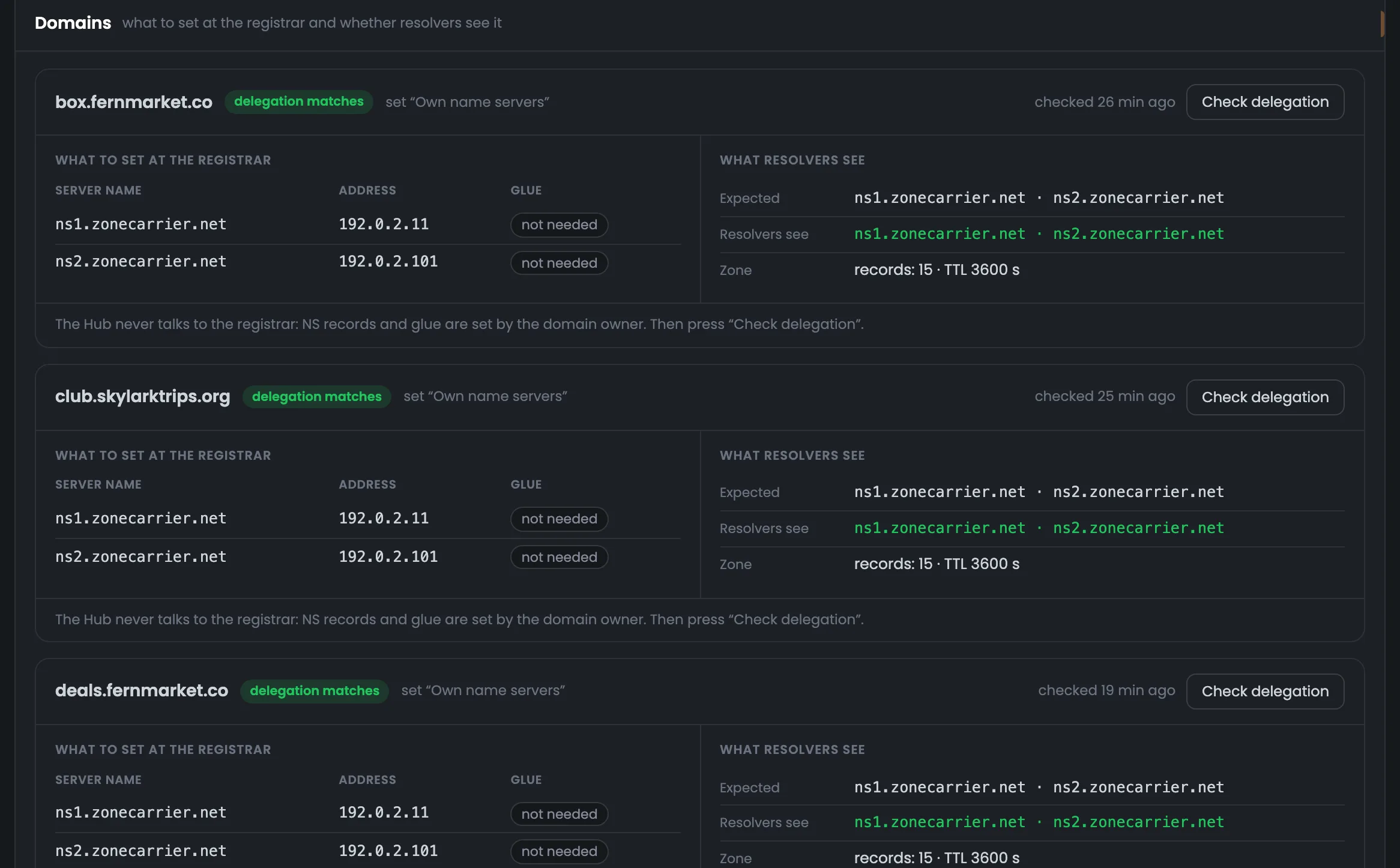
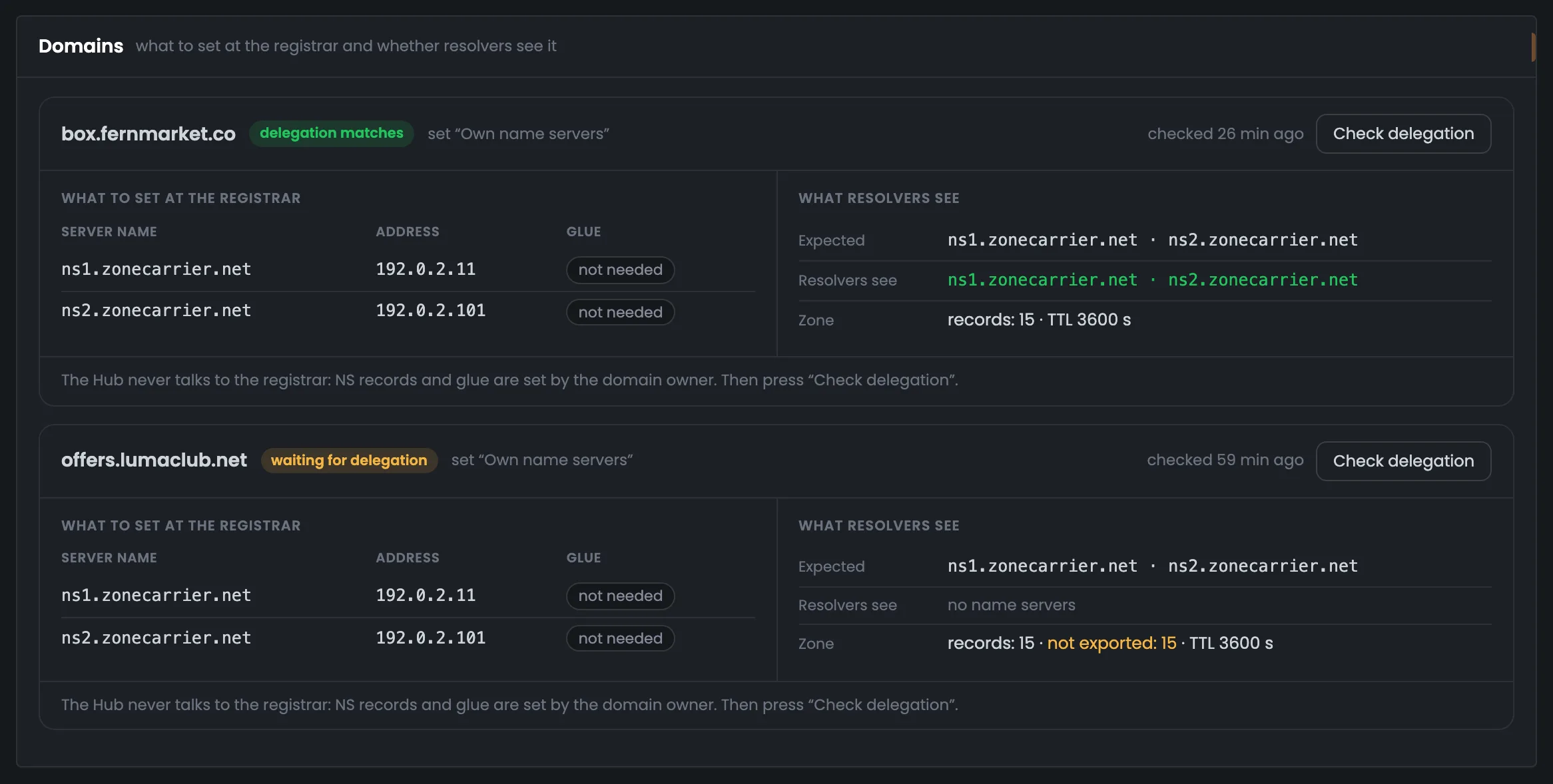
This is the delegation working screen: for each domain on your name servers, two halves side by side. On the left is what to set at the registrar: the server names, the addresses and whether glue is needed. On the right is what public DNS servers see. For box.fernmarket.co the delegation matches: they return exactly ns1 and ns2.zonecarrier.net. offers.lumaclub.net has just been added: public servers see no name servers for it, and none of the domain's records has been exported yet — 15 of 15 are waiting. The Hub changes nothing at the registrar; after making changes there, click “Check delegation” instead of waiting for the hourly check.

MTA-Hub screenshot: Domains: what to set at the registrar, and whether delegation matches

04Not moved yet: domains with their zone at a provider

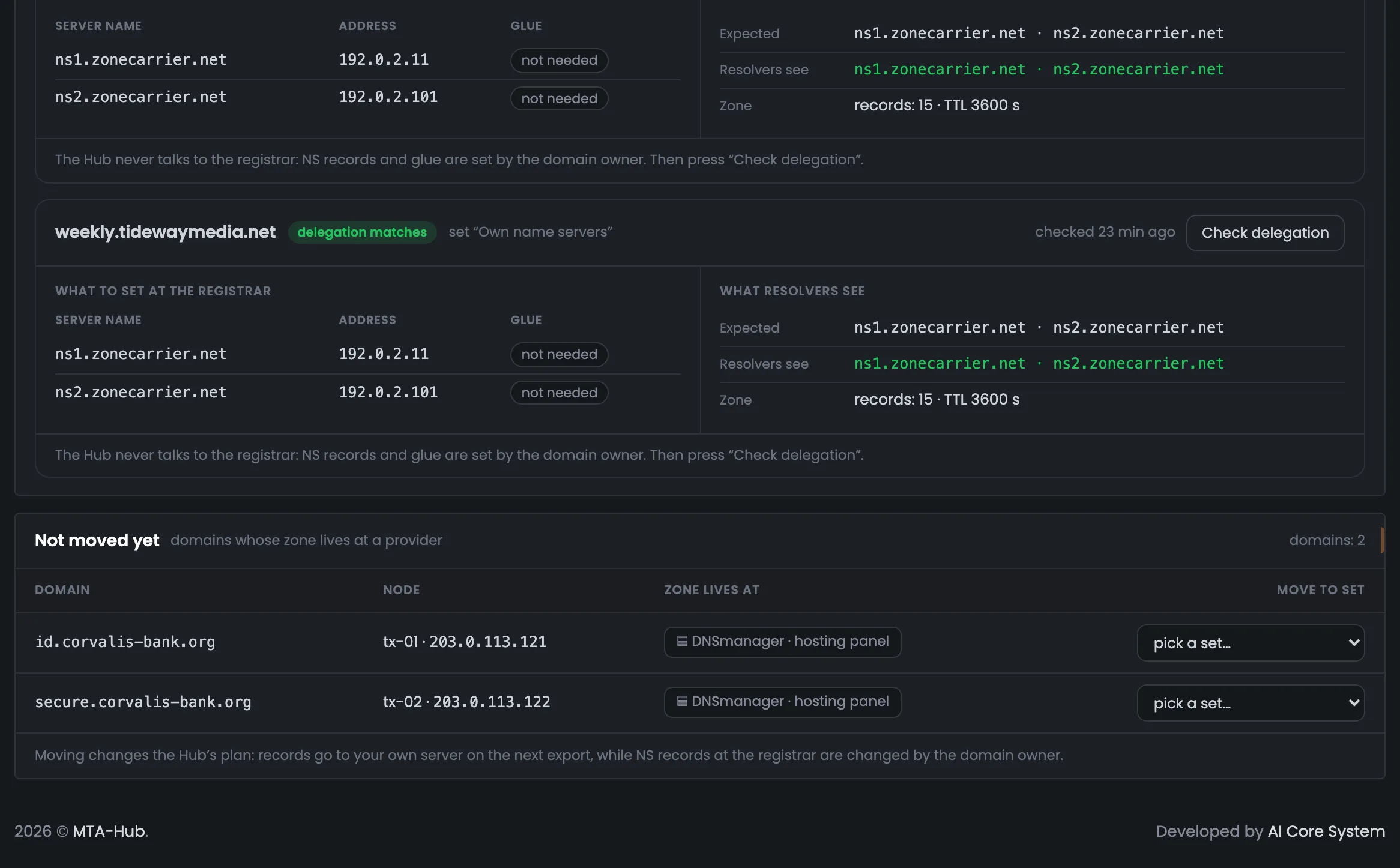
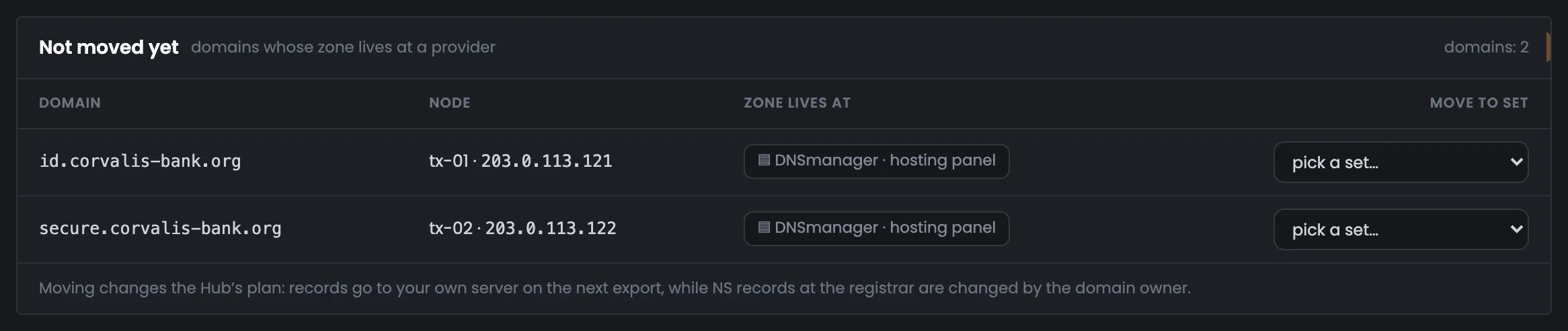
This block lists the domains whose zone is still kept at a provider — in the example, a bank's two domains in DNSmanager, each with its own node. To move a domain to your own name server, choose a set in its row: the Hub asks for confirmation, then creates a zone on the name server and unlinks the domain from the provider. After that the order matters: export the records into the new zone, then change the name servers at the registrar, then check the delegation. The records go to your server with the next export, and the name servers at the registrar are changed by the domain owner. Once moved, the domain appears in the “Domains” block above, where you can see whether delegation matches.

MTA-Hub screenshot: Not moved yet: domains with their zone at a provider

05New set: server, naming mode and the ns1 and ns2 addresses

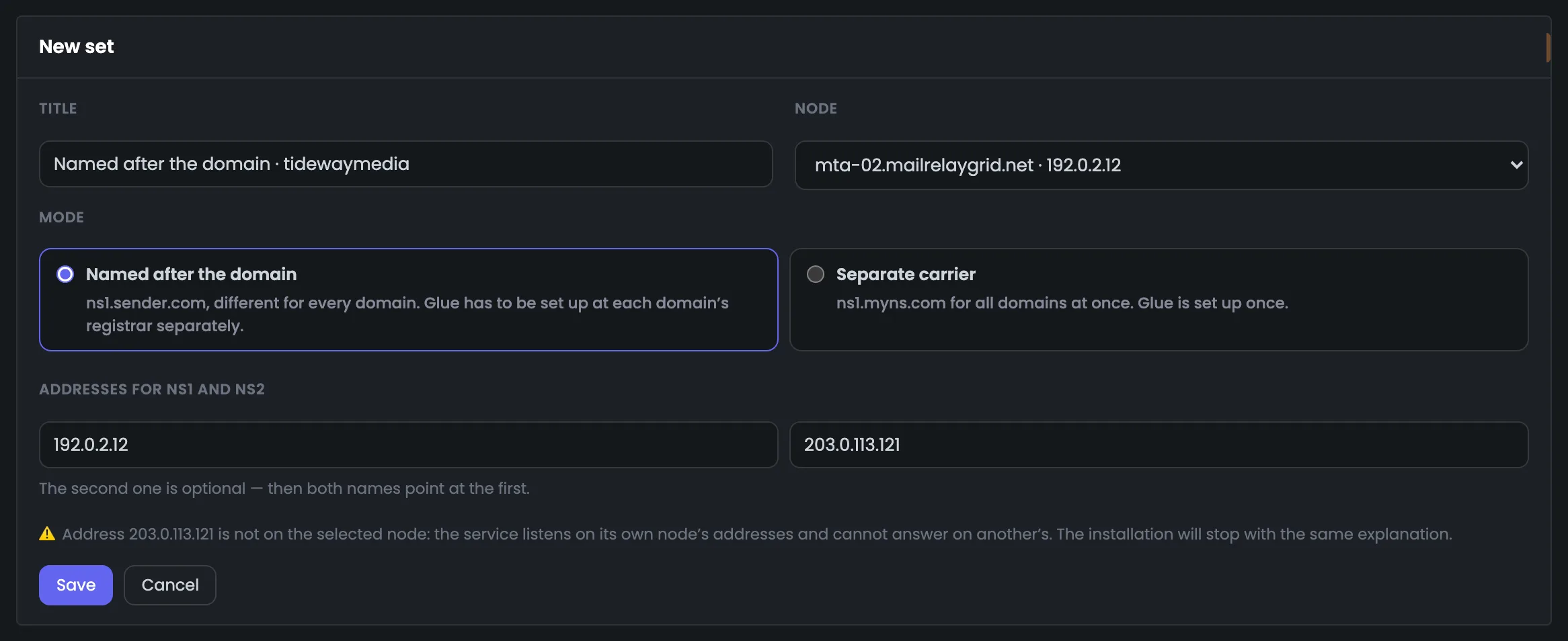
This form creates a new name server set: the name, the server, the naming mode and the ns1 and ns2 addresses. The “Names from the domain” mode gives each domain its own ns1, while “Separate carrier” gives all domains shared names with the glue set once. When you choose a server, its address fills in by itself. Here the second address is taken from another server, and the form warns you right away: the service won't be able to use it, and the installation would stop with the same explanation. The form itself installs nothing: the service is installed on the server with the button on the set's card. You can leave the second address empty — then both names point to the first one.

MTA-Hub screenshot: New set: server, naming mode and the ns1 and ns2 addresses

All modules — in one panel

Dashboard, Proxy Gate, warm-up and accounting statistics are parts of one panel, not separate programs. What each edition includes is on the “Pricing” page.