Checking proxies for mail: from connection to port 25
Checking proxies for mail. Port 25 and mailbox providers without test emails.
Proxies are checked from the server with the gate — the same place emails will later go out from. Five steps from cheap to costly, up to the first failure.
Nobody sends any emails while checking: with a mail server there is only a connection, its greeting and an immediate QUIT.
A proxy check for mail goes from the cheapest step to the most costly and stops at the first failure. The step where the address stumbled is the reason: the proxy doesn’t respond, doesn’t let you in, its external address couldn’t be found, or port 25 is closed.
From cheap to costly
01 · ReachabilityTCP to the proxy
02 · HandshakeSOCKS5 · SOCKS4 · CONNECT
03 · External addressGate echo port
04 · Port 25Gmail greeting
05 · ProvidersA round of five
The check stops at the first failure — the step where it stopped is the reason
Where checks run from
The server with the gate
Proxies are checked by the same server emails will later go out from. This way the check sees the address exactly as the recipient’s mail server will see it.
GGate
check
Checked fromThe server with the gate
the same pathas the emails
No test emails
Only a connection
With a mail server there is only a connection: it answers with a greeting, and the connection is closed right away with the QUIT command. A test email to someone else’s server hurts the address’s reputation all by itself.
PProxy
port 25
With the mail serverGreeting and QUIT
no emailtime to greeting
02 / Acceptance by mailbox providers
Which mailbox provider accepts each proxy.
The table sets each address against five major mailbox providers — Gmail, Outlook, Yahoo, Mail.ru and Yandex. A cell holds the time to the greeting on port 25 or a refusal code, and at the bottom is how many addresses each provider accepts. This shows which provider won’t let a particular proxy in.
Check scopeData from the screenshots
px-05 and Yahoo
Refusal 550
Yahoo answers px-05 with code 550 — for the second week now, while the other four providers accept it. There is no need to throw such an address away: you can keep it in a separate pool for other tasks.
Ppx-05
port 25
YahooRefusal 550
4 of 5 providerssecond week
Column totals
Accept, of 8
Yahoo accepts 7 addresses of 8, the other providers — all 8. px-06 is in quarantine and missed today’s round, so its row is marked with the date of the previous round.
HMTA-Hub
round
Round Oct 21, 04:11Yahoo: 7 of 8
88%the rest 8 of 8
px-05 and Yahoo
Refusal 550
The “Ramping up new addresses” pool shows the same refusal: Yahoo doesn’t accept px-05. Tiles, the table, runs and the manual round count only the pool’s addresses.
Ppx-05
port 25
YahooRefusal 550
4 of 5 providerssecond week
Column totals
Accept, of 5
The pool has 5 addresses: Yahoo accepts 4 of them, the other providers — all 5. The pool has had no manual runs this week.
HMTA-Hub
round
Round Oct 21, 04:11Yahoo: 4 of 5
80%the rest 5 of 5
A proxy failure is not a provider refusal: if the proxy itself didn’t answer, the cell gets “did not reach”, and it doesn’t spoil the provider’s share.
03 / Check schedule
How often port 25 and blacklists are checked.
Every check means connections to other people’s servers from your addresses. That is why light port 25 checks run often, proxy blacklists are queried once a day, and the provider round runs no more than once a day and not before the chosen hour.
Every 6 hours
Port 25 and greeting
One connection, without an email, to Gmail’s mail server from each address.
Once a day, from 04:10
Provider round
Gmail, Outlook, Yahoo, Mail.ru and Yandex. More than once a day isn’t worth it.
Once a day
Blacklists
8 zones, exit addresses only; queried along with the address check.
Right after the check
Junk from public lists
Rejected addresses from public lists are deleted, but their fingerprint is kept. The Hub never deletes purchased or your own addresses.
A manual run is always available and doesn’t shift the schedule: the check runs now, and the daily round stays where it is.
04 / Results and history
Check results and run history.
Above the table are five tiles with the results of the latest checks, and below — every run over two weeks. Everything is counted for one scope: the whole fleet or a chosen pool.
Tiles
Whole fleet
All 8 addresses are checked, the latest check was on Oct 21 at 11:00. One address has a problem with a mailbox provider, two are on the Barracuda, PSBL and SpamCop blacklists. One manual run this week.
HMTA-Hub
summary
Addresses checked8 of 8
next round 04:10on blacklists — 2
Runs
Over two weeks
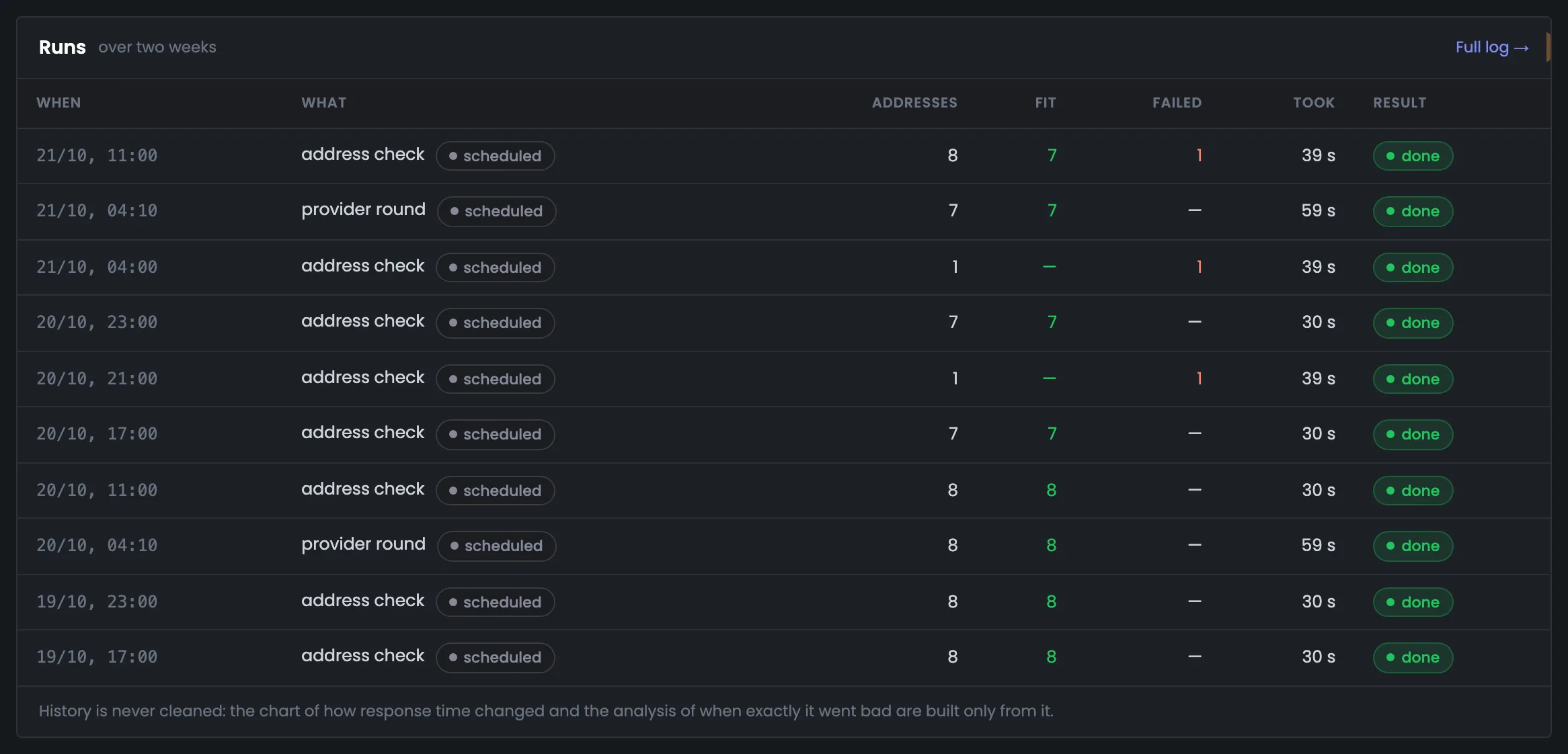
Every check is a separate row: what was checked, how many addresses, how many fit and how many failed, how long it took. The history is never cleared — it feeds the response time chart and the analysis of when an address went bad.
HMTA-Hub
run
Round Oct 21, 04:107 addresses · 59 s
7 fitscheduled
05 / The interface in detail
The “Checks” section — 7 screens.
All proxy check screens: how the check works, five summary numbers, the provider table, runs, the schedule and the scope of a single pool. Above each screenshot: why the screen matters. Below it: what it shows.
How we check and results
2 screens
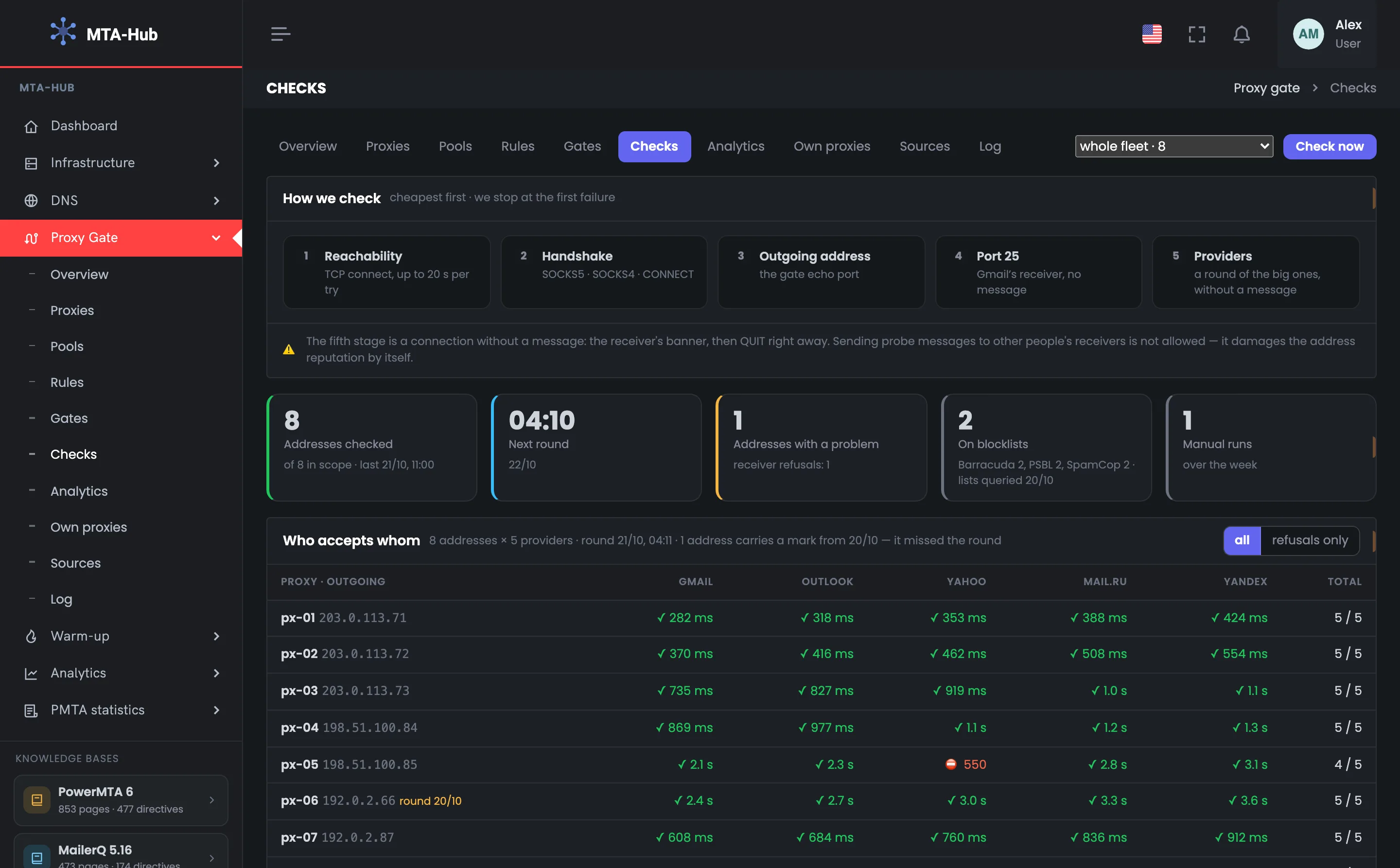
The page opens with how a proxy check works: five steps from cheap to costly, up to the first failure. At the top — the scope (the whole fleet or a pool) and the “Check now” button. Below — five numbers with the results of the latest checks: how many addresses were checked, how many have a problem with a provider and how many are on blacklists.
01
How we check
Five steps up to the first failure
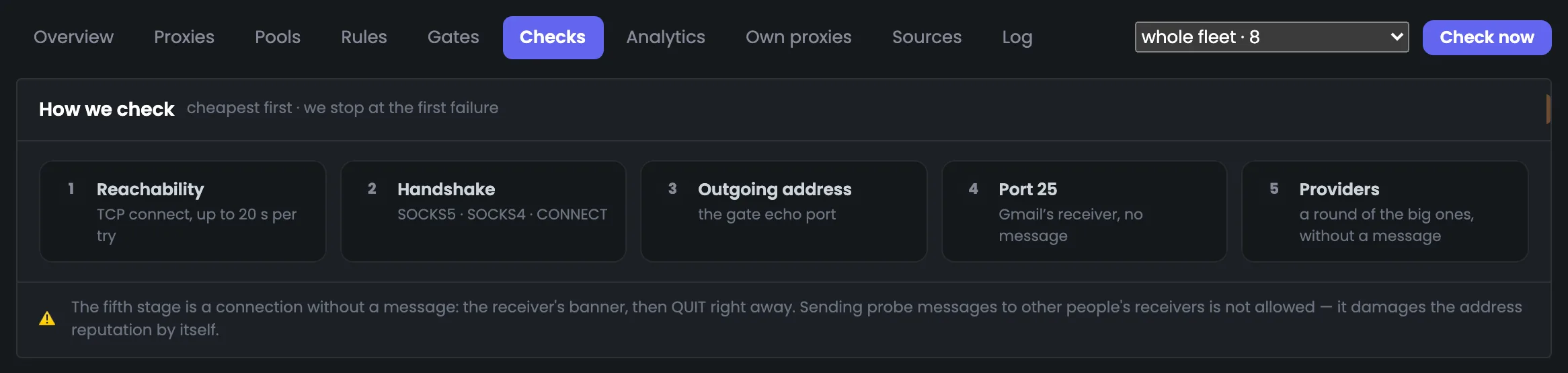
The “How we check” block explains how the Hub decides whether a proxy is fit for mail. Five steps go from cheap to costly: connecting to the proxy, the handshake, the external address, port 25 and the provider round. The check stops at the first failure, so the step where it stopped names the reason right away. At the top — the scope “whole fleet · 8” and the “Check now” button: before a round it asks for confirmation and says which addresses and how many providers the connections will go to. The button skips unchecked and rejected addresses, just like the scheduled round. The check results are on the next screen, with five tiles.
EnlargeScreen 01 · How we check. An example from the MTA-Hub interface.
1 · Reachability — a TCP connection to the proxy, up to 20 seconds per try.
2 · Handshake — SOCKS5, SOCKS4 or CONNECT.
3 · External address — through the gate’s echo port.
4 · Port 25 — a connection to Gmail’s mail server, without an email.
5 · Receivers — a round of the major providers, without an email.
Check now — before a round it asks for confirmation and says which addresses and how many providers the connections will go to.
You shouldn’t send test emails to other people’s mail servers — that alone hurts the address’s reputation. The button skips unchecked and rejected addresses, just like the scheduled round.
02
Five numbers
Results of the latest checks
Five tiles give a short summary of the proxy checks for the chosen scope — a handy place to start the day. Here all 8 addresses are checked, one has a problem with a mailbox provider, two are on blacklists, and the next round is set for Oct 22 at 04:10. The color of the stripe on the left hints where to look closer, and under each number in small print is where it comes from. If the “with a problem” and “on blacklists” tiles aren’t empty, look at the provider table next. The “lists queried” mark shows the oldest of the checks, so the number doesn’t look fresher than it is. There was one manual run this week — the acceptance check of the purchased px-09.
EnlargeScreen 02 · Five numbers. An example from the MTA-Hub interface.
Addresses checked — 8 of 8 in scope, the latest check on Oct 21 at 11:00.
Next round — Oct 22 at 04:10.
Addresses with a problem — 1 — one provider refusal.
On blacklists — 2 addresses: Barracuda, PSBL, SpamCop; the oldest blacklist check is from Oct 20.
Manual runs — 1 this week — the acceptance check of the purchased px-09.
The “lists queried” mark shows the oldest of the checks, so the number doesn’t look fresher than it is.
Who accepts whom
2 screens
The main table sets each address against five major mailbox providers. It shows at once who doesn’t accept whom and how slowly the others answer. A filter keeps only the rows with refusals, so problem addresses don’t get lost in a large fleet.
03
Who accepts whom
Addresses against five providers
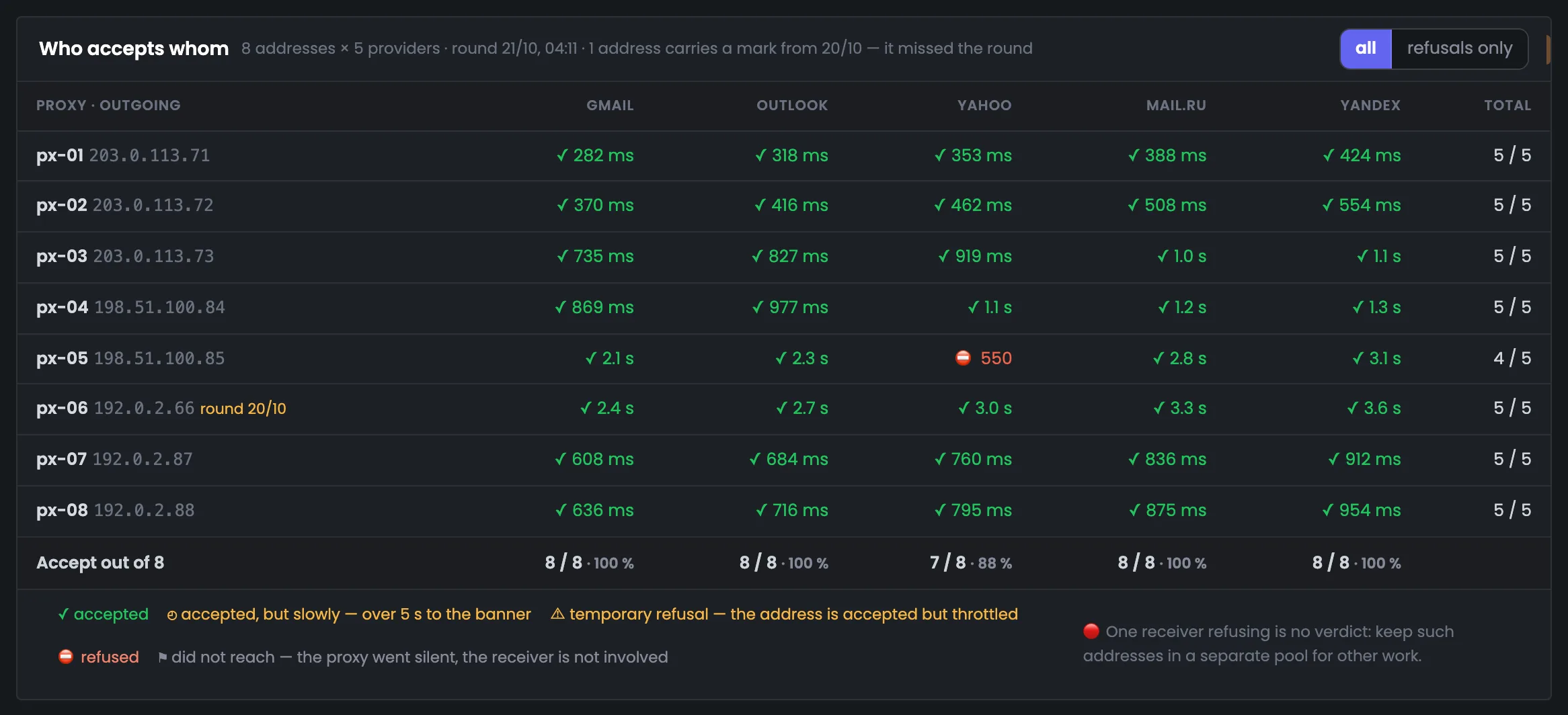
The main table of the page: eight addresses against five mailbox providers — Gmail, Outlook, Yahoo, Mail.ru and Yandex, round of Oct 21 at 04:11. A cell holds the time to the greeting or a refusal code, on the right is the row total, and at the bottom is how many addresses each provider accepts. The screen answers the question of which proxy you can use to send to which recipient: for example, Yahoo has been answering px-05 with code 550 for the second week now. Under the table the five possible cell outcomes are explained. A refusal by one provider is not a death sentence: you can keep such an address in a separate pool for other tasks. A “did not reach” cell means the proxy itself didn’t answer, and it doesn’t spoil the provider’s share.
EnlargeScreen 03 · Who accepts whom. An example from the MTA-Hub interface.
Address row — the name and exit IP: px-01 203.0.113.71 and so on.
px-05 and Yahoo — refusal 550 — for the second week now; row total 4 / 5.
px-06 “round Oct 20” — in quarantine, so today’s round skipped it; yesterday’s round is shown.
Accept, of 8 — Yahoo — 7 / 8 (88%), the others — 8 / 8.
Legend — accepted, accepted slowly (over 5 s), temporary refusal, not accepted, did not reach.
All / refusals only — a switch above the table.
A refusal by one provider is not a death sentence for an address: such addresses are kept in a separate pool for other tasks.
04
Refusals only
Keep the problem rows
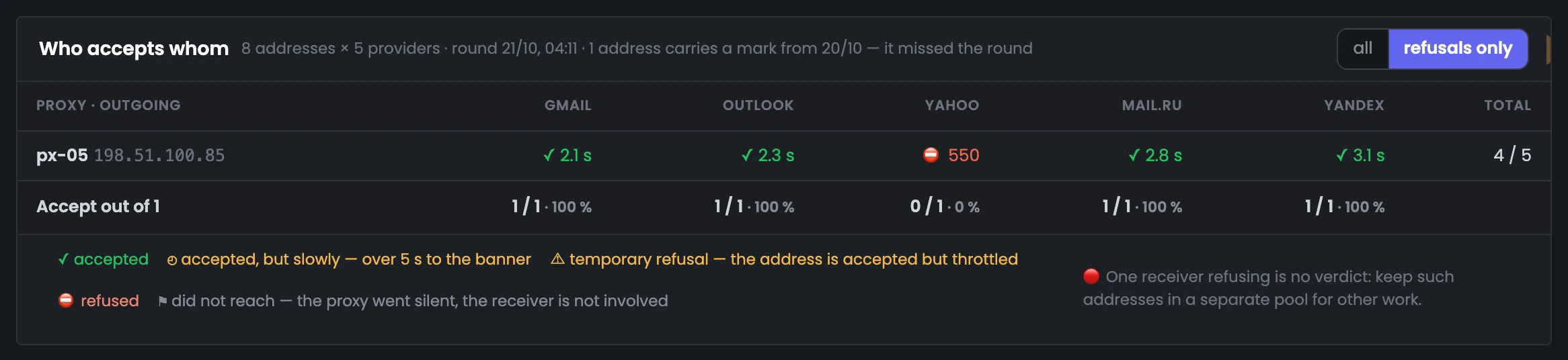
The same report with the “refusals only” switch on — it keeps only the rows where at least one provider didn’t accept the address. In the example that is just px-05: Yahoo answers it with code 550, the other four providers accept it. The totals under the columns are recalculated for the remaining row, so you see exactly whom the problem affects. When the fleet has many proxies, this filter quickly shows the addresses worth moving to a separate pool. The totals in the screenshot: Yahoo — 0 of 1, the others — 1 of 1. To see all addresses again, set the switch above the table back to “all”.
EnlargeScreen 04 · Refusals only. An example from the MTA-Hub interface.
Row — px-05: Yahoo — 550, the others accept.
Totals — Yahoo — 0 of 1, the others — 1 of 1.
This way problem addresses don’t get lost among the fit ones when the fleet is large.
Runs, schedule and scope
3 screens
At the bottom — history and settings: every run over two weeks, the check schedule and the same screen for a single pool. The scope changes everything at once: tiles, the table, runs and the manual round. This way you can look at the whole fleet or at just one pool.
05
Runs
Every check over two weeks
The history of proxy checks over two weeks: each run is a separate row. You see when it ran, what was checked, how many addresses, how many fit and how many failed, and how long it took. This table makes it easy to tell whether the schedule works and which address keeps failing: here it is px-06 in quarantine, whose port 25 is still closed. Everything ran on schedule — there are no manual runs among the last ten. The history is never cleared: it feeds the response time chart and the analysis of exactly when an address went bad. The “Full log” link leads to the module log, where checks sit next to all other events.
EnlargeScreen 05 · Runs. An example from the MTA-Hub interface.
Provider round — at 04:10 — 7 addresses in 59 seconds.
Address check — at 11:00, 17:00 and 23:00 — 7 or 8 addresses in 30–39 seconds.
Single-address rows — rechecks of px-06 in quarantine: “failed 1” — port 25 is still closed.
Full log — a link to the module log.
The history is never cleared: it feeds the response time chart and the analysis of exactly when an address went bad.
06
Schedule
What and how often
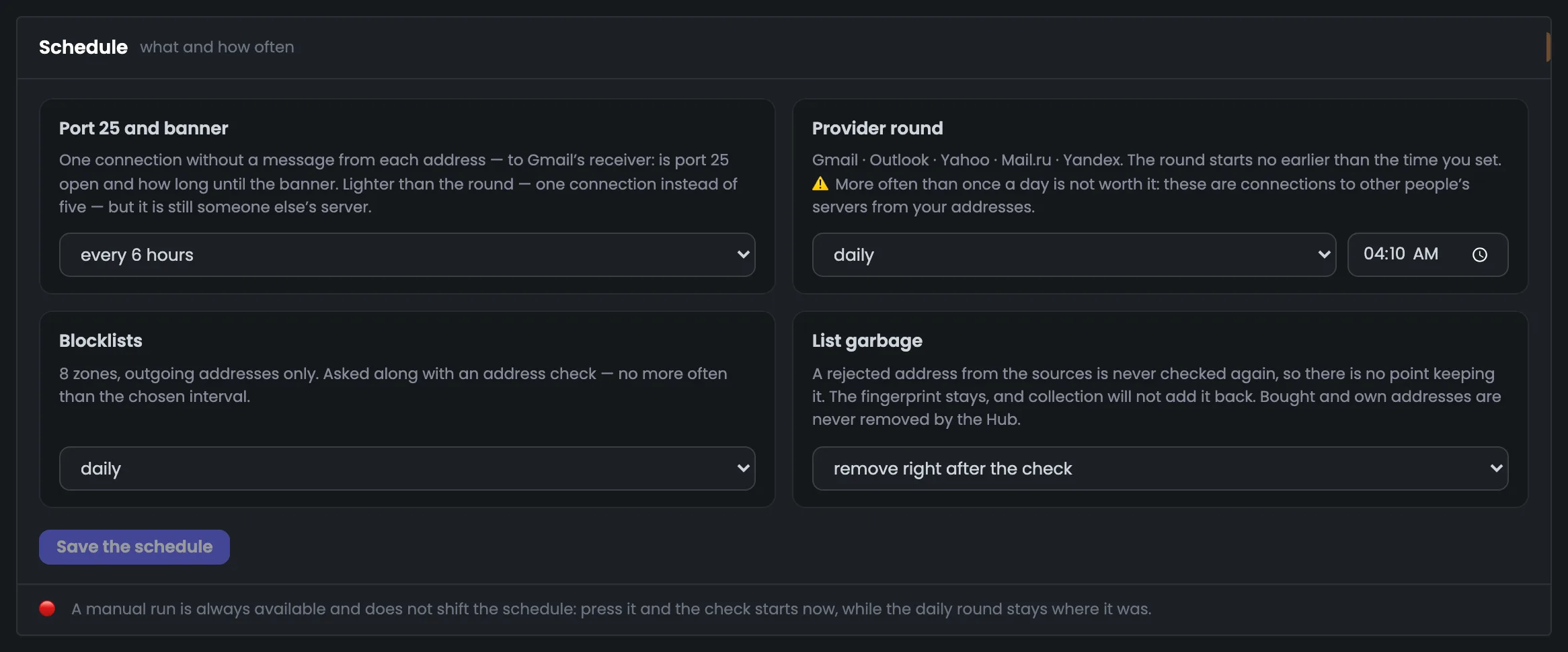
The proxy check schedule has four settings: port 25 and greeting, the provider round, blacklists, and cleaning junk out of public lists. The rule is simple: the costlier the check, the less often it runs, since each one means connections to other people’s servers from your addresses. In the screenshot port 25 is checked every 6 hours, the round runs once a day not before 04:10, and blacklists are queried once a day. At the bottom is a reminder: a manual run doesn’t shift the schedule. Rejected addresses from public lists are deleted right after the check, while the Hub never deletes purchased or your own addresses. Changed settings are saved with the “Save schedule” button.
EnlargeScreen 06 · Schedule. An example from the MTA-Hub interface.
Port 25 and banner — every 6 hours: one connection, without an email, to Gmail’s mail server from each address.
Provider round — once a day, not before 04:10.
Blacklists — 8 zones, exit addresses only; once a day, along with the address check.
Junk from public lists — removed right after the check; the Hub never deletes purchased or your own addresses.
Save schedule — not pressed in the screenshot.
A round more often than once a day isn’t worth it: it means connections to other people’s servers from your addresses.
07
One pool
Scope: a pool, not the whole fleet
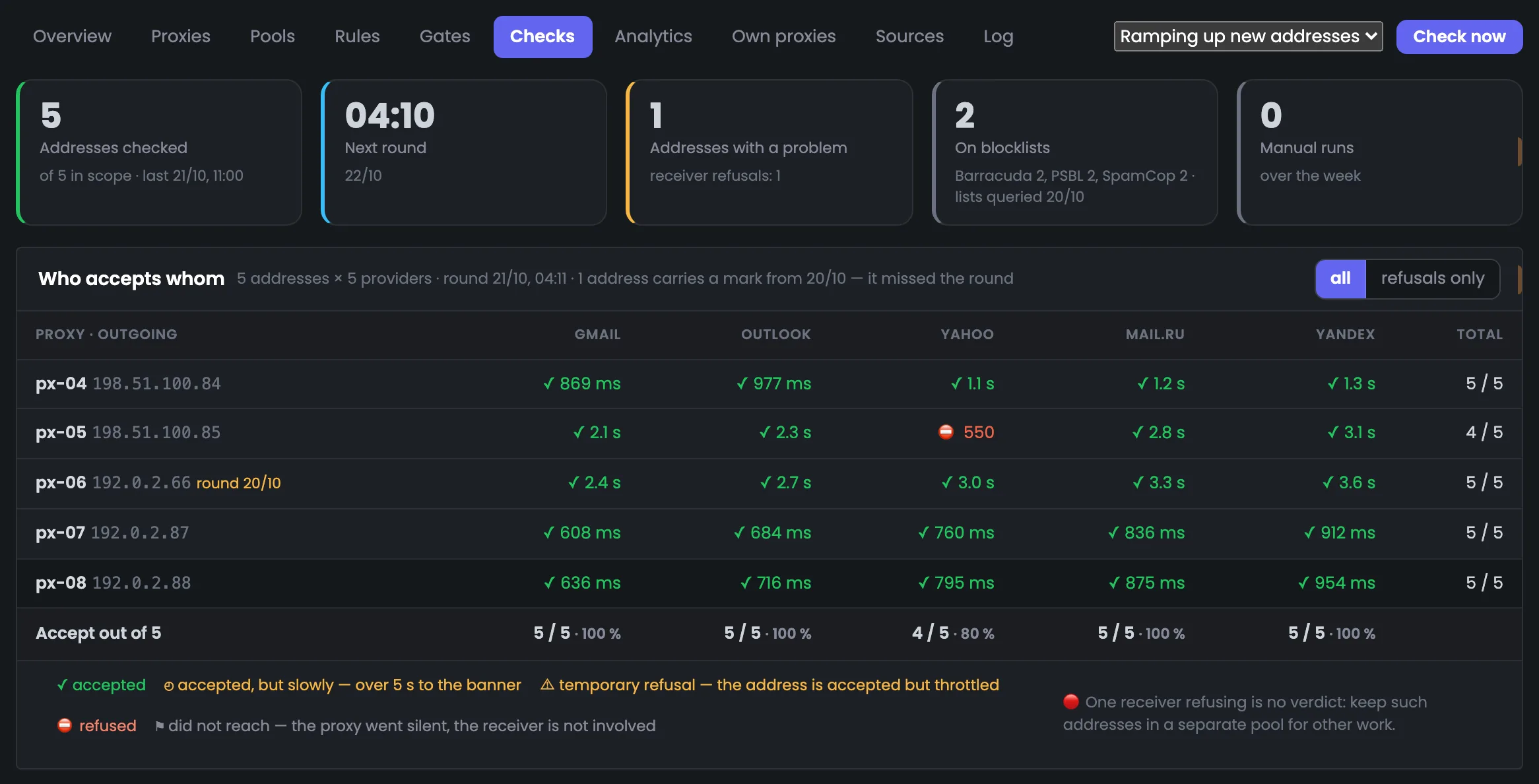
The same screen with the scope set to “Ramping up new addresses” — a pool of 5 addresses instead of the whole fleet. Tiles, the table, runs and the manual round count only them: 5 of 5 checked, 0 manual runs, Yahoo accepts 4 addresses of 5. The scope is handy when you need to judge one proxy pool without being distracted by the rest of the fleet: for example, there are 0 manual runs here because the acceptance check of the purchased px-09 doesn’t belong to this pool. The “How we check” reference block is hidden in the screenshot. There is one scope for the whole screen, so once you set it back to “whole fleet”, you see all 8 addresses and their totals again.
EnlargeScreen 07 · One pool. An example from the MTA-Hub interface.
Tiles — 5 of 5 checked, 0 manual runs — the px-09 acceptance check doesn’t belong to this pool.
Table — px-04 … px-08 against five providers.
Accept, of 5 — Yahoo — 4 / 5 (80%), the others — 5 / 5.
There is one scope for the whole screen: the tiles, the table, the runs and the manual round are all counted by it.
06 / Questions about checks
Common questions about checking proxies.
In short: why the check does without emails, what the table cells mean and how the schedule works.
Time to greeting or a refusal code for each provider; at the bottom — how many addresses each one accepts.
Does the check send emails?
No. Only a connection is made with the mail server: it answers with a greeting, and the connection is closed right away with the QUIT command.
Why does the server with the gate run the check, and not the Hub?
This way the address is checked along the same path the emails will later take — and the check sees it as the recipient’s mail server will see it.
What does “did not reach” mean?
The proxy itself didn’t answer, so the provider took no part in the check. Such a cell doesn’t spoil the provider’s share.
If one provider doesn’t accept an address, should I throw it away?
No. A refusal by one provider is not a death sentence: you can keep such an address in a separate pool for other tasks.
Why do some rows have their own round date?
The round skipped that address — because it is in quarantine, for example. Then its last round is shown with a date, so old data isn’t taken for fresh.
Does a manual run shift the schedule?
No. The check runs now, and the daily round stays where it is.
How often are blacklists checked?
No more often than the chosen interval, and along with the address check. 8 zones are queried, for exit addresses only.
Can I look at just one pool?
Yes, you choose the scope at the top: the whole fleet or a pool. The tiles, the table, the runs and the manual round are counted by it.
07 / Next step
See the analytics of sending through proxies.
Checks tell you whether an address is fit for mail right now. How the addresses actually performed in sending — delivery, bounces and the trend over a period — is shown in Analytics.
The check result for each address is visible in the proxy list, and the whole route — from the MTA through the gate to the recipient — in the module overview.