Proxies for bulk SMTP email. Sending through a SOCKS5 gate.
Connect SOCKS5 proxies to PowerMTA and MailerQ through the Hub’s gate. One screen shows the state of your addresses, how the connections are doing and the results of sending.
Check proxies, group them into proxy pools and set rules for how to react to changes. The reason for every event stays in the log.
PowerMTA and MailerQ can’t send mail through SOCKS5 proxies on their own, so the Hub’s gate sits between the MTA and the proxy. The gate runs on the sending node: it takes the connection from the MTA and opens a SOCKS5 tunnel through the chosen proxy. The recipient’s mail server sees the proxy’s exit IP — that is the address you put in DNS and check against blacklists.
An email’s route
01 · MTAPowerMTA / MailerQ
02 · Hub gatehubgate
03 · SOCKS5Proxy
04 · RecipientMail server
The MTA and the gate run on your sending server; the recipient sees the proxy’s exit address
Where the gate connects
Entry address
The gate opens a tunnel to the proxy’s entry address and port — with the login and password the seller gives you. Both proxy addresses are shown in the address table.
Hhubgate
SOCKS5
Proxy · entryAddress and port
Login and passwordAddress table
PowerMTAMailerQ
What the recipient sees
Exit IP
This is the address the email arrives from at the mailbox provider. It goes into A and SPF records and is checked against blacklists — it may differ from the entry address.
PProxy
TCP/25
Recipient’s mail serverExit IP
A and SPFBlacklists
TCP/25Subdomain pointing to the exit IP
02 / Data sources
Three sources of data on sending through proxies.
The overview brings together sending results, tunnel performance and the state of each address. MTA accounting tells you whether an email was delivered, the gate counters — whether the connection succeeded, the Hub’s checks — whether the proxy itself is fit for mail. Every figure names its source and period, and the numbers are never blended into one overall “health score”.
What happened to the emails?
01 · MTA accounting
Delivered emails, permanent failures and the trend over the chosen period — from the MTAs’ own reports.
Emails by dayBreakdown by proxyAcceptance by provider
Completed emails = delivered + permanent failures. Temporary failures are counted separately, as sending attempts.
03 / Connecting to sending
Six steps to connect proxies to the MTA.
To start sending through proxies, you go through six steps: the gate, a pool, fit addresses, subdomains and DNS, writing the settings to the server, and sending points in the email platform. The Hub shows how ready each step is for the chosen node. If setup isn’t finished yet, you can jump straight from the overview to the right screen.
Install the gate
01 · Server
The hubgate service runs next to the MTA and opens connections through SOCKS5.
Pool rules and rechecks notice in time that a proxy has started working worse: delivery dropped, the rental is running out or port 25 closed. The overview shows the signal, what the Hub did and what needs your decision. The Hub never deletes a purchased address on its own — that decision stays with you.
Delivery rate dropped
Pool rule
The figure from MTA accounting fell below the threshold set in the rule.
PProxy
Rule
What is judgedDelivery
Rule thresholdMTA accounting
Move the address to quarantine
Hub reaction
The Hub takes the rule’s action and records the reason in the event. What is left for you to check: find the cause of the drop before putting the address back into sending.
HMTA-Hub
Action
What the Hub doesQuarantine
Reason in the eventLog
Proxy rental is running out
Pool rule
The rental ends within the period set in the rule.
PProxy
Rule
What is judgedRental term
Rule thresholdProxy list
Warn about renewal
Hub reaction
The address shows up in the attention block, so you can check the rental term before it ends. Your decision: renew the rental or prepare a replacement for the pool.
HMTA-Hub
Action
What the Hub doesWarning
Attention blockLog
Port 25 closed
Hub recheck
A recheck found that the address can no longer reach port 25.
PProxy
Check
What is judgedTCP/25
RecheckAddress grade
Lower the address grade
Hub reaction
The check result changes the address’s grade and state in the proxy list. A purchased address is kept — the Hub won’t delete it on its own. Whether to ask the seller to open the port or retire the address is your call.
HMTA-Hub
Action
What the Hub doesNew grade
Not deletedYour call
05 / The interface in detail
The Proxy Gate overview — 11 screens.
All 11 screens of the Proxy Gate overview: setup, the proxy fleet, sending results, events, gates and the blacklist check. The screens are grouped by task — from the overall state of the module down to a single address.
Overall state and the path to sending
4 screens
The Proxy Gate overview starts with the essentials: which server and period to look at, where the numbers come from and whether the route to sending is ready. Six setup steps show what is already done for the chosen server — from the gate to the sending points in the email platform. Below are the gate’s summary and the fleet tiles: how many addresses are working, how many wait in reserve, how many are fit for mail and which ones have rentals ending soon.
01
Navigation and data sources
Node, period and where the figures come from
The top of the Proxy Gate overview: the module tabs and a choice of server and data period — 24 hours, 7 or 30 days. Every number on the page is recalculated for the chosen server and period. The line under the tabs names the three number sources — MTA accounting, gate counters and Hub checks — so you don’t confuse sending results with tunnel performance or the state of an address. From here, the “Check all” button runs a check of all addresses, and “Import” leads to loading a new proxy list. This screen is usually where you start when something has changed: first pick the server and period, then read the blocks below. “Check all” skips only the addresses that have been retired.
EnlargeScreen 01 · Navigation and data sources. An example from the MTA-Hub interface.
Module tabs — the overview and nine sections: proxies, pools, rules, gates, checks, analytics, own proxies, sources, log.
Server and period — numbers on the page are recalculated for the chosen server and period.
Three sources — MTA accounting, gate counters and Hub checks.
“Check all” — checks every address in the proxy list except retired ones.
“Import” — loading a proxy list.
02
Path to sending
Six setup steps for one node
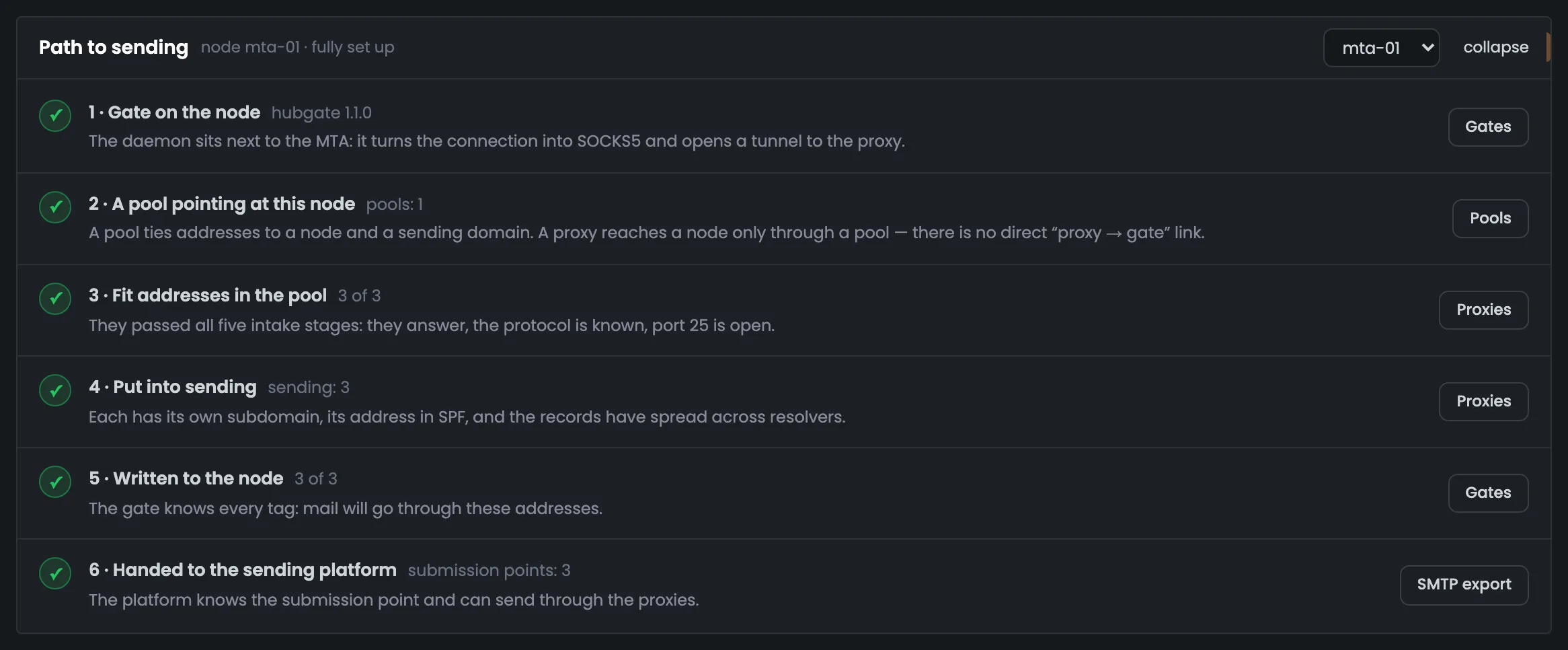
Six steps from the gate to the email platform for one server: the gate, the pool, fit addresses, subdomains and DNS, writing to the server and sending points. It opens on the server where setup has already started — mta-01 in the example, and it has passed every step. The block answers the main question before sending through proxies: at which step did setup stop. Each step leads to its own screen, so you can finish anything left undone right away. The block opens collapsed, and its subtitle — “fully set up” or how many steps are left — shows the server’s readiness at a glance; in the example mta-01 runs the hubgate 1.1.0 gate, three fit addresses and three sending points.
EnlargeScreen 02 · Path to sending. An example from the MTA-Hub interface.
Gate — the hubgate service is installed on the server; on mta-01 in the example — version 1.1.0.
Pool — ties proxy addresses to a server and a sending domain.
Fit addresses — in the example three addresses passed the check.
Subdomains and DNS — every address has a subdomain and DNS records.
Writing to the server — the gate knows the tags of all addresses.
Sending points — the platform has received three sending points.
On the original screen this block can be collapsed. Here all screenshots are expanded so you can get to know the interface.
03
Proxy Gate summary
Current state and results for the period
Five numbers about how the Proxy Gate works. The first three are about what is happening now: how many servers have the gate, how many proxies are sending and how many subdomains they have. The last two cover the chosen period: how many emails went out through proxies and what share of them was delivered. The summary tells you at once whether sending through proxies is running and whether delivery has dropped. If a number looks worrying, look for the reason below — in the daily chart, the address table and the events block. In the example the gate runs on mta-01 and mta-02, 5 proxies out of the 8 assigned to servers are sending, and 26,822 emails went out over the week with a delivered share of 95.1%.
EnlargeScreen 03 · Proxy Gate summary. An example from the MTA-Hub interface.
Gate on servers — two in the example: mta-01 and mta-02.
Proxies sending — 5 of 8 assigned to servers.
Subdomains — 5 subdomains under news.lumacart-shop.com.
Emails this week — 26,822.
Delivered — 95.1%.
The numbers in the screenshots come from an example infrastructure; they are not limits or a promise of results.
04
State of the proxy fleet
Working, reserve, fitness and rental
The proxy fleet tiles: how many addresses are working and of which grade, how many wait in reserve, ready to stand in for working ones, and how many are fit for mail. You also see separately when a purchased address has been rejected or its rental ends soon. This way the mailing owner knows in advance whether there are enough addresses for sending and what needs renewing or replacing. In the example one address of eight dropped out of the fit-for-mail group because port 25 was closed. A rejected purchased address stays in the database, while an address whose rental has expired goes to quarantine, so it is better to renew rentals in advance — in the example one address’s rental ends tomorrow.
EnlargeScreen 04 · State of the proxy fleet. An example from the MTA-Hub interface.
Working — 5 in the example: two grade A, two B and one C.
Reserve — two addresses ready to stand in for working ones.
Fit for mail — 7 of 8 — one has port 25 closed.
Rejected — one purchased address; it stays in the database.
Rental — one address’s rental ends tomorrow.
Sending results and fleet makeup
4 screens
How emails sent through proxies actually reach mailbox providers. The daily chart shows delivered emails, temporary and permanent failures and the delivered share. Next to it — what the fleet is made of: address grades, countries and neighbors in one subnet. The breakdown by major mailbox providers and the address table show which proxy drags delivery down, and with which provider.
06
Sending through proxies
Emails by day and MTA accounting results
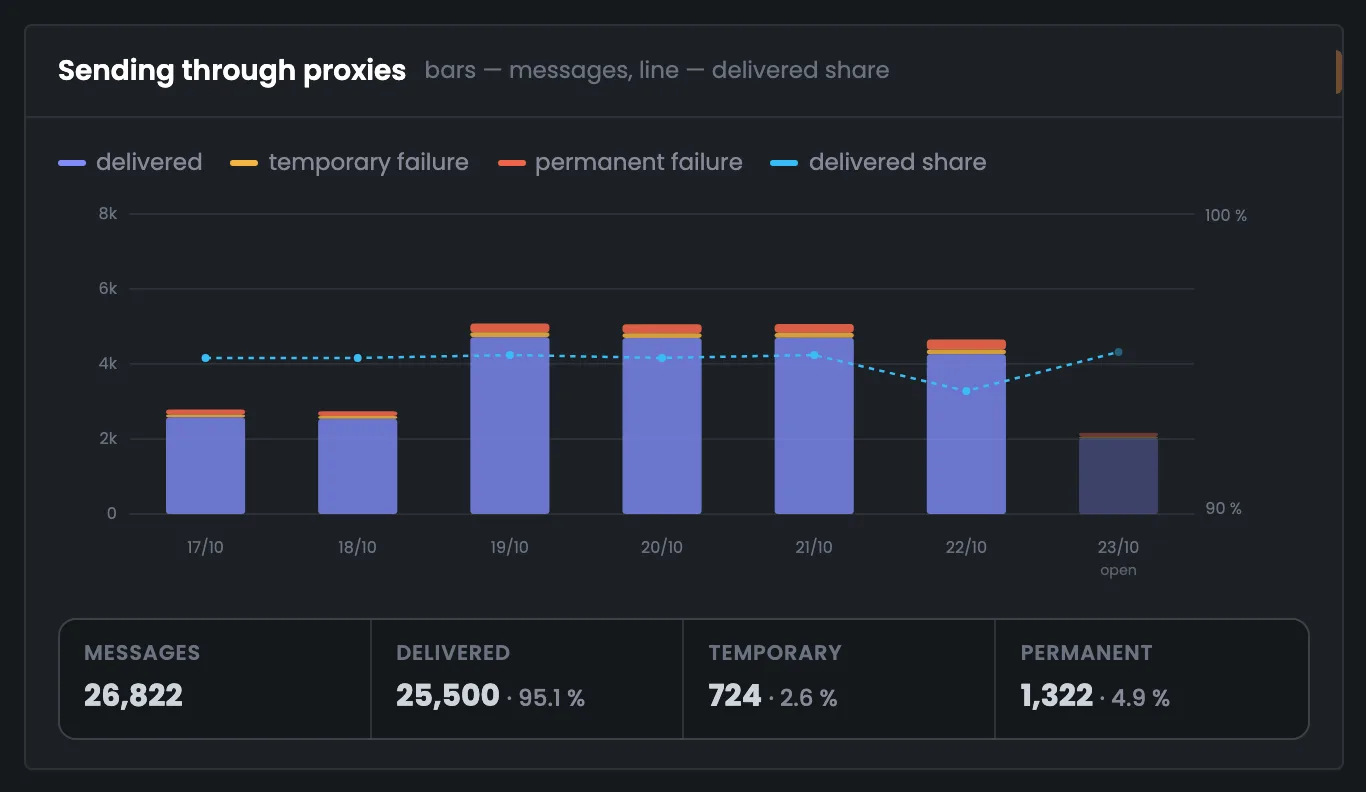
A daily chart of sending through proxies for the chosen period. At the bottom of each bar are delivered emails, above them temporary failures, and on top permanent ones; the dashed line is the delivered share on its own scale. Under the chart is the total for the period. Temporary failures count as extra attempts, not as separate emails, so delivered plus permanent failures add up to exactly all emails. A dip in the chart points straight to the day when you should look for a problem address. In the example 26,822 emails went out over the week, 95.1% were delivered, and 724 temporary failures made up 2.6% of all attempts; today’s bar is paler because the day isn’t over yet.
EnlargeScreen 06 · Sending through proxies. An example from the MTA-Hub interface.
Bars — delivered, temporary and permanent failures for each day.
Delivered share — the dashed line; in the example it dipped yesterday — the day px-06’s delivery fell.
The delivery rate in the screenshot is example data. MTA accounting alone doesn’t show which folder an email landed in.
07
Proxy fleet makeup
Grades, countries and neighboring addresses
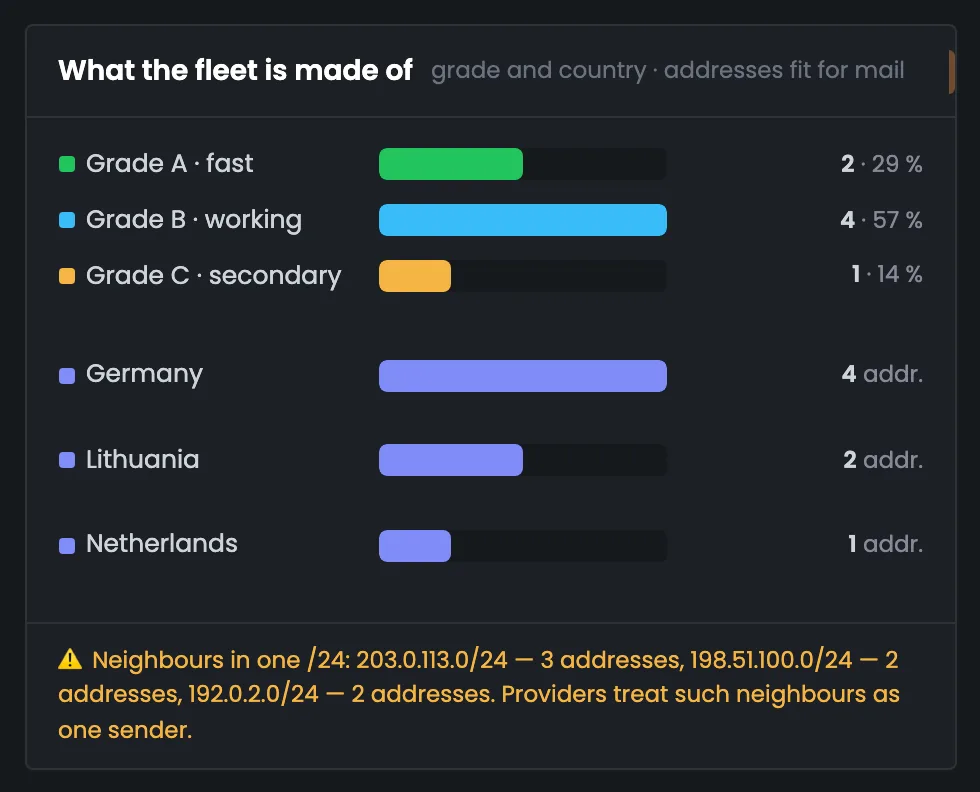
What the fleet of proxies fit for mail is made of: how many addresses of each grade and from which countries. At the bottom — neighbors in one /24 subnet. Mailbox providers treat addresses in one subnet as one sender, so several neighbors are not independent IPs for mailing. The screen helps you spot such groups in advance and take them into account when you spread addresses across pools. The breakdown by grade and country shows how even the fleet’s quality is. In the example there are 2 fit-for-mail addresses of grade A, 4 of B and 1 of C, and three ProxyLine addresses sit in one subnet, 203.0.113.0/24.
EnlargeScreen 07 · Proxy fleet makeup. An example from the MTA-Hub interface.
Grades — in the example A — 2, B — 4, C — 1.
Countries — Germany — 4 addresses, Lithuania — 2, the Netherlands — 1.
Neighbors in a /24 — three ProxyLine addresses in 203.0.113.0/24 and two each in 198.51.100.0/24 and 192.0.2.0/24.
08
Results by mailbox provider
Where acceptance changes
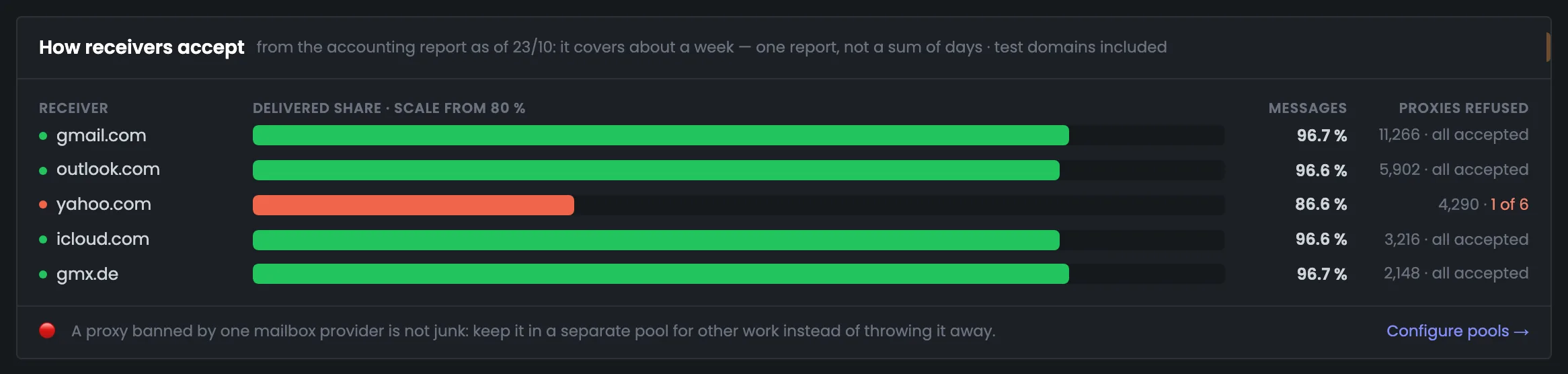
How major mailbox providers — Gmail, Outlook, iCloud, GMX and Yahoo — accept emails sent through proxies, according to the latest MTA accounting report, which covers about a week. An overall delivery rate can hide a problem with one provider, but here it shows up at once. In the example Yahoo doesn’t accept one address of six, although that address works with the other providers. A rejection by one provider is no reason to throw a proxy away: you can keep it in a pool that excludes that provider. Look for the reason in the neighboring blocks: in the example it is px-05, whose address is on blacklists — you can see it in the proxy table and in the blacklist check window.
EnlargeScreen 08 · Results by mailbox provider. An example from the MTA-Hub interface.
Gmail, Outlook, iCloud and GMX — accept about 96.6% of emails.
Yahoo — 86.6%: it doesn’t accept one of the six addresses at all.
Reason — it is px-05 — its address is on blacklists.
What to do — px-05 works with the other providers, so keep it in a pool that excludes Yahoo.
The period of the latest provider report may differ from the period chosen in the summary.
09
Proxies sending
From the entry address to the result of each IP
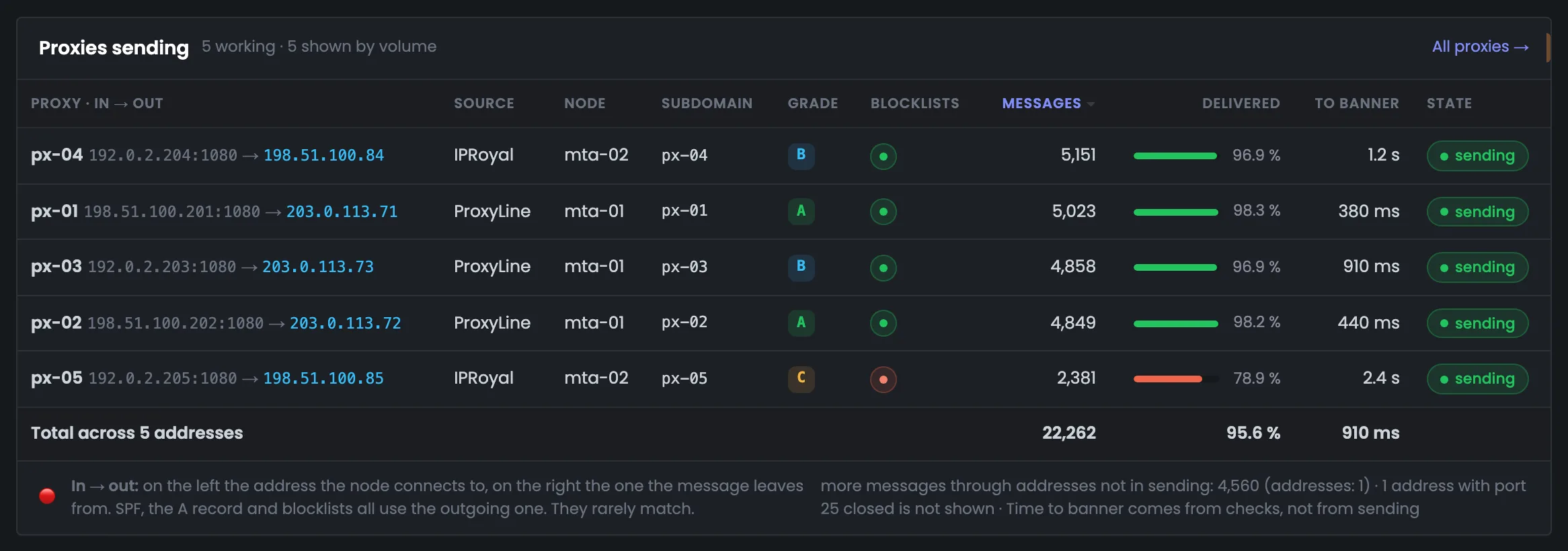
A table of all proxies that are sending emails right now — sorted by email volume. For each address you see where the gate connects and which exit IP the mailbox provider sees, who the seller is, which server the address works on, its subdomain, grade, blacklists and delivered share. A red dot in the “Blacklists” column and a red delivery bar point you straight to the address that drags sending down. The table footer explains why its total may differ from the summary: the summary includes emails from addresses that no longer send. In the example four addresses deliver 97–98%, while px-05 delivers only 78.9%.
EnlargeScreen 09 · Proxies sending. An example from the MTA-Hub interface.
Entry → exit — the connection address and the exit address; the mailbox provider sees the exit one, and that is the one checked against blacklists.
Seller, server, subdomain, grade — where the address comes from and where it works.
Blacklists — the dot in the column opens the blacklist check.
Emails and delivered share — four addresses deliver 97–98%, px-05 — 78.9%.
Time to greeting — how long it took the mail server to answer (the banner) — from the address checks.
Total and footer — 22,262 emails, 95.6%; another 4,560 emails went through px-06, which no longer sends.
Time to SMTP banner comes from the address checks, not from the accounting of sent emails.
Events, connections and checks
3 screens
What needs your decision and how the connection itself is performing. Events no one has reviewed yet show the reason, the rule that fired and what the Hub did. The gates table tells you whether the service runs on each server and whether its addresses match those in the Hub. The blacklist check shows which lists the exit address is on — the one the recipient sees.
05
Events that need attention
Reason, rule and action taken
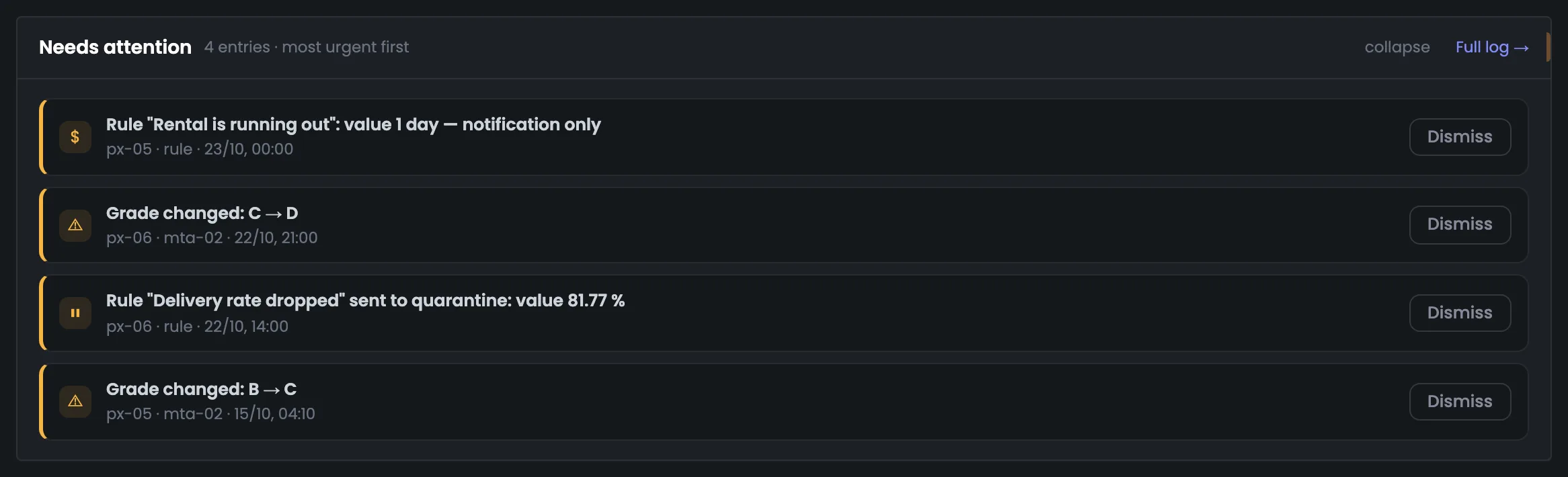
Proxy events no one has reviewed yet — newest first. For each you see what happened to the address, which rule fired and what the Hub did: warned that a rental is ending, sent the address to quarantine or lowered its grade. Some decisions the Hub leaves to you — for example, it won’t remove a purchased address with port 25 closed by itself. The “Dismiss” button removes an event from this block, but it stays in the log. In the example the “Delivery rate dropped” rule sent px-06 to quarantine after its delivery fell to 81.77%, and in the evening a recheck found port 25 closed and lowered its grade to D. Dismissed events can be found later in the “Log” section.
EnlargeScreen 05 · Events that need attention. An example from the MTA-Hub interface.
Rental — in the example the “Rental is running out” rule warned about px-05: one day is left.
Delivery — px-06’s delivery fell to 81.77% — Yahoo stopped accepting it, and the “Delivery rate dropped” rule sent the address to quarantine.
Port 25 — a recheck found port 25 closed, and the address grade fell to D.
Purchased address — the Hub won’t remove it by itself: asking the seller to open the port or retiring the address is a person’s call.
“Dismiss” — marks the event as reviewed.
A purchased address with port 25 closed is not deleted automatically. Contacting the seller or retiring the address remains the user’s decision.
10
Gates on nodes
Versions, addresses and connections
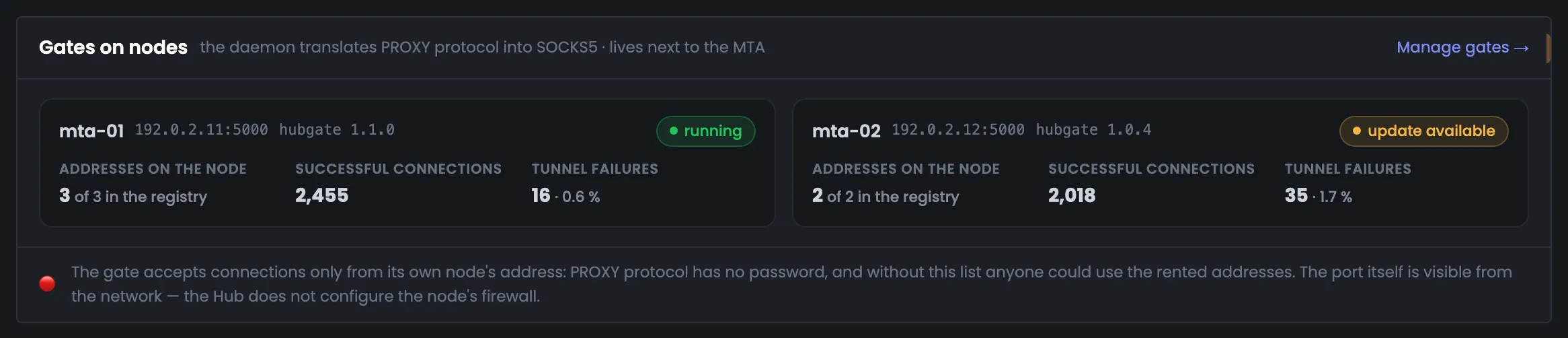
The gate on each sending server: the service address and version, how many addresses its table holds compared with the Hub’s registry, successful connections and tunnel failures over the period. If delivery has dropped, this screen shows whether the problem is in the connection to the proxy itself or in how the mailbox provider received the email. Here you also see when a new gate version is available for a server. The gate accepts connections only from its own server’s address — PROXY protocol has no password. In the example mta-01 runs gate 1.1.0 with 3 addresses of 3 and 0.6% tunnel failures, and mta-02 has 2 addresses of 2, version 1.0.4 and 1.7% failures; if the number of addresses on the gate doesn’t match the Hub, the settings are sent to the server again.
EnlargeScreen 10 · Gates on nodes. An example from the MTA-Hub interface.
mta-01 — gate 1.1.0 running, 3 addresses of 3 in its table, 0.6% tunnel failures.
mta-02 — 2 addresses of 2, 1.7% failures; a newer gate version is available for it — 1.0.4 against 1.1.0.
Check against the Hub — whether the number of addresses on the gate matches what the Hub knows.
Protection — the gate accepts connections only from its own server’s address: PROXY protocol has no password.
The gate accepts connections only from its own node’s address; PROXY protocol offers no password authentication.
11
Blacklist check
Exit IP and the result for each zone
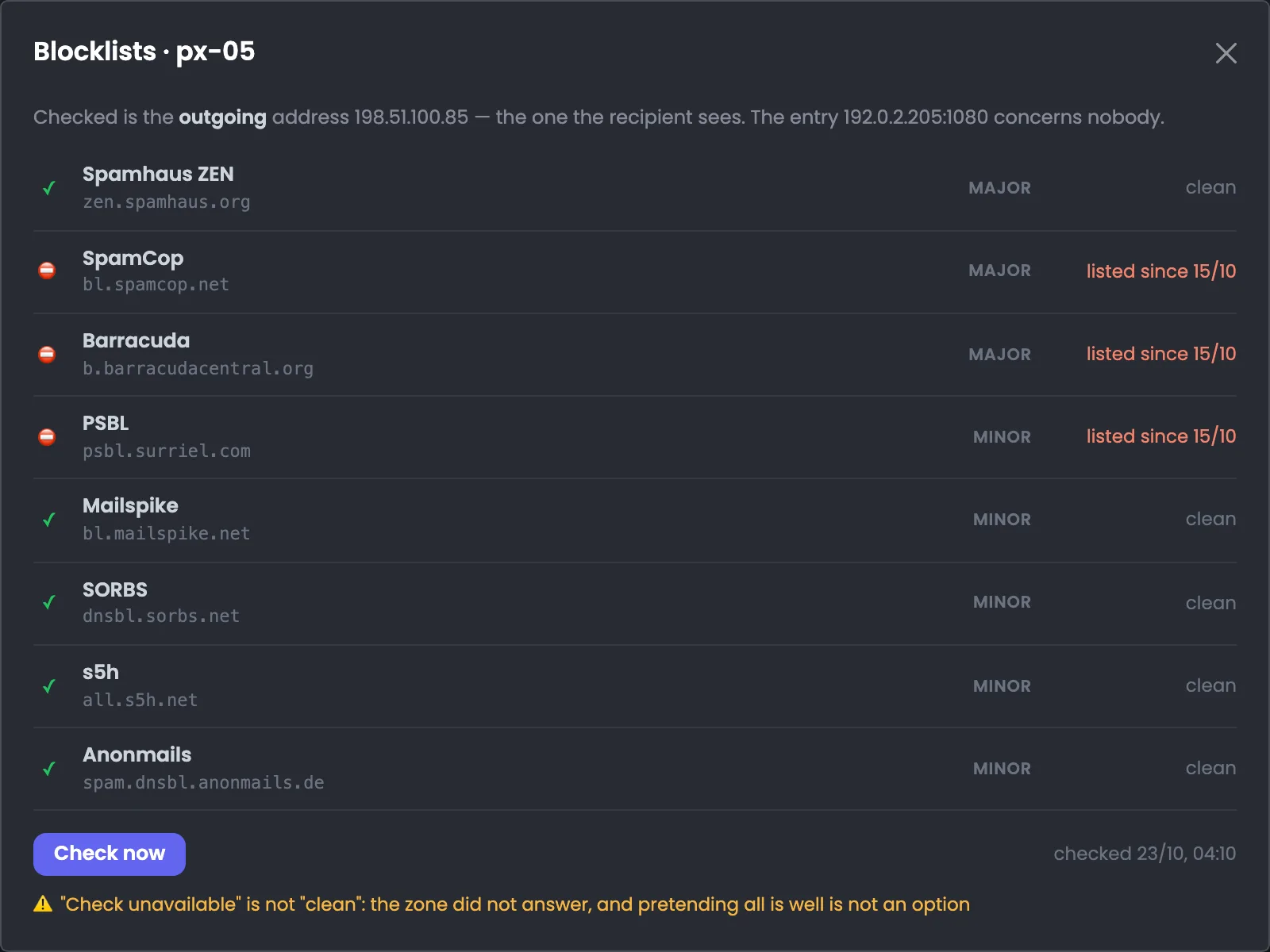
The blacklist check window opens from the dot in the “Blacklists” column of the proxy table. It checks the exit address — the one the recipient’s server sees, not the address used to connect to the proxy. For each list you see whether the address is on it and since when, and the “Check now” button queries the lists again. This makes it clear why a mailbox provider rejects emails from a particular proxy, and lets you decide what to do with the address next. In the example px-05’s exit address has been on SpamCop, Barracuda and PSBL since Oct 15, and the other five lists are clean — which explains Yahoo’s rejection in the providers block.
EnlargeScreen 11 · Blacklist check. An example from the MTA-Hub interface.
Major lists — in the example px-05 is on SpamCop and Barracuda.
Minor lists — PSBL as well; on all three since Oct 15.
The rest — the five other lists are clean.
“Check now” — queries the lists again.
06 / Questions and answers
Common questions about proxies for bulk SMTP email.
In the overview you can go from the overall state down to a single address — right to the check result for each blacklist zone.
The address checked is the one the recipient’s server sees.
What is the Proxy Gate for?
The gate links PowerMTA or MailerQ to SOCKS5 proxies. The service runs on the node: it takes the connection from the MTA, opens a tunnel through the chosen proxy, and the connection reaches the recipient’s mail server from the proxy’s address.
How is a proxy linked to a sending node?
Through a pool. It ties proxies to a node and a sending domain. Once the addresses are checked and the subdomains and DNS are ready, the settings go to the gate, and the sending points are exported to the email platform.
Which IP is used in DNS and blacklist checks?
The exit IP — the address the recipient’s mail server sees. It may differ from the address used to connect to the proxy. The table shows both; the exit address is used for A records, SPF and blacklist checks.
The proxy responds. Is that enough for sending?
No. For mail, what matters is that TCP/25 is reachable. The Hub runs acceptance checks, works out the address state, and checks the port and the blacklists. Tunnel performance and sending results from MTA data are tracked separately.
What does the delivered share mean?
It is a figure from MTA accounting for the stated period. It helps you judge the completed outcomes of sending, but on its own it doesn’t confirm that emails reached the inbox. The percentages on this page are example data from the interface.
Why are temporary failures counted separately?
A temporary failure belongs to a sending attempt after which the MTA may retry delivery. It can’t be added to completed emails as one more email. In the overview, delivered emails and permanent failures make up the total of completed outcomes, while temporary failures are shown separately.
What actions do pool rules take?
A rule can move an address to quarantine when the delivered share drops, or warn that a rental is about to end. The event shows which rule fired and why. A purchased address with a closed port stays in the proxy list until the user decides.
Why do the summary and the address table give different totals?
The summary reflects sending over the chosen period, while the table shows the addresses working now. Emails sent through a proxy that later stopped sending stay in the period’s totals. The interface explains the difference in the table footer.
How is access to the gate restricted?
The gate accepts connections only from its own node’s address. This matters because PROXY protocol uses no password authentication. The service state, its version and whether its addresses match the Hub are shown in the gates table.
07 / Module sections
Nine sections for working with proxies.
Each section of the module has its own job: prepare proxy addresses, link them to a node, set rules and check sending results. Start with the proxy list, then group the addresses into pools.