Proxy gateways (gates). PowerMTA and MailerQ through SOCKS5.
PowerMTA and MailerQ cannot send through SOCKS5 with a login and password. A gate is the hubgate service on the server itself: it accepts the connection from the MTA and opens a tunnel through the right proxy.
The page shows every gate: its version, uptime, whether its addresses match the ones recorded in the Hub, and connections and tunnel failures over the week.
Rented proxies are handed out over SOCKS5 with a login and password, and PowerMTA and MailerQ can’t work that way. But both can work through an intermediary over the HAProxy PROXY protocol. A gate is a proxy gateway that acts as exactly that intermediary: it sits next to the MTA and opens a tunnel through the right proxy to port 25 of the recipient’s server.
The path of one message
01 · MTAPowerMTA or MailerQ
02 · Gatehubgate on the node
03 · ProxyRented address
04 · RecipientSees the proxy’s address
The MTA tells the gate “who I am” and “where to”, and the gate opens a SOCKS5 tunnel to port 25 of the mail server
Why there’s no other way
PROXY protocol
In the PROXY header the MTA tells the gate which address to present and where to go. The gate uses this tag to find the right proxy, opens a tunnel and from then on just passes data both ways — it doesn’t touch the conversation itself.
MMTA
PROXY
PROXY headerWho I am and where to
address tagrecipient’s server
Where the gate lives
On the node
Not on the Hub and not on a separate machine, but on the sending server itself, next to the MTA. This way your fleet’s mail doesn’t pass through the panel.
HMTA-Hub
service
Gate on the nodehubgate
192.0.2.11:5000next to the MTA
02 / Gate status
Address check and tunnel failures over the week.
For each gate you see how many addresses it knows and how many it should know according to the Hub, how many connections went through over the week and which proxy breaks tunnels. If the gate doesn’t know all the addresses, the missing ones are listed by name.
Two gates from the exampleData from the screenshots
Addresses on the node
Check
The gate knows all 3 addresses of the “Sending · marketing” pool, so sending through them will work. If an address is missing, you see it by name, and the “Write to node” button fixes it.
3Addresses
check
Addresses on the node3 of 3
per the Hub’s recordschecked Oct 21
Tunnels over the week
0.6% failures
2,377 successful connections and 14 tunnel failures. px-03 breaks tunnels more often than the others — 7 failures out of 793 attempts.
GGate
tunnels
Over the week2,377 connections
14 failures · 0.6%px-03: 7 of 793
Addresses on the node
Check
The gate knows both working addresses of the “Ramping up new addresses” pool. px-06 is in quarantine, so it isn’t in the server’s table, but its failures over the week still count against the gate.
2Addresses
check
Addresses on the node2 of 2
per the Hub’s recordspx-06 in quarantine
Tunnels over the week
1.6% failures
1,984 successful connections and 33 tunnel failures. px-06 broke tunnels most often — 15 of 792, followed by px-04 and px-05.
GGate
tunnels
Over the week1,984 connections
33 failures · 1.6%px-06: 15 of 792
The week in large type, all-time in small: counters since the service started sit below and are marked ⟡ so they aren’t mistaken for current ones.
03 / Gate buttons
Manage the gateway without logging in to the server.
Under the gate’s buttons it says plainly what each one does: which ones touch the service and which only ask. You can write addresses, restart or update the gate right from the panel, without logging in to the server.
Uploads again
Write to node
The pool’s addresses and settings are sent to the server again.
No restart
Reload table
The gate re-reads the file that’s already uploaded.
Breaks tunnels
Restart
Starts the service again — open tunnels are dropped.
Changes nothing
Poll
Only asks the gate for its status.
Update
Reinstall
Puts the service file from the Hub’s bundle in place and restarts the service too.
Update available
Versions side by side
Next to the running version you see the one in the bundle: for mta-02 it’s 1.0.4 → 1.1.0.
04 / Gateway protection
The gate only lets in its own server.
The PROXY protocol has no password: whoever reaches the gate’s port gets the rented addresses for any purpose, and their owner takes the blame. That’s why the gate only lets in its own server — and the page shows that this really is the case.
Allowed sources
Only its own node
The gate accepts connections only from the server’s own address and 127.0.0.1. A foreign connection is dropped and logged, and the “Foreign blocked” tile counts these attempts.
GGate
sources
Allowed on mta-01192.0.2.11, 127.0.0.1
everyone else is dropped1,771 blocked
Proxy passwords
File permissions
The table file holding the proxy passwords is locked down with 640 root:hubgate permissions — and the Hub checks this. The Hub doesn’t configure the server’s firewall: the port is visible from the network, and only the list of sources keeps others out.
HMTA-Hub
check
Table file640 root:hubgate
proxy passwordspermissions checked
05 / The interface in detail
The “Gates” section — 6 screens.
All the screens of the proxy gateway section: why you need a gate, the path to sending, two gates on servers, nodes without a gate, and protection. Above each screenshot: why the screen matters. Below it: what it shows.
Why a gate and the path to sending
2 screens
The first two screens explain how the proxy gateway works and show whether a server is ready to send. First, a diagram of one message: from the MTA through the gate and the proxy to the recipient’s mail server. Then, the path to sending for the selected server: six steps from installing the gate to the email platform. Each step has a button to the screen where it’s done.
01
Why it’s needed
The MTA can’t use SOCKS5 with a password
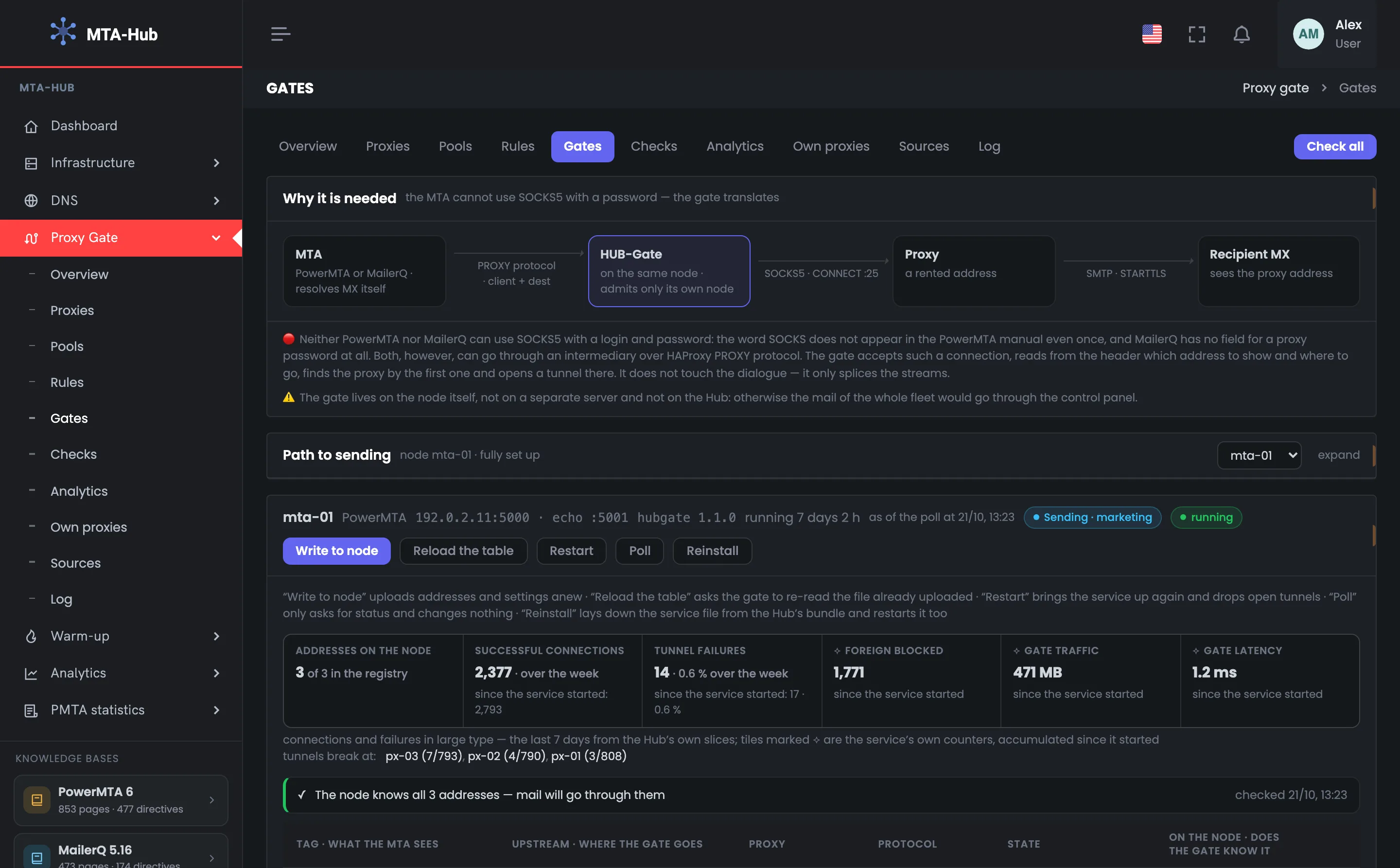
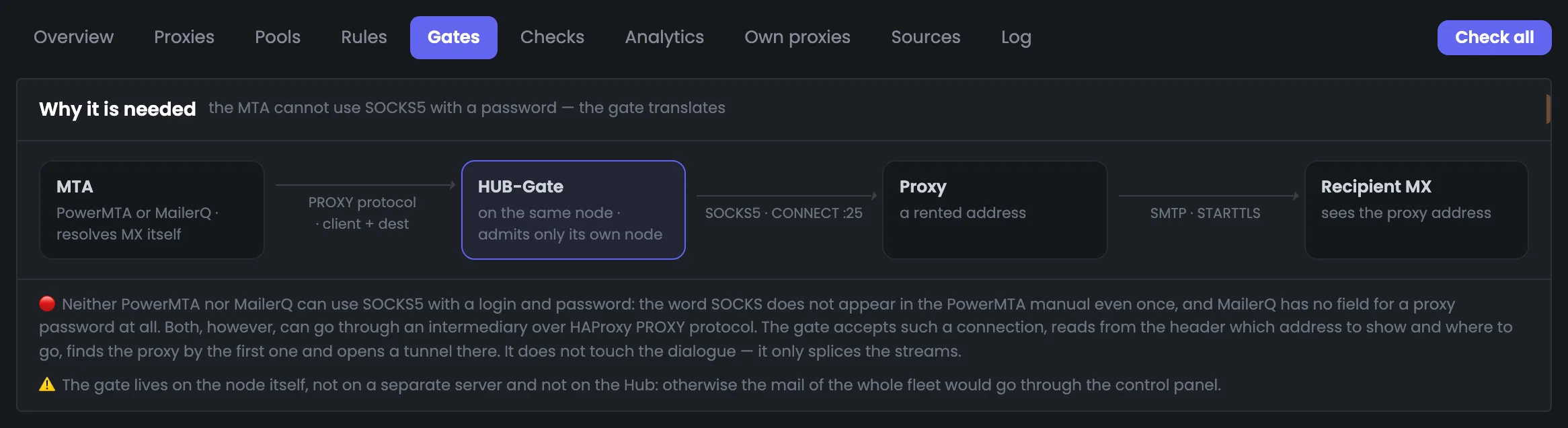
The first screen explains why a sending server needs a proxy gateway. A diagram of one message in four blocks: over the PROXY protocol the MTA tells the gate “who I am” and “where to”, the gate opens a SOCKS5 tunnel through the rented proxy to port 25, and the recipient’s mail server sees the proxy’s address, not the server’s. Below are two lines: why there’s no other way — PowerMTA and MailerQ can’t use SOCKS5 with a login and password — and why the gate sits on the sending server itself rather than on the Hub. Reading this screen once is enough to understand what every message passes through. Further down the page — the path to sending for the selected server and the gate cards for mta-01 and mta-02.
EnlargeScreen 01 · Why it’s needed. An example from the MTA-Hub interface.
MTA — PowerMTA or MailerQ; finds the recipient’s mail server on its own.
HUB-Gate — on the same node; only lets in its own node.
Proxy — a rented address, a SOCKS5 tunnel to port 25.
Recipient’s MX — sees the proxy’s address.
Red line — neither PowerMTA nor MailerQ can use SOCKS5 with a login and password, but they can go through an intermediary over the PROXY protocol.
Yellow line — the gate lives on the node itself; otherwise your whole fleet’s mail would pass through the panel.
The gate doesn’t touch the conversation with the mail server — it only splices the streams.
02
Path to sending
Six steps for the selected node
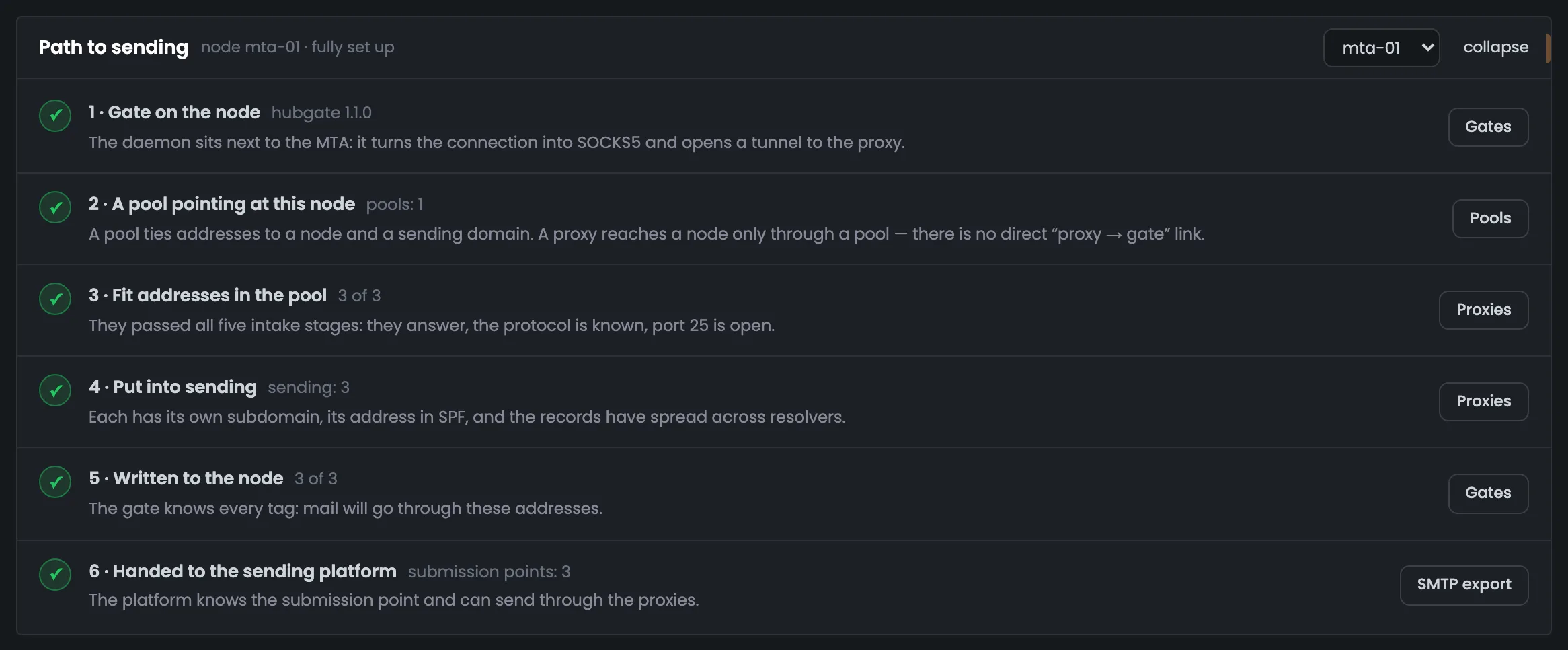
The “Path to sending” block answers one question: is the selected server ready to send mail through proxies? The six steps go in order: a gate on the node, a pool with this node, fit addresses, put into sending, written to the node, and handed to the email platform. On mta-01 all of them are done — every step has a green check mark, so the server is ready. Each step has a button to the screen where it’s done, so an unfinished step is easy to complete. The block is usually collapsed; in the screenshot it’s expanded. You open it when the server is set up but mail isn’t going through the proxies: the step without a check mark is where to look for the cause. The gates themselves are covered on the next screens.
EnlargeScreen 02 · Path to sending. An example from the MTA-Hub interface.
1 · Gate on the node — hubgate 1.1.0 sits next to the MTA.
2 · Pool with this node — pools: 1; a proxy only reaches a node through a pool.
3 · Fit addresses in the pool — 3 of 3 passed acceptance: they respond, the protocol is detected, port 25 is open.
4 · Put into sending — each has its own subdomain, the address is in SPF, the records are visible.
5 · Written to the node — 3 of 3 — the gate knows all the tags.
6 · Handed to the email platform — sending points: 3.
You pick the server to check in the top right; the “collapse” link hides the block.
Gates on servers
2 screens
Each gate is a separate card: the server, the service version, uptime, the pool, labeled buttons, counters for the week and since start, the address check and the tag table. The card shows at a glance whether the gate knows all the addresses it needs and which proxy breaks tunnels. The two cards in the example show a gate where everything is fine and a gate that’s due for an update.
03
Gate on mta-01
Everything works, the addresses match
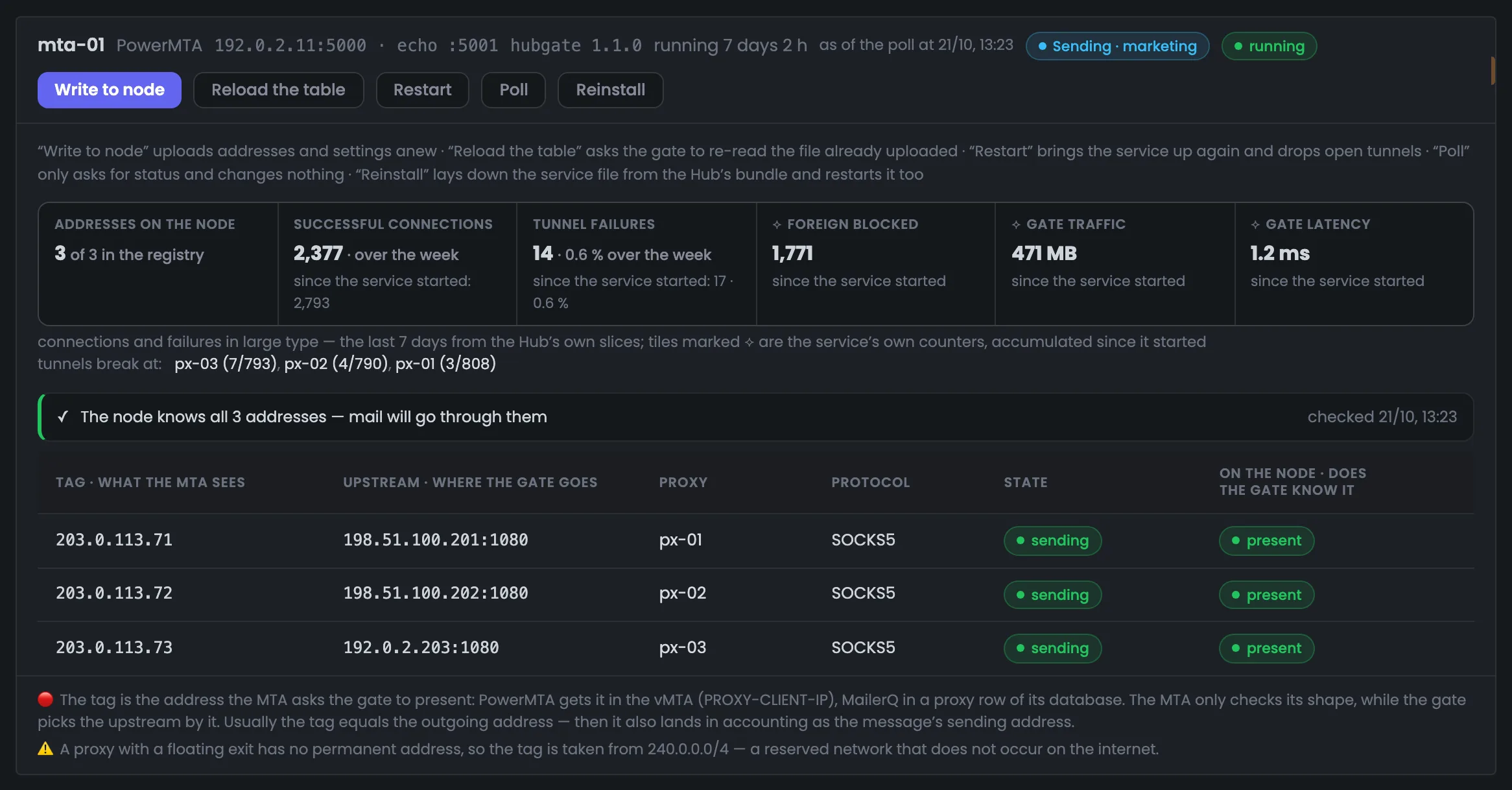
The gate card on mta-01 is an example of everything being fine. In the header: PowerMTA, the gate on 192.0.2.11:5000 and the echo port :5001, hubgate 1.1.0, running for 7 days 2 hours, the “Sending · marketing” pool. Below are five labeled buttons, counters for the week and since the service started, the address check and the tag table. The key thing on the screen is the check: the server knows all 3 of 3 addresses, so sending through them will work. Tunnel failures over the week are 0.6%, and you can see which proxy fails more often than the others — here it’s px-03. If the node has fewer addresses than the Hub’s records say, the missing ones are listed by name, and the “Write to node” button brings them back.
EnlargeScreen 03 · Gate on mta-01. An example from the MTA-Hub interface.
Header — the server, the gate’s address, version, uptime, poll time, pool and the “running” status.
Addresses on the node — 3 of 3 per the Hub’s records.
Successful connections and tunnel failures — 2,377 and 14 (0.6%) over the week; since the service started — 2,793 and 17.
⟡ Foreign blocked, gate traffic, latency — 1,771, 471 MB and 1.2 ms — the service’s own counters since it started.
Breaking tunnels — px-03 (7 of 793), px-02 (4 of 790), px-01 (3 of 808).
Table — tag (what the MTA sees), upstream (where the gate goes), proxy, protocol, status and whether the gate knows about it.
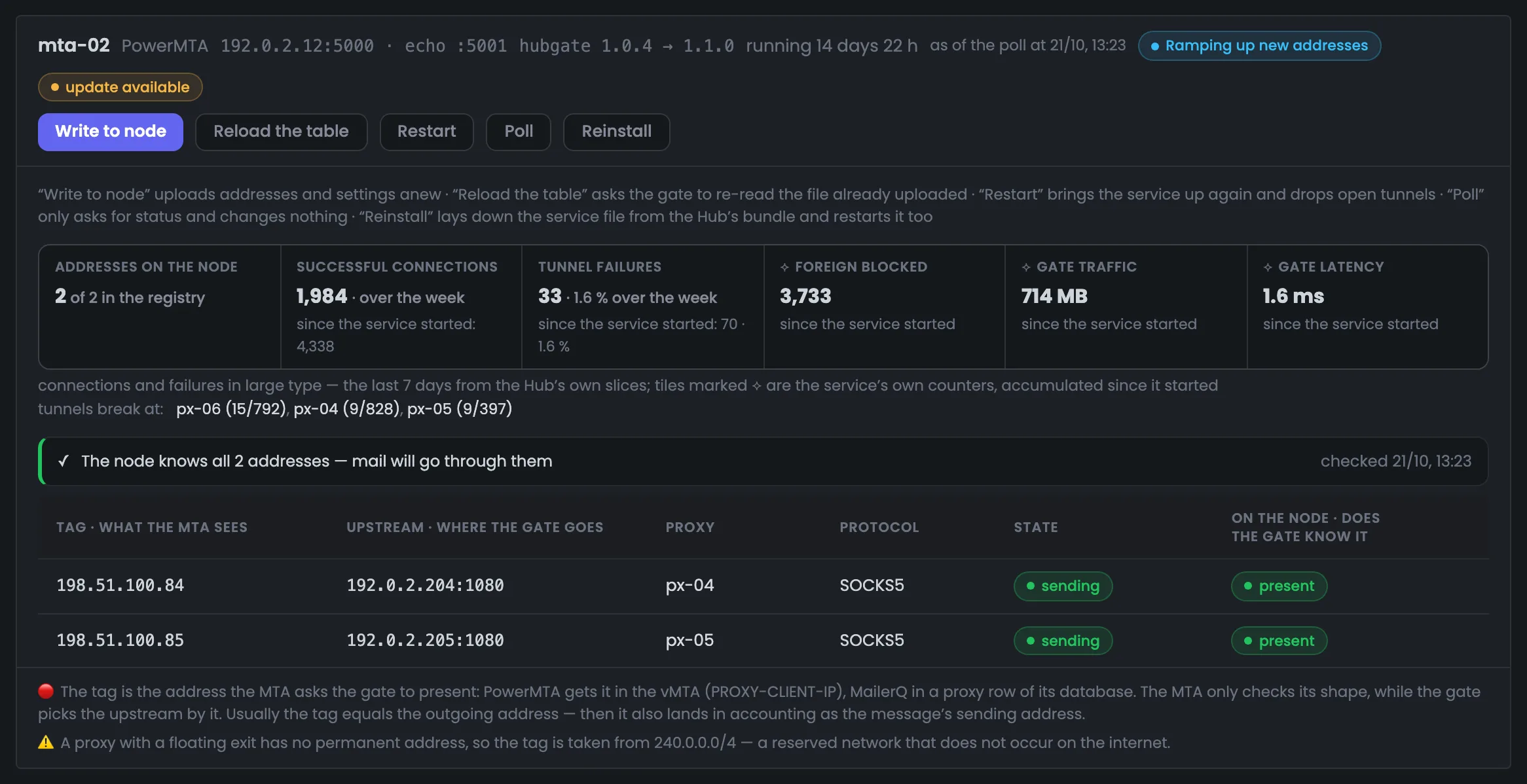
A tag is the address the MTA asks the gate to present. Usually it equals the proxy’s exit address; for proxies with a rotating exit, the tag is taken from the reserved 240.0.0.0/4 network.
04
Gate on mta-02
Update available, px-06 in quarantine
The second card is the gate on mta-02, which is due for an update. It’s been running for 14 days 22 hours on hubgate 1.0.4, while the Hub’s bundle already has 1.1.0 — hence the yellow “update available” mark. The “Reinstall” button updates the service without logging in to the server. There are more tunnel failures here — 1.6% over the week, and the main culprit, px-06, has already been pulled by the “Delivery rate dropped” rule: it isn’t in the server’s table, but its failures over the week still count against the gate. Next by failures come px-04 and px-05. Keep in mind that “Reinstall”, like “Restart”, starts the service again, and open tunnels are dropped.
EnlargeScreen 04 · Gate on mta-02. An example from the MTA-Hub interface.
Version — 1.0.4 → 1.1.0 and the “update available” mark; “Reinstall” updates the service.
Addresses on the node — 2 of 2.
Over the week — 1,984 successful connections and 33 failures (1.6%); since start — 4,338 and 70.
Breaking tunnels — px-06 (15 of 792), px-04 (9 of 828), px-05 (9 of 397).
The “Delivery rate dropped” rule has already sent px-06 to quarantine, so it isn’t in the server’s table, but its failures over the week still count against the gate.
No gate, and protection
2 screens
At the bottom are the servers that don’t have a gate yet, and a block about protection. A gate is installed on the selected server with one button, after a confirmation. Protection is shown with checks, not promises: which sources are allowed and what permissions the proxy password file has.
05
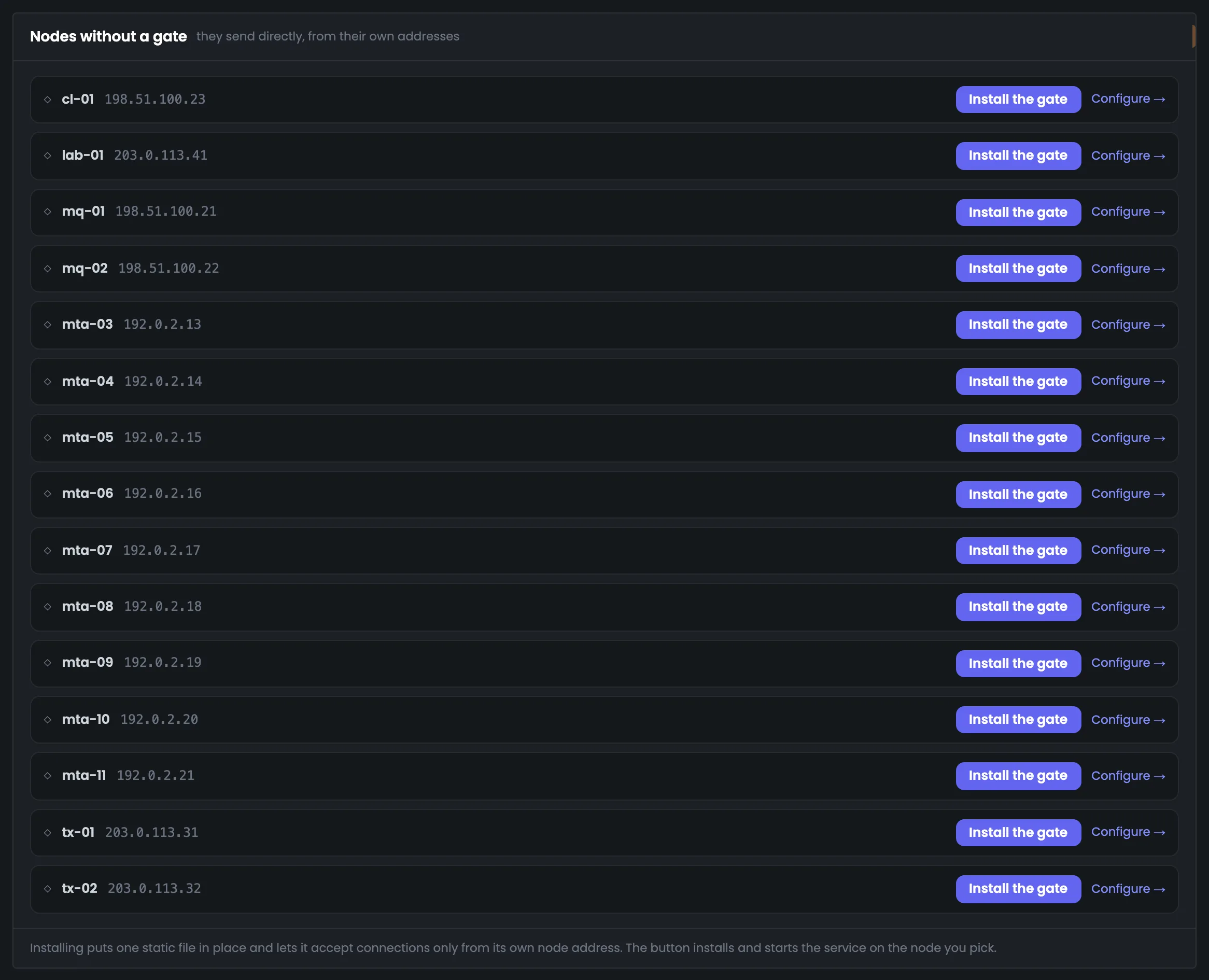
Nodes without a gate
They send directly, from their own addresses
A list of servers that don’t have a proxy gateway yet. Fifteen servers send mail directly, from their own addresses — they don’t go through proxies. The first step toward sending through proxies is the “Install the gate” button in the server’s row: the service is installed and started only on that server and only after a confirmation. The “Configure” link leads to the server’s page. The names are the same as everywhere in the panel, so the server you need is easy to find. Servers where the MTA sends mail bypassing the gate would be shown on a separate line — there are none in the example. Once the gate is installed, the server goes on through the steps of the “Path to sending” block: pool, fit addresses, writing to the node.
EnlargeScreen 05 · Nodes without a gate. An example from the MTA-Hub interface.
Server row — name and address: cl-01, lab-01, mq-01 … tx-02.
Install the gate — installs and starts the service only on the selected server, after a confirmation.
Configure — leads to the server’s page.
Caption at the bottom — installation puts one file in place and allows it to accept connections only from its own node’s address.
Servers where the MTA sends mail bypassing the gate would be shown on a separate line — there are none in the example.
06
Why the gate only lets in its own node
The module’s main risk
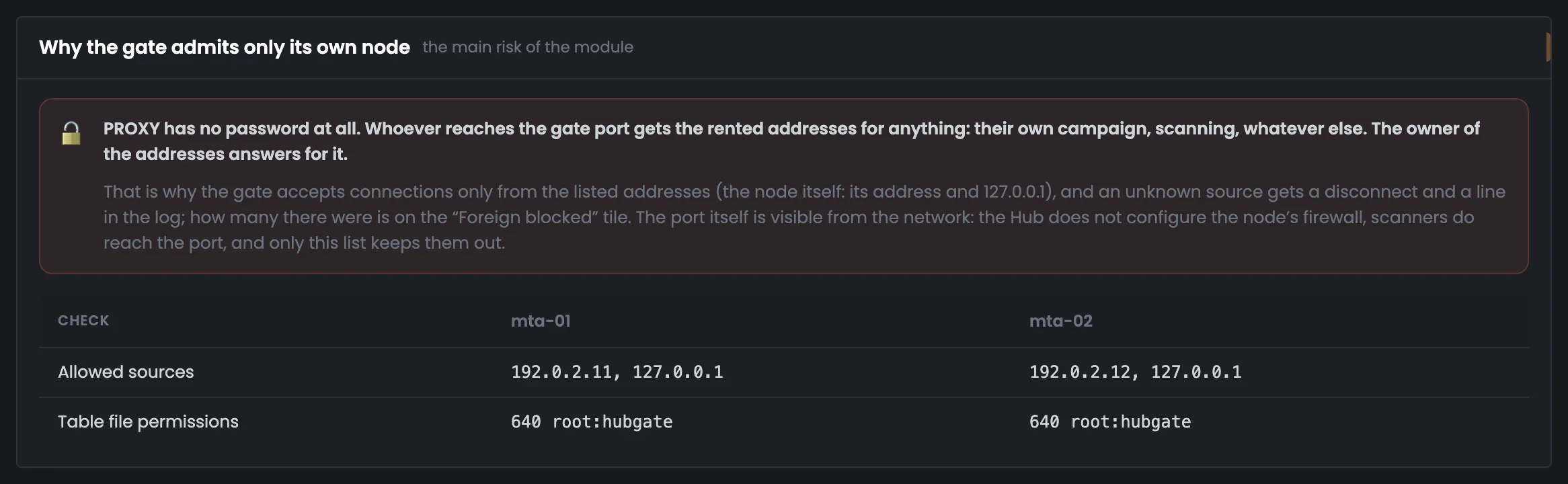
A block about the module’s main risk. The PROXY protocol has no password: whoever reaches the gate’s port gets the rented addresses for any purpose, and their owner takes the blame. That’s why the gate accepts connections only from its own server’s address and 127.0.0.1, and the screen shows this with a check, not a promise. For both gates you see which sources are allowed and that the table file with the proxy passwords is locked down with 640 root:hubgate permissions. If the sources line holds only the server’s address and 127.0.0.1, a foreign connection gets dropped. The Hub doesn’t configure the server’s firewall: the port is visible from the network, and the “Foreign blocked” tile on the gate card counts how many foreign connections were turned away.
EnlargeScreen 06 · Why the gate only lets in its own node. An example from the MTA-Hub interface.
Red block — whoever reaches the gate’s port gets the rented addresses for any purpose, and their owner takes the blame.
Allowed sources — on mta-01, 192.0.2.11 and 127.0.0.1; on mta-02, 192.0.2.12 and 127.0.0.1.
Table file permissions — 640 root:hubgate on both servers.
The Hub doesn’t configure the server’s firewall: the port is visible from the network, scanners reach it, and only the list of sources keeps them out.
06 / Questions about gates
Common questions about proxy gateways.
In short: why you need a gate, where it sits, what a tag is and why the gate’s port isn’t open to everyone.
Labeled buttons, counters for the week and since the service started, the address check and the tag table.
Why do I need a gate if I already have proxies?
PowerMTA and MailerQ can’t send through SOCKS5 with a login and password, and that’s exactly how rented proxies are handed out. The gate accepts the connection from the MTA over the PROXY protocol and opens a tunnel through the right proxy.
Does mail go through the Hub?
No. The gate sits on the sending server itself, next to the MTA. The Hub only polls the gate and writes addresses to it.
What is a tag?
The address the MTA asks the gate to present: PowerMTA gets it in the vMTA, MailerQ in the proxy line of its database. The gate picks the proxy by its tag. Usually the tag equals the proxy’s exit address.
What if the gate doesn’t know all the addresses?
Click “Write to node”: the pool’s addresses and settings are sent to the server again. You can see which addresses are missing by name.
How is “Reload table” different from “Restart”?
“Reload table” asks the gate to re-read the file that’s already uploaded; tunnels aren’t dropped. “Restart” starts the service again and drops open tunnels.
How do I update a gate?
If the version has an “update available” mark next to it, click “Reinstall”: the Hub puts the new service file from its bundle in place and restarts the service. You don’t need to log in to the server.
Can a stranger connect to the gate?
The gate only lets in its own server’s address and 127.0.0.1. A foreign connection is dropped, and the “Foreign blocked” tile counts these attempts.
How do I install a gate on a new server?
In the “Nodes without a gate” block, click “Install the gate” next to the server you need. The service is installed and started only on that server, after a confirmation.
07 / Next step
Check your proxies before sending.
The gate routes mail through proxies, but whether a proxy itself is fit for mail is decided by checks: does it respond, which protocol does it speak, and is port 25 open.
Which addresses the gate should know is set in pools, and the whole route — from the MTA through the gate to the recipient — is shown in the module overview.