Proxy rules. A bad address is pulled automatically.
The delivered share fell, soft failures piled up, the address is on a blacklist, the rent is running out — every hour the Hub calculates each address’s metrics and applies the first matching rule.
The action is to replace from the reserve, send to quarantine, recheck, retire or just notify. Every firing is written to the log.
Who pulls a proxy: the MTA within seconds, the Hub every hour.
The MTA on the server sees the recipient’s answer right during sending and pulls the address itself — within seconds. Every hour the Hub’s rules look at the address’s messages over a period and decide what to do with it next. They don’t get in each other’s way: the MTA reacts to a single message, while the proxy rules react to how the address behaves over a day, a week or a month.
MTA on the node
Seconds
Reads the recipient’s answer right in the conversation, pulls the address from sending itself and lets it back on a timer. Nothing can react faster than the MTA, and the Hub doesn’t compete with it.
MMTA
answer
MTA reactionPull the address
within secondslets it back on a timer
Hub rules
Every hour
They decide what an address’s poor performance means: wait, replace from the reserve, recheck or retire. They look at messages over a period — from a day to a month — not at a single message.
HMTA-Hub
metrics
Hub decisionWhat to do next
every hourperiod from a day
Better not use hard bounces to retire an address for good: the MTA puts both “we were not let in” (that’s about the address) and “no such mailbox” (that’s about your list) into them. For this metric you need a high threshold on the number of messages.
02 / Rule order
How the Hub chooses which rule fires.
Every hour the Hub checks the rules from top to bottom and applies the first one that matches. Pool rules come first, then common ones, and you change the order within a pool with the arrows right in the row.
Hourly for each address
01 · MetricsMessages over the period
02 · Pool rulesTop to bottom
03 · First matchAction
04 · LogFiring record
A pool rule always goes before a common one; the other rules leave the address alone this time
Rules of the two pools from the exampleData from the screenshots
When
Rule 1
Delivered share below 92% over a day — but only once 200 messages have gone out. This threshold keeps an address from being pulled over a couple of random failures.
1Rule
condition
Delivery rate droppedBelow 92%
over a dayfrom 200 messages
What it does
Replace
The address is replaced with a spare from the pool’s reserve. The “Blacklisted” and “Pulled by the MTA” rules work the same way, and with soft failures above 12% the address goes to quarantine.
HMTA-Hub
action
ActionReplace from the reserve
a spare from the poollog record
When
Rule 1
Delivered share below 88% over a day, from 500 messages. Over the week this rule fired once — it pulled px-06 on Oct 20.
1Rule
condition
Delivery rate droppedBelow 88%
over a dayfrom 500 messages
What it does
To quarantine
The address goes to quarantine. Also in the pool: a breaking tunnel — recheck; less than 2 days of rent left — notify only; this rule warned about px-05 on Oct 21.
HMTA-Hub
action
ActionTo quarantine
no more than once per 6 hlog record
03 / Presets
Ready-made rule presets: careful, normal, hard.
You don’t have to set up automatic proxy switch-off from scratch: the “Careful”, “Normal” and “Hard” rule presets are turned on with one button. The block shows right away whether a pool’s rules actually match its label.
Currently selected for “Sending”
Careful
Quarantine at the first doubt, replace immediately. For live campaigns, where the domain matters more than any single address.
4 rules
Normal
Default thresholds, quarantine for a cooling period. Good while you don’t yet know how the addresses behave.
2 rules
Hard
Tolerate until the recipient clearly refuses. For expensive addresses and where there’s nothing to replace them with.
“Apply to the pool” rewrites the rules that came from presets and keeps your own — the confirmation dialog says so plainly. The pool’s label on the “Pools” page doesn’t change the rules.
04 / Test before switching on
Test a rule against history before saving.
You can run a rule against current data before you even save it. The form shows which addresses it would fire on — with the metric and the number of messages. And the safeguards against chance keep the rule from yanking an address back and forth.
Safeguards against chance
Threshold and cooling
The share is only counted once enough messages have gone out: without a threshold, two failures out of three messages would throw out a good address. After firing, the rule leaves the address alone for a while.
HMTA-Hub
condition
Not before500 messages
no more than once per 6 hper address
Test against history
Without saving
Over a week the rule would fire on px-05: 78.98% delivered of 2,250 messages. Over a day px-05 doesn’t reach 500 messages, and the current rule leaves it alone — you see this before you change anything.
HMTA-Hub
test
Would fire on 1 of 2px-05
78.98% delivered2,250 messages
An action is named for what it does: “Mark: metrics slipped”, not “slow down” — the Hub doesn’t change the sending speed on the fly, and the form says so.
05 / The interface in detail
The “Rules” section — 6 screens.
All the proxy rules screens: who reacts to what, the list of rules, presets, the rule dialog and testing against history. Above each screenshot: why the screen matters. Below it: what it shows.
Who reacts, and order
2 screens
The page starts with who reacts to a bad address and how fast — the MTA on the server or the Hub’s rules. Below are the rules themselves, by pool and in the order the Hub applies them. Each row shows the condition, the action and when the rule last fired. So it’s clear which proxy was switched off automatically and why.
01
Who reacts to what
The MTA within seconds, rules every hour
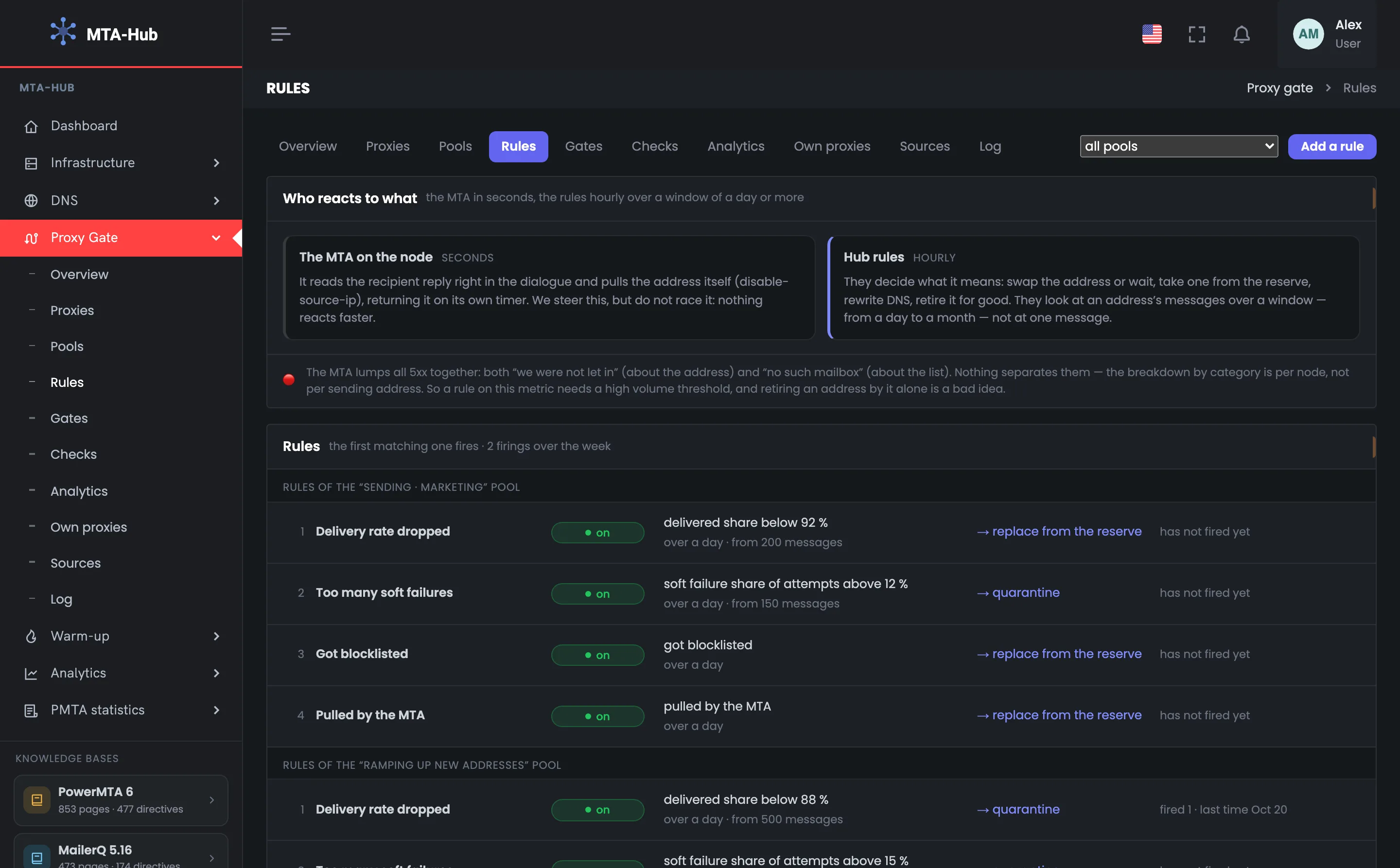
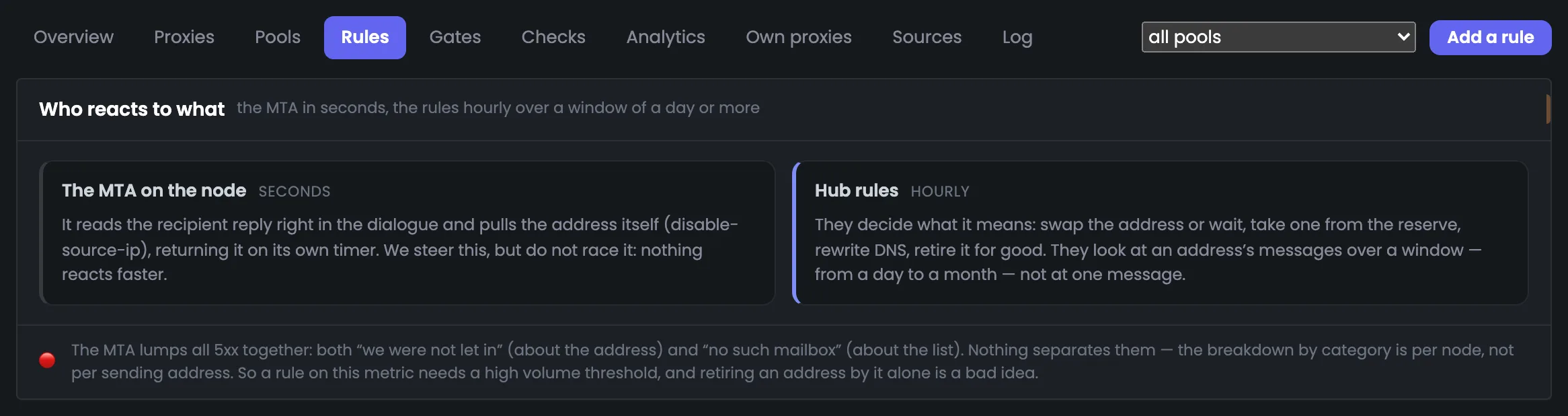
The tab’s first block explains who pulls a bad proxy and how fast. The MTA on the server sees the recipient’s answer right in the conversation and pulls the address itself — within seconds — and then lets it back on a timer. Every hour the Hub’s rules look at the address’s messages over a period — from a day to a month — and decide what to do next: wait, replace from the reserve, recheck or retire. At the bottom, in red, is why an address isn’t retired for good over hard bounces: the MTA puts both “we were not let in” and “no such mailbox” into them. At the top — the “Add a rule” button and a choice of which pool’s rules to show.
EnlargeScreen 01 · Who reacts to what. An example from the MTA-Hub interface.
Tab and pool choice — this page is the “Rules” tab; on the right you can show the rules of one pool or all of them.
Add a rule — opens the new rule dialog.
MTA on the node — seconds: pulls the address itself and lets it back on a timer; nothing reacts faster.
Hub rules — every hour: decide whether to replace the address or wait, whether to take one from the reserve, whether to retire it for good.
Red line — the MTA puts both “we were not let in” and “no such mailbox” into hard bounces, so they need a high threshold.
The Hub doesn’t compete with the MTA on speed: the MTA reacts to a single message, the rules to the address’s behavior over a period.
02
Rules
By pool and in order of application
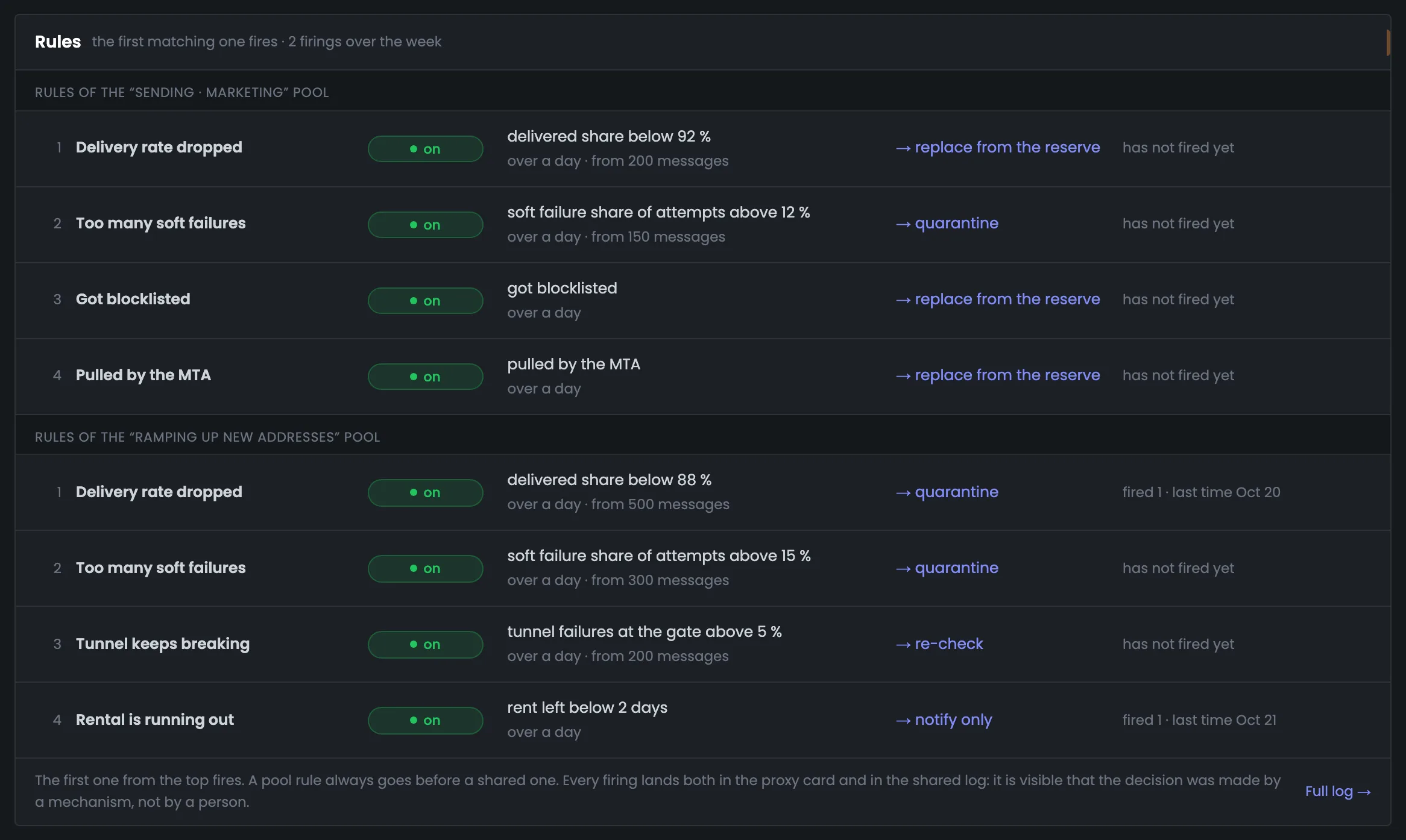
The rule list is the section’s main screen: eight rules of two pools, grouped and in the order the Hub applies them. The first matching rule from the top fires, and pool rules always come before common ones. A row shows the condition, the action and how many times the rule has fired, so it’s easy to see why a particular proxy was switched off. Over the week the rules fired twice: “Delivery rate dropped” pulled px-06 on Oct 20, and “Rental is running out” warned about px-05 on the 21st. You change the order within a pool with the arrows right in the row, and every firing goes both to the proxy’s card and to the shared log.
EnlargeScreen 02 · Rules. An example from the MTA-Hub interface.
Pool group — “Rules of the ‘Sending · marketing’ pool” and “‘Ramping up new addresses’” — pool rules always come before common ones.
Number and name — the order of application: 1, 2, 3, 4.
Enabled — the rule is active; a disabled one is skipped.
Condition — metric, threshold, period and minimum messages — for example, “delivered share below 92%, over a day, from 200 messages”.
Action — replace from the reserve, to quarantine, recheck or notify only.
Firings — “fired 1 · last on Oct 20” or “hasn’t fired yet”.
Full log — every firing goes both to the proxy’s card and to the shared log.
The log shows that the decision was made by the system, not by a person: “Delivery rate dropped” pulled px-06 on Oct 20, and “Rental is running out” warned about px-05 on the 21st.
Presets
1 screen
Ready-made rule presets are turned on with one button — the fastest way to set up switching off bad proxies. The block shows which preset is selected now and says honestly whether the pool’s rules match its label. Your own rules stay in place when you apply a preset.
03
Presets
Careful, normal, hard
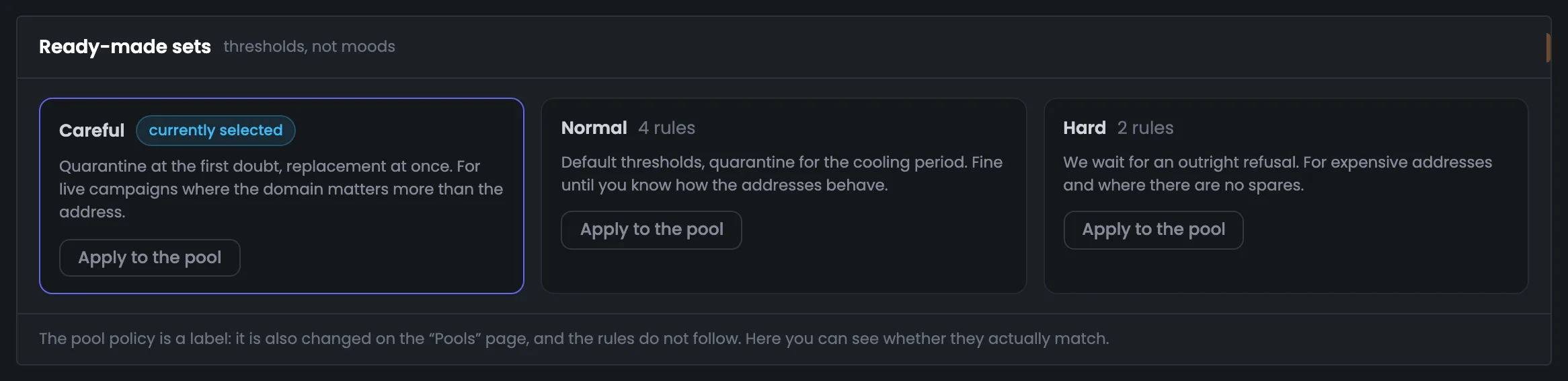
Three ready-made rule presets — “Careful”, “Normal” and “Hard” — with short descriptions of which kind of sending each one suits. The selected “Sending · marketing” pool has the “currently selected” tag: all four of its rules essentially match “Careful”. The “Apply to the pool” button replaces the rules in one click, but only those that came from presets — your own stay. The screen is handy for quickly choosing how strictly to pull proxies. A pool’s label can also be changed on the “Pools” page, but that doesn’t change the rules — which is why you check here whether the label and the rules match.
EnlargeScreen 03 · Presets. An example from the MTA-Hub interface.
Careful — quarantine at the first doubt, replace immediately — for live campaigns, where the domain matters more than the address.
Normal — default thresholds, quarantine for a cooling period — while you don’t yet know how the addresses behave.
Hard — tolerate until the recipient clearly refuses — for expensive addresses and where there’s nothing to replace them with.
Apply to the pool — rewrites the rules that came from presets and keeps your own; the confirmation dialog says so plainly.
A pool’s label can also be changed on the “Pools” page, but that doesn’t change the rules — here you see whether they actually match.
Rule dialog
3 screens
Each rule opens in a dialog: on the left — when it fires, on the right — what it does. Here you can also test the rule against history without saving anything. A new rule only notifies by default — a strong action is chosen deliberately.
04
Rule dialog
When it fires and what it does
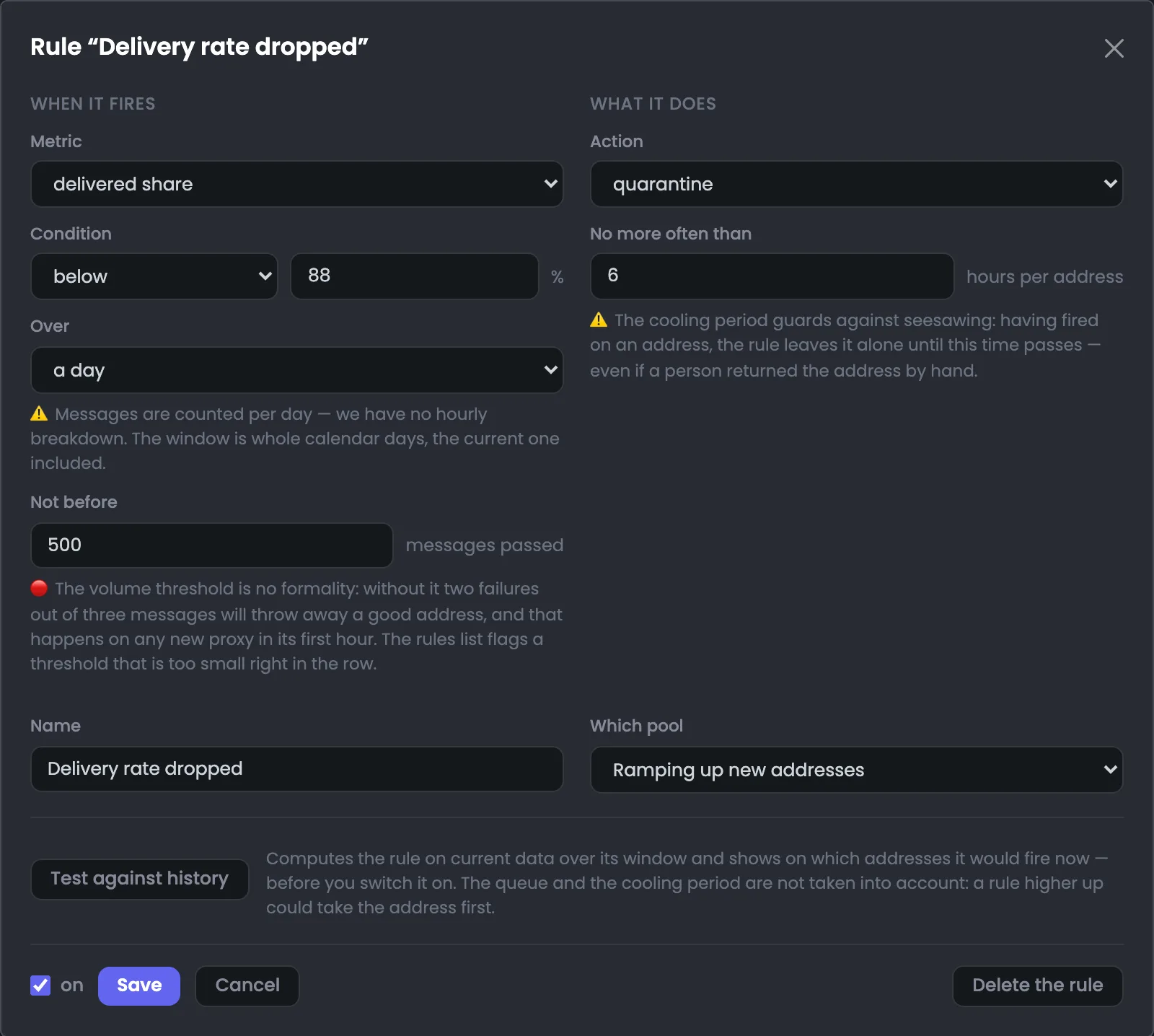
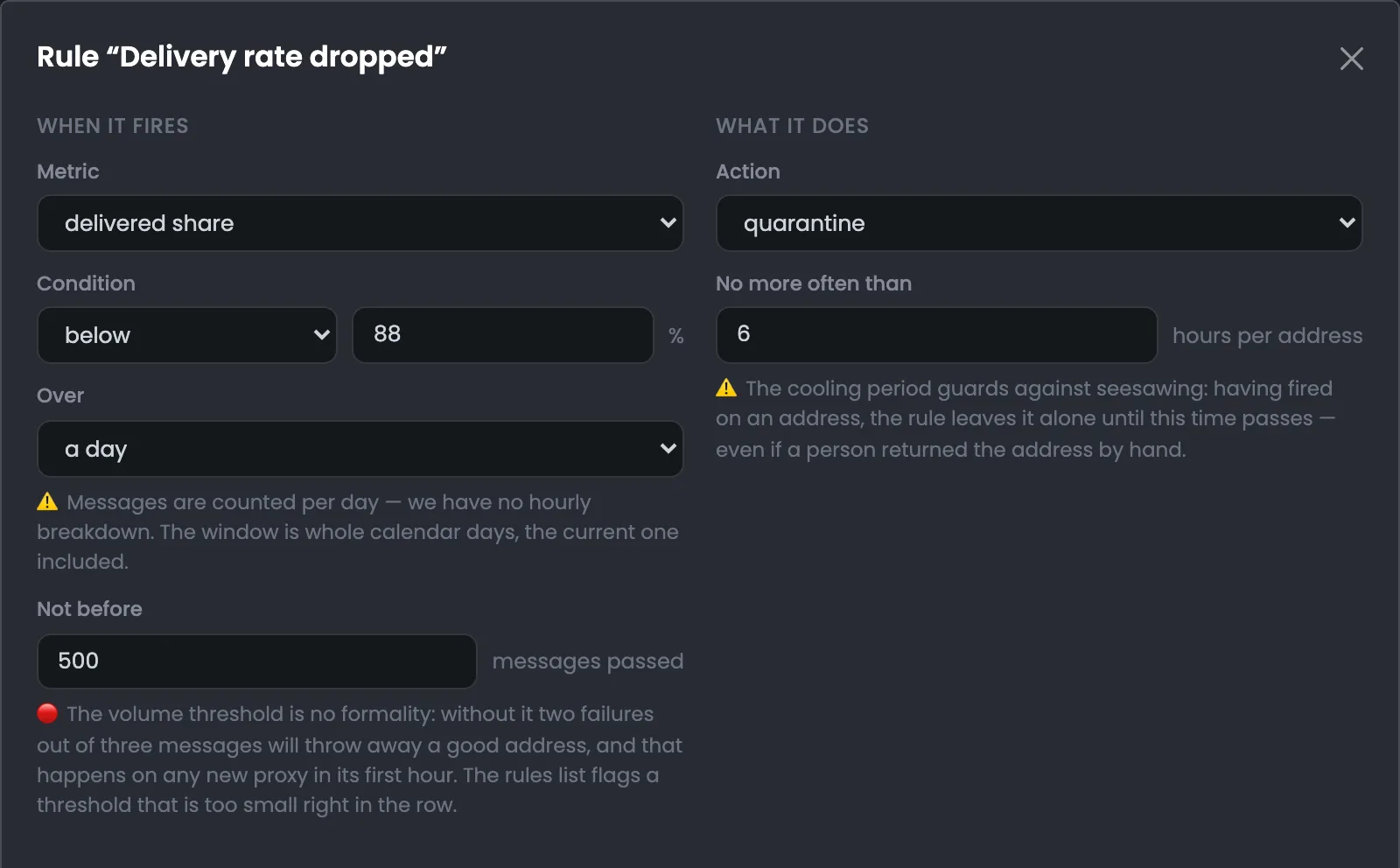
The dialog of the “Delivery rate dropped” rule of the “Ramping up new addresses” pool — this is where you set when a proxy is pulled automatically. On the left — when the rule fires: delivered share below 88% over a day, but not before 500 messages have gone out. On the right — what it does: sends the address to quarantine, no more than once every 6 hours per address. Hints under the fields explain how messages are counted, why the threshold is needed and how cooling works. The rule list flags a message threshold that’s too low right in the row. Before saving changes, you run the rule with the “Test against history” button — the result is shown on the next screen.
EnlargeScreen 04 · Rule dialog. An example from the MTA-Hub interface.
Metric and condition — delivered share below 88%.
Over the period — a day; messages are counted by day — there’s no hourly breakdown.
Not before — 500 messages: without a threshold, two failures out of three messages would throw out a good address.
Action — to quarantine.
No more often than — once every 6 hours per address — cooling protects against seesawing.
Name and pool — “Delivery rate dropped” for “Ramping up new addresses”.
Test against history — calculates the rule on current data without saving anything.
The rule list flags a message threshold that’s too low right in the row.
05
Test against history
Which addresses it would fire on
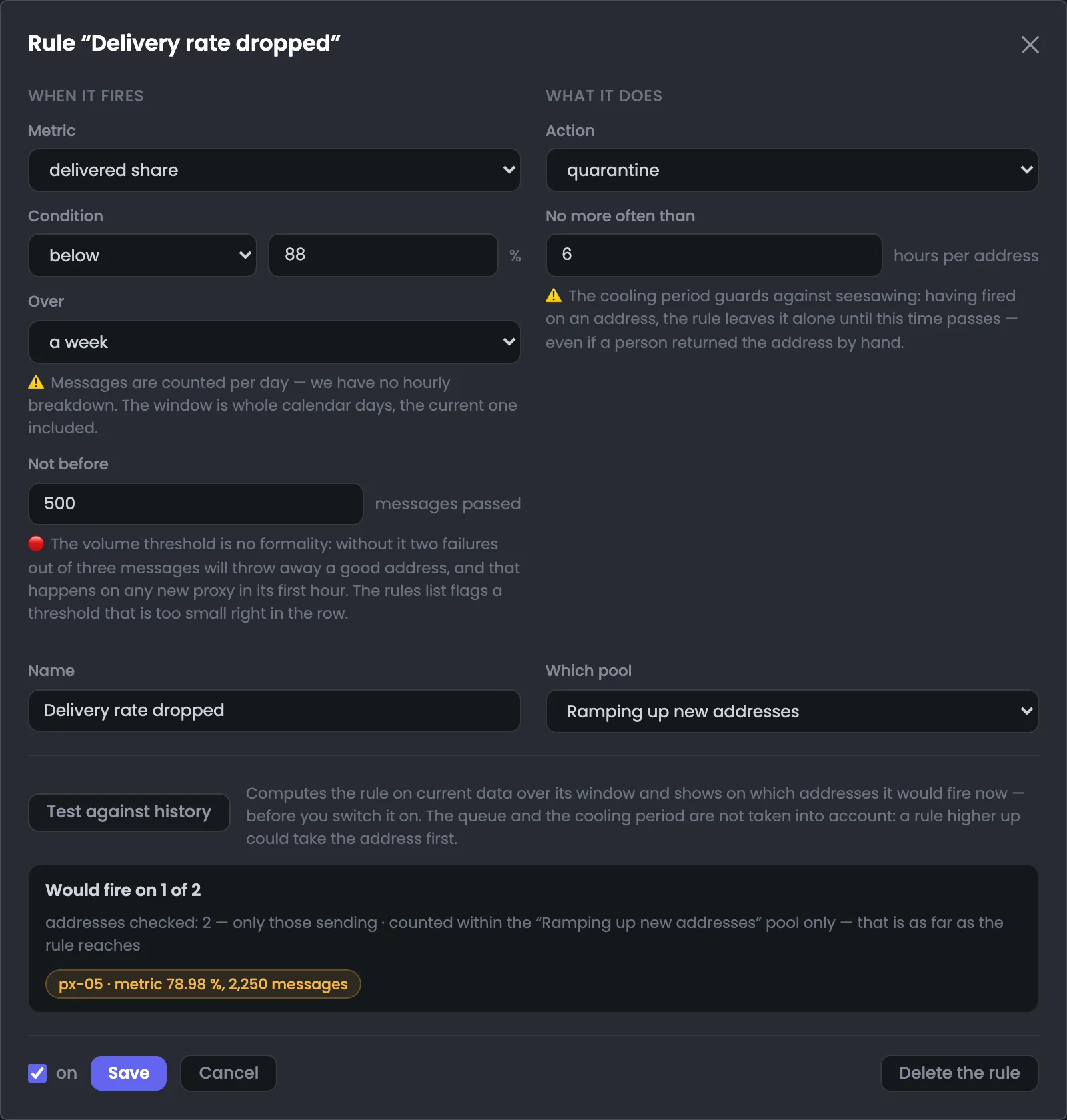
The same rule, but with the period set to “a week” and after clicking “Test against history”. The test lets you see the consequences of a change before the rule starts pulling addresses. An answer appeared under the form: the rule would fire on one address of two — px-05, which has 78.98% delivered of 2,250 messages. It also shows why the current rule leaves it alone: over a day px-05 doesn’t reach 500 messages. The “Save” button wasn’t clicked. The test doesn’t take the order or cooling into account: a rule placed higher could have taken the address. If you’re happy with the result, save the rule; if not, change the threshold or period and test again.
EnlargeScreen 05 · Test against history. An example from the MTA-Hub interface.
Would fire on 1 of 2 — only sending addresses were checked, and only of the “Ramping up new addresses” pool.
px-05 — metric 78.98%, messages 2,250.
Why it doesn’t fire now — over a day px-05 doesn’t reach 500 messages, and the current rule leaves it alone.
The test doesn’t take the order or cooling into account: a rule placed higher could have taken the address.
06
New rule
A strong action — deliberately
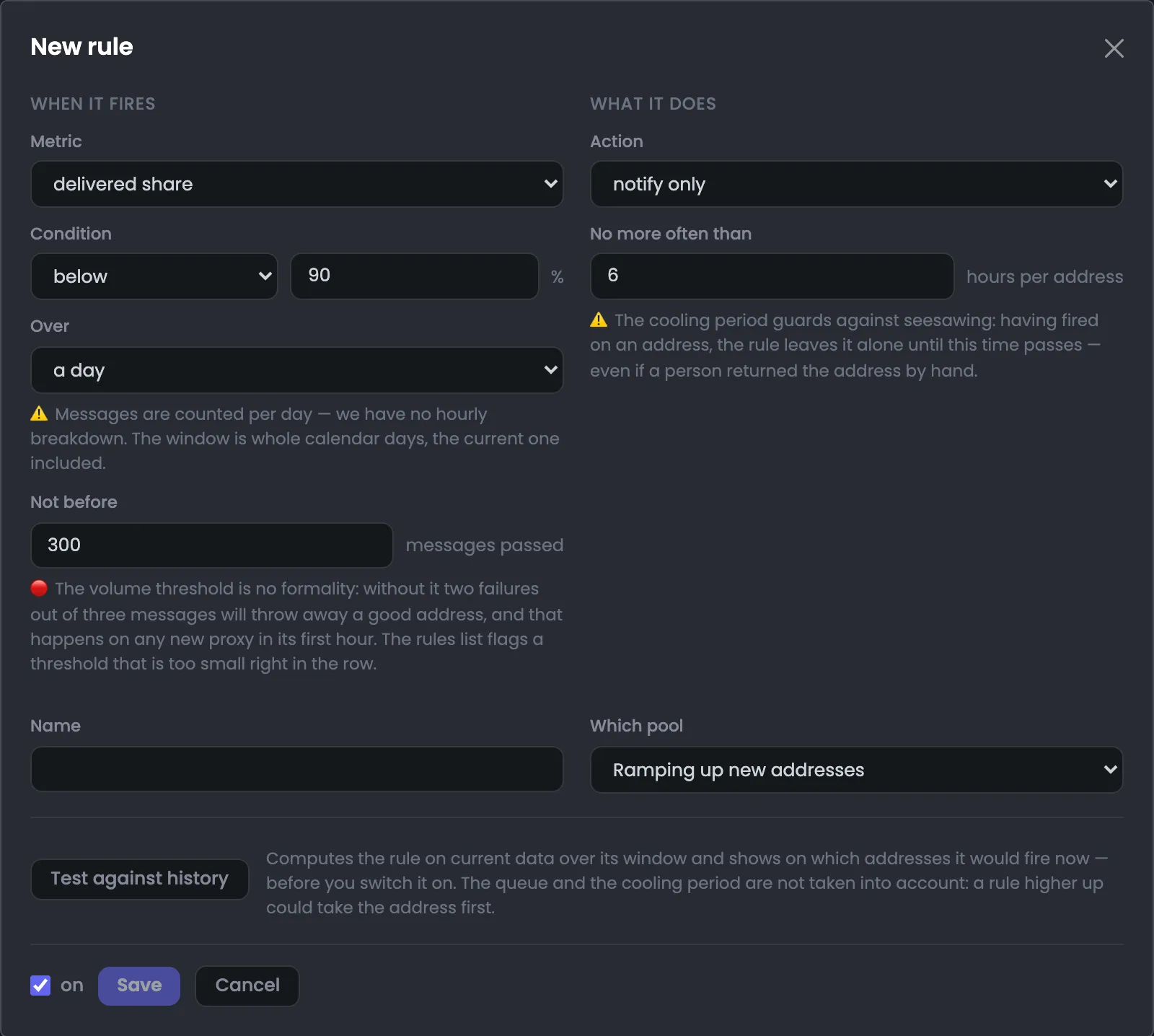
The “Add a rule” dialog — this is what a new rule looks like before any edits. By default: delivered share below 90% over a day at 300 messages, no more than once every 6 hours per address. The default action is “notify only”: a new rule pulls nothing until you choose a strong action yourself. The pool is filled in from the selection at the top of the page, and you set the name. Before saving, it’s worth running the rule with the “Test against history” button. On the left — when the rule fires, on the right — what it does, just like in the dialog of an existing rule. Hints under the fields remind you about the volume threshold and the cooling period.
EnlargeScreen 06 · New rule. An example from the MTA-Hub interface.
Metric and threshold — delivered share below 90%, over a day, from 300 messages.
Action — notify only.
No more often than — once every 6 hours per address.
For which pool — filled in from the selection at the top of the page.
The “Name” field is empty — you set it yourself.
06 / Questions about rules
Common questions about proxy rules.
In short: how the Hub picks a rule, why it needs a threshold, and what happens after a rule fires.
On the left — when the rule fires, on the right — what it does. Hints under the fields explain the threshold and cooling.
Why does only one rule fire?
The Hub checks the rules from top to bottom and runs the first matching one. Pool rules come before common ones, and you change the order within a pool with the arrows in the row.
How are the Hub’s rules different from the MTA’s reaction?
The MTA pulls an address within seconds based on the answer to a single message and lets it back on a timer. The rules look at messages over a period every hour and decide what to do with the address next.
Why a threshold on the number of messages?
Without one, two failures out of three messages would throw out a good address — and that happens on any new proxy in its first hour. The share is only counted once enough messages have gone out.
What is cooling?
After firing, the rule leaves the same address alone for a while, for example 6 hours. This protects against seesawing — even if a person brought the address back by hand.
Can I retire an address over hard bounces?
Better not: the MTA puts both “we were not let in” and “no such mailbox” into them. If you need a rule on them, set a high threshold on the number of messages.
What does “Apply to the pool” do?
It rewrites the rules that came from presets and keeps your own. The confirmation dialog says so plainly.
Does the Hub change the sending speed?
No. That’s why the action is called “Mark: metrics slipped”, not “slow down” — and the form says so.
Where can I see that a rule fired?
In the rule’s row, on the proxy’s card and in the module’s log. You can see that the decision was made by the system, not by a person.
07 / Next step
Check the proxy gateways on your servers.
Rules decide what to do with an address. The mail itself is routed through the proxies by the gate — a service on the sending server — and its status is the next thing worth checking.
Where the rules apply is set in pools, and the whole route — from the MTA through the gate to the recipient — is shown in the module overview.