Normal
Ramp-up completeThe bank's transactional addresses 203.0.113.121 and 203.0.113.122 — 5–6 thousand messages a day each, 99.2–99.4% delivery, score 97 each, “ready”.
AAddress
sending
203.0.113.122Score 97
99.2% delivery“ready”

IP address reputation, blacklists and PTR
Mailbox providers judge the reputation of each address separately: one bad address drags down your overall deliverability and has to be fixed on its own — so you need to see it on its own too.
Every sending address for the period — next to its server, warm-up stage, reverse DNS and blacklists.
01 / Address states
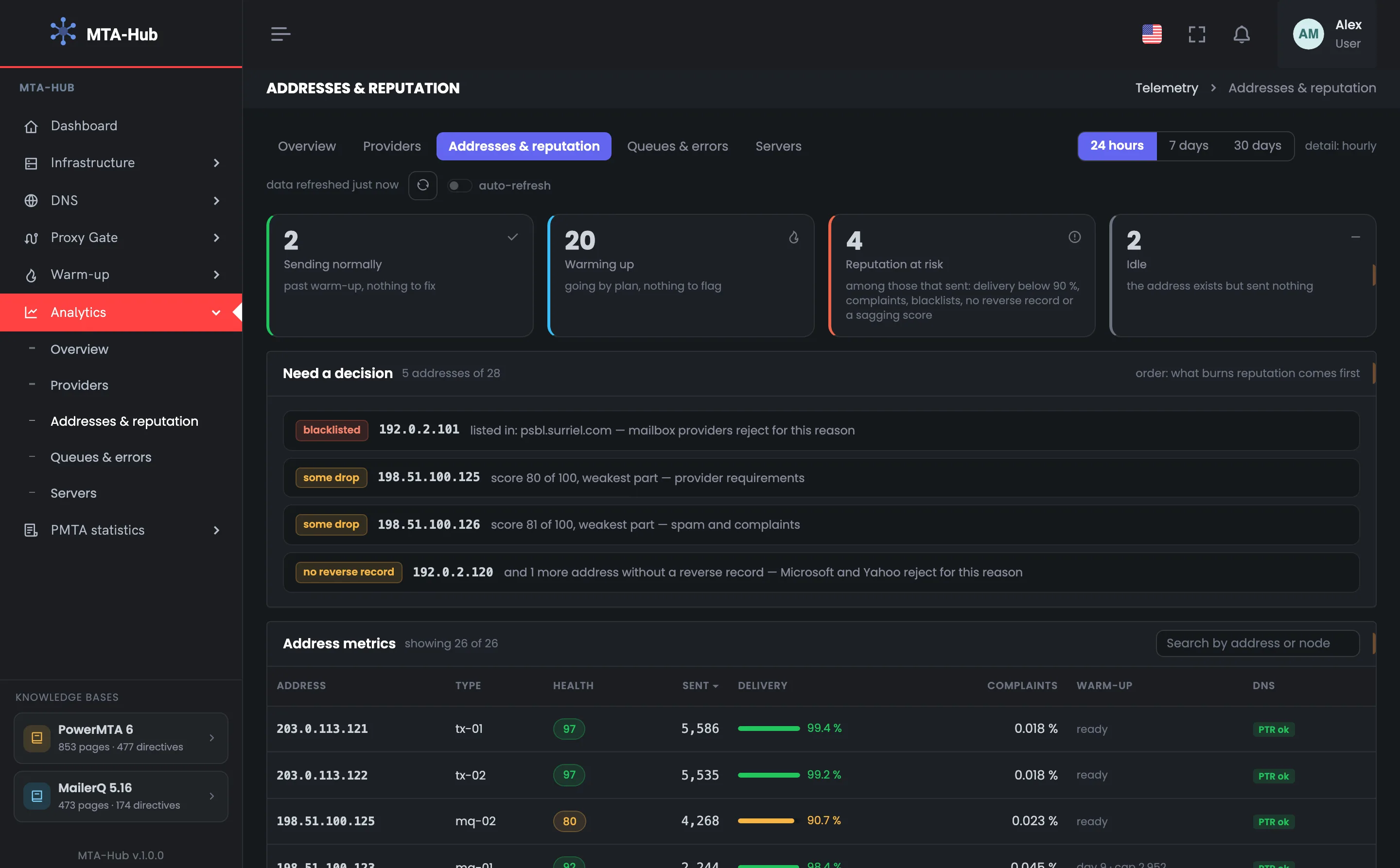
Every sending IP address is in exactly one state: “Sending normally”, “Warming up”, “Reputation at risk” or “Idle”. A problem outranks the warm-up stage: an address that's warming up but has no reverse DNS counts as “at risk”. A state tile works as a filter for the table.
Clicking a tile leaves only the addresses in that state in the table
The bank's transactional addresses 203.0.113.121 and 203.0.113.122 — 5–6 thousand messages a day each, 99.2–99.4% delivery, score 97 each, “ready”.
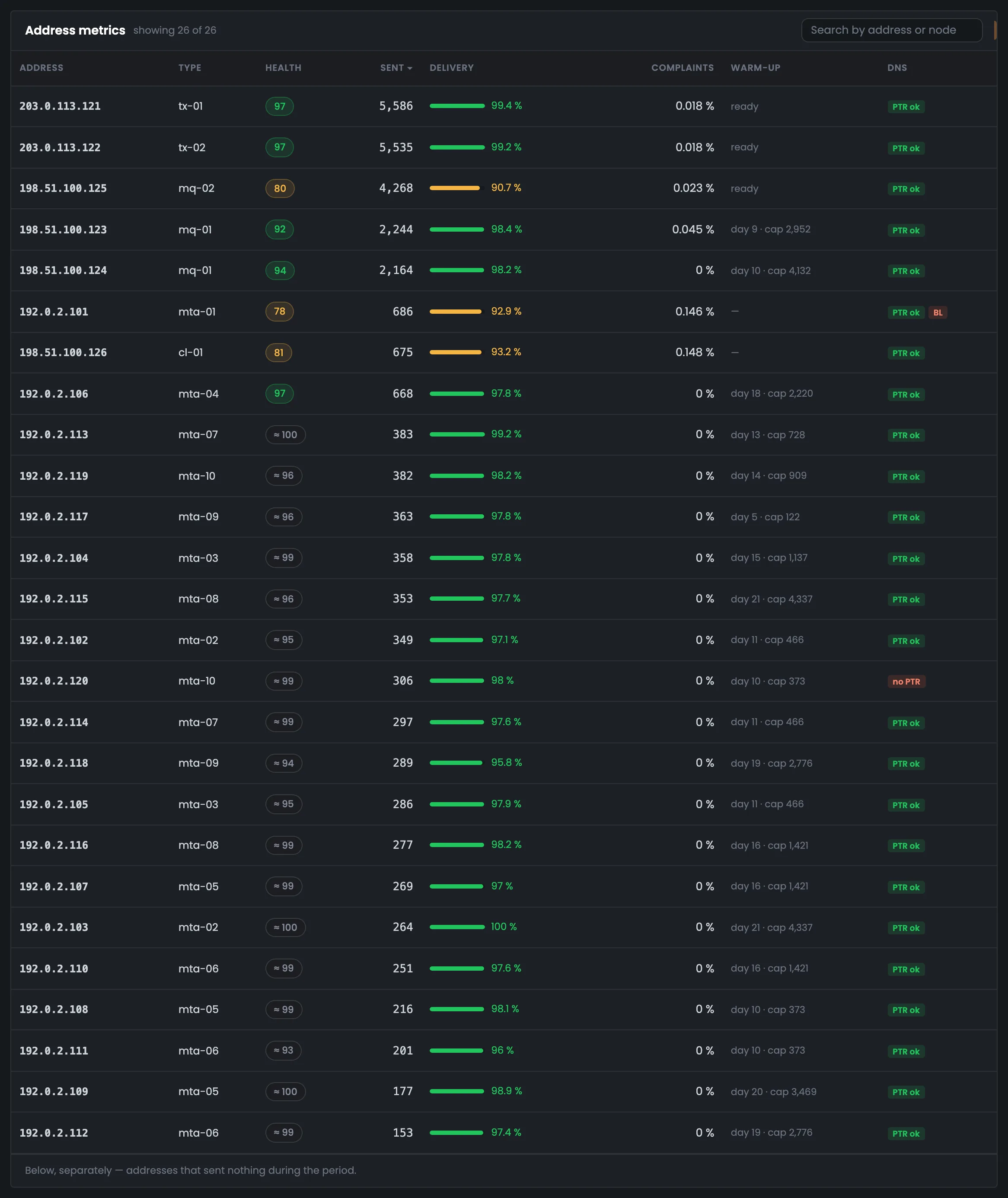
The label “day 9 · cap 2,952” explains why an address sends little. Marketing addresses in warm-up send 153–686 messages each, and that's the plan, not a problem.
02 / Reputation score
The Hub takes spam bounces, complaints and mailbox provider policy bounces from the event log of that particular address. So an IP address's reputation score drops only for the address that providers are rejecting. When Microsoft rejects one address, its score drops, and the other addresses don't suffer.
The mq-02 address that Microsoft rejects: 4,268 messages a day, 90.7% delivery, worst of all — mailbox provider policy bounces.
On a few hundred messages, one spam bounce is already 0.3%. While an address has fewer than 500 messages, its score is gray with a “≈” sign, and the score alone doesn't put the address “at risk”.
03 / Addresses with problems
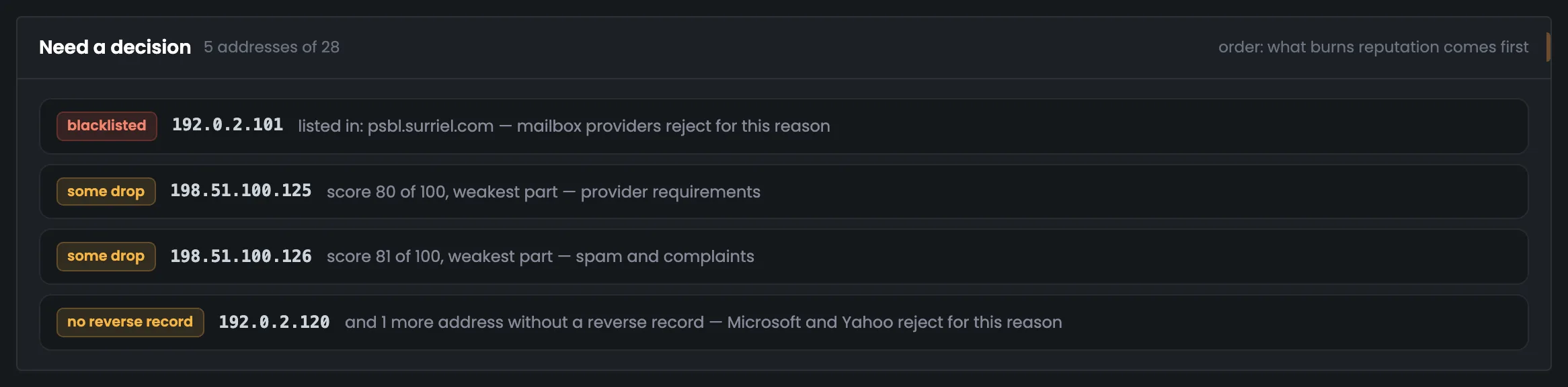
The list includes addresses on blacklists, with a dropped score, delivery below 90%, complaints from 0.3% or no reverse DNS (PTR). What hurts reputation most comes first. The numbers in the rows are the ones that put the address on the list.
In PSBL — mailbox providers reject it for this reason.
Score 80 — this is the address Microsoft rejects.
The cleanup server cl-01: score 81, complaints 0.148%.
Addresses without PTR are grouped in one row.
04 / Idle addresses
Addresses that are set up but sent nothing during the period are gathered in a separate block — with reverse DNS and a blacklist check. That way they don't get lost among the working addresses. You either get them ready for work or retire them, so you don't pay your hosting provider for idle capacity.
Address 203.0.113.141 on the lab server has its reverse DNS in place and isn't on any blacklists.
Address 192.0.2.131 on the new server has no reverse DNS — don't put the address into rotation until it's set up.
Getting ready for work means reverse DNS, a DKIM signing key and warm-up. If any of the idle addresses is already on a blacklist, the summary says so too.
05 / The interface in detail
Four states, addresses that need a decision, the address table, the “at risk” filter and idle addresses. Above each screenshot: why the screen matters. Below it: what it shows.
The tab starts with a summary: how many IP addresses are in each state — normal, warming up, at risk or idle. Below are the addresses that need a decision, the most dangerous for reputation first. These two screens answer whether there are any addresses hurting your deliverability right now.
A summary of all sending IP addresses: how many are in each state. In the example, of 28 addresses two are sending normally — the bank's transactional addresses whose ramp-up is complete — twenty are following a warm-up plan, four are at risk and two sent nothing during the day. The key number here is “Reputation at risk”: clicking that tile leaves only the problem addresses in the table. The other tiles work the same way. The summary is your starting point: an address that's warming up but has no reverse DNS lands in “at risk”, because a problem outranks the warm-up stage. Next comes the “Need a decision” block with the reason for each such address.
 Enlarge
A problem outranks the warm-up stage: an address in warm-up without PTR is “at risk”.
The “Need a decision” block lists addresses you need to act on, with what hurts reputation most first. In the example that's five addresses out of 28: 192.0.2.101 is on the PSBL blacklist, 198.51.100.125 (mq-02) has a score of 80 because of Microsoft bounces, 198.51.100.126 (cl-01) has 81 because of complaints, and two addresses have no reverse DNS. The numbers in the rows explain why an address made the list. Work through the rows from top to bottom. For example, 198.51.100.125 is the very address Microsoft rejects: a breakdown of its bounces with the reply code is on the “Providers” tab. Reverse DNS is set up in the DNS section.
 Enlarge
The numbers in the rows are the ones that put the address on the list.
Next — all addresses that sent mail during the period: score, delivery, warm-up stage, reverse DNS and a blacklist mark. You can sort the table and search by address or server. The tile above the table works as a filter — for example, it leaves only the addresses at risk.
A table of metrics for every address that sent mail during the period — 26 addresses in a day in the example. For each one you see the server, volume, delivery, reputation score, warm-up stage and a “DNS” column with reverse DNS and a “BL” mark. So the transactional addresses with 99.2–99.4% delivery sit right next to 198.51.100.125 with 90.7%. A gray score with a “≈” sign means there are fewer than 500 messages and it's too early to draw conclusions. Sort by score to bring the weak addresses to the top. Sorting by address goes by the address numbers in order, so addresses from the same subnet sit together. Addresses in warm-up show the plan day and the daily cap: their low volume is planned.
 Enlarge
You can sort by address, server, score, volume and delivery, and search by address or server.
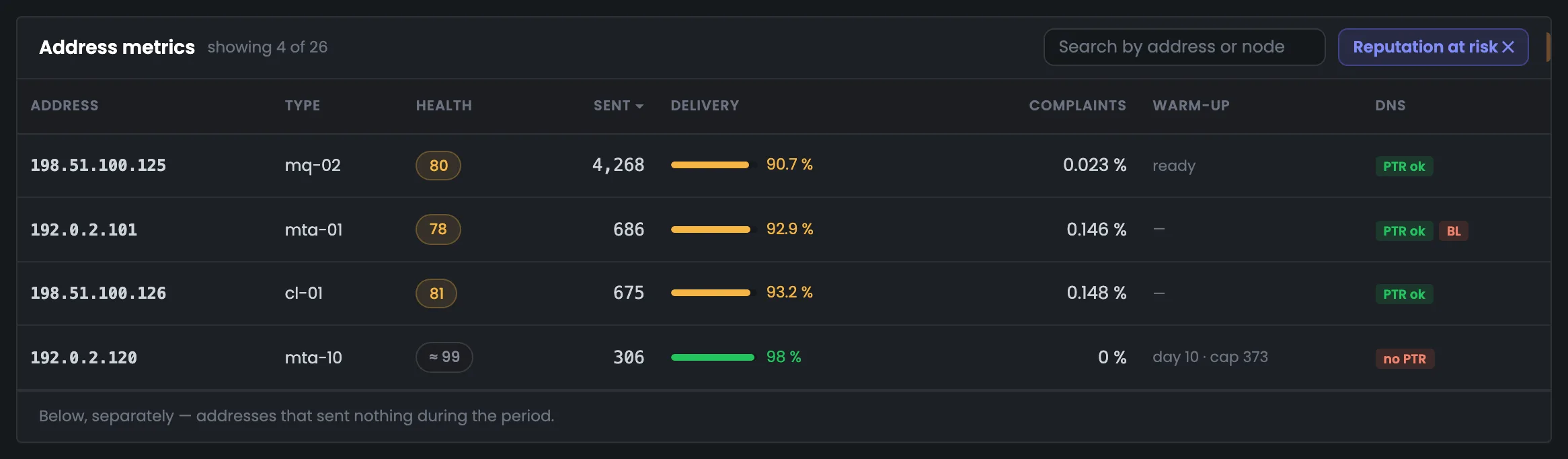
The table after clicking the “Reputation at risk” tile: only the four problem addresses are left. The filter is handy when you have many addresses but only need to deal with the bad ones. Each shows its own problem: mq-02 has a score of 80 and 90.7% delivery, mta-01 has the “BL” mark — the address is on a blacklist, cl-01 has a score of 81 and 0.148% complaints, mta-10 shows “no PTR”. A button above the table clears the filter and brings back all addresses. It's handy to turn the filter on after a fix — for example, after setting up reverse DNS — to make sure the address has left “at risk”. The other three tiles work the same way.
 Enlarge
The button above the table clears the filter.
In a block of their own — silent addresses: set up, but sent nothing during the period. Reverse DNS and blacklists are shown for them too. Based on this data you decide whether to get an address ready for work or retire it. The list opens with the “expand list” button.
A collapsed summary of silent addresses — the ones that are set up but sent nothing during the period. It's there so such addresses don't get lost or sit around unused. In the example the summary says “2 addresses are set up but silent”, and warns right away that one of them has no reverse DNS and shouldn't go into rotation until it's set up. If any of the idle addresses is already on a blacklist, the summary says so too. The “expand list” button shows these addresses one by one. Such addresses are easy to forget: the server is paid for, but there's no sending. The expanded list on the next screen shows which of them you can already get ready for work.
 Enlarge
If any of the idle addresses is on a blacklist, the summary says so too.
The expanded block of silent addresses: each address on its own row, with its server, reverse DNS and blacklists. In the example 203.0.113.141 on the lab server lab-01 has its reverse DNS in place and isn't on any blacklists, while 192.0.2.131 on the new server mta-11 has no reverse DNS. These rows help you decide the address's fate: get it ready for work — reverse DNS, a DKIM signing key, warm-up — or retire it so you don't pay for idle capacity. In the example lab-01 can be prepared for work right away, while mta-11 needs reverse DNS first — until then the address shouldn't go into rotation.
 Enlarge
Such addresses are either prepared for work or retired.
06 / Questions about addresses
In short: how an address's score is calculated and when you can trust it.
Mailbox providers judge each sending address separately, and one bad address drags down your overall deliverability.
Spam bounces, complaints and mailbox provider policy bounces of that particular address — from the event log.
The address has fewer than 500 messages in the period: the number is the same, but it's too early to trust it.
A blacklist, a dropped score, delivery below 90%, complaints from 0.3% or no reverse DNS.
That's by design: the label “day 9 · cap 2,952” shows the stage of the plan.
Get it ready for work — reverse DNS, a DKIM signing key, warm-up — or retire it so you don't pay for idle capacity.
Only addresses of connected servers and proxies. Retired addresses and ones unknown to the Hub aren't shown — a caption says how many there are.
From the Hub's own data: server or proxy, reverse DNS, warm-up plan stage, blacklist checks.
07 / Next step
An address lives on a server, and the server can have its own problems: disk, CPU, MTA reports. That's on the “Servers” tab.
Reverse DNS and DKIM signing keys are set up in the DNS section.